
Vappman
Visual (curses) interface to AppMan (AppImage Manager)
Install / Use
/learn @joedefen/VappmanREADME
vappman
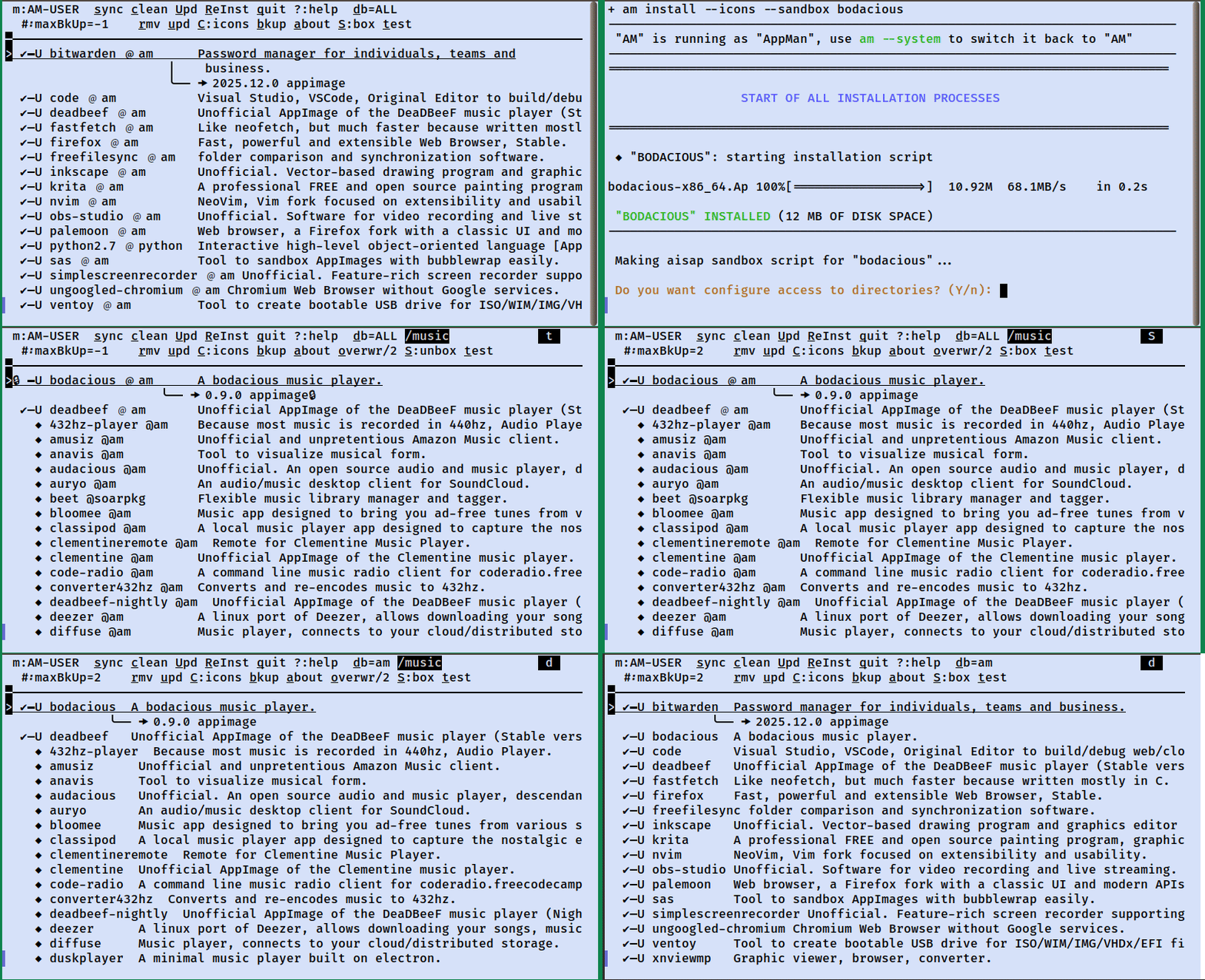
vappman presents a "visual" (or TUI) interface to appman/am.
Why use vappman? Browse 2000+ apps interactively with mouse/keyboard, filter by keywords or regex to rapidly find apps, and see installed vs. available at a glance. CLI option memorization is not required because context-sensitive keys guide you through the life cycle of your AppImages including installing, updating, and removing.
Prerequisites
- Install ivan-hc/AppMan: AppImage package manager to install, update (for real) and manage ALL of them and all of its prerequisites.
- Note: to make it easier,
vappmanoffers to installamorappmanand their required dependencies if missing on startup.
Installation
- Install
vappmanusingpipx install vappman(recommended) - Run first time:
vappman --prereq --doctor(check if system is ready) - Run normally:
vappman
Key Features (Added in V2)
- Dual Mode Support: Works with both
am(system-wide) andappman(user-local). The (m) m-key toggles user (local install) and system (non-local install) modes when usingam. - Multi-Database Support: Access all of
am's app databases including:am- Main AppImage database with 2000+ portable Linux applicationsbusybox- Minimal Unix utilities as binariesappbundle- AppBundle format packages (portable application bundles)python- Python interpreters (multiple versions available as AppImages)soarpkg- Soar User Repository packages (portable, distro-independent binaries)ALL- Combined view of all databases for comprehensive app browsing
- Smart Backup Management:
- Reports the number of backups when offering to restore (a.k.a., overwrite) installed apps
- Automatically clean up superfluous backups with configurable retention (2, 1, or unlimited)
- Flexible Install Options:
--icons- Use system icon themes instead of bundled icons--sandbox- Run AppImage in sandboxed environment for security- Mix and match options per app
- Incremental Search: Type-as-you-go filtering with instant feedback showing match effectiveness
- Enhanced Display: For selected apps, shows full synopsis (if multi-line), current version, and app type
- Persistent Preferences: Remembers your settings between sessions:
- Default install options (--icons, --sandbox)
- Preferred database selection
- Maximum backups per application
- Generally faster Although the number of offered apps has more than doubled with 3rd party database, the startup is faster (after the first time). The previous app list is used initially and then updated in the background.
- AppImage Compatibility Checking: Automatic system checks for common AppImage issues (libfuse2, user namespaces, etc.) with distro-specific fix suggestions
Supported am/appman Operations
vappman covers many capabilities of am/appman:
- (-f) files (or show installed), (-l) list available apps, and (-q) search the app list
- (-i) installing uninstalled apps
- (-r) removing installed apps
- (-b) backup / (-o) overwrite of installed apps
- (-a) about (i.e., more info) for all apps
- (-c) clean to remove unneeded files and directories
- (-u) update installed apps; and
vappmanoffers:Uto update all installed appsRto reinstall all apps with altered install scripts since last install
Not covered (use am/appman directly for these):
- (-d) download install script
- (-h) help or full help for appman
- (-H) home or set $HOME directory for apps
- (-t) template for custom install template
- (-v) version of appman
- --force-latest to get the most recent stable release AND all other options and unmentioned commands.
Usage
Run vappman from the command line. You will see a screen similar to this:
 m:AM-SYSTEM  [s]ync [c]lean [U]pd [R]eInst [q]uit ?:help  [d]b=ALL
  #:maxBkUp=1    [r]mv [u]pd C:icons [b]kup [a]bout S:unbox [t]est
─────────────────────────────────────────────────────────────────────────────────
>🔒─U onlyoffice ﹫am     Office Suite with full support for MS Windows formats
                     │    and cloud.
                     ╰── 🠞 9.2.0 appimage🔒
  ✔─U sas ﹫am            Tool to sandbox AppImages with bubblewrap easily.
  ✔─U signal ﹫am         Unofficial AppImage package for Signal (communication).
  ✔─U simplescreenrecorder ﹫am Unofficial. Feature-rich screen recorder supporti
  ✔─U ventoy ﹫am         Tool to create bootable USB drive for ISO/WIM/IMG/VHDx/
  ✔─U xnviewmp ﹫am       Graphic viewer, browser, converter.
  ✔─U zoom ﹫am           Unofficial. Video Conferencing and Web Conferencing Ser
    ◆ 0ad-prerelease @am  Unofficial. FOSS historical Real Time Strategy, RTS gam
    ◆ 0ad @am             Unofficial. FOSS historical Real Time Strategy, RTS gam
    ◆ 2ship @am           2 Ship 2 Harkinian game.
    ◆ 2to3 @soarpkg       Python2 to Python3 converter [python3].
Display Symbols Legend:
✔- Installed app (not sandboxed)🔒- Installed app (sandboxed)◆- Uninstalled/available appS- Installed system-wide (requires root)U- Installed in user space (local)﹫- Database indicator (in multi-database view)>- Currently selected app
Global Keys (Top Line)
m- Switch mode if usingam, toggling between SYSTEM and USER modes- Sync (update appman itself)c- Clean up (remove unnecessary files and folders)U- Update ALL installed appsR- Reinstall ALL apps with changed installation scripts (amdatabase only)qorx- Quitvappman?- Show help screen with all keys including navigation keysd- Cycle through app database choices;ALLshows all databases in a combined view/- Start incremental search filter for appsESC- Clear filter and jump to top of listing_- Toggle fancy header mode (Underline/Reverse/Off)*- Toggle demo mode#- Change number of backups to keep (2, 1, or -1 for infinite)
Navigation Keys
Press ? to see full navigation help. Common keys include:
- Arrow keys, Page Up/Down, Home/End - Navigate the app list
- Mouse wheel - Scroll through apps
- Vi-like keys:
j/k(down/up),g/G(top/bottom),Ctrl-f/Ctrl-b(page down/up) ENTER- Context-sensitive action:- On uninstalled app: Install it
- On installed app: Uninstall it
- In help screen: Return to main menu
Search/Filter Syntax
Press / to start filtering. The filter supports two modes:
Plain Word Matching (default for simple text):
- Words must match the start of words in the app line (in order, but not contiguously)
- Example:
/bit fightmatchesbitfighter - Example:
/term editmatches "terminal editor"
Regular Expression Mode (detected automatically):
- Use Python regex syntax for advanced patterns
^- Match line starting with app name\b- Match word boundary- Example:
/^vim- Apps starting with "vim" - Example:
/\bweb\b- Apps with whole word "web"
Filter Controls:
ENTER- Accept filter and return to browsingESC- Cancel filter edit (restores previous filter)- Typing updates results in real-time
App-Specific Keys (Second Line)
For UNINSTALLED apps:
iorENTER- Install the appO- Cycle through install options:- `` (none) - Default install
icons- Use system icon themessandbox- Run in sandboxed environmenticons,sandbox- Both options
- Note: If an app with the same name is installed from another database, you'll see a conflict warning instead of install keys
For INSTALLED apps:
rorENTER- Remove the appu- Update this appC- Change AppImage to use system iconsa- Show "about" information fromam/appmanS- Toggle sandbox mode (box/unbox)b- Backup the appo- Overwrite app from its backup (shows count of available backups)t- Test the app by running it in a terminal
App List Display
The main screen shows installed apps first (marked with ✔ or 🔒), followed by available/uninstalled apps (marked with ◆).
When you install or remove an app, vappman temporarily exits the TUI, runs the am/appman command so you can see the result, then prompts you to press ENTER to return.
Testing Apps
Use t to test an installed app. This launches a terminal emulator and runs the app so you can see any console output or errors. Useful for go/no-go check after installation.
Supported terminal emulators (searched in this order):
konsole, gnome-terminal, xfce4-terminal, lxterminal, alacritty, guake, tilix, sakura, terminator, kitty
Checking AppImage Compatibility
vappman automatically checks your system for common AppImage compatibility issues on startup. If critical issues are found, it displays them before launching the TUI and pauses for 3 seconds so you can read the warnings. You'll see something like:
AppImage compatibility check:
  ✓ libfuse2: OK
  ✓ user namespaces: OK
  ✓ /tmp noexec: OK
  ✓ AppArmor: OK
Run Detailed Check
Run vappman --doctor for these checks:
- libfuse2 - Required library for most AppImages (critical)
- Ubuntu 22.04+ doesn't include this by default
- Fix:
sudo apt install libfuse2(Ubuntu/Debian)
- User namespaces - Needed for sandboxed AppImages (warning)
- Sometimes disabled for security on Ubuntu-based systems
- Fix:
sudo sysctl -w kernel.unprivileged_userns_clone=1
- /tmp noexec - Prevents AppImages from executing (critical)
- Some systems mount /tmp with noexec flag
- Fix:
sudo mount -o remount,exec /tmpor setTMPDIR=$HOME/tmp
- AppArmor - May block some AppImages (info, Ubuntu/Debian)
- Active AppArmor profiles can restrict AppImage execution
- Check log
Related Skills
node-connect
338.7kDiagnose OpenClaw node connection and pairing failures for Android, iOS, and macOS companion apps
frontend-design
83.6kCreate distinctive, production-grade frontend interfaces with high design quality. Use this skill when the user asks to build web components, pages, or applications. Generates creative, polished code that avoids generic AI aesthetics.
openai-whisper-api
338.7kTranscribe audio via OpenAI Audio Transcriptions API (Whisper).
commit-push-pr
83.6kCommit, push, and open a PR
