
Wperf
A simple HTTP load testing utility with detailed performance metrics.
Install / Use
/learn @jhuckaby/WperfREADME
Overview
WebPerf (wperf) is a simple command-line HTTP load tester utility, which can send repeated HTTP requests to a target URL or set of URLs. It provides detailed performance metrics, including a breakdown of all the HTTP request phases, and a histogram showing the elapsed time spread.
This is similar to the popular ApacheBench (ab) tool, but provides additional features like dynamic URL substitution, progress display with time remaining and live req/sec, a more detailed performance breakdown, and the ability to save configurations in JSON files.
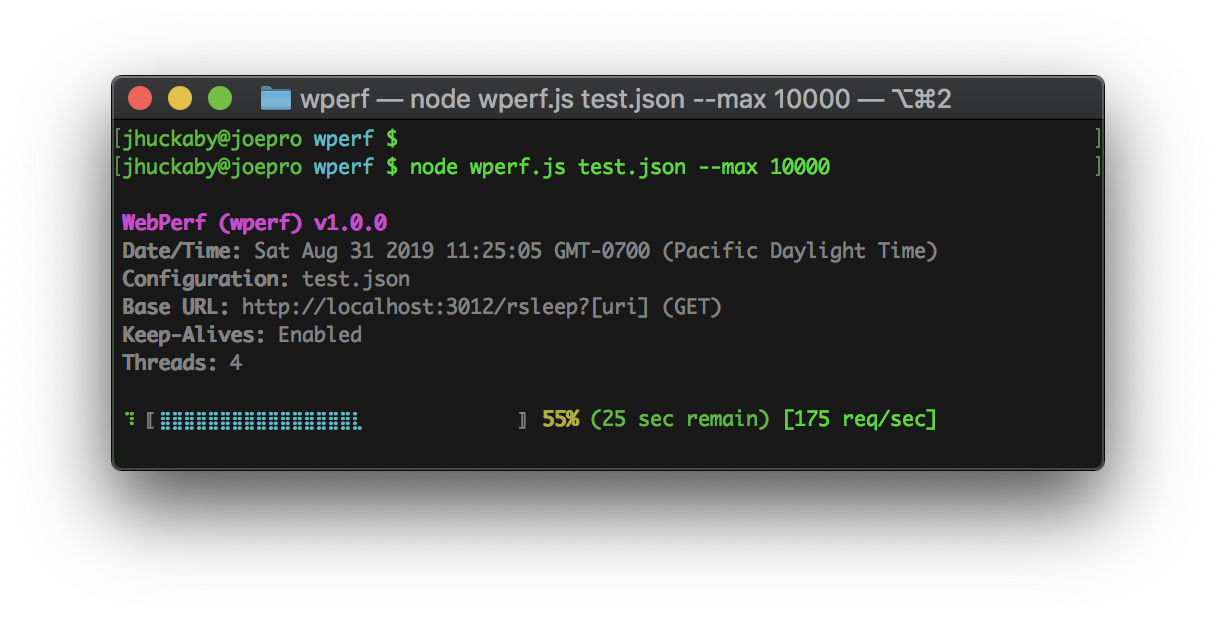
During a run, the script will display a graphical progress bar with estimated time remaining, and the current requests per second. You can also hit Ctrl+Z to output an in-progress report, and of course Ctrl+C to abort a run, which will render one final report before exiting.
Progress Display
Completed Output
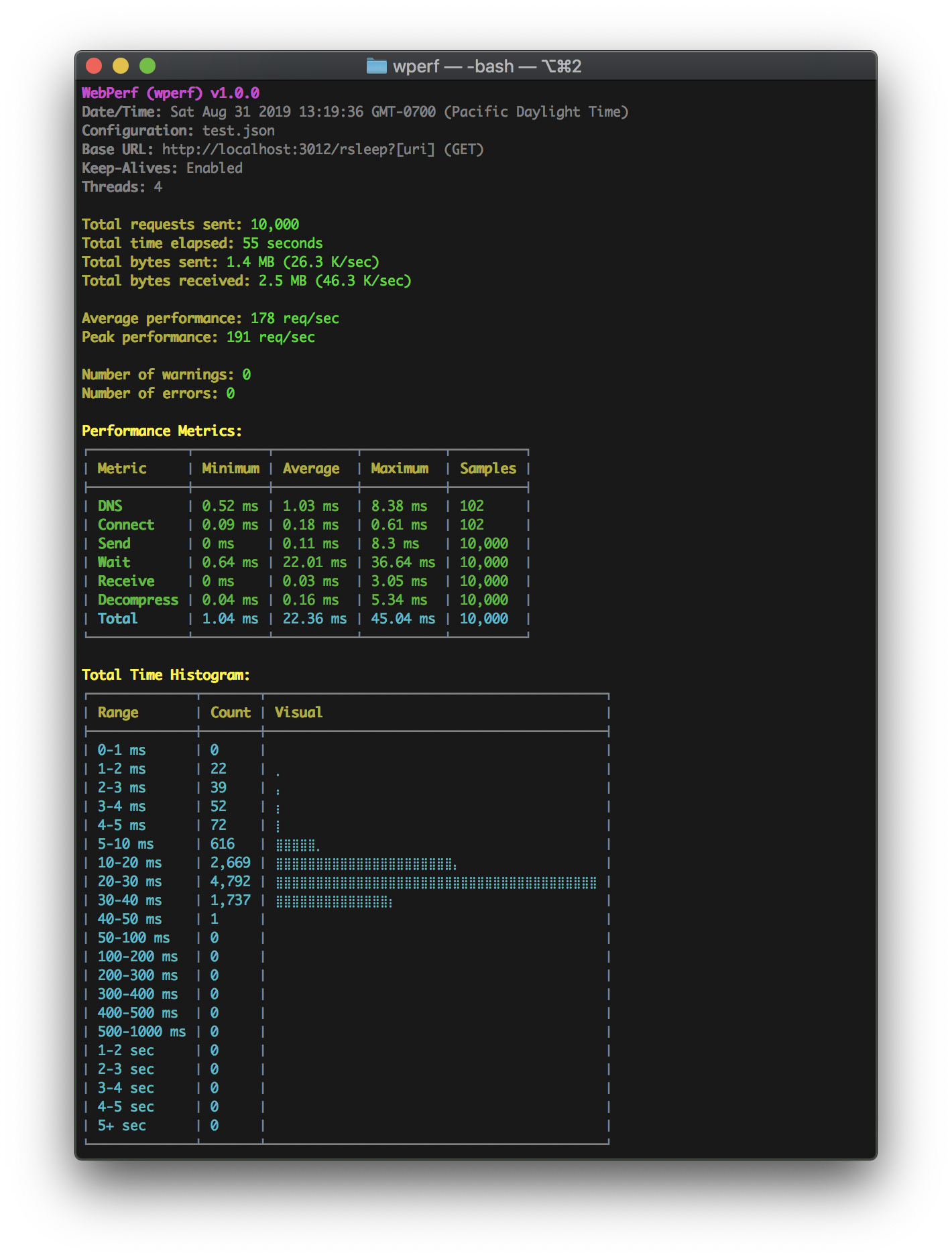
Notes:
- The "Samples" numbers may differ between metrics for things like Keep-Alives, which will reuse sockets and therefore require fewer DNS lookups and TCP connects.
- The "Decompress" metric is only applicable for encoded (compressed) server responses (i.e. Gzip, Deflate).
- The "Peak Performance" is the best performing second, which is only shown if the total time covered a full second.
- A "warning" is a request that took longer than a specified duration (default is 1 second).
- An "error is a bad HTTP response (outside of the 2xx or 3xx range) or DNS lookup / TCP connect failure.
Usage
Use npm to install the module as a command-line executable:
npm install -g wperf
Then call it using wperf and specify your URL and options on the command-line:
wperf URL [--OPTION1 --OPTION2 ...]
Example command:
wperf https://myserver.com/some/path --max 100 --threads 2 --keepalive
This would send an HTTP GET request to the specified URL 100 times using 2 threads, and utilizing HTTP Keep-Alives (i.e. reuse sockets for subsequent requests, if the target server supports it).
Alternatively, you can store all your configuration settings in a JSON file, and specify it as the first argument (see below for details on how to format the JSON file):
wperf my-load-test.json
You can also include command-line arguments after the configuration file which acts as overrides:
wperf my-load-test.json --verbose
Configuration Options
You can specify most configuration options on the command line (using the syntax --key value) or in a JSON configuration file as a top-level property. There are a few exceptions which are noted below.
url
Use the command-line --url or JSON url property to specify the URL to be requested. As a shortcut, the URL can be specified as the first argument to the command-line script, without the --url prefix. Example command-line:
wperf https://myserver.com/some/path
Example JSON configuration:
{
	"url": "https://myserver.com/some/path"
}
params
If you use a JSON configuration file, you can insert [placeholder] variables into your URL. These are expanded by looking in a params object in the JSON file, if provided. Further, each parameter may be an array of values, of which one is picked randomly per request. Example:
{
	"url": "https://myserver.com/some/path?food=[food]",
	"params": {
		"food": ["apple", "orange", "banana"]
	}
}
This would produce three different URLs, picked randomly for each request:
https://myserver.com/some/path?food=apple
https://myserver.com/some/path?food=orange
https://myserver.com/some/path?food=banana
You can nest parameters, meaning the values can themselves contain [placeholder] variables, which are further expanded until all are satisfied (up to 32 levels deep). Example of this:
{
	"url": "https://myserver.com[uri]",
	"params": {
		"uri": [
			"/some/path?&action=eat&food=[food]",
			"/some/other/path?&action=drink&beverage=[beverage]"
		],
		"food": ["apple", "orange", "banana"],
		"beverage": ["coke", "pepsi"]
	}
}
Here we have the full URI path substituted out as [uri], which may pick one of two values, one with a [food] and one with a [beverage] variable. This particular configuration would result in 5 total unique URLs.
If you just want to pick from a random list of URLs, simply set the url property to a string containing a single macro like [url], then list all your URLs like this:
{
	"url": "[url]",
	"params": {
		"url": [
			"http://server1.com/path/one",
			"http://server2.com/path/two",
			"http://server3.com/path/three"
		]
	}
}
If you simply want a random number on your URLs, you can use the [#-#] shortcut, which will pick a random integer within the specified range (inclusive). Example:
{
	"url": "https://myserver.com/some/path?&random=[0-99999]"
}
You can optionally store your parameters in their own JSON file. To use this feature, specify the file path using the --params command-line argument, or as a params string property in your configuration file. Example of the latter:
{
	"url": "https://myserver.com/some/path?food=[food]",
	"params": "my_params_file.json"
}
And then the contents of my_params_file.json would be:
{
	"food": ["apple", "orange", "banana"]
}
Here is an example of specifying the parameters file using the command line:
wperf https://myserver.com/some/path --params my_params_file.json
You can override individual parameters on the command line like this:
wperf https://myserver.com/some/path --food orange
Another use of this is to make the hostname portion of the URL configurable, but have the rest of the URL be hard-coded or based on parameters in the config file. Example:
{
	"url": "https://[host][uri]",
	"params": {
		"host": [
			"myserver.com"
		],
		"uri": [
			"/some/path?&action=eat&food=[food]",
			"/some/other/path?&action=drink&beverage=[beverage]"
		],
		"food": ["apple", "orange", "banana"],
		"beverage": ["coke", "pepsi"]
	}
}
Then you can customize just the hostname per test run like this:
wperf my-config-file.json --host myOTHERserver.com
max
The max parameter specifies the total number of HTTP requests to send (regardless of threads). You can specify this on the command-line or in a configuration file. The default is 1. Example:
wperf https://myserver.com/some/path --max 100
Example JSON configuration:
{
	"url": "https://myserver.com/some/path",
	"max": 100
}
threads
The threads parameter specifies the number of "threads" (i.e. concurrent HTTP requests) to send. You can specify this on the command-line or in a configuration file. The default is 1. Example:
wperf https://myserver.com/some/path --max 100 --threads 4
Example JSON configuration:
{
	"url": "https://myserver.com/some/path",
	"max": 100,
	"threads": 4
}
keepalive
The keepalive parameter, when present on the command-line or set to true in your JSON configuration, enables HTTP Keep-Alives for all requests. This means that sockets will be reused whenever possible (if the target server supports it and doesn't close the socket itself). The default behavior is to disable Keep-Alives, and open a new socket for every request. Example use:
wperf https://myserver.com/some/path --max 100 --keepalive
Example JSON configuration:
{
	"url": "https://myserver.com/some/path",
	"max": 100,
	"keepalive": true
}
Of course, Keep-Alives only take effect if you send more than one request.
throttle
The throttle parameter allows you to set a maximum requests per second limit, which the script will always stay under, regardless of the number of threads. You can specify this on the command-line or in a configuration file. The default is unlimited. Example use:
wperf https://myserver.com/some/path --max 100 --throttle 10
Example JSON configuration:
{
	"url": "https://myserver.com/some/path",
	"max": 100,
	"throttle": 10
}
timeout
The timeout parameter allows you to specify a maximum time for requests in seconds, before they are aborted and considered an error. This is measured as the time to first byte, and is specified as seconds. You can set this on the command-line or in a configuration file. The default is 5 seconds. The value can be a floating p
