
Hurl.nvim
Hurl.nvim is a Neovim plugin designed to run HTTP requests directly from `.hurl` files. Elevate your API development workflow by executing and viewing responses without leaving your editor.
Install / Use
/learn @jellydn/Hurl.nvimREADME

![IT Man - Effortless APIs with Hurl.nvim: A Developer's Guide to Neovim Tooling [Vietnamese]](https://i.ytimg.com/vi/nr_RbHvnnwk/hqdefault.jpg)
Prerequisites
- Neovim stable (0.10.2) or nightly. It might not work with older versions of Neovim.
Features
- 🚀 Execute HTTP requests directly from
.hurlfiles. - 👁🗨 Multiple display modes for API response: popup or split.
- 🌈 Highly customizable through settings.
- 📦 Environment file support for managing environment variables.
- 🛠 Set environment variables with
HurlSetVariablecommand. - 📝 View and manage environment variables with
HurlManageVariablecommand. - 📜 View the response of your last HTTP request with
HurlShowLastResponsecommand.
Usage
Add the following configuration to your Neovim setup with lazy.nvim:
{
  "jellydn/hurl.nvim",
  dependencies = {
    "MunifTanjim/nui.nvim",
    "nvim-lua/plenary.nvim",
    "nvim-treesitter/nvim-treesitter",
    -- Optional, for markdown rendering with render-markdown.nvim
    {
      'MeanderingProgrammer/render-markdown.nvim',
      opts = {
        file_types = { "markdown" },
      },
      ft = { "markdown" },
    },
  },
  ft = "hurl",
  opts = {
    -- Show debugging info
    debug = false,
    -- Show notification on run
    show_notification = false,
    -- Show response in popup or split
    mode = "split",
    -- Default formatter
    formatters = {
      json = { 'jq' }, -- Make sure you have install jq in your system, e.g: brew install jq
      html = {
        'prettier', -- Make sure you have install prettier in your system, e.g: npm install -g prettier
        '--parser',
        'html',
      },
      xml = {
        'tidy', -- Make sure you have installed tidy in your system, e.g: brew install tidy-html5
        '-xml',
        '-i',
        '-q',
      },
    },
    -- Default mappings for the response popup or split views
    mappings = {
      close = 'q', -- Close the response popup or split view
      next_panel = '<C-n>', -- Move to the next response popup window
      prev_panel = '<C-p>', -- Move to the previous response popup window
    },
  },
  keys = {
    -- Run API request
    { "<leader>A", "<cmd>HurlRunner<CR>", desc = "Run All requests" },
    { "<leader>a", "<cmd>HurlRunnerAt<CR>", desc = "Run Api request" },
    { "<leader>te", "<cmd>HurlRunnerToEntry<CR>", desc = "Run Api request to entry" },
    { "<leader>tE", "<cmd>HurlRunnerToEnd<CR>", desc = "Run Api request from current entry to end" },
    { "<leader>tm", "<cmd>HurlToggleMode<CR>", desc = "Hurl Toggle Mode" },
    { "<leader>tv", "<cmd>HurlVerbose<CR>", desc = "Run Api in verbose mode" },
    { "<leader>tV", "<cmd>HurlVeryVerbose<CR>", desc = "Run Api in very verbose mode" },
    -- Run Hurl request in visual mode
    { "<leader>h", ":HurlRunner<CR>", desc = "Hurl Runner", mode = "v" },
  },
}
When configuring nvim-treesitter add hurl to the ensure_installed list of
parsers.
Simple demo in split mode:
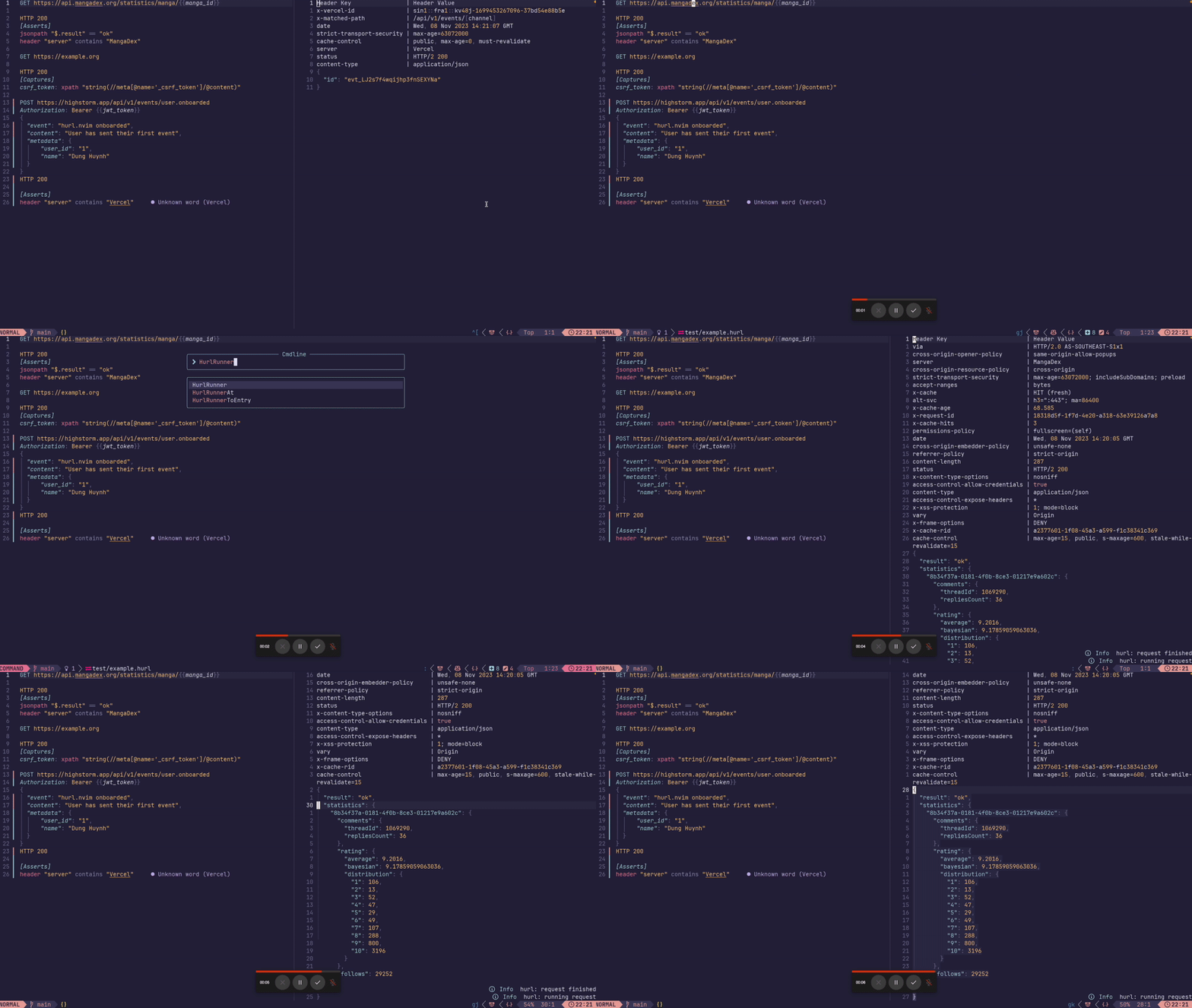
[!NOTE] I frequently utilize the nightly version of Neovim, so if you encounter any issues, I recommend trying that version first. I may not have the time to address problems in the stable version. Your contributions via pull requests are always welcome.
Env File Support: vars.env
hurl.nvim seamlessly integrates with environment files named vars.env to manage environment variables for your HTTP requests. These environment variables are essential for customizing your requests with dynamic data such as API keys, base URLs, and other configuration values.
Customization
You can specify the name of the environment file in your hurl.nvim configuration. By default, hurl.nvim looks for a file named vars.env, but you can customize this to any file name that fits your project's structure.
Here's how to set a custom environment file name in your hurl.nvim setup:
require('hurl').setup({
  -- Specify your custom environment file name here
  env_file = {
      'hurl.env',
  },
  -- Other configuration options...
})
File Location
The plugin searches for a vars.env (env_file config) in multiple locations to accommodate various project structures and ensure that environment-specific variables for your HTTP requests are easily accessible. The search occurs in the following order:
-
Current File's Directory: The directory where the current file is located. This is particularly useful for projects where environment variables are specific to a particular module or component.
-
Specific Directories in Project: The plugin scans predefined directories within the project, which are commonly used for organizing different aspects of a project:
src/: The source code directory.test/andtests/: Directories typically used for test scripts.server/: If your project includes a server component, this directory is checked.src/tests/andserver/tests/: These are checked for environment variables specific to tests within the respectivesrcandserverdirectories.
-
Intermediate Directories from Git Root to Current File: If the project is a git repository, the plugin identifies the root of the repository and then searches for
vars.envin every directory on the path from this root to the current file's directory. This feature is particularly useful in monorepo setups or large projects, where different modules or packages may have their own environment variables.
By checking these locations, the plugin ensures a comprehensive search for environment variables, catering to a wide range of project structures and setups.
Swappable environment
To change the environment file name, use the HurlSetEnvFile command followed by the new file name. You can have multiple variable files by having comma-separated values.
Notes
- Ensure that the new environment file exists in the directories where the plugin searches for it, as outlined in the File Location section.
- This change will apply globally for the current session of Neovim. If you restart Neovim, it will revert to the default
vars.envunless you change it again.
Test fixtures
This is a feature that allows you to define custom variables in your .hurl files. You can define a list of custom variables with a name and a callback function that returns the value of the variable. The callback function is executed every time the variable is used in the .hurl file.
[!NOTE] This is a workaround to inject dynamic variables into the hurl command, refer https://github.com/Orange-OpenSource/hurl/issues?q=sort:updated-desc+is:open+label:%22topic:+generators%22
  -- Custom below to add your own fixture variables
  fixture_vars = {
    {
      name = 'random_int_number',
      callback = function()
        return math.random(1, 1000)
      end,
    },
    {
      name = 'random_float_number',
      callback = function()
        local result = math.random() * 10
        return string.format('%.2f', result)
      end,
    },
  }
Then you can use {{random_int_number}} and {{random_float_number}} in your .hurl files.
POST https://api.example.com
Content-Type: application/json

{
  "name": "Product ID {{random_int_number}}",
  "price": {{random_float_number}}
}
Demo
Check out the following demos to see hurl.nvim in action:
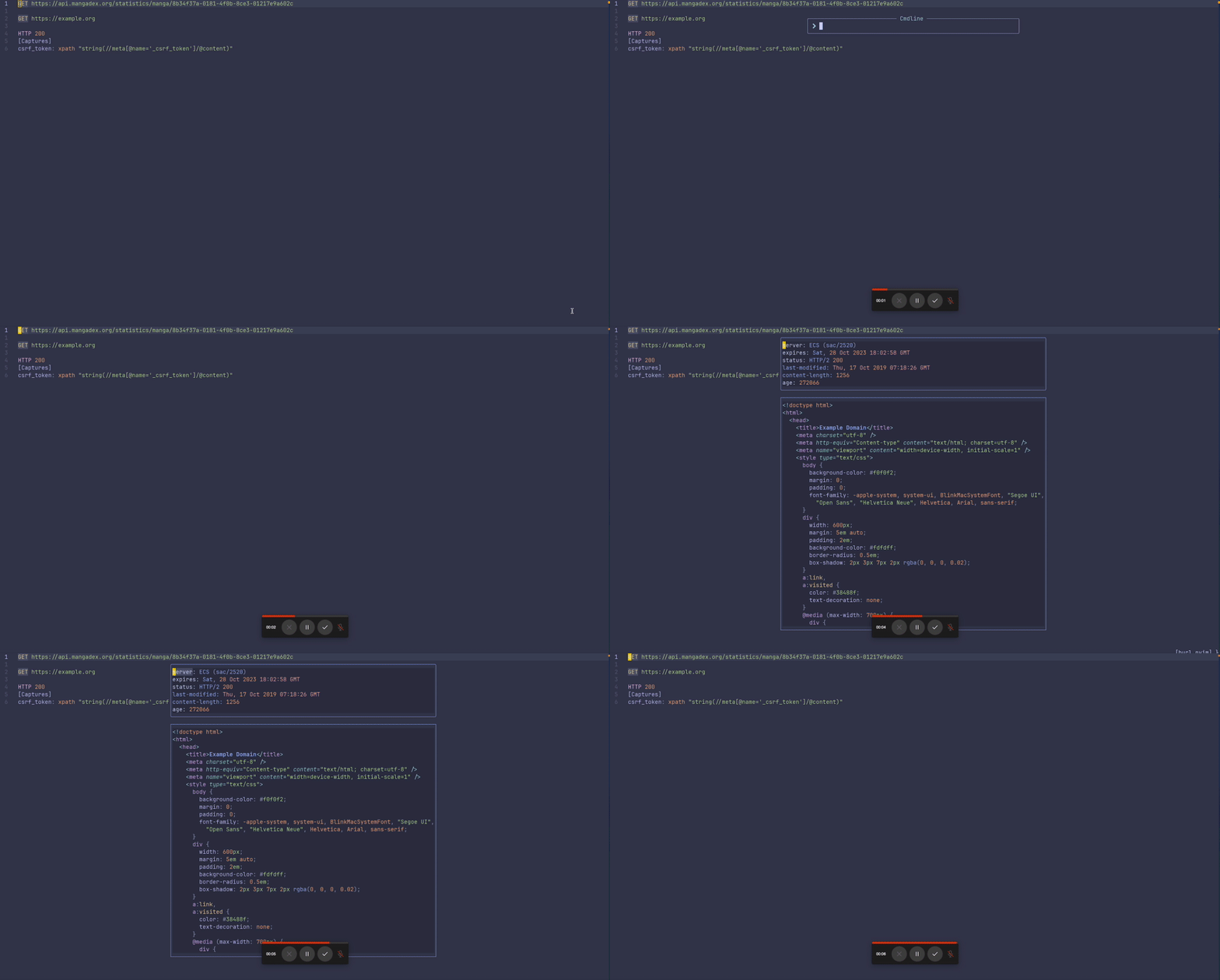
Run a File
Run the entire file by pressing <leader>A or run HurlRunner command.
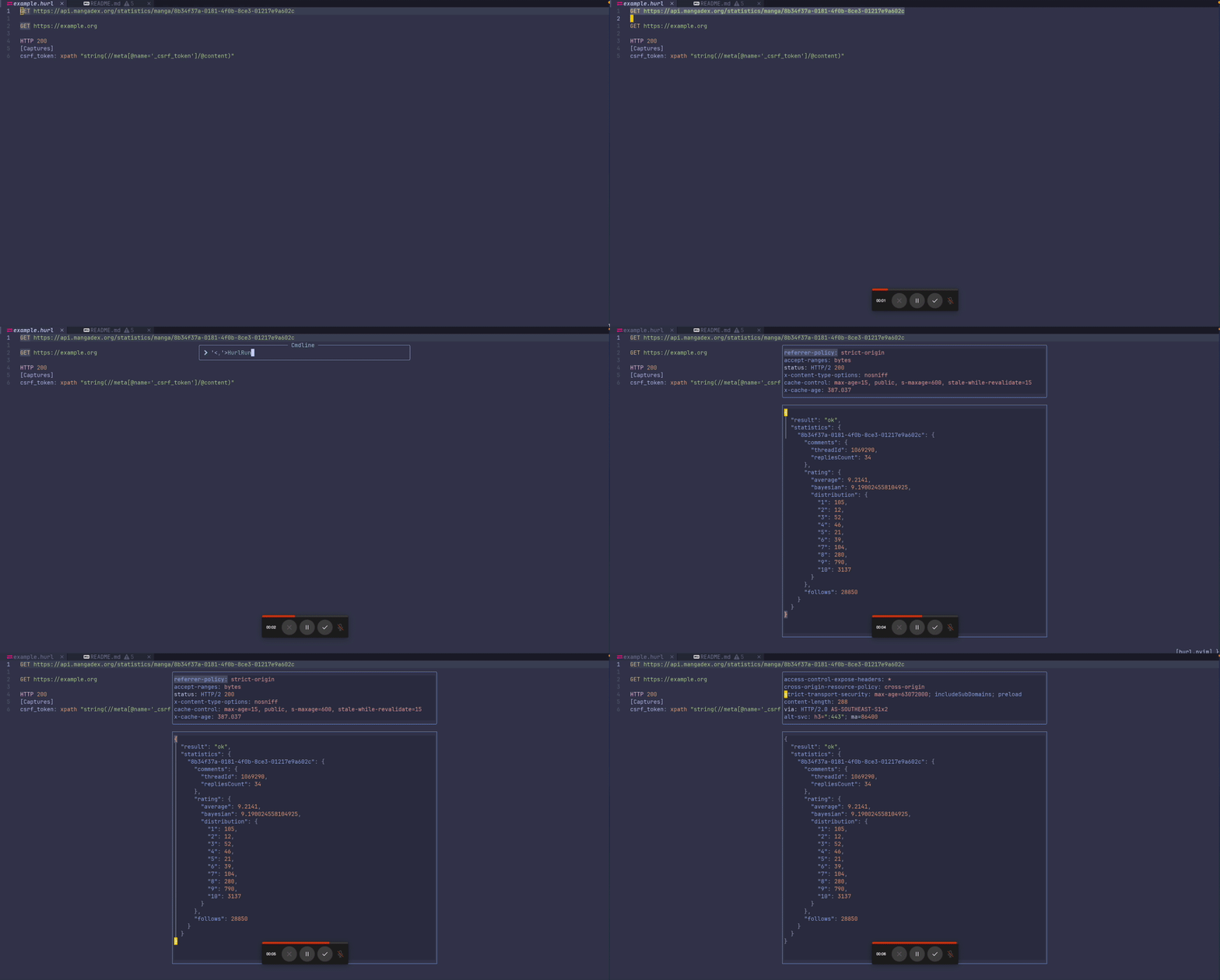
Run a Selection
Select a range of lines and press <leader>h to execute the request or run HurlRunner command.
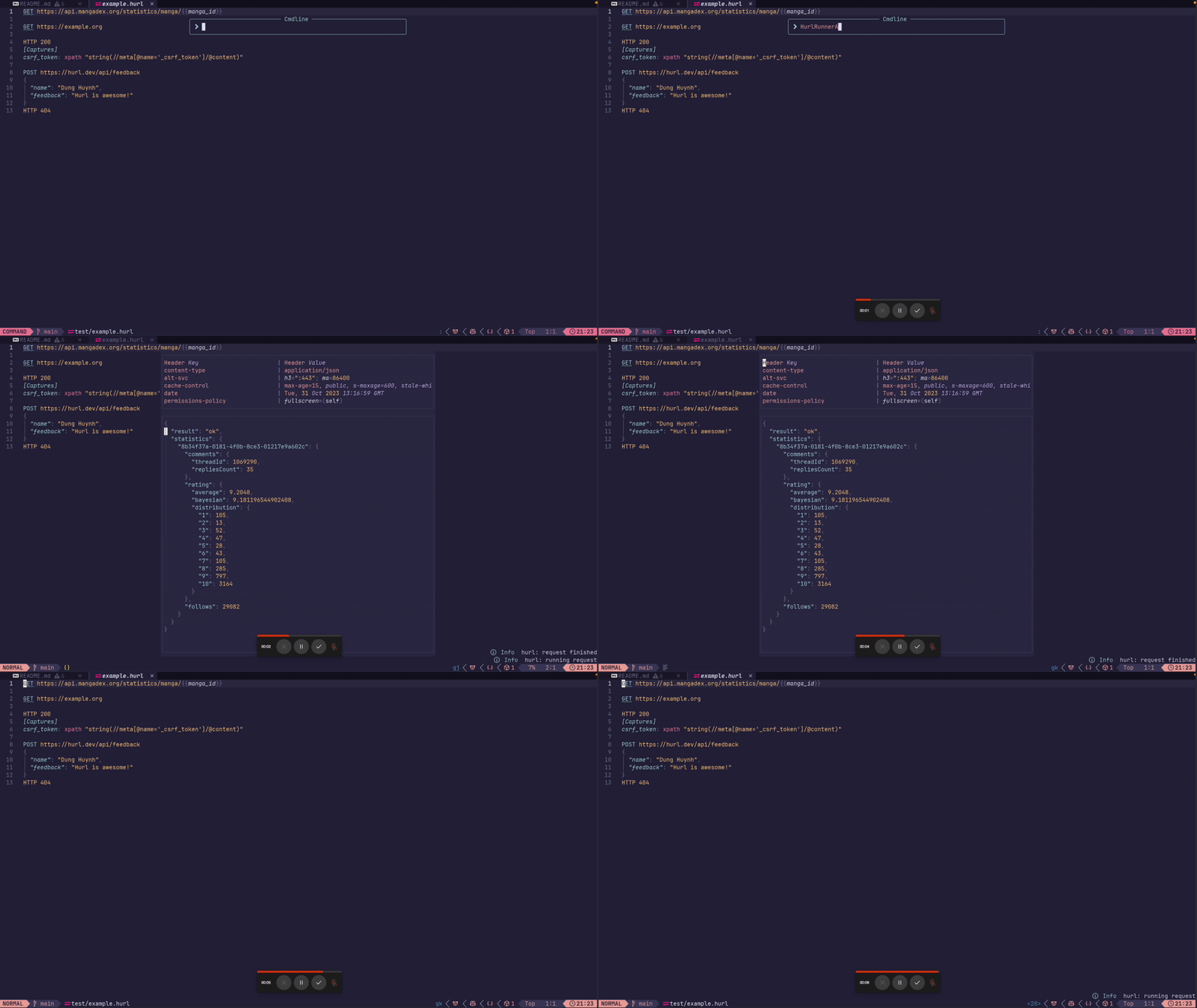
Run at current line
Place your cursor on a HURL entry and press <leader>a or run HurlRunnerAt command to execute the entry request.
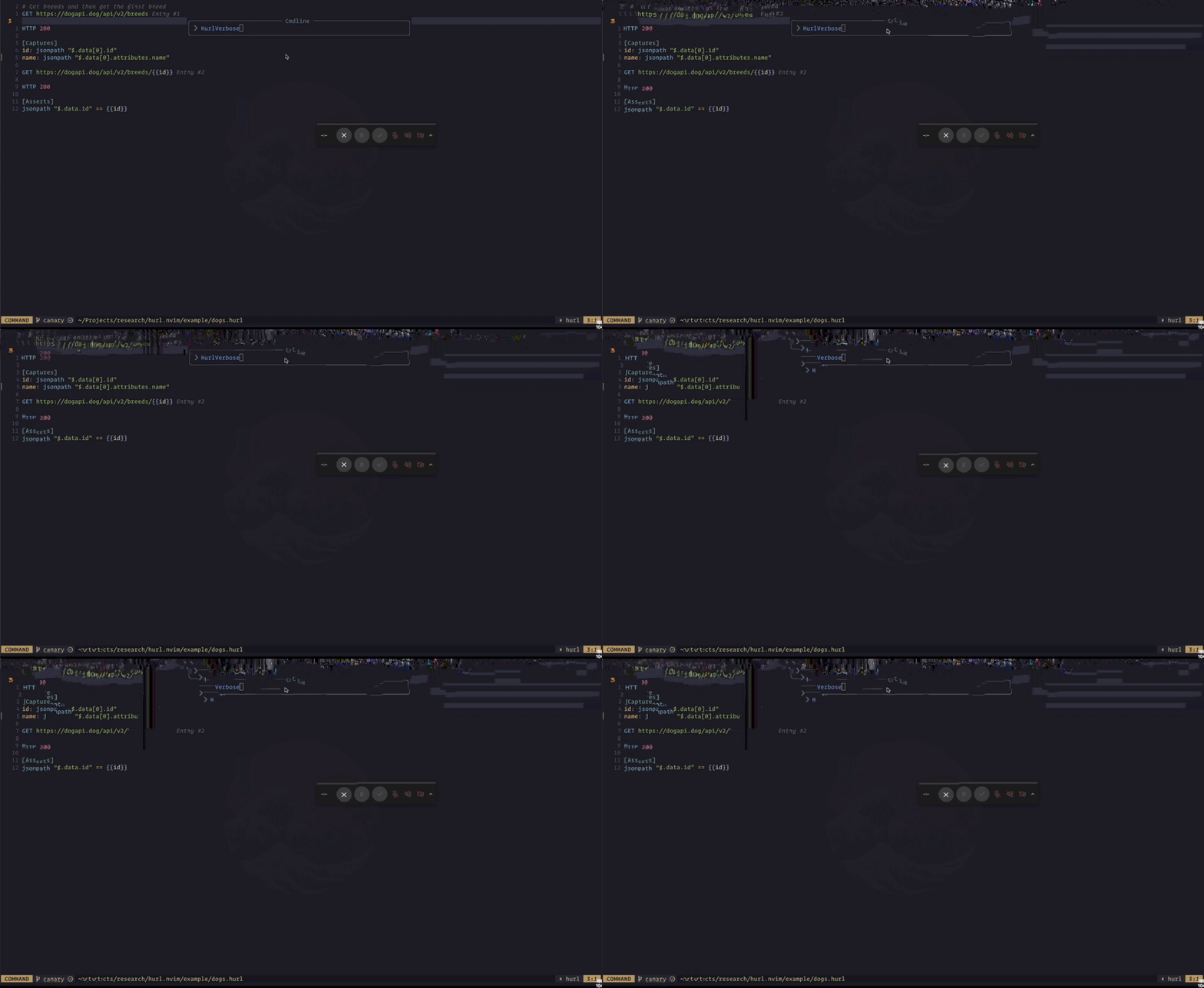
Verbose mode
Run HurlVerbose command to execute the request in verbose mode.
Run to entry
Place your cursor on the line you want to run to that entry and press <leader>te or run HurlRunnerToEntry command to execute the request.
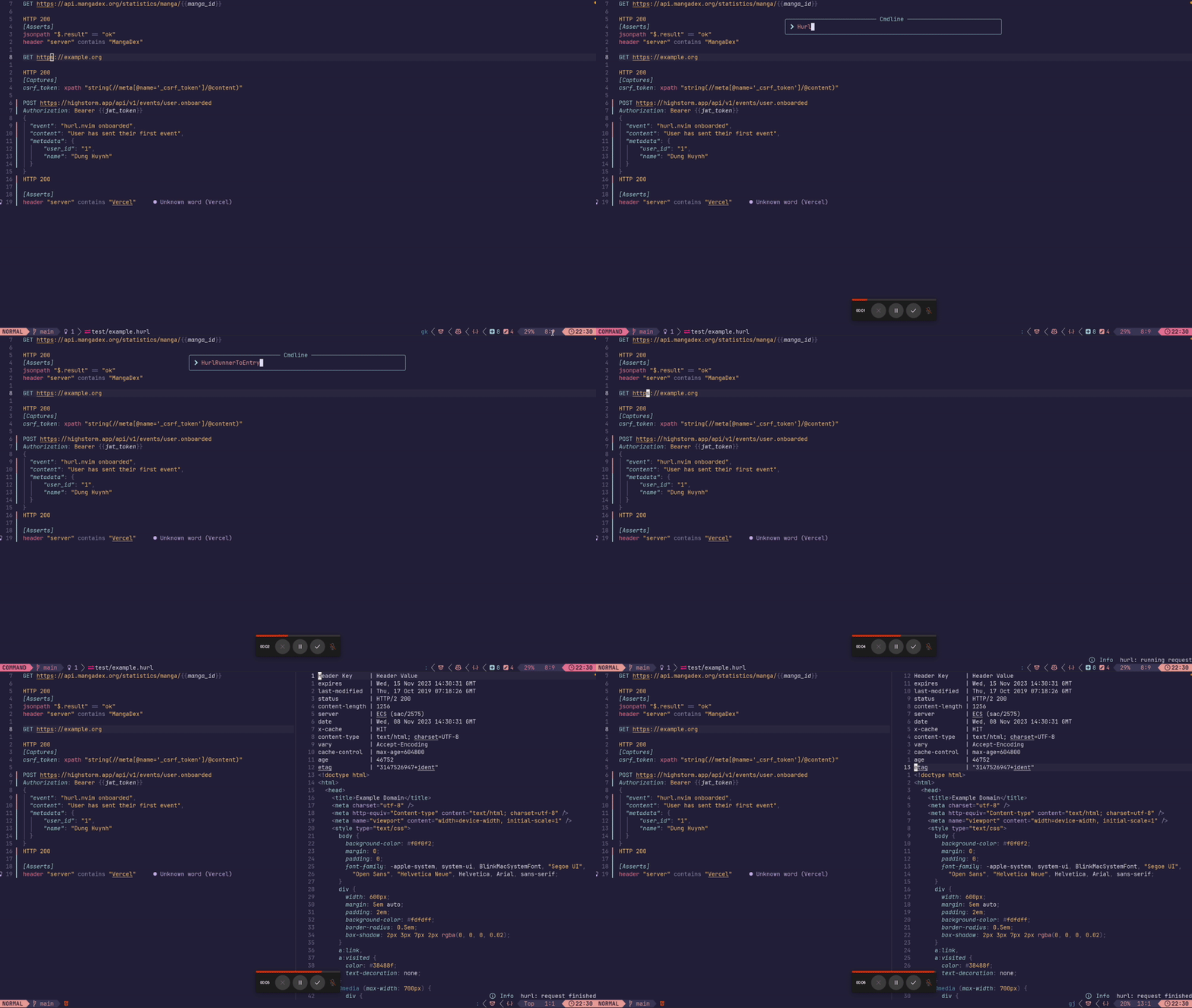
Note: it's running from start of file to the selected entry and ignore the remaining of the file. It is useful for debugging purposes.
Run from current entry to end
Similar to HurlRunnerToEntry, we could run from current entry to end of file with HurlRunnerToEnd command.
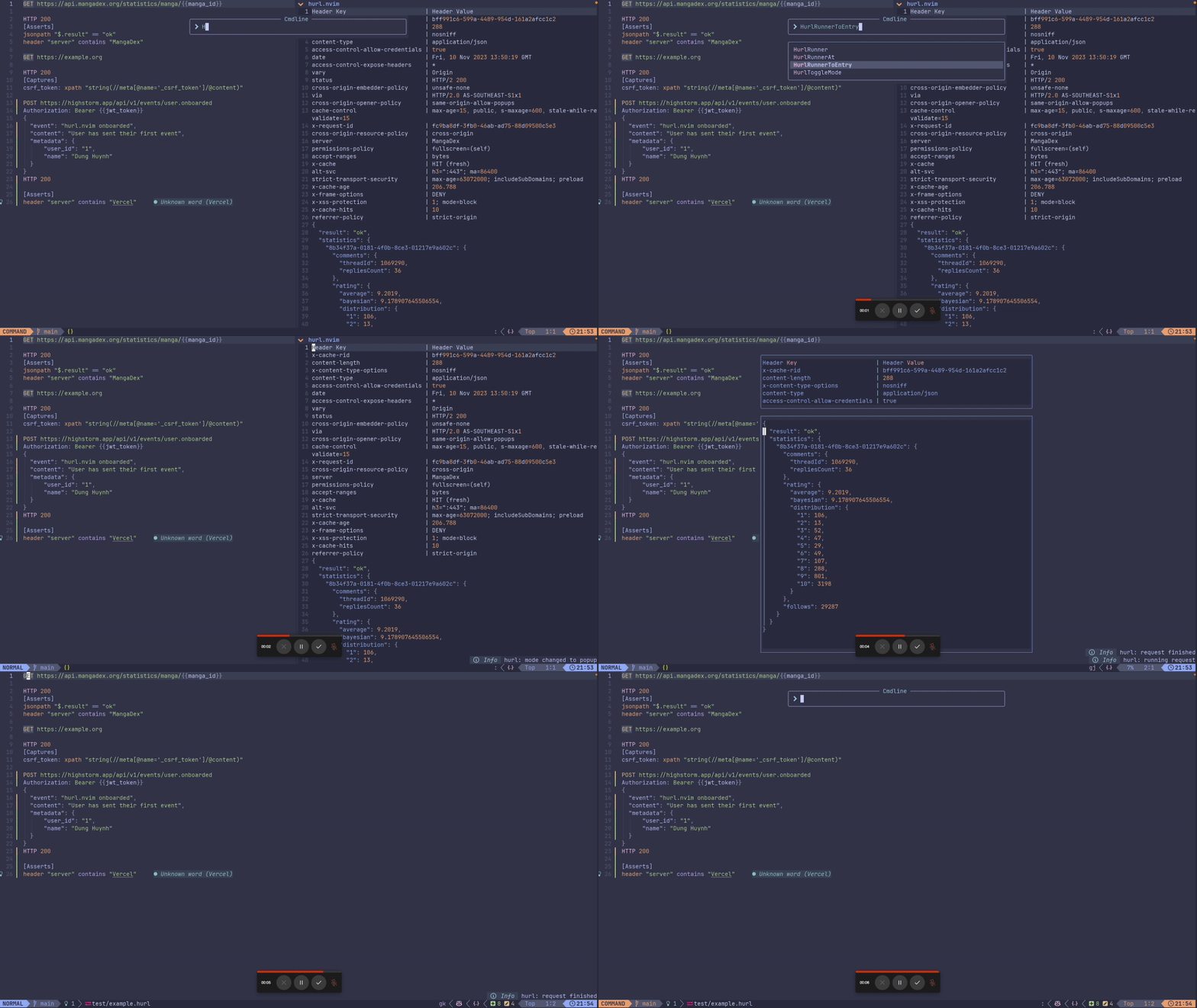
Toggle Mode
Run HurlToggleMode command to toggle between split and popup mode.
[ ](https
Related Skills
node-connect
347.0kDiagnose OpenClaw node connection and pairing failures for Android, iOS, and macOS companion apps
frontend-design
107.8kCreate distinctive, production-grade frontend interfaces with high design quality. Use this skill when the user asks to build web components, pages, or applications. Generates creative, polished code that avoids generic AI aesthetics.
openai-whisper-api
347.0kTranscribe audio via OpenAI Audio Transcriptions API (Whisper).
qqbot-media
347.0kQQBot 富媒体收发能力。使用 <qqmedia> 标签,系统根据文件扩展名自动识别类型(图片/语音/视频/文件)。
