
Ipyflow
A reactive Python kernel for Jupyter notebooks.
Install / Use
/learn @ipyflow/IpyflowREADME



TL;DR
Precise reactive Python notebooks for Jupyter[Lab]:
pip install ipyflow- Pick
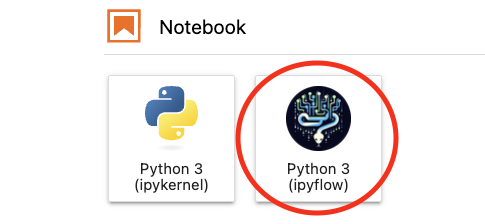
Python 3 (ipyflow)from the launcher or kernel selector. - For each cell execution, the (minimal) set of out-of-sync upstream and downstream cells also re-execute, so that executed cells appear as they would when running the notebook from top-to-bottom.
About
IPyflow is a next-generation Python kernel for JupyterLab and Notebook 7 that tracks dataflow relationships between symbols and cells during a given interactive session, thereby making it easier to reason about notebook state. Here is a video of the JupyterCon talk introducing it (and corresponding slides).
If you'd like to skip the elevator pitch and skip straight to installation / activation instructions jump to quick start below; otherwise, keep reading to learn about IPyflow's philosophy and feature set.
Goals
IPyflow provides bolt-on reactivity to Jupyter's default Python kernel, ipykernel. It was was designed with the following goals in mind:
- Full backwards-compatibility with ipykernel: IPyflow aims to be a drop-in replacement for ipykernel, providing a strict superset of its features.
- Precise dependency inference: IPyflow understands dependencies between
cells beyond just simple variables. For example, IPyflow understands when
cell
Bdepends on cellAbecause of a subscript referencex[0], and is smart enough not to reactively execute cellBwhen some other part ofx, e.g.x[1], changes. As a result, it limits unnecessary re-execution to a bare minimum. - Fearless execution: IPyflow attempts to enforce the following invariant: whenever you execute a cell, the resulting output appears as it would if you had performed a "restart + run all" operation. The implication is that you can execute basically any cell in the notebook and trust that It Just Works<sup>TM</sup>.
Quick Start
To install, run:
pip install ipyflow
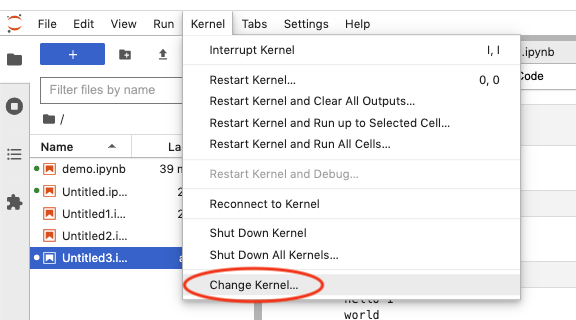
To run an IPyflow kernel, select "Python 3 (ipyflow)" from the list of available kernels in the Launcher tab. Similarly, you can switch to / from IPyflow from an existing notebook by navigating to the "Change kernel" file menu item:
Entrypoint | Kernel Switcher
:-------------------------------:|:-------------------------------:
 |
| 
Features
Reactive execution model
IPyflow ships with extensions that bring reactivity to JupyterLab and Notebook 7 by default, similar to execution behavior offered in other notebooks such as Observable, Pluto.jl, and Marimo.
IPyflow's reactivity behaves a little bit differently from the above, however,
as it was designed to meet the needs of Jupyter users in particular. When you
execute cell C with IPyflow, C's output, the output of the cells C
depends on, and the output of the cells that depend on C all appear as they
would if the notebook were executed from top to bottom (e.g. via "restart and
run-all"). When you select some cell C, all the cells that would re-execute
when C is executed have an orange dot next to them, and cells that C
depends on but that are up-to-date and will not re-execute have purple dots:
The cell dependency information is persisted to the notebook metadata, so that you can jump to any cell after starting a fresh kernel session, run it, and be confident that the output is what was intended by the notebook author:
<p align="center"> <img src="https://raw.githubusercontent.com/ipyflow/ipyflow/master/img/ipyflow-restart.gif" width="400" /> </p>Autosave and recovering prior executions
Because IPyflow peeks at runtime state in order to infer dependencies, it needs
to keep content of the notebook in sync with the kernel's memory state, even
across browser refreshes. As such, IPyflow enables autosave-on-change by
default, so that the kernel state, the notebook UI's in-memory state, and the
notebook file on disk are all in sync. If you accidentally overwrite a cell's
output that you wanted to keep, e.g. during a reactive execution, and autosave
overwrites the previous result on disk, fear not! IPyflow provides a library
utility called reproduce_cell to recover the input and output of previous
cell executions (within a given kernel session):
from ipyflow import reproduce_cell
reproduce_cell(4, lookback=1)  # to reproduce the previous execution of cell 4
Example:
<p align="center"> <img src="https://raw.githubusercontent.com/ipyflow/ipyflow/master/img/reproduce-cell.gif" width="400" /> </p>Opting out of reactivity
If you'd like to temporarily opt out of reactive execution, you can use ctrl+shift+enter (on Mac, cmd+shift+enter also works) to only execute the cell in question:
<p align="center"> <img src="https://raw.githubusercontent.com/ipyflow/ipyflow/master/img/alt-mode-execute.gif" /> </p>You can also run the magic command %flow mode lazy in opt out of the
default reactive execution mode (in which case, ctr+shift+enter /
cmd+shift+enter will switch from being nonreactive to reactive). To reenable
reactive execution as the default, you can run %flow mode reactive:
If you'd like to prevent the default reactive behavior for every new kernel
session, you can add this to your IPython profile (default location typically
at ~/.ipython/profile_default/ipython_config.py):
c = get_config()
c.ipyflow.exec_mode = "lazy"  # defaults to "reactive"
In-order and any-order semantics
IPyflow defaults to in-order semantics, meaning that, if cell B depends on
cell A, then A must appear before B in the spatial order of the notebook.
IPyflow doesn't prevent previous cells from referencing data created or updated
by later cells, but it omits these edges when performing reactive execution.
In-order semantics, though less flexible, have some desirable properties when
compared with any-order semantics, as they encourage cleaner and more
reproducible notebooks that can more easily be converted to Python scripts
later. Now that I may or may not have sold you on in-order semantics, you can
enable any-order semantics in IPyflow by running the magic command %flow direction any_order, and reenable the default in-order semantics using %flow direction in_order:
You can also update your IPython profile if you'd like to make any-order semantics the default behavior for new kernel sessions:
c = get_config()
c.ipyflow.flow_direction = "any_order"  # defaults to "in_order"
Execution suggestions and shortcut for resolving inconsistencies
Whenever a cell references updated data, the collapser next to it is given an orange color (similar to the color for dirty cells), and cells that (recursively) depend on it are given a purple collapser color. (An orange input with a purple output just means that the output may be out-of-sync.) When using reactive execution, you usually won't see these, since out-of-sync dependent cells will be rerun automatically, though you may see them if using ctrl+shift+enter to temporarily opt out of reactivity, or if you change which data the cell updates (thereby overwriting previous edges between cells).
If you'd like to let IPyflow fix these up for you, you can press "Space" when in command mode to automatically resolve all stale or dirty cells. This operation may introduce more stale cells, in which case you can continue pressing "Space" until all inconsistencies are resolved, if desired:
<p align="center"> <img src="https://raw.githubusercontent.com/ipyflow/ipyflow/master/img/resolve-inconsistencies.gif" width="450" /> </p>Memoization
Cells that reference Python functions and classes, primitives like integers,
floats, strings, as well as numpy arrays, pandas dataframes, and containers
(lists, dicts, sets, tuples, etc.) thereof can be memoized by IPyflow using the
special %%memoize pseudomagic. There's no need to specify the "inputs" to the
cell, as IPyflow will infer these automatically. Memoized cells cache their
results in-memory (though disk-backed caches are planned for the future), and
will retrieve these cached results (rather than re-running the cell) whenever
IPyflow detects inputs and cell content identical to that of a previous run:
Related Skills
node-connect
351.8kDiagnose OpenClaw node connection and pairing failures for Android, iOS, and macOS companion apps
claude-opus-4-5-migration
110.9kMigrate prompts and code from Claude Sonnet 4.0, Sonnet 4.5, or Opus 4.1 to Opus 4.5
frontend-design
110.9kCreate distinctive, production-grade frontend interfaces with high design quality. Use this skill when the user asks to build web components, pages, or applications. Generates creative, polished code that avoids generic AI aesthetics.
model-usage
351.8kUse CodexBar CLI local cost usage to summarize per-model usage for Codex or Claude, including the current (most recent) model or a full model breakdown. Trigger when asked for model-level usage/cost data from codexbar, or when you need a scriptable per-model summary from codexbar cost JSON.
