
NavigationStack
An alternative to SwiftUI's navigation with greater flexibility and custom transition animation support.
Install / Use
/learn @indieSoftware/NavigationStackREADME









NavigationStack for SwiftUI
NavigationStack is a custom SwiftUI solution for navigating between views. It's a more flexible alternative to SwiftUI's own navigation.
Advantages
Advantages of this lib compared to SwiftUI's NavigationView / NavigationLink and the .sheet-Modifier:
- Use different transition animations (not only a horizontal push/pop or a vertical present/dismiss)
- Use one of the various transition animations included
- Or create your own custom transition animations
- Navigate even without any transition animation at all if you want
- Define the back transition animation right before transitioning back, not in advance when transitioning forward
- Navigate back multiple screens at once, not only to the previous one
- Use a full-screen present transition also on iOS 13 and macOS 10.15
- Get notified when the transition animation has finished
Transition Examples
Use SwiftUI's default transitions:
Or use some default view animations for transitioning:
Or write your own custom transitions:
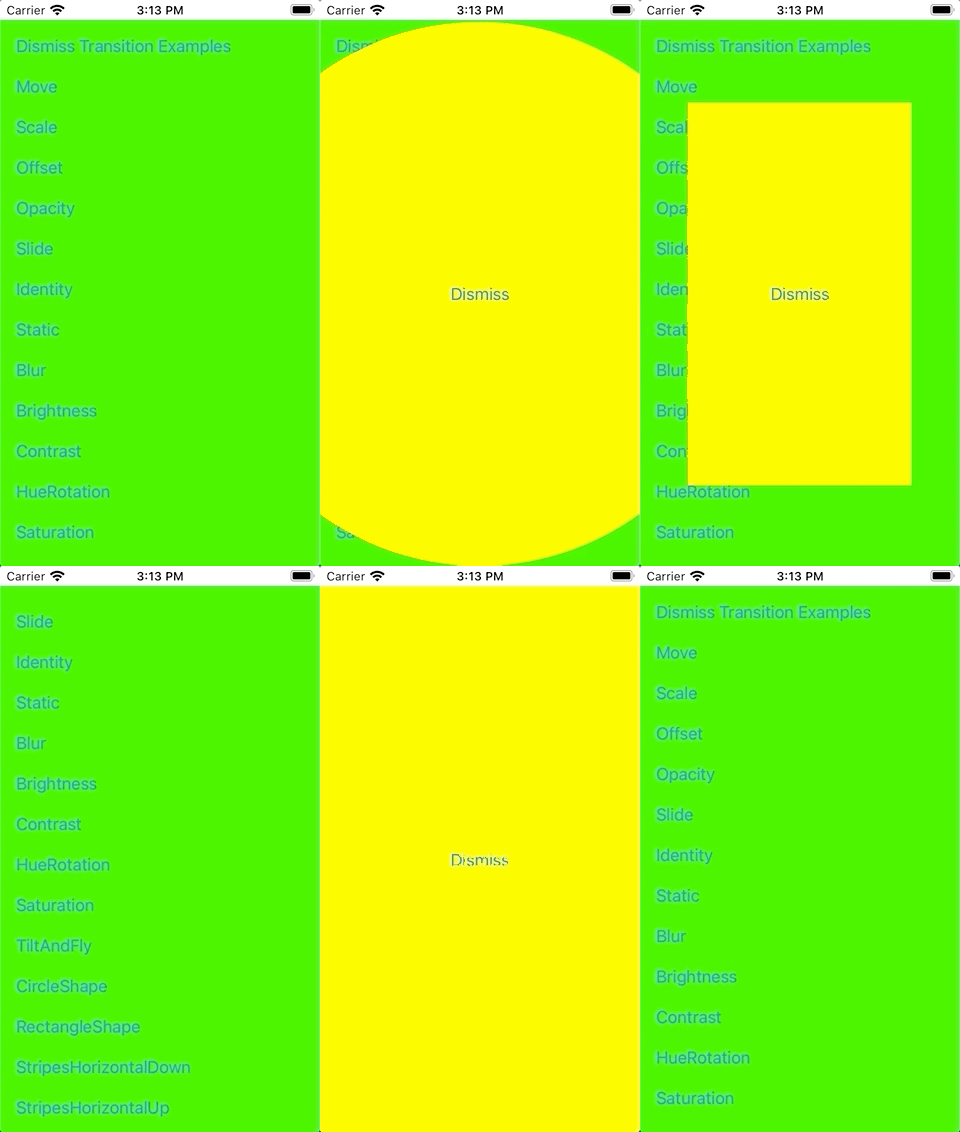
All of these are included in this lib!
Installation
CocoaPods
To include via CocoaPods add to the Podfile:
pod 'NavStack'
Carthage
To include via Carthage add to the Cartfile:
github "indieSoftware/NavigationStack"
SPM
To include via SwiftPackageManager add the repository:
https://github.com/indieSoftware/NavigationStack.git
Usage
-
Import the lib to your view's source file.
-
Include the
NavigationModelto your view as an environment object. -
Use the
NavigationStackViewas a root stack view of your view and give it a unique name to reference it. -
Use the
NavigationModelobject to perform any transitions, i.e. a push or pop. Provide theNavigationStackView's identifier to define whichNavigationStackViewin the hierachy should switch its content.import NavigationStack // 1 struct MyRootView: View { @EnvironmentObject var navigationModel: NavigationModel // 2 var body: some View { NavigationStackView("MyRootView") { // 3 Button(action: { navigationModel.pushContent("MyRootView") { // 4 MyDetailView() } }, label: { Text("Push MyDetailView") }) } } } -
Because of the reference to the
NavigationModelinstance you need of couse to attach one as an environement object to the view hierachy, e.g. in theSceneDelegate:func scene(_ scene: UIScene, willConnectTo _: UISceneSession, options _: UIScene.ConnectionOptions) { if let windowScene = scene as? UIWindowScene { let window = UIWindow(windowScene: windowScene) let myRootView = MyRootView() .environmentObject(NavigationModel()) // 5 window.rootViewController = UIHostingController(rootView: myRootView) self.window = window window.makeKeyAndVisible() } }
That's all what's needed!
Additional Information
The NavigationStackView's Identifier
Every view which should provide a possibility to transition to a different view needs to contain a NavigationStackView with a unique identifier.
When a view where you navigated to now wants to navigate back to a specific view, just tell the NavigationModel to which one to navigate back:
import NavigationStack

struct MyDetailView: View {
	@EnvironmentObject var navigationModel: NavigationModel

	var body: some View {
		Button(action: {
			navigationModel.popContent("MyRootView")
		}, label: {
			Text("Pop to root")
		})
	}
}
With the NavigationStackView's reference identifier you can also navigate back multiple screens at once, just provide the ID of one screen further down the hierarchy.
To avoid hard-coded strings for the NavigationStackView IDs, just define a static constant in each view which then can be referenced instead.
struct ContentView1: View {
	static let id = String(describing: Self.self)
	@EnvironmentObject var navigationModel: NavigationModel

	var body: some View {
		NavigationStackView(ContentView1.id) {
			Button(action: {
				navigationModel.pushContent(ContentView1.id) {
					ContentView2()
				}
			}, label: {
				Text("Push ContentView2")
			})
		}
	}
}
Convenience Navigation Methods
You can also use one of the other model methods which might suit your current situation better, e.g. hideTopViewWithReverseAnimation() to just transition back to the previous screen with the reverse-animation provided when transitioning to the screen.
There are some convenience methods to express specific transitions more appropriate, e.g. pushContent, popContent, presentContent and dismissContent. Just look at the documentation for the NavigationModel.
Transition Animations
The convenience navigation methods all rely on the showView(_ identifier:, animation:, alternativeView:) and hideView(_ identifier:, animation:) methods which take an animation as argument. The convenience methods use pre-defined navigation animations (e.g. NavigationAnimation's push, pop, present and dismiss). However, you can also create your own transition animations by providing different parameters for the animation curve and the transition types. Then you can use the show and hide methods to create transitions with your own animations:
let myAnimation = NavigationAnimation(
	animation: .easeOut,
	defaultViewTransition: .static,
	alternativeViewTransition: .brightness()
)
navigationModel.hideView("MyRootView", animation: myAnimation)
With "defaultView" the source view is meant, which is the one from which to navigate while "alternativeView" means the destination view, the one where to navigate to. By providing different transitions for both views it's possible to define one transition animation for the leaving view and a different one for the appearing view.
Important:
For views which shouldn't animate during a transition, e.g. staying statically visible while the other view does its animation, you have to provide a .static transition rather than SwiftUI's .identity.
A list of all provided transitions by the lib can be found in the lib's documentation for AnyTransition Extensions.
Custom Transitions
To create own transition animations simply create a custom ViewModifier and optionally extend AnyTransition for creating a convenience method:
public struct BrightnessModifier: ViewModifier {
	public let amount: Double
	public func body(content: Content) -> some View {
		content.brightness(amount)
	}
}

public extension AnyTransition {
	static func brightness(_ amount: Double = 1) -> AnyTransition {
		.modifier(active: BrightnessModifier(amount: amount), identity: BrightnessModifier(amount: 0))
	}
}
Important Please keep in mind that SwiftUI will only animate transitions if a value changes, e.g. when providing a brightness transition with a brighness value of 0 you won't see any animation and the transition for that view gets skipped. That's because the identity has also a brightness value of 0 and thus both states, the identity and the active state, are equal.
For further information, please look at the lib's API documentation: https://indiesoftware.github.io/NavigationStack
OnDidAppear
To get informed when a transition animation for a view has completed use the onDidAppear modifier. However, this only works when there is really an animation executed with the transition and when showing and hiding views via the NavigationModel, not via SwiftUI's NavigationView/Link.
struct ContentView1: View {
	static let id = String(describing: Self.self)
	@EnvironmentObject var navigationModel: NavigationModel

	var body: some View {
		NavigationStackView(ContentView1.id) {
			Button(action: {
				navigationModel.pushContent(ContentView1.id) {
					ContentView2()
						.onDidAppear {
							print("ContentView2 did appear")
						}
				}
			}, label: {
				Text("Push ContentView2")
			})
			.onDidAppear {
				print("ContentView1 did appear"
