
SimpleCropView
A simple image cropping library for Android.
Install / Use
/learn @igreenwood/SimpleCropViewREADME
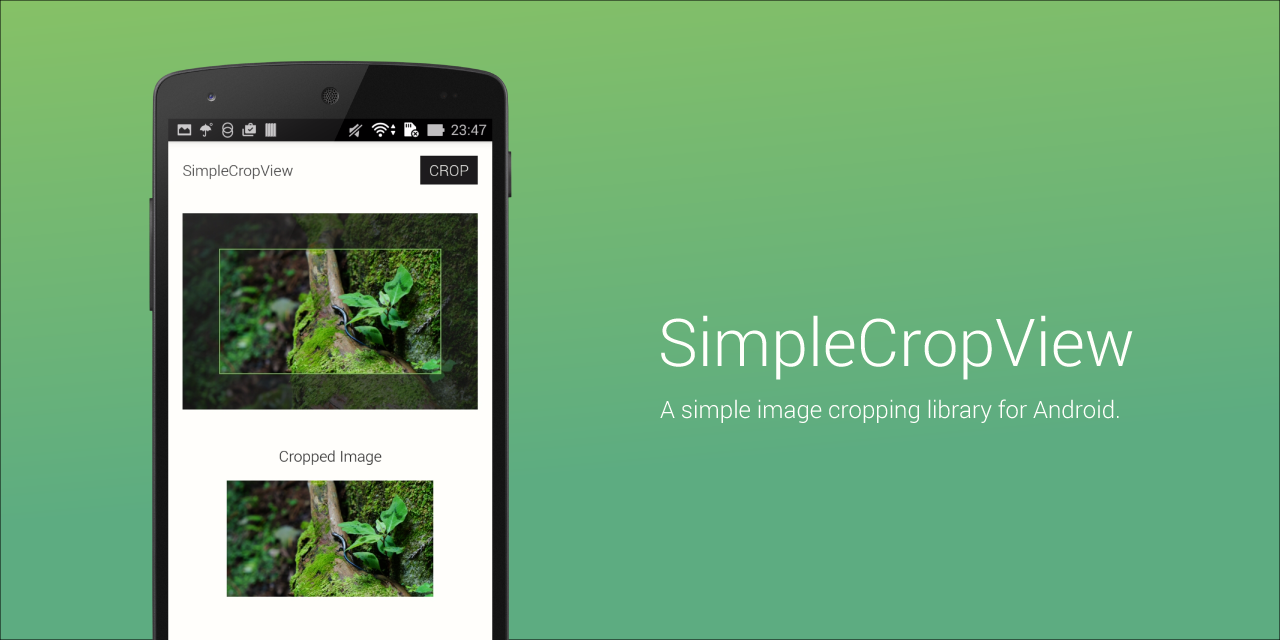
SimpleCropView



The SimpleCropView is an image cropping library for Android.<br> It simplifies your code for cropping image and provides an easily customizable UI.<br><br> Supported on API Level 14 and above.
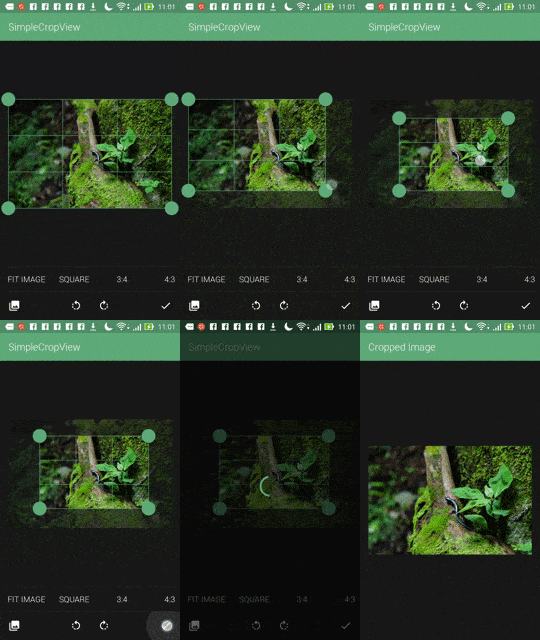
Table of Contents
- Download
- Example
- Load Image
- Crop and Save Image
- Customization
- Picasso and Glide Compatibility
- Debug
- XML Attributes
- For Xamarin
- Developed By
- Users
- License
Download
Include the following dependency in your build.gradle file. Please use the latest version available.
repositories {
    jcenter()
}
dependencies {
    compile 'com.isseiaoki:simplecropview:1.1.8'
}
Example
Image Cropping
Add permission in AndroidManifest.xml file.
<uses-permission android:name="android.permission.READ_EXTERNAL_STORAGE"/>
<uses-permission android:name="android.permission.WRITE_EXTERNAL_STORAGE"/>
Add the com.isseiaoki.simplecropview.CropImageView to your layout XML file.
NOTE: The image is scaled to fit the size of the view by maintaining the aspect ratio.
WRAP_CONTENTwill be ignored.
<com.isseiaoki.simplecropview.CropImageView
    xmlns:custom="http://schemas.android.com/apk/res-auto"
    android:id="@+id/cropImageView"
    android:layout_weight="1"
    android:paddingTop="16dp"
    android:paddingBottom="16dp"
    android:paddingLeft="16dp"
    android:paddingRight="16dp"
    android:layout_width="match_parent"
    android:layout_height="wrap_content"
    custom:scv_crop_mode="fit_image"
    custom:scv_background_color="@color/windowBackground"
    custom:scv_handle_color="@color/colorAccent"
    custom:scv_guide_color="@color/colorAccent"
    custom:scv_overlay_color="@color/overlay"
    custom:scv_frame_color="@color/colorAccent"
    custom:scv_handle_size="14dp"
    custom:scv_touch_padding="8dp"
    custom:scv_handle_show_mode="show_always"
    custom:scv_guide_show_mode="show_always"
    custom:scv_min_frame_size="50dp"
    custom:scv_frame_stroke_weight="1dp"
    custom:scv_guide_stroke_weight="1dp"/>
Load image from sourceUri.
mCropView = (CropImageView) findViewById(R.id.cropImageView);

mCropView.load(sourceUri).execute(mLoadCallback);
with RxJava,
mCropView.load(sourceUri).executeAsCompletable();
Crop image and save cropped bitmap in saveUri.
mCropView.crop(sourceUri)
    .execute(new CropCallback() {
  @Override public void onSuccess(Bitmap cropped) {
    mCropView.save(cropped)
        .execute(saveUri, mSaveCallback);
  }

  @Override public void onError(Throwable e) {
  }
});
with RxJava,
mCropView.crop(sourceUri)
    .executeAsSingle()
    .flatMap(new Function<Bitmap, SingleSource<Uri>>() {
      @Override public SingleSource<Uri> apply(@io.reactivex.annotations.NonNull Bitmap bitmap)
              throws Exception {
        return mCropView.save(bitmap)
            .executeAsSingle(saveUri);
      }
    })
    .subscribeOn(Schedulers.newThread())
    .observeOn(AndroidSchedulers.mainThread())
    .subscribe(new Consumer<Uri>() {
      @Override public void accept(@io.reactivex.annotations.NonNull Uri uri) throws Exception {
        // on success
      }
    }, new Consumer<Throwable>() {
      @Override public void accept(@io.reactivex.annotations.NonNull Throwable throwable)
              throws Exception {
        // on error
      }
    });
Image Rotation
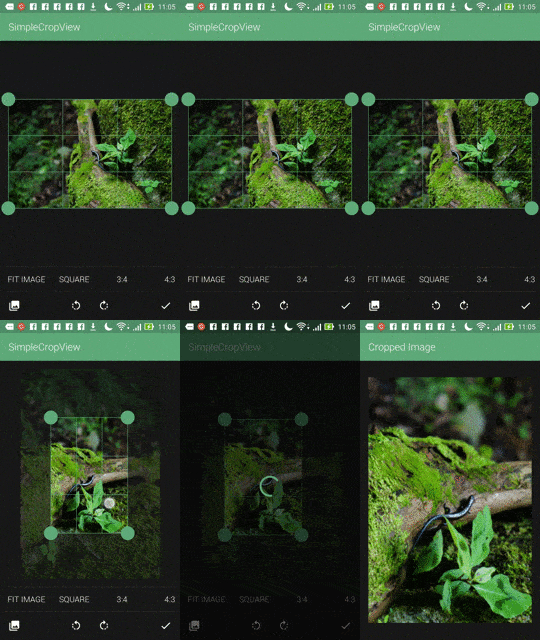
SimpleCropView supports rotation by 90 degrees.
cropImageView.rotateImage(CropImageView.RotateDegrees.ROTATE_90D); // rotate clockwise by 90 degrees
cropImageView.rotateImage(CropImageView.RotateDegrees.ROTATE_M90D); // rotate counter-clockwise by 90 degrees
For a working implementation of this project, see sample project.
Load Image
load(sourceUri).execute(mLoadCallback);
with RxJava,
load(sourceUri).executeAsCompletable();
These method load Bitmap in efficient size from sourceUri.
You don't have to care for filePath and image size.
You can also use Picasso or Glide.
Apply Thumbnail
You can use blurred image for placeholder.
mCropView.load(result.getData())
         .useThumbnail(true)
         .execute(mLoadCallback);
Crop and Save Image
mCropView.crop(sourceUri)
    .execute(new CropCallback() {
  @Override public void onSuccess(Bitmap cropped) {
    mCropView.save(cropped)
        .execute(saveUri, mSaveCallback);
  }

  @Override public void onError(Throwable e) {
  }
});
with RxJava,
mCropView.crop(sourceUri)
    .executeAsSingle()
    .flatMap(new Function<Bitmap, SingleSource<Uri>>() {
      @Override public SingleSource<Uri> apply(@io.reactivex.annotations.NonNull Bitmap bitmap)
              throws Exception {
        return mCropView.save(bitmap)
                .executeAsSingle(saveUri);
      }
    })
    .subscribeOn(Schedulers.newThread())
    .observeOn(AndroidSchedulers.mainThread())
    .subscribe(new Consumer<Uri>() {
      @Override public void accept(@io.reactivex.annotations.NonNull Uri uri) throws Exception {
        // on success
      }
    }, new Consumer<Throwable>() {
      @Override public void accept(@io.reactivex.annotations.NonNull Throwable throwable)
              throws Exception {
        // on error
      }
    });
These cropping method use full size bitmap taken from sourceUri for cropping.
If sourceUri is null, the Uri set in load(Uri) is used.
After cropping, it saves cropped image in saveUri.
Compress Format
You can use 3 compress format, PNG(default),JPEG, and WEBP.
setCompressFormat(Bitmap.CompressFormat.JPEG);
Compress Quality
You can also set compress quality. 0~100(default)
setCompressQuality(90);
Customization

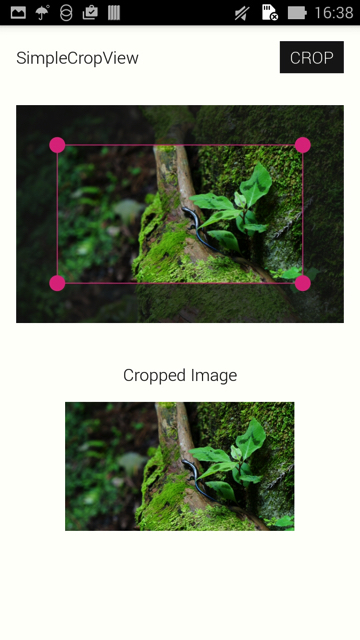
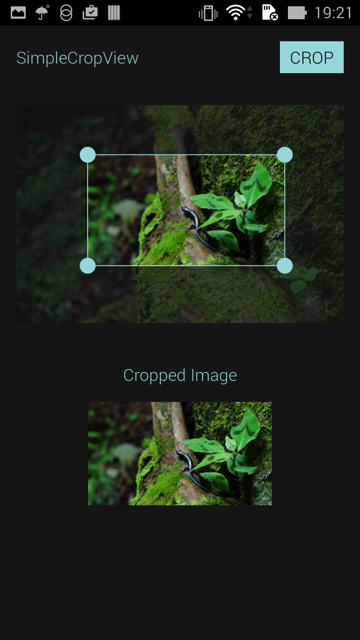
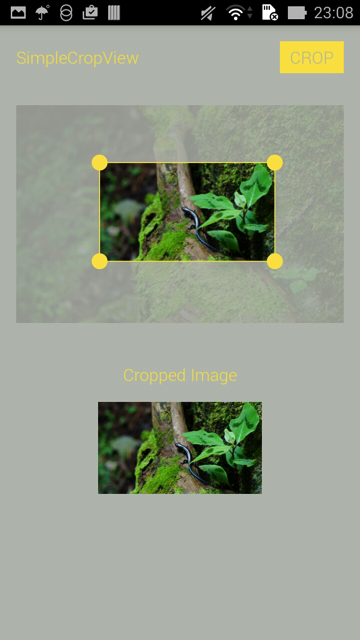
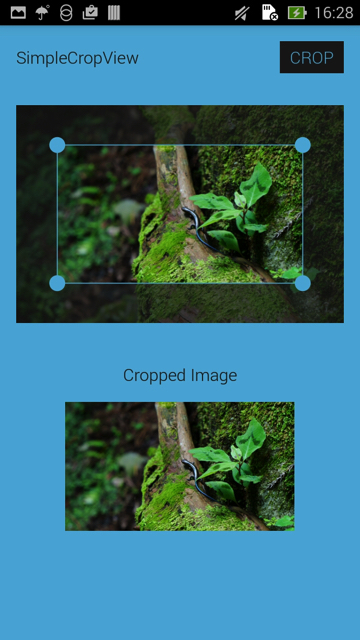
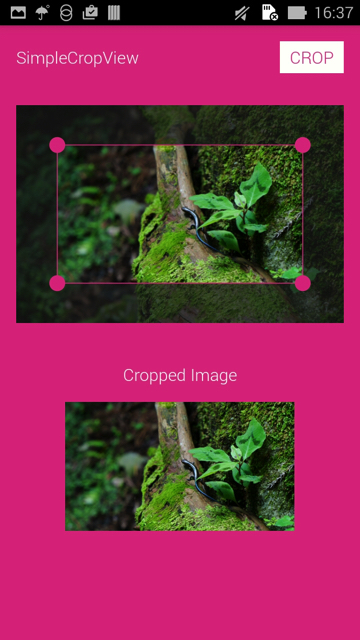
Maximum Output Size
You can set max size for output image. The output image will be scaled within given rect.
setOutputMaxSize(300, 300);
Fixed Output Size
You can also set fixed output width/height.
setOutputWidth(100); // If cropped image size is 400x200, output size is 100x50
setOutputHeight(100); // If cropped image size is 400x200, output size is 200x100
CropMode
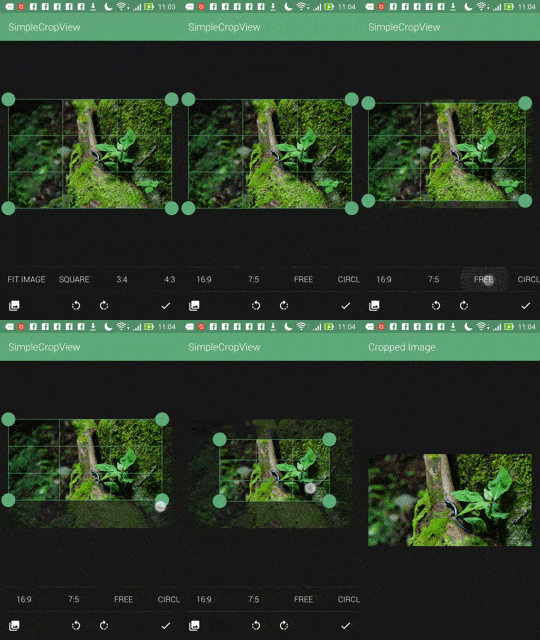
The option for the aspect ratio of the image cropping frame.
CropImageView cropImageView = (CropImageView)findViewById(R.id.cropImageView);
cropImageView.setCropMode(CropImageView.CropMode.RATIO_16_9);
Values
FIT_IMAGE, RATIO_4_3, RATIO_3_4, SQUARE(default), RATIO_16_9, RATIO_9_16, FREE, CUSTOM, CIRCLE, CIRCLE_SQUARE
Rect Crop
FREE: Non-Fixed aspect ratio mode
RATIO_X_Y, SQUARE: Fixed aspect ratio mode
FIT_IMAGE: Fixed aspect ratio mode. The same aspect ratio as the original photo.
If you need other aspect ratio, use setCustomRatio(int ratioX, int ratioY);
Circle Crop
CIRCLE: Fixed aspect ratio mode. Crop image as circle.
CIRCLE_SQUARE: Fixed aspect ratio mode. Show guide circle, but save as square.(getRectBitmap() is removed.)
