
HttpProxyService
Easily Send HTTP Requests to Roblox API/Discord Webhooks
Install / Use
/learn @iUnstable0/HttpProxyServiceREADME
HttpProxyService
THIS IS VERY OUTDATED AND PROLLY DOESNT WORK ANYMORE ALSO HEROKU REMOVED FREE TIER SO RIP
Easily Send HTTP Requests to Roblox API/Discord Webhooks
Setup
You will need a Heroku and GitHub account.
Create a Heroku account here (https://signup.heroku.com) Login here (https://id.heroku.com/login) if you already have a Heroku account
Create a Github account here (https://github.com/signup?user_email=&source=form-home-signup) Login here (https://github.com/login) if you already have a GitHub account
-
After you are logged into your Heroku account, click here to go to the dashboard (https://dashboard.heroku.com/apps)
-
On the top right, click
Newand clickCreate new app

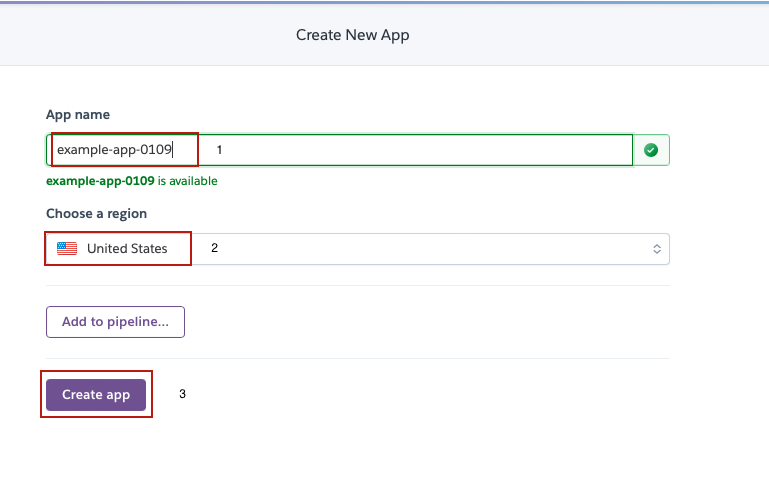
- Choose your app name, region and then click
Create app
- Click on GitHub and click
Connect to GitHub


- Click
Authorize Heroku(You have to login into Github first)
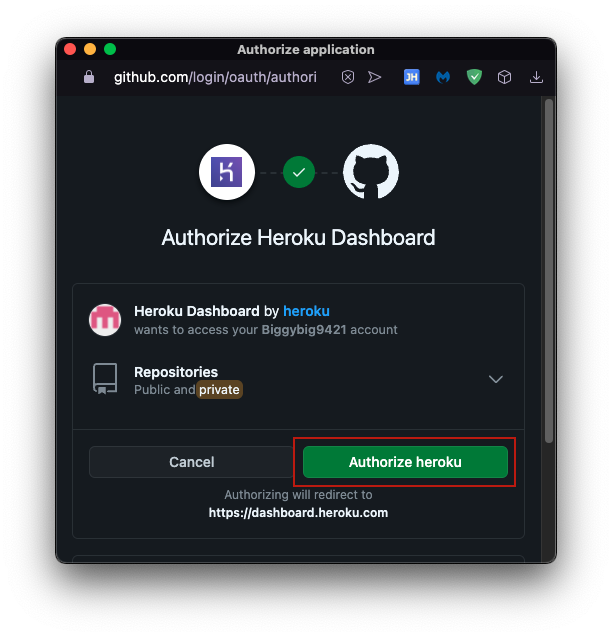
- When you've connected your GitHub account to Heroku, you will see this page.

- Fork this repository (https://github.com/Unstable0/HttpProxyService)

- After you fork this repository, go back to Heroku and search
HttpProxyServicethen clickConnect

- Now click
Deployand wait until Heroku finish deploying your app

- After your app is deployed, click on
View.

- Copy your app URL, you will need this later.

Environment Variables Setup
-
Click here to go to your Heroku account dashboard (https://dashboard.heroku.com/apps)
-
Click on your app

- Click
Settings

- Click
Reveal Config Vars

- Type your user in the
Keybox and paste your Roblox account cookie inside theValuebox (You will need this for authentication)
Notes: Your user name cannot be PORT because it will break the code


- You can add multiple users.

Notes: You need to put your full cookie including the _|WARNING
-
Now follow the same steps but type in
passwordin theKeybox and type in your password in theValuebox (This password will be used to lock your app) -
You can also use this website (https://1password.com/password-generator/) to generate secure passwords.

Notes: Your password must contain only underscores, letters (a-z), and numbers to prevent problems.
- Head over to
Deploy

- Scroll down and click
Deploy Branch

- Now, wait until Heroku finishes deploying your app.
Notes: Your Roblox cookie resets every time you log in/out of your account. If you want to use your alt account cookie then open incognito mode and login into your alt account, get your cookie, and close the window so your cookie won't reset.
Every time you update/add/delete a config var, you will have to deploy your app again for the changes to take effect EVEN if you have Automatic Deployment enabled.
Game Setup
-
Create a new ModuleScript in ServerStorage and rename it to
HttpProxyService -
Replace the code inside your ModuleScript with this code (https://github.com/Unstable0/HttpProxyService/blob/main/HttpProxyService.lua)
-
Go to line 5 where it says
local Url = ""

- Paste your Heroku app URL that you copied earlier.


(Make sure there is no / at the end of your URL)
Usage
HttpProxyService:FormatParams
Parameters
| Name | Type | Default | Required | | ------ | ----------------------------------------------------------------------------------------- | ------- | -------- | | url | string | | true | | params | dictionary | {} | false |
Returns
Example
local HttpProxyService = require(game:GetService("ServerStorage"):WaitForChild("HttpProxyService"))

local FormattedData = HttpProxyService:FormatParams("https://catalog.roblox.com/v1/search/items/details", {
	Category = 3,
	Keyword = "Pants"
})

print(FormattedData) --> https://catalog.roblox.com/v1/search/items/details?Category=3&Keyword=Pants
HttpProxyService:New
Parameters
| Name | Type | Default | Description | Required | | -------- | ------------------------------------------------------------ | ------- | ----------------- | -------- | | password | [string](https://dev
