
ExcelChess
A dynamic chess game built in Excel, featuring an computer-powered opponent
Install / Use
/learn @h9zdev/ExcelChessREADME
ExcelChess


Description
♟️ Play chess in Excel! 📊 Powered by VBA scripts 🖥️, ExcelChess brings the classic game to your spreadsheet. 👾 Challenge friends or test your skills! ✨
Usage
ExcelChess is a chess game built entirely within Microsoft Excel using VBA (Visual Basic for Applications). To get started:
- Download: Clone or download the repository from GitHub.
- Open in Excel: Open the
.xlsmfile in Microsoft Excel (version 2016 or later recommended [File name is Echess.xlsm which is uploded in this repo]). - Enable Macros: Ensure macros are enabled to allow the VBA scripts to run.
- Play: Follow the in-sheet instructions to start a game of chess against another player or the built-in AI (if applicable).
For detailed instructions or troubleshooting, open an issue.
Chess with Enhanced AI in Excel VBA
This guide outlines how to create a Chess game in Excel VBA with a more competitive AI, while keeping it practical for Excel VBA. The structure reuses the previous code framework, updating only the AI logic for improved gameplay.
Steps to Code Chess with Enhanced AI in Excel
1. Enable Developer Tab
- Go to
File > Options > Customize Ribbon. - Check the "Developer" box.
- Click
OK.
2. Set Up Worksheet Code
- Press
Alt + F11to open the VBA editor. - Expand
VBAProject > Microsoft Excel Objects. - Double-click
Sheet1. - Paste the worksheet code (see shhet.vba file in this repo copy and paste the code not a file).
3. Insert Module Code
- In the VBA editor, go to
Insert > Module. - Paste the module code.(see module.vba file in this repo copy and paste the code not a file)
4. Run Setup
- Press
Alt + Qto close the VBA editor. - Go to
Developer > Macros. - Run
SetupChessboard.
5. Play the Game
- Click a White piece, then a legal target square to make a move.
- The AI (Black) responds with a calculated move based on the enhanced model.
6. Save the File
- Save the workbook as an
.xlsmfile (Excel Macro-Enabled Workbook).
Below are some example screenshots of the Chess game in action:
Initial Chessboard Setup
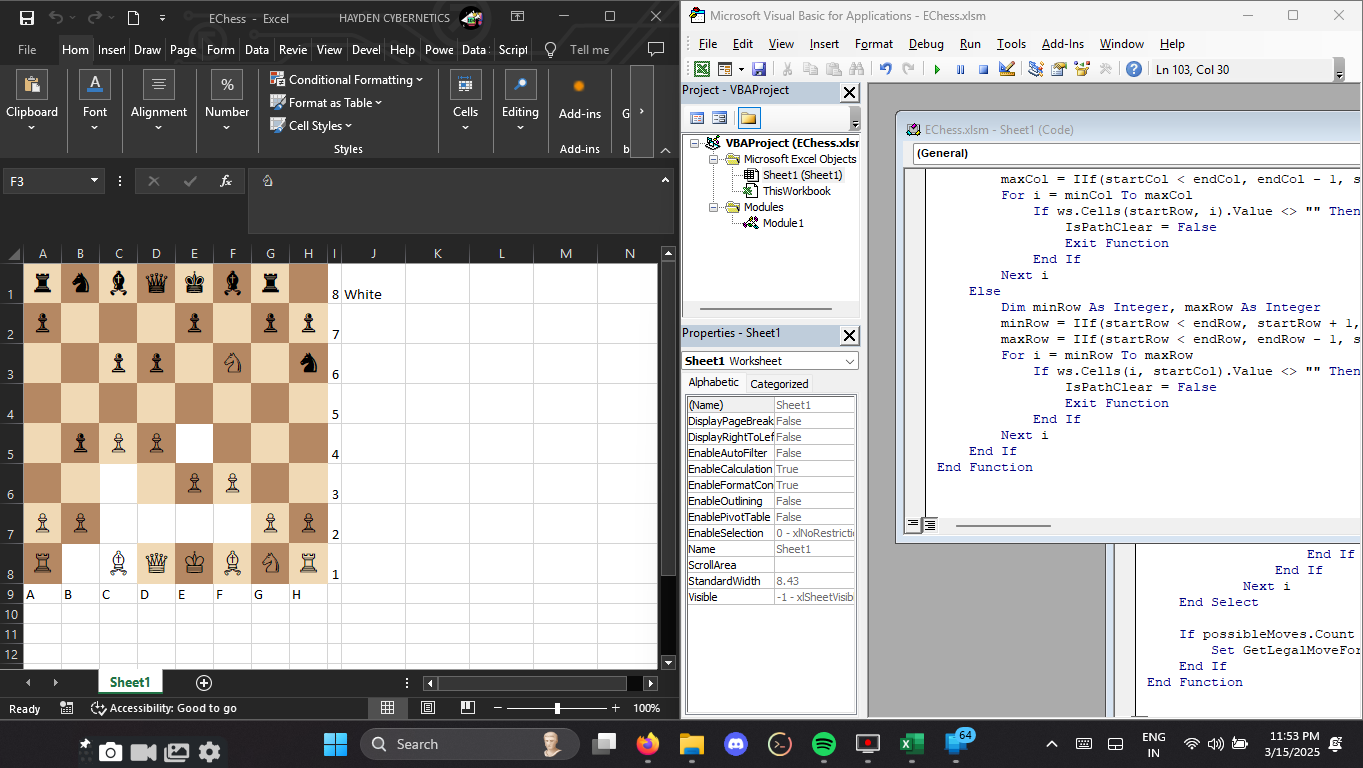 Caption: The chessboard after running
 SetupChessboard.
Gameplay Video
Here’s a short MP4 video demonstrating the gameplay:
<video width="600" controls> <source src="https://github.com/haybnzz/ExcelChess/raw/refs/heads/main/ExcelChess.mp4" type="video/mp4"> Your browser does not support the video tag. </video> *Caption: A demo of White and Black (AI) taking turns.*Alternative: Link to Video (Fallback)
Watch Gameplay Video
Click the link above to view the MP4 file if the video doesn’t display.
📜 License
This project is licensed under the Creative Commons Attribution-NonCommercial 4.0 International (CC BY-NC 4.0) License. See the LICENSE file for more details.
Unauthorized use is strictly prohibited.
📧 Email: singularat@protn.me
Contributors and Developers
☕ Support
Donate via Monero: 45PU6txuLxtFFcVP95qT2xXdg7eZzPsqFfbtZp5HTjLbPquDAugBKNSh1bJ76qmAWNGMBCKk4R1UCYqXxYwYfP2wTggZNhq
Related Skills
node-connect
341.0kDiagnose OpenClaw node connection and pairing failures for Android, iOS, and macOS companion apps
frontend-design
84.4kCreate distinctive, production-grade frontend interfaces with high design quality. Use this skill when the user asks to build web components, pages, or applications. Generates creative, polished code that avoids generic AI aesthetics.
openai-whisper-api
341.0kTranscribe audio via OpenAI Audio Transcriptions API (Whisper).
commit-push-pr
84.4kCommit, push, and open a PR
