
GrapheneX
Automated System Hardening Framework
Install / Use
/learn @grapheneX/GrapheneXREADME

grapheneX 


In computing, hardening is usually the process of securing a system by reducing its surface of vulnerability, which is larger when a system performs more functions; in principle a single-function system is more secure than a multipurpose one. Reducing available ways of attack typically includes changing default passwords, the removal of unnecessary software, unnecessary usernames or logins, and the disabling or removal of unnecessary services.
grapheneX project aims to provide a framework for securing the system with hardening commands automatically.
It's designed for the end user as well as the Linux and Windows developers due to the interface options. (interactive shell/web interface)
In addition to that, grapheneX can be used to secure a web server/application.
The project name is derived from 'graphene'. Graphene is a one-atom-thick layer of carbon atoms arranged in a hexagonal lattice. In proportion to its thickness, it is about 100 times stronger than the strongest steel.
Hardening commands and the scopes of those commands are referred to modules and the namespaces in the project.
They exist at the modules.json file after installation. ($PYPATH/site-packages/graphenex/modules.json)
Additionally, it's possible to add, edit or remove modules and namespaces.
Also, the hardening operation can be automated with the presets that contain a list of modules.
Currently, grapheneX supports the hardening sections below. Each of these namespaces contains more than one module.
• Firewall
• User
• Network
• Services
• Kernel
• Filesystem
• Other
Listen to The Python Podcast.__init__: Automate Your Server Security With GrapheneX - Episode 237
Installation
You can install grapheneX with pip. Usually this is the easiest way:
pip install graphenex
Or if you get an error try:
python3 -m pip install graphenex
Additionally, poetry can be used for development:
poetry install        # install the dependencies
poetry run grapheneX  # run grapheneX
Or you can use the Docker image:
docker pull ghcr.io/graphenex/graphenex  # pull the image from GHCR
alias graphenex="docker run -it --rm -p 8080:8080 --privileged ghcr.io/graphenex/graphenex"  # create an alias
graphenex  # run it
You can also build and run the Docker image locally:
docker build -t graphenex .
docker run -it --rm --name graphenex -p 8080:8080 --privileged graphenex
Dependencies
Usage
Command Line Arguments
usage: grapheneX [-h] [-v] [-w] [--open] [host:port]
positional arguments:
  host:port      host and port to run the web interface

optional arguments:
  -h, --help     show this help message and exit
  -v, --version  show version information
  -w, --web      run the grapheneX web server
  --open         open browser on web server start
Interactive Shell
Execute the grapheneX command in order to start the interactive shell.

• Animated gifs and screenshots added for demonstration and include the test execution of the unversioned grapheneX. Use grapheneX or python -m graphenex command for the execution.
• grapheneX currently supports Python 3.10
Web Interface
Execute the grapheneX with the -w or --web argument in order to start the web server.

• Web interface has the authentication system that requires an access token. Once the user verifies her/his identity with the given token at the shell, grapheneX creates a session for further use.
FLASK_SECRET_KEY is automatically generated by a cryptographically secure os.urandom function to keep your grapheneX instance secure by design. It is stored inside an .env file at the root of the project.
• You can override this value with CLI parameter --flask-secret-key:
python3 -m graphenex --flask-secret-key <secure_key_here>
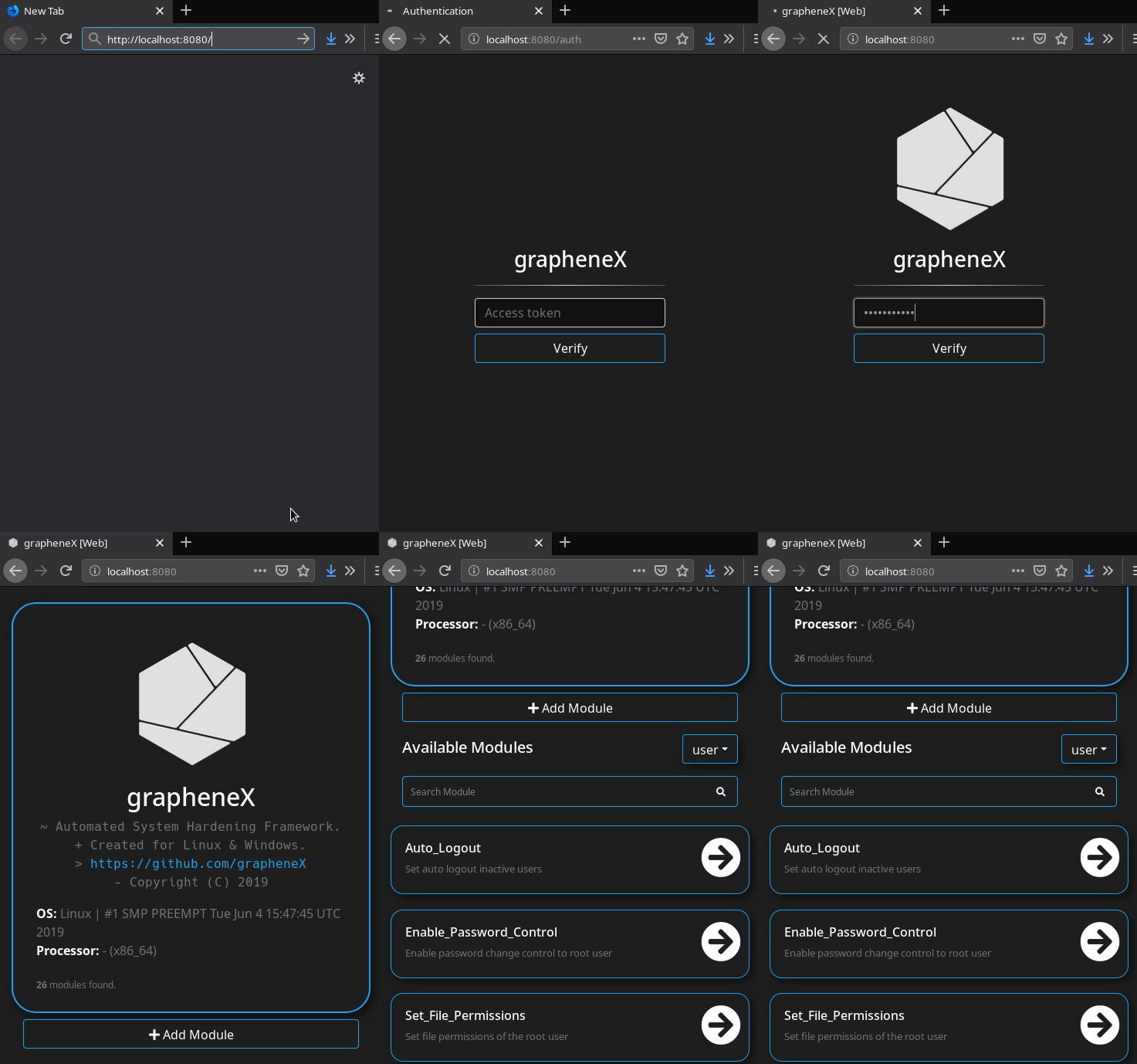
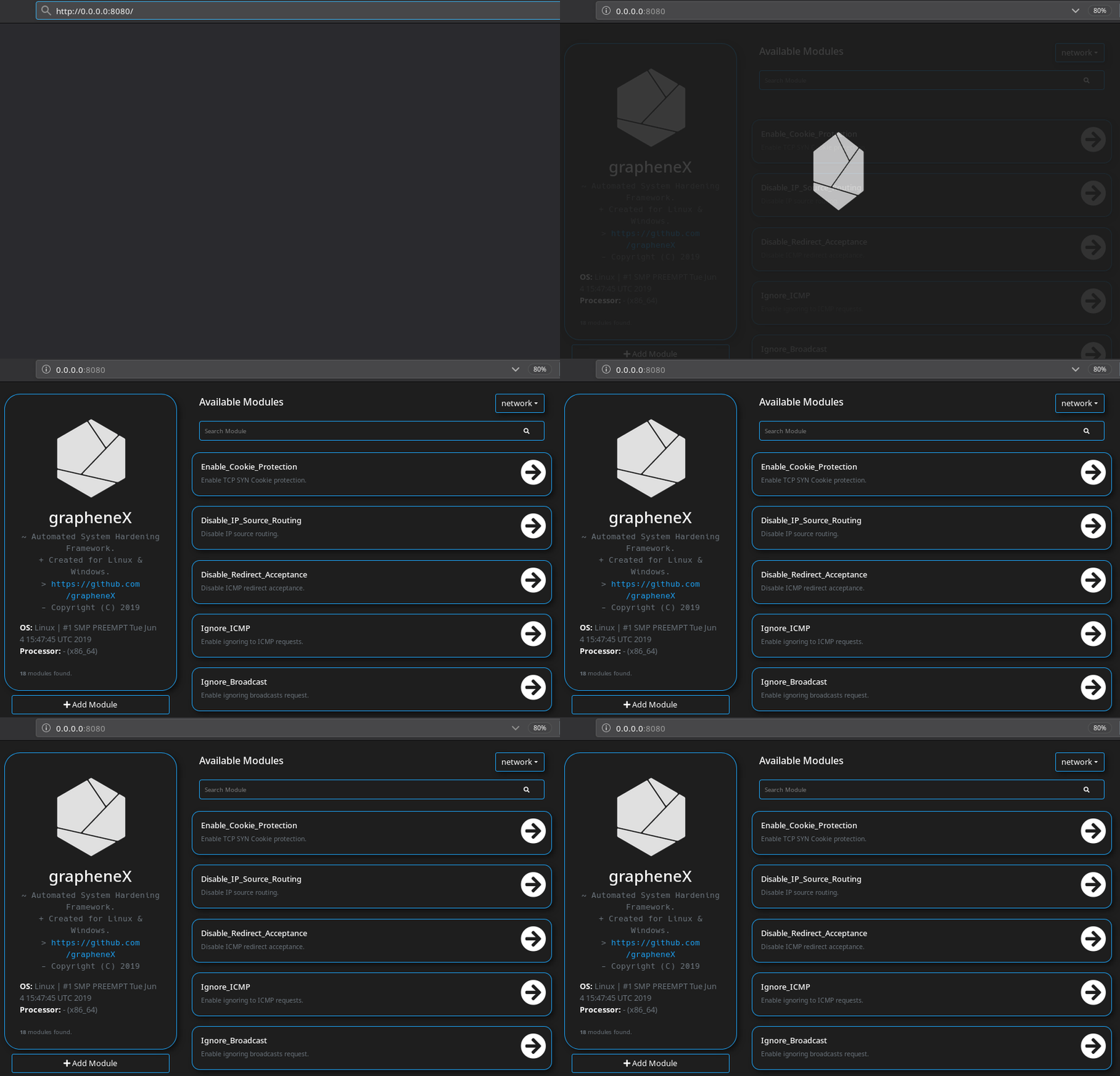
• The default host and port values are 0.0.0.0:8080. It can be changed via the host:port argument as shown below.
The default server address is set to 0.0.0.0 because the docker container is designed to listen on all available network interfaces, allowing it to be accessible from both within the container itself and from the host machine.
You can also set it to localhost if you aren't planning to containerize grapheneX.
python3 -m graphenex -w 192.168.1.36:8090
• Use --open argument to open the browser after the server start.
python3 -m graphenex -w --open
CLI Commands
| Command | Description |
|---------|-------------------------------------------------------------------------------|
| back | Go back from namespace or module |
| clear | Clear the terminal |
| exit | Exit interactive shell |
| harden | Execute the hardening command |
| help | List available commands with "help" or show detailed help with "help <cmd>" |
| info | Show information about the module |
| list | List available hardening modules |
| manage | Add, edit or delete module |
| preset | Show/execute the hardening module presets |
| search | Search for modules |
| switch | Switch between modules or namespaces |
| use | Use a hardening module |
| web | Start the grapheneX web server |
help
help or ? shows the commands list above.
help [CMD] shows the detailed usage of given command.
list
Show the available modules in a table. For example:

switch
switch command can be used to switch to a namespace or use a module. It's helpful if you want to see a list of modules in a namespace.
switch [NAMESPACE]

• Supports autocomplete for namespaces.
Also, using the switch command like this is possible:
switch [NAMESPACE]/[MODULE]
It's the equivalent of the use command in this situation.
use
Serves the purpose of selecting a hardening module.
use [MODULE]

• Supports autocomplete for modules.
info
Shows information (namespace, description, OS command) about the selected module.

harden
Executes the hardening command of the selected module.

preset
grapheneX has presets that contain particular modules for automating the hardening operation. Presets can be customized with the modules.json file, and they can contain any supported module. preset command shows the available module presets and preset [PRESET] runs the hardening commands in a preset.

An example preset command output is shown above. Below, a preset that contains 2 modules is selected and hardening modules executed.

preset command supports autocomplete for preset names. Also, it supports an option for asking permission between each hardening command execution so that the user knows what he/she is doing.
• Adding module presets
Presets are stored in the presets element inside the `modul
Related Skills
healthcheck
325.9kHost security hardening and risk-tolerance configuration for OpenClaw deployments
node-connect
325.9kDiagnose OpenClaw node connection and pairing failures for Android, iOS, and macOS companion apps
prose
325.9kOpenProse VM skill pack. Activate on any `prose` command, .prose files, or OpenProse mentions; orchestrates multi-agent workflows.
frontend-design
80.3kCreate distinctive, production-grade frontend interfaces with high design quality. Use this skill when the user asks to build web components, pages, or applications. Generates creative, polished code that avoids generic AI aesthetics.
