
Dgpulse
No description available
Install / Use
/learn @google-marketing-solutions/DgpulseREADME
DemandGen-Pulse
In this README, you'll find:
- Problem Statement
- Solution
- Installation
- Prerequisites
- Deliverable (Implementation)
- Architecture
- Troubleshooting / Q&A
- Community Support
- Disclaimer
Problem Statement
Reporting for Demand Gen campaigns is cumbersome and advertisers need a simple way to see an overview of their accounts and get a clear picture of their campaigns and assets' performance.
Solution
DG-Pulse is a best practice dashboard that provides a centralized monitoring of DemandGen campaigns' performance and the assets uploaded. Built in Looker Studio, It helps clearly identify if the campaigns and assets comply with the best practice guidelines and gives actionable insights to enhance asset groups' and feed quality.
Moreover, assets' performance is displayed and conveniently presented so advertisers can refresh poorly performing assets.
Deliverable (Implementation)
A Looker Studio dashboard based on your Google Ads and You Tube data. After joining this group, click here to see it in action.

- LookerStudio dashboard based on your Google Ads and You Tube data.
Prerequisites
-
Join this group
-
Obtain a Developer token
a. This can be found in Google Ads on the MCC level
b. Go to Tools & Settings > Setup > API Center. If you do not see a developer token there, please complete the details and request one.
c. By default, your access level is 'Test Account'; please apply for 'Basic access' if you don't have it. Follow these instructions
-
Create a new Google Cloud Project on the Google Cloud Console, make sure it is connected to a billing account
Installation
To do your first installation, click on the blue Deploy button and follow the instructions:
Upgrade
If you have already installed it before, in order to upgrade to the latest version of the code, execute (copy to the Google Cloud shell and press enter) the following commands:
cd dgpulse
./install-or-upgrade.sh
Notice that this will not change the Looker Studio template. Only the code. In order to get the latest version of the template, go to this link, make a copy of it and point the data sources to your own GCP's BigQuery.
Architecture
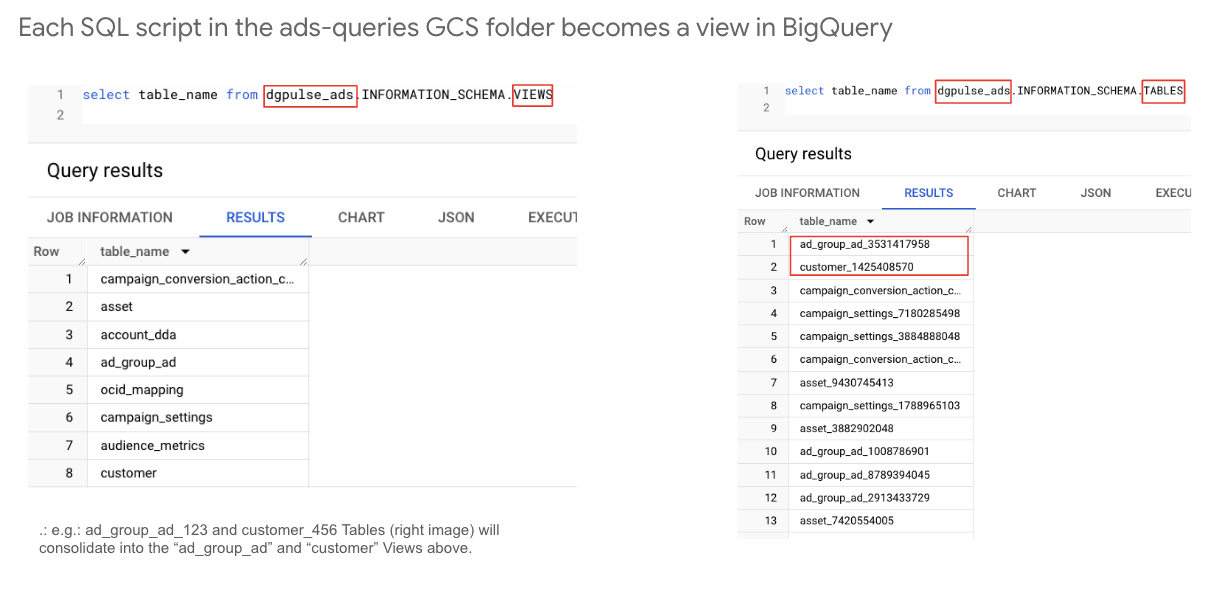
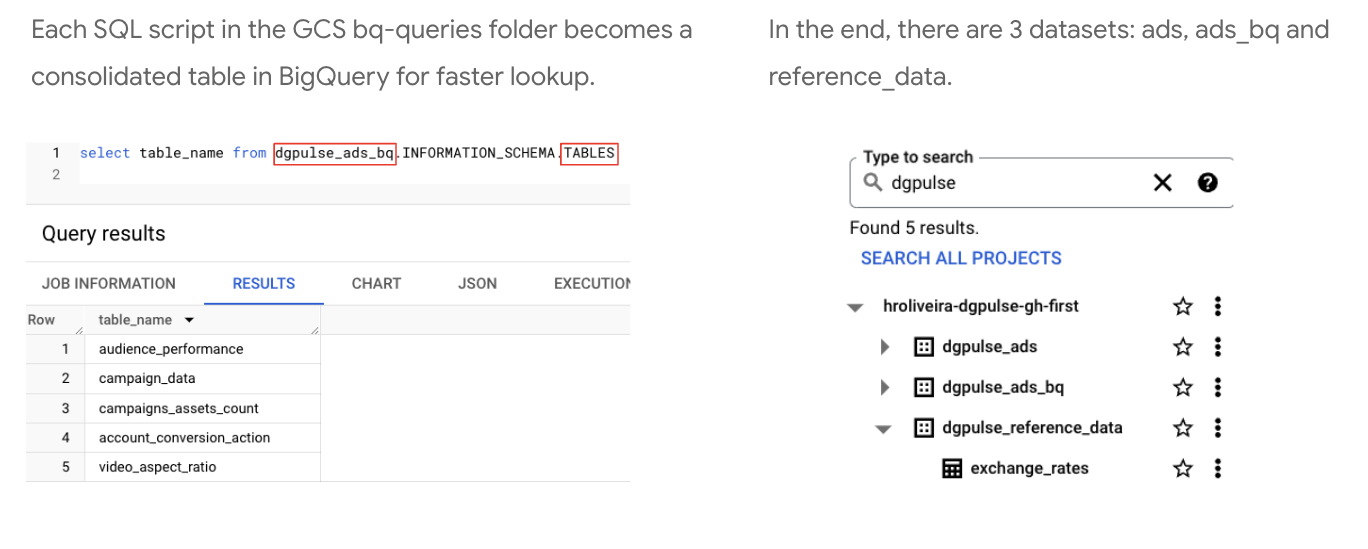
What happens during installation

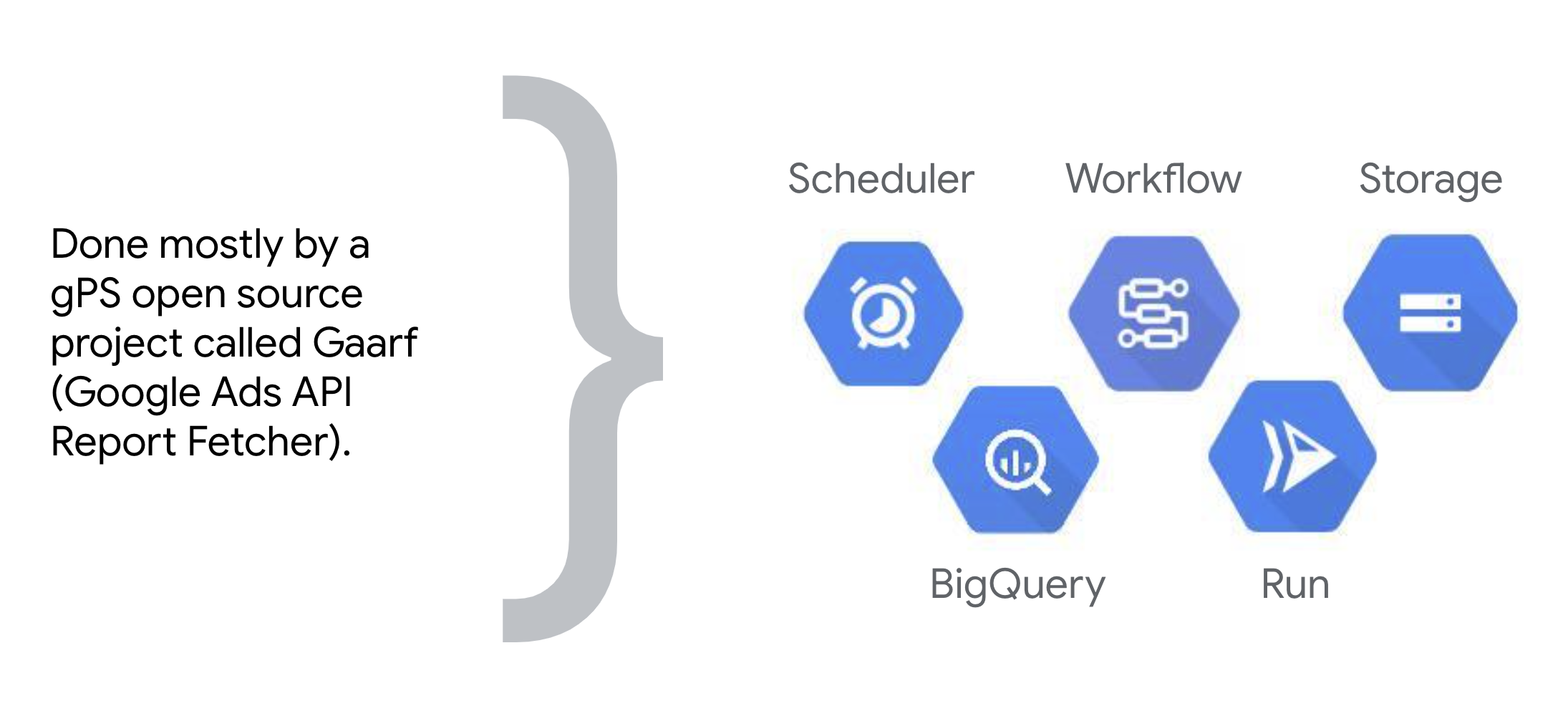
What Google Cloud components are deployed automatically
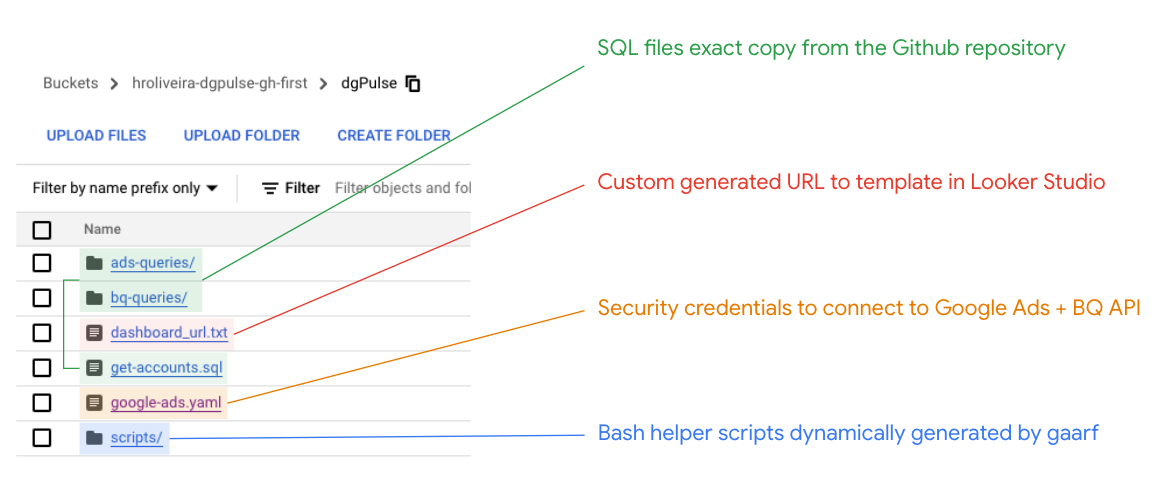
In depth: Gaarf → Storage
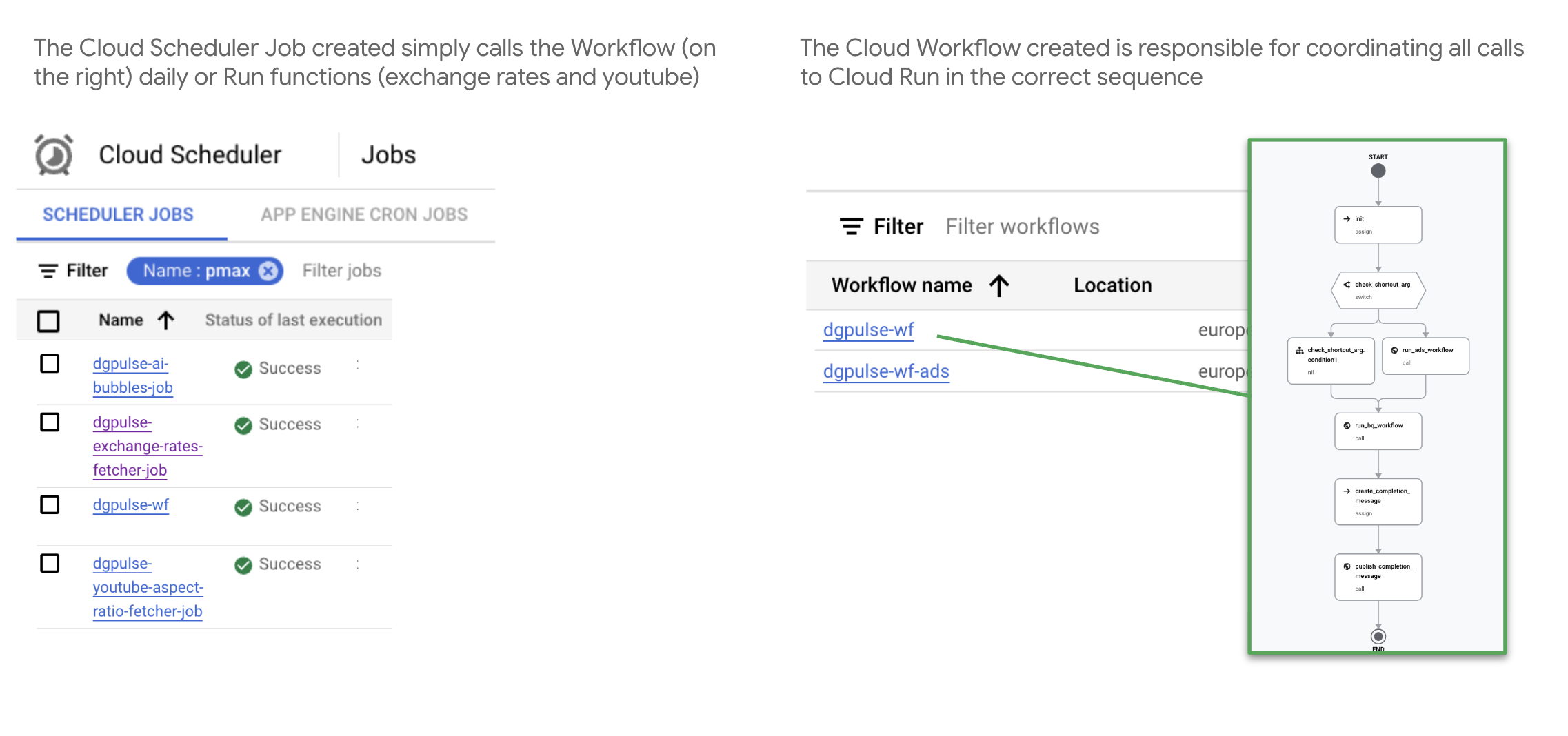
In depth: Gaarf → Scheduler + Workflow
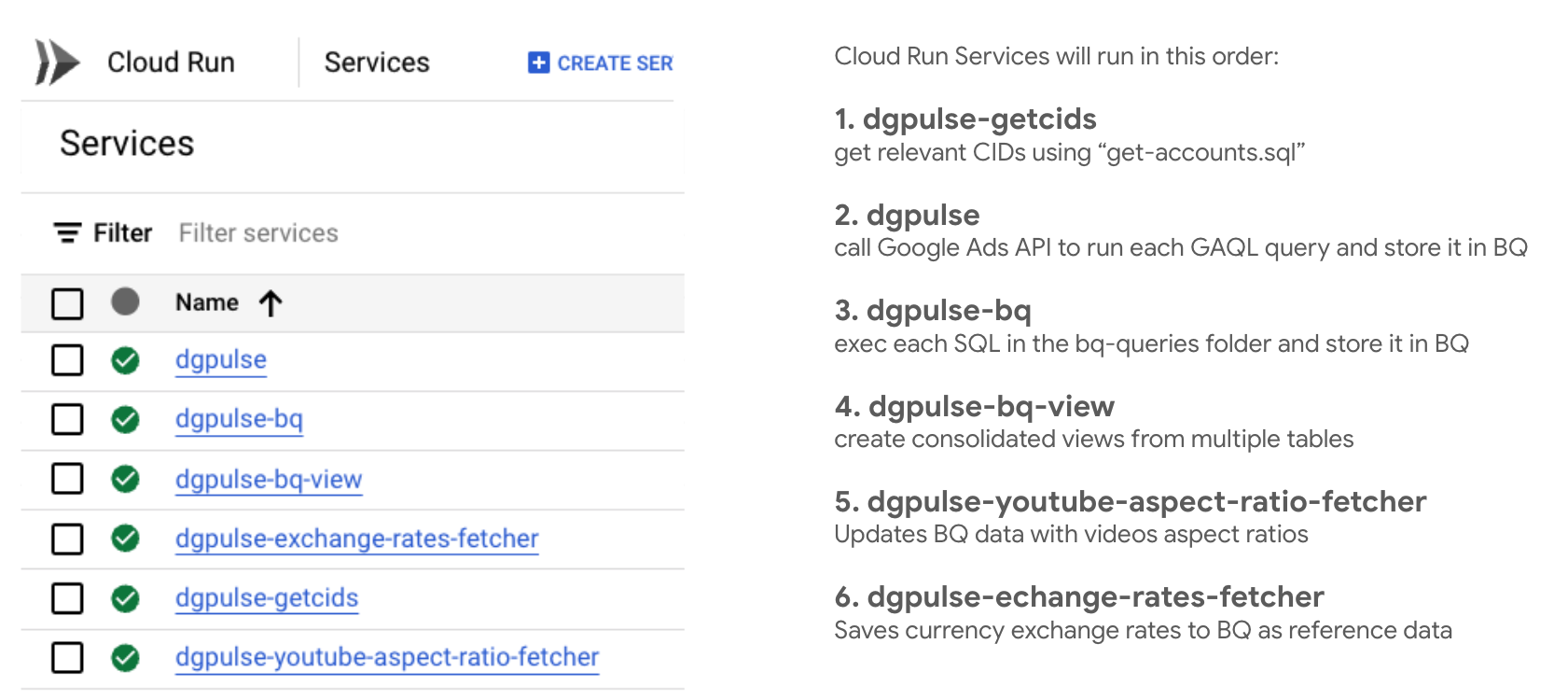
In depth: Gaarf → Run
In depth: Gaarf → BigQuery
What happens daily post installation
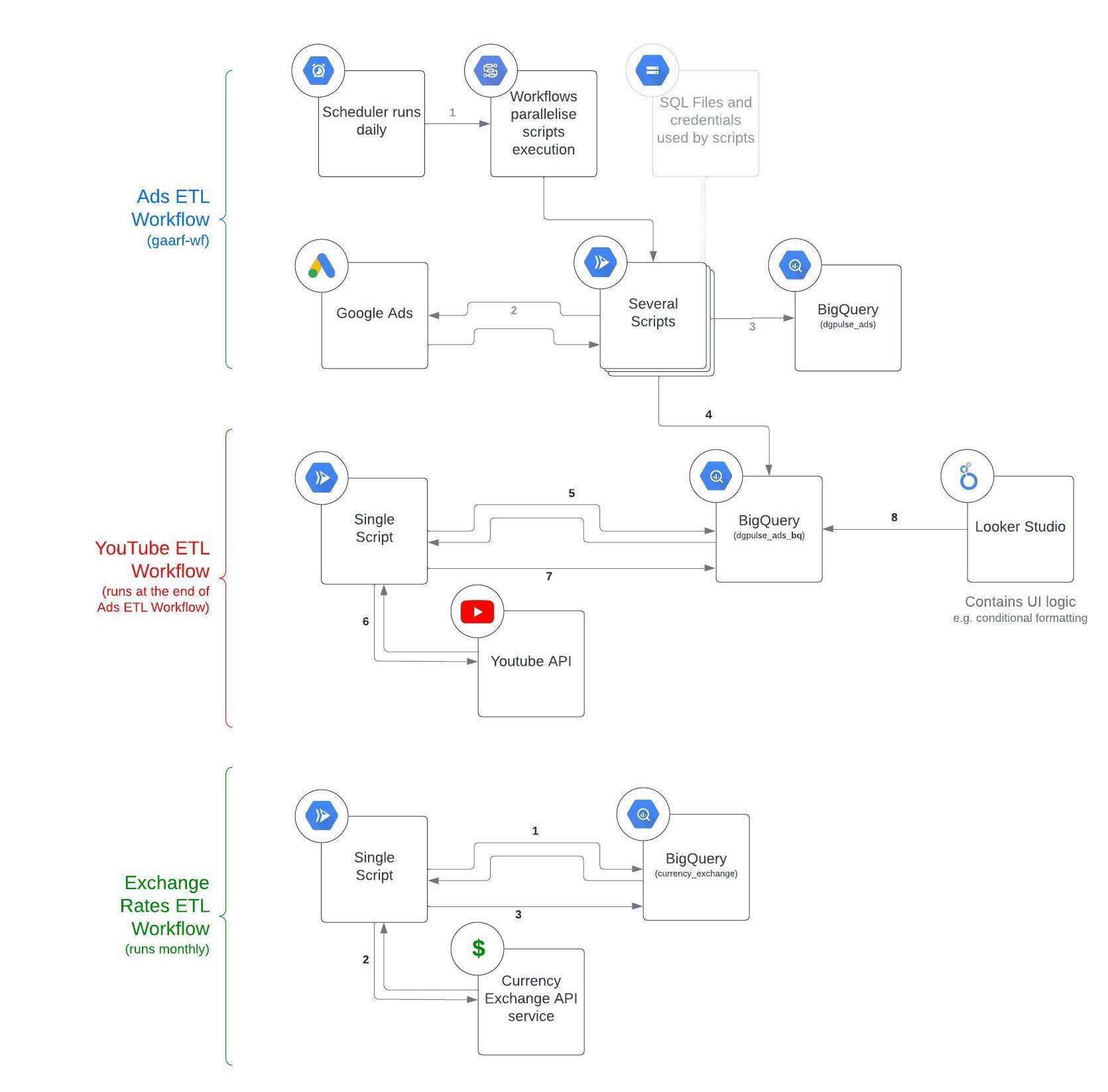 https://services.google.com/fh/files/misc/dgpulse-arch-7.jpeg
Troubleshooting
How to use Service Accounts during installation?
Glad you asked! Service Accounts are a safe and reliable way to install DG Pulse instead of using User Accounts (humans). If you do that you will also be able to skip the whole "OAuth Consent Screen" installation instructions in the wizard.
All you have to do is:
- in your Google Cloud Project, go to IAM, Service Account and create a Service Account (give it Owner access).
- Invite the email address automatically created for that Service Account to your Google Ads (as Read Only)
- During installation, when asked about which Service Account to use, use that Service Account email address.
- Also during installation, select "Yes" for "Do you want to use Secret Manager?".
What technical skills do I need to deploy the dashboard?
You do not need any technical skills to deploy the dashboard as it’s fully driven by clicks and “copy and paste” commands. However, you do need the Owner level permission in the Google Cloud project you’re deploying it to.
What Google Cloud components will be added to my project?
- Storage
- Scheduler
- Workflows
- Run
- BigQuery (Datasets and Data Transfer)
The deployment was not successful, what do I do?
If the deployment was unsuccessful please follow these steps to try and troubleshoot:
- Check that all credentials in the google-ads.yaml are correct:
- In The Google Cloud Platform, under the project you deployed DG-Pulse too,
Click the “Activate Cloud Shell” icon:
- Click the “Open Editor” icon:

- In the File System, find the dgpulse directory.
- In the dgpulse directory, find the google-ads.yaml file and click on it.
- Review the credentials in the google-ads.yaml file. Make sure that they are correct, and that there are no quotation marks before any credential.
- Check that the login_customer_id is all digits, with no dashes (i.e: 123456789 and not 123-456-789)
- If you find a mistake, edit it in place and be sure to save, and follow the next steps. If not, please refer to “How do I see logs from my deployment?” in the next section.
- Click the “Open Terminal” icon:
- In the Cloud shell, copy and paste the green code, and press the Enter key
when specified:
cd dgpulsePress Entersh upgrade-version.shPress Enter
- After the run finishes (may take 15-30 minutes) Check the dashboard URL to see if the deployment succeeded. (you can see instructions on how to find the dashboard URL in this document).
- In The Google Cloud Platform, under the project you deployed DG-Pulse too,
Click the “Activate Cloud Shell” icon:
How do I see the logs from my deployment?
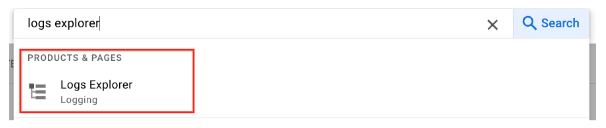
- In the Google Cloud Platform, under the project you deployed DG-Pulse too, click on the “Search” bar in the central upper part of the screen
- Type “Logs Explorer” in the search bar and click on the following:
I lost the dashboard URL in the process, how can I access or find it?
You can find the dashboard_url.txt file in the folder of the cloned repository or in your GCS bucket. Please see these instructions on how to access the URL through the cloud shell:
- In The Google Cloud Platform, under the project you deployed too, Click the
“Activate Cloud Shell” icon:
- In the Cloud shell, copy and paste the green code, and press the Enter key
when specified:
cd dgpulsePress Entercat dashboard_url.txtPress Enter
The dashboard URL should then appear in the Shell.
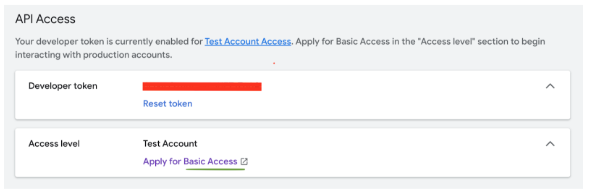
What access level does my access token must have?
Your Access Token has to have "Basic Access" or "Standard". Level "Test Account" will not work:
How Do I save and share the Finished Dashboard with teammates?
After clicking the dashboard URL for the first time, you will see the LookerStudio dashboard. In order to save and share it you need to follow these steps:
- On the upper right side of the screen, click "Save and Share"
- Review the Credentials permissions of the different data sources. If you would like to give other colleagues permission to view all parts of the dashboard, even if they don’t have permissions to the Google Cloud Project it was created in, you need to change the credentials to Owner’s.
- To change the credentials to Owner’s, you need to click Edit on the very most right column:

- Click on Data Credentials:

- Choose Owner’s credentials, and then Update:
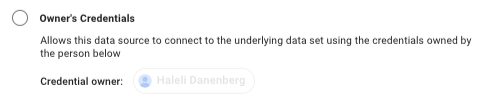
- Click Done on the upper right.
- Do this for all data sources in the Dashboard.
- Click “Save and Share” again, and “Acknowledge and save”
- Click “Add to Report”.
- On the upper right, Click Share:
 to share with teammates.
How much does it cost?
It heavily depends on
