
HomeGenie
HomeGenie: The Programmable Intelligence with 100% Local Agentic AI.
Install / Use
/learn @genielabs/HomeGenieREADME
HomeGenie is an open-source, cloud-independent ecosystem for smart automation.
It delivers a complete, privacy-focused, local-first experience.
This includes firmware for DIY devices, an efficient backend service,
and dedicated mobile and tablet apps.
Take absolute control over your environment while keeping your data strictly private.
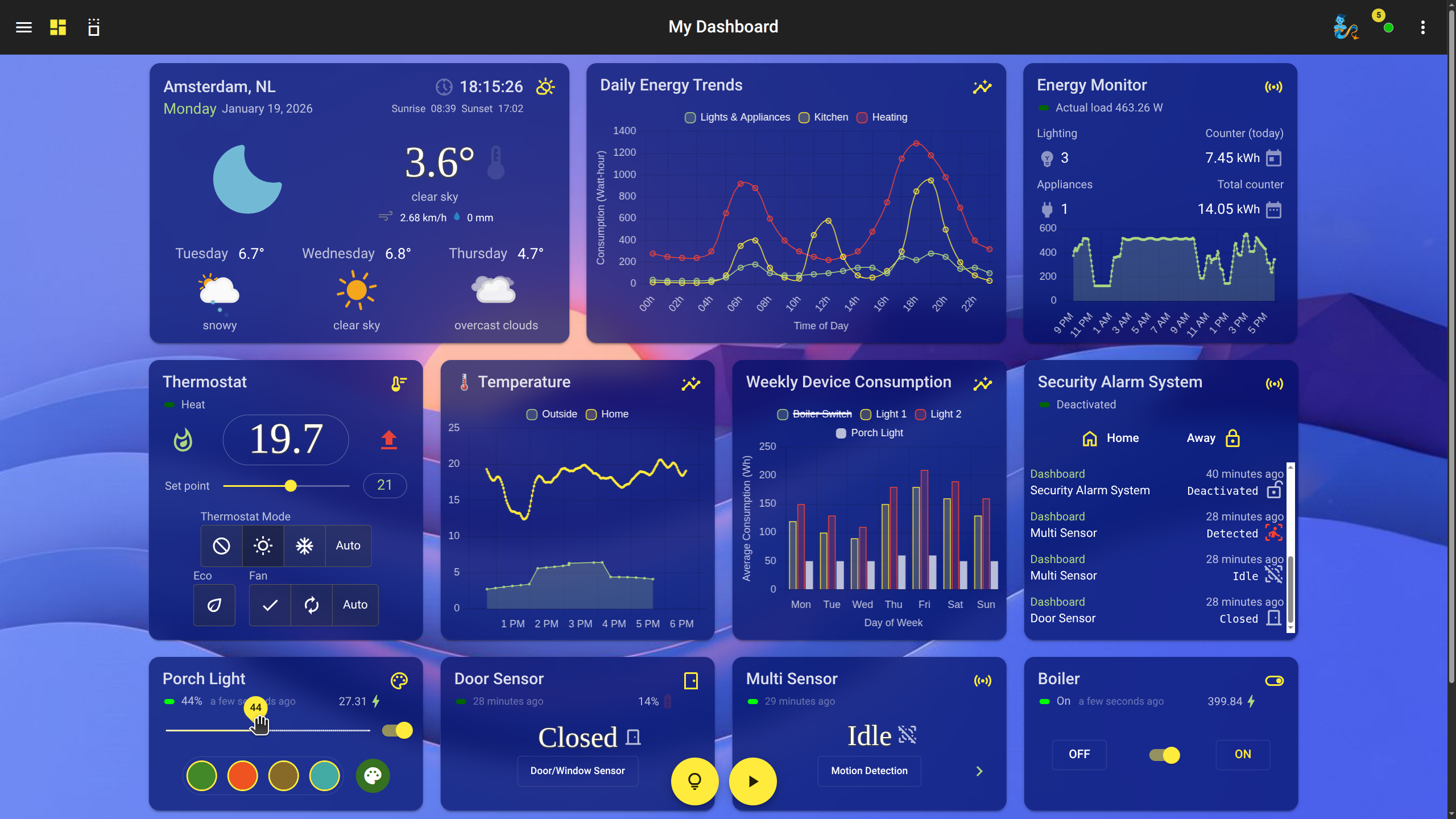
Create automations easily with the Visual Editor, or activate the built-in AI features to control devices, build custom widgets, or create complex automations in seconds.
Getting started is effortless. HomeGenie's UI supports more than 90 languages, and a built-in demo configuration guarantees an immediate, practical experience from the very first moment. The entire setup is portable and lightweight: just download the ZIP, extract, and run.
✨ Key Features
- 100% Local Agentic AI: Run state-of-the-art LLMs directly on your HomeGenie server for autonomous reasoning, context awareness, and natural language control. Your data stays private, your intelligence stays local.
- AI Vision Suite: Full integration of YOLO (Object Detection, Instance Segmentation, Pose Estimation) directly on server, ESP32-CAM modules, and generic IP cameras.
- Universal API & Programmability: Automate anything with a fluent API programmable in C#, JavaScript, and Python. Create custom programs and widgets with full developer tools.
- Advanced Scheduler with Genie Commands: Supports extended cron expressions, variables, conditions, and AI-driven natural language tasks for flexible automations.
- Customizable Dashboard & Widgets: A modern, responsive UI with a powerful built-in editor to create and customize your own widgets using HTML, JavaScript, and CSS.
- Multi-protocol Support: Integrated drivers for X10, Z-Wave, ZigBee, GPIO, SPI, I2C, IR/RF, and more.
- Smart Display & FPV Car Integration: Transform ESP32 hardware into interactive smart displays or AI-powered FPV robotic platforms.
- Visual Programming: Create complex scenarios intuitively with the Visual Program editor—no coding skills required.
- Voice Control & i18n: Integrated support for voice commands and a fully localized UI across over 90 languages.
- Extensible: Features groups, configuration backup, a package repository, and much more.
Full Features and Image Gallery
Documentation
For detailed guides, API references, and tutorials, visit the official documentation website:
https://genielabs.github.io/HomeGenie
💾 Installation
You can find the latest release assets on the GitHub Releases page.
1. Choose your version
Download the .zip archive corresponding to your operating system, architecture, and
hardware acceleration needs:
| Platform | Architecture | Variant | Optimized For | Technical Notes |
|:------------|:-------------|:-------------------|:-----------------------------|:---------------------------------------------------------------|
| Windows | x64 | win-x64 | Standard (CPU only) | Maximum stability, no GPU requirements. |
| | x64 | win-x64-cuda12 | NVIDIA GPUs | High performance via CUDA 12 (LLM & Vision). |
| | x64 | win-x64-vulkan | AMD, Intel & NVIDIA | LLM via Vulkan, Vision via DirectX 12 (DirectML). |
| Linux | x64 | linux-x64 | Standard (CPU only) | For servers or PCs without dedicated GPUs. |
| | x64 | linux-x64-cuda12 | NVIDIA GPUs | High performance via CUDA 12 (LLM & Vision). |
| | x64 | linux-x64-vulkan | Generic GPUs | LLM via Vulkan, Vision via CPU (No DirectML on Linux). |
| | ARM64 | linux-arm64 | Raspberry Pi 3, 4, 5, Zero 2 | Optimized for 64-bit ARM SoCs (CPU-based). |
| | ARM | linux-arm | Raspberry Pi 2 | Legacy 32-bit ARM support. |
| macOS | x64 / ARM | osx-x64 | Intel & Apple Silicon | Metal support for Apple M1/M2/M3 acceleration. |
2. Which one should I choose?
- 🚀 NVIDIA Users: Download the
cuda12variant for the best performance in LLMs and Computer Vision. (Requires up-to-date NVIDIA Drivers). - 🎮 AMD / Intel / Windows Users: Use the
vulkanvariant to leverage your GPU for AI tasks. It's the best choice for non-NVIDIA hardware on Windows (via DirectX 12). - 🍎 macOS Users: The
osx-x64build supports Apple Silicon (Metal) and Intel natively for maximum speed on Mac devices. - ☁️ Server / Older PCs: If you don't have a dedicated GPU or are running a headless server, the standard versions (without suffixes) are the most stable and lightweight.
- 🍓 Raspberry Pi / ARM: Choose
linux-arm64(for Pi 4/5 64-bit) orlinux-arm(for older 32-bit systems).
3. Setup
After downloading, unzip the archive to your preferred location.
🚀 Starting HomeGenie
Inside the extracted folder, you will find the homegenie directory
containing the application binaries, along with a handy startup script
specifically tailored for your operating system.
Simply run the startup script to launch the server:
- Windows: Double-click
start.bat - macOS: Double-click
start.command - Linux / Raspberry Pi: Run
./start.shfrom the terminal (or double-click if your file manager supports executing shell scripts).
To gracefully stop the application, press CTRL + C in the terminal window.
🎨 Desktop App Experience (PWA)
By default, HomeGenie now launches as a desktop-style Progressive Web App (PWA).
The startup scripts (start.bat, start.sh, etc.) are pre-configured to pass
the --start-browser argument to the HomeGenie executable, opening the UI in
a dedicated, app-like window for a seamless experience.
Tip: If HomeGenie is already running in the background, launching the startup script again will not start a second server. Instead, it will conveniently open a new app window connected directly to your existing session.
For a traditional server-only or headless experience, simply edit the startup script
and remove the --start-browser flag from the execution command.
🛡️ Securing Your Installation (Sandboxing)
Since HomeGenie features advanced AI automation engines (like Gemini Automan) capable of generating, compiling, and executing C# code on the fly, we highly recommend running the application in a restricted, sandboxed environment to ensure maximum system security when executing AI-generated code.
- Dedicated System User (Linux - Recommended): Run the server using
a dedicated, non-root user (e.g.,
homegenie) with anologinshell. Grant this user read/write permissions strictly to the HomeGenie installation folder, isolating it from the rest of your OS. - Containerization: Alternatively, deploy HomeGenie using Docker,
utilizing read-only volume mounts for the host system and restricting
write access exclusively to the
datadirectory.
Running as a System Service
HomeGenie can be run directly from a terminal for easy setup and testing, or installed as a system service for continuous, unattended operation.
Linux (systemd)
-
(Recommended) Create a dedicated user for the service and move the application files:
# Create a new system user named 'homegenie' with its home directory sudo useradd -r -m -s /bin/false homegenie # Copy the application files into the new home directory # Assumes you are in the directory where you extracted the zip sudo cp -ar ./homegenie/* /home/homegenie/ # Ensure the ownership of all files is correct sudo chown -R homegenie:homegenie /home/homegenie -
Create a service definition file at
/etc/systemd/system/homegenie.service:[Unit] Description=HomeGenie Automation Server After=network.target [Service] Type=notify User=homegenie Group=homegenie WorkingDirectory=/home/homegenie/ ExecStart=/home/homegenie/HomeGenie Restart=on-failure RestartSec=15s [Install] WantedBy=multi-user.target -
Reload the systemd daemon, then start and enable the service:
sudo systemctl daemon-reload
sudo systemctl start homegenie.service
sudo systemctl enable
