Ghorg
Quickly clone or backup an entire org/users repositories into one directory - Supports GitHub, GitLab, Bitbucket, and more 🐇🥚
Install / Use
/learn @gabrie30/GhorgREADME
ghorg
<a href="https://godoc.org/github.com/gabrie30/ghorg"><img src="https://godoc.org/github.com/gabrie30/ghorg?status.svg" alt="GoDoc"></a>



Pronounced [gore-guh]; similar to gorge. You can use ghorg to gorge on orgs.
Use ghorg to quickly clone all of an orgs, or users repos into a single directory. This can be useful in many situations including
- Searching an orgs/users codebase with ack, silver searcher, grep etc..
- Bash scripting
- Creating backups
- Onboarding new team members (cloning all team repos)
- Performing Audits
With default configuration ghorg performs two actions.
- Will clone a repo if its not inside the clone directory.
- If repo does exists locally in the clone directory it will perform a git pull and git clean on the repo.
<p align="center"> <img width="648" alt="ghorg cli example" src="https://user-images.githubusercontent.com/1512282/63229247-5459f880-c1b3-11e9-9e5d-d20723046946.png"> </p>So when running ghorg a second time on the same org/user, all local changes in the cloned directory by default will be overwritten by what's on GitHub. If you want to work out of this directory, make sure you either rename the directory or set the
--no-cleanflag on all future clones to prevent losing your changes locally.
Supported Providers
- GitHub (Self Hosted & Cloud)
- GitLab (Self Hosted & Cloud)
- Bitbucket (Cloud & Self-hosted Server)
- Gitea (Self Hosted Only)
- Sourcehut (Limited Features)
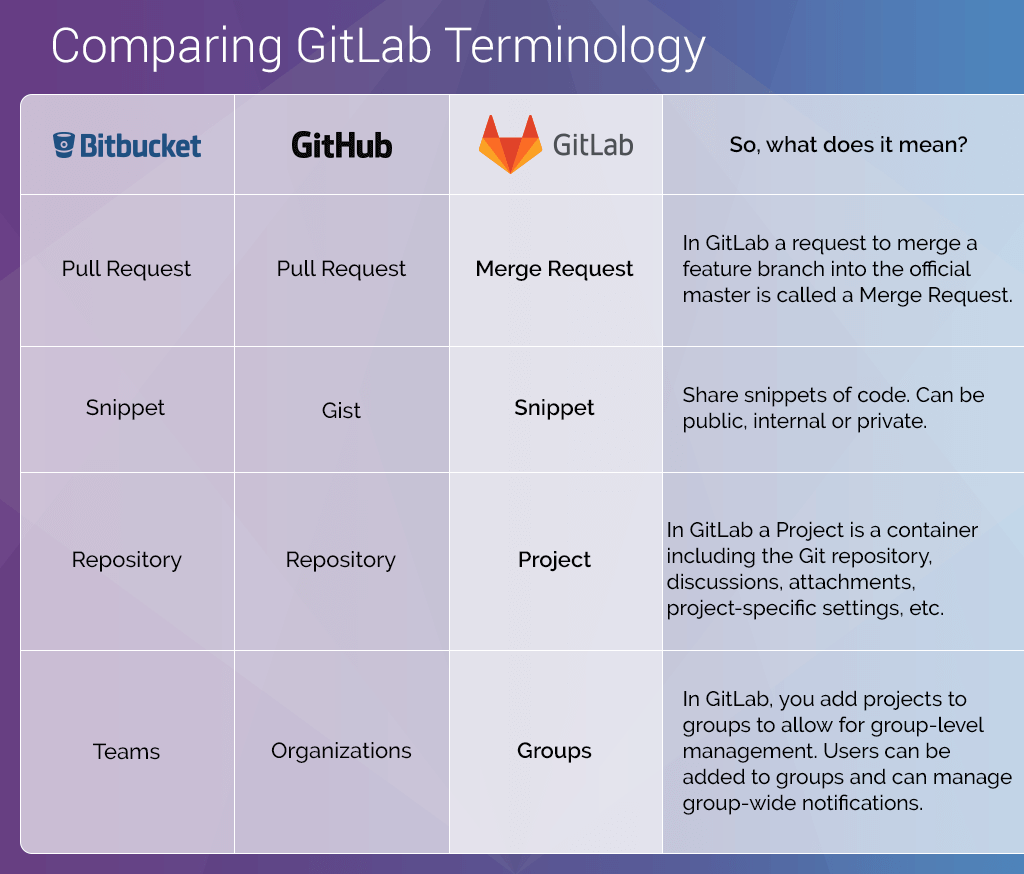
The terminology used in ghorg is that of GitHub, mainly orgs/repos. GitLab and BitBucket use different terminology. There is a handy chart thanks to GitLab that translates terminology here. Note, some features may be different for certain providers.
High Level Features
- Filter or select specific repositories for cloning
- Create backups of repositories
- Simplify complex clone commands using reclone shortcuts
- Initiate clone operations via HTTP server
- Schedule cloning tasks using cron
- Monitor and track clone metrics over time
Installation
There are a installation methods available, please choose the one that suits your fancy:
For each installation method, optionally create a ghorg configuration file. See the configuration section for more details.
mkdir -p $HOME/.config/ghorg
curl https://raw.githubusercontent.com/gabrie30/ghorg/master/sample-conf.yaml > $HOME/.config/ghorg/conf.yaml
vi $HOME/.config/ghorg/conf.yaml # To update your configuration
Prebuilt Binaries
See latest release to download directly for
- Mac (Darwin)
- Windows
- Linux
If you don't know which to choose its likely going to be the x86_64 version for your operating system.
Homebrew
brew install gabrie30/utils/ghorg
Mise
If you are an enthusiast user of Mise, the polyglot tool versions manager, you can use such command to install the latest version of ghorg on Linux/MacOS/Windows:
mise use -g ghorg@latest
Golang
# ensure $HOME/go/bin is in your path ($ echo $PATH | grep $HOME/go/bin)

# if using go 1.16+ locally
go install github.com/gabrie30/ghorg@latest

# older go versions can run
go get github.com/gabrie30/ghorg
Configuration
Precedence for configuration is first given to the flags set on the command-line, then to what's set in your $HOME/.config/ghorg/conf.yaml. This file comes from the sample-conf.yaml and can be installed by performing the following.
mkdir -p $HOME/.config/ghorg
curl https://raw.githubusercontent.com/gabrie30/ghorg/master/sample-conf.yaml > $HOME/.config/ghorg/conf.yaml
vi $HOME/.config/ghorg/conf.yaml # To update your configuration
If no configuration file is found ghorg will use its defaults and try to clone a GitHub Org, however an api token is always required.
You can have multiple configuration files which is useful if you clone from multiple SCM providers with different tokens and settings. Alternative configuration files can only be referenced as a command-line flag --config.
If you have multiple different orgs/users/configurations to clone see the ghorg reclone command as a way to manage them.
Note: ghorg will respect the XDG_CONFIG_HOME environment variable if set.
SCM Provider Setup
Note: if you are running into issues, read the troubleshooting and known issues section below
GitHub Setup
- Create Personal Access Token with all
reposcopes. UpdateGHORG_GITHUB_TOKENin yourghorg/conf.yamlor as a cli flag or place it in a file and add the path toGHORG_GITHUB_TOKEN. If your org has Saml SSO in front you will need to give your token those permissions as well, see this doc. - For cloning GitHub Enterprise (self hosted github instances) repos you must set
--base-urle.g.ghorg clone <github_org> --base-url=https://internal.github.com - See examples/github.md on how to run
GitHub App Authentication (Advanced)
- Create a GitHub App in your Organization. You only need to fill out the required fields. Make sure to give Repository Permissions -> contents -> read only permissions
- Install the GitHub App into your Organization
- Generate a a private key from the GitHub App, set the location of the key to
GHORG_GITHUB_APP_PEM_PATH - Locate the GitHub App ID from the GitHub App, set the value to
GHORG_GITHUB_APP_ID - Locate the GitHub Installation ID from the URL of the GitHub app, set the value to
GHORG_GITHUB_APP_INSTALLATION_ID. NOTE: you will need to use the actual GitHub url to get this ID, go to your GitHub Organization Settings Page -> Third Party Access -> GitHub Apps -> Configure -> Get ID from URL
GitLab Setup
- Create Personal Access Token with the
read_apiscope (orapifor self-managed GitLab older than 12.10). This token can be added to yourghorg/conf.yamlor as a cli flag. - Update the
GitLab Specificconfig in yourghorg/conf.yamlor via cli flags or place it in a file and add the path toGHORG_GITLAB_TOKEN - Update
GHORG_SCM_TYPEtogitlabin yourghorg/conf.yamlor via cli flags - See examples/gitlab.md on how to run
Gitea Setup
- Create Access Token (Settings -> Applications -> Generate Token)
- Update
GHORG_GITEA_TOKENin yourghorg/conf.yamlor use the (--token, -t) flag or place it in a file and add the path toGHORG_GITEA_TOKEN. - Update
GHORG_SCM_TYPEtogiteain yourghorg/conf.yamlor via cli flags - See examples/gitea.md on how to run
Sourcehut Setup
- Create a Personal Access Token. Click "Limit scope of access grant", check "Generate read-only access token", then ctrl-click the REPOSITORIES and OBJECTS permissions.
- Ensure you have added an SSH key if you want to clone private repos (sourcehut does not accept PATs in https URLs)
- Update
GHORG_SOURCEHUT_TOKENin yourghorg/conf.yamlor use the (--token, -t) flag or place it in a file and add the path toGHORG_SOURCEHUT_TOKEN. - Update
GHORG_SCM_TYPEtosourcehutin yourghorg/conf.yamlor via cli flags
Note on usernames: You can specify sourcehut usernames with or without the
~prefix (e.g., bothghorg clone usernameand `ghorg clone ~usernam
Related Skills
apple-reminders
336.5kManage Apple Reminders via remindctl CLI (list, add, edit, complete, delete). Supports lists, date filters, and JSON/plain output.
gh-issues
336.5kFetch GitHub issues, spawn sub-agents to implement fixes and open PRs, then monitor and address PR review comments. Usage: /gh-issues [owner/repo] [--label bug] [--limit 5] [--milestone v1.0] [--assignee @me] [--fork user/repo] [--watch] [--interval 5] [--reviews-only] [--cron] [--dry-run] [--model glm-5] [--notify-channel -1002381931352]
oracle
336.5kBest practices for using the oracle CLI (prompt + file bundling, engines, sessions, and file attachment patterns).
tmux
336.5kRemote-control tmux sessions for interactive CLIs by sending keystrokes and scraping pane output.