
Npp Explorer Plugin
Explorer plugin for Notepad++ x64/x86
Install / Use
npx skills add funap/npp-explorer-pluginInstalls into whichever agent you are using.
README
Explorer Plugin for Notepad++ x64
This is a modified version of the Explorer plugin for Notepad++. You could easy browse through files and edit sources in Notepad++.
Difference between the original plugin
- Notepad++ 64-bit compatible
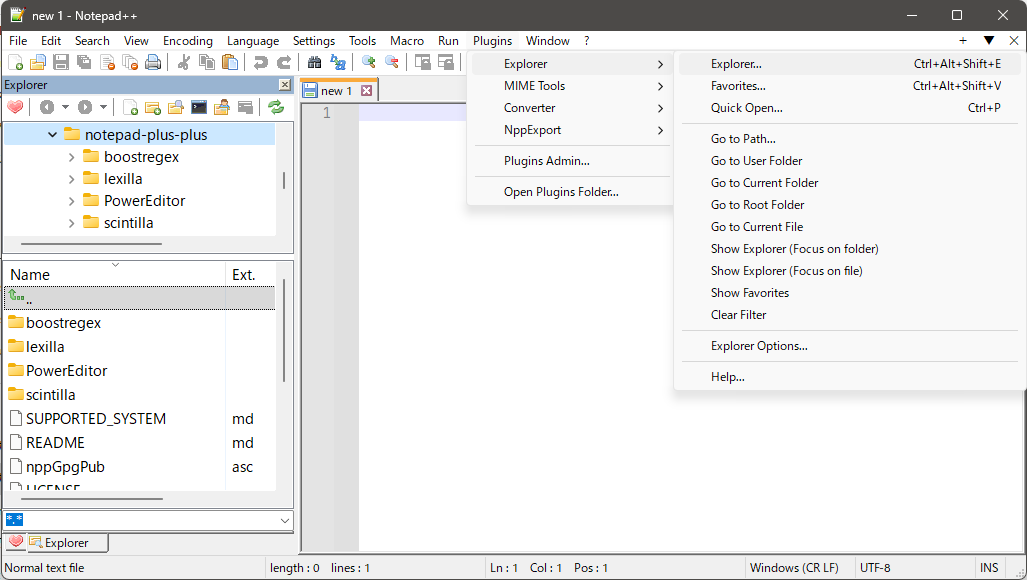
- More configurable actions to the plugin menu.
- Quick Open Feature.
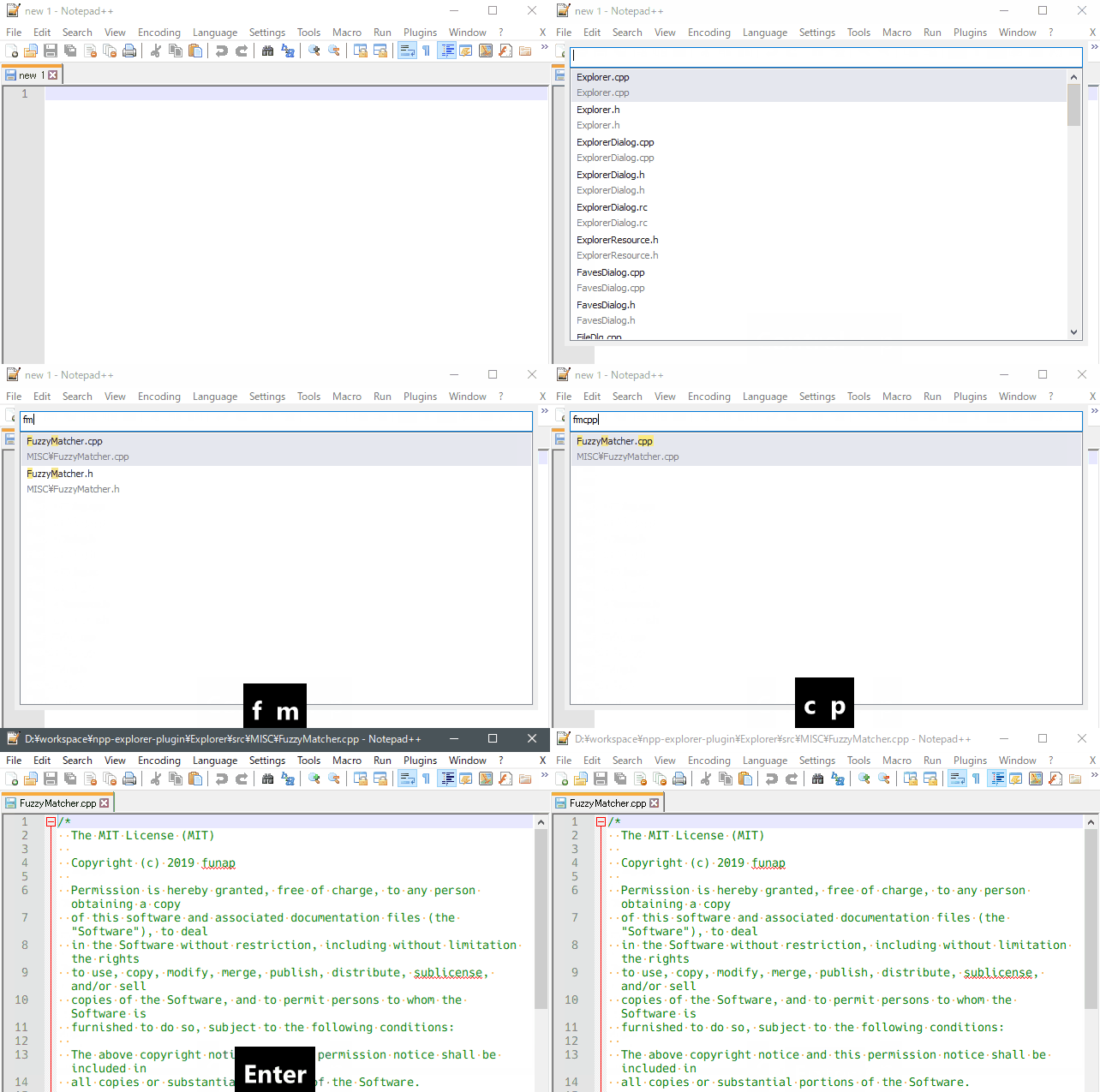
If you press <kbd>Ctrl+P</kbd>, the Fuzzy Finder will pop up.
This will let you quickly search for any file in current path by typing parts of the file name. - Full tree Feature.
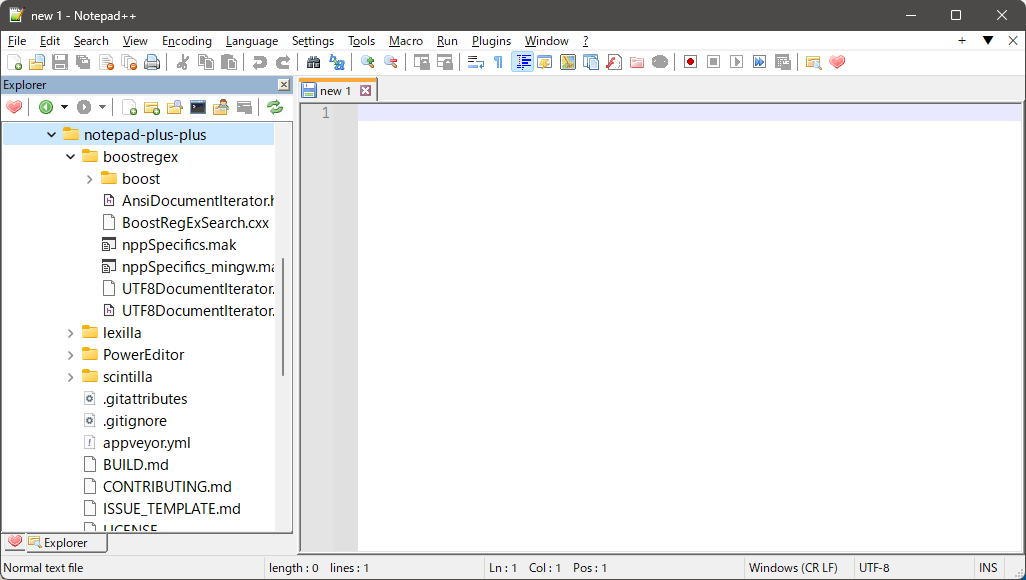
Ability to display files in a tree view like Light Explorer. - And, minor bug fixes. See also the Releases for more information.
Download
https://github.com/funap/npp-explorer-plugin/releases
Screenshot
-
Explorer Panel & Plugin Menu
-
Explorer Panel (use Full tree)
-
Quick Open
Installation
Notepad++ 7.6.3 and above
Drop the Explorer\Explorer.dll into the %ProgramFiles%\Notepad++\plugins\ folder. The Explorer subfolder has to be kept.
i.e.
C:\Program Files\Notepad++\plugins\Explorer\Explorer.dll
older versions
Notepad++ 7.6.1
Drop the Explorer\Explorer.dll into the %ProgramData%\Notepad++\plugins\ folder. The Explorer subfolder has to be kept.
i.e.
C:\ProgramData\Notepad++\plugins\Explorer\Explorer.dll
Notepad++ 7.6
Drop the Explorer\Explorer.dll into the %LocalAppData%\Notepad++\plugins\ folder. The Explorer subfolder has to be kept.
i.e.
C:\Users\[USERNAME]\AppData\Local\Notepad++\plugins\Explorer\Explorer.dll
7.5.9 or lower
Just copy the Explorer.dll to your Notepad++\plugins\ directory.
After Installation
By default, Quick Open feature can be accessed using the shortcut <kbd>Ctrl+P</kbd>. However, it's important to be aware that this shortcut is already assigned to the Print... command.
To resolve this conflict, follow these steps:
- Open the application and navigate to
Settings>Shortcut Mapper... - In the Shortcut Mapper window, use the filter input at the bottom to search for the
Print...command. - Once located, clear the existing shortcut assigned to the
Print...command.
Or assign your favorite key to Quick Open....
Keyboard Shortcuts
When the Explorer panel has focus, the following shortcuts are supported for quick navigation and file management:
| Shortcut | Action | | --- | --- | | <kbd>Ctrl + P</kbd> | Open the Quick Open dialog. | | <kbd>Ctrl + Shift + F</kbd> | Open Notepad++ Find in Files dialog for the current directory. | | <kbd>Ctrl + L</kbd> or <kbd>Alt + D</kbd> | Focus the Address Bar. | | <kbd>ESC</kbd> | Return focus to the active Notepad++ editor window. | | <kbd>Tab</kbd> / <kbd>Shift + Tab</kbd> | Cycle focus through the Folder Tree, File List, and Filter Box. | | <kbd>F2</kbd> | Rename the selected file or folder. | | <kbd>Backspace</kbd> / <kbd>Alt + Up</kbd> | Navigate to the parent directory. | | <kbd>Alt + Left</kbd> / <kbd>Alt + Right</kbd> | Navigate Back / Forward in history. | | <kbd>Delete</kbd> | Delete the selected item (supports <kbd>Shift + Delete</kbd> for permanent deletion). | | <kbd>Alt + Enter</kbd> | Show Windows properties dialog for the selected item. | | <kbd>F5</kbd> / <kbd>Ctrl + R</kbd> | Refresh the current view. | | <kbd>App Key</kbd> / <kbd>Shift + F10</kbd> | Show the context menu for the focused control. | | <kbd>Ctrl + A</kbd> | Select all items (File List only). | | <kbd>Ctrl + C</kbd> / <kbd>Ctrl + X</kbd> / <kbd>Ctrl + V</kbd> | Copy / Cut / Paste selected items. |
License
This project is licensed under the terms of the GNU GPL v2.0 license
Related Skills
node-connect
385.6kDiagnose OpenClaw Android, iOS, or macOS node pairing, QR/setup code, route, auth, and connection failures.
blender-python-addon
40.5kBlender Python add-on rules for operators, panels, properties, registration, testing, and API-safe scripting
flutter-development-guidelines-cursorrules-prompt-file
40.5kCursor rules for Flutter development with MVVM architecture, Riverpod state management, Material widgets, and Dart style guidelines.
commit-push-pr
140.7kCommit, push, and open a PR
