
Flameshot
Powerful yet simple to use screenshot software :desktop_computer: :camera_flash:
Install / Use
/learn @flameshot-org/FlameshotREADME
Preview
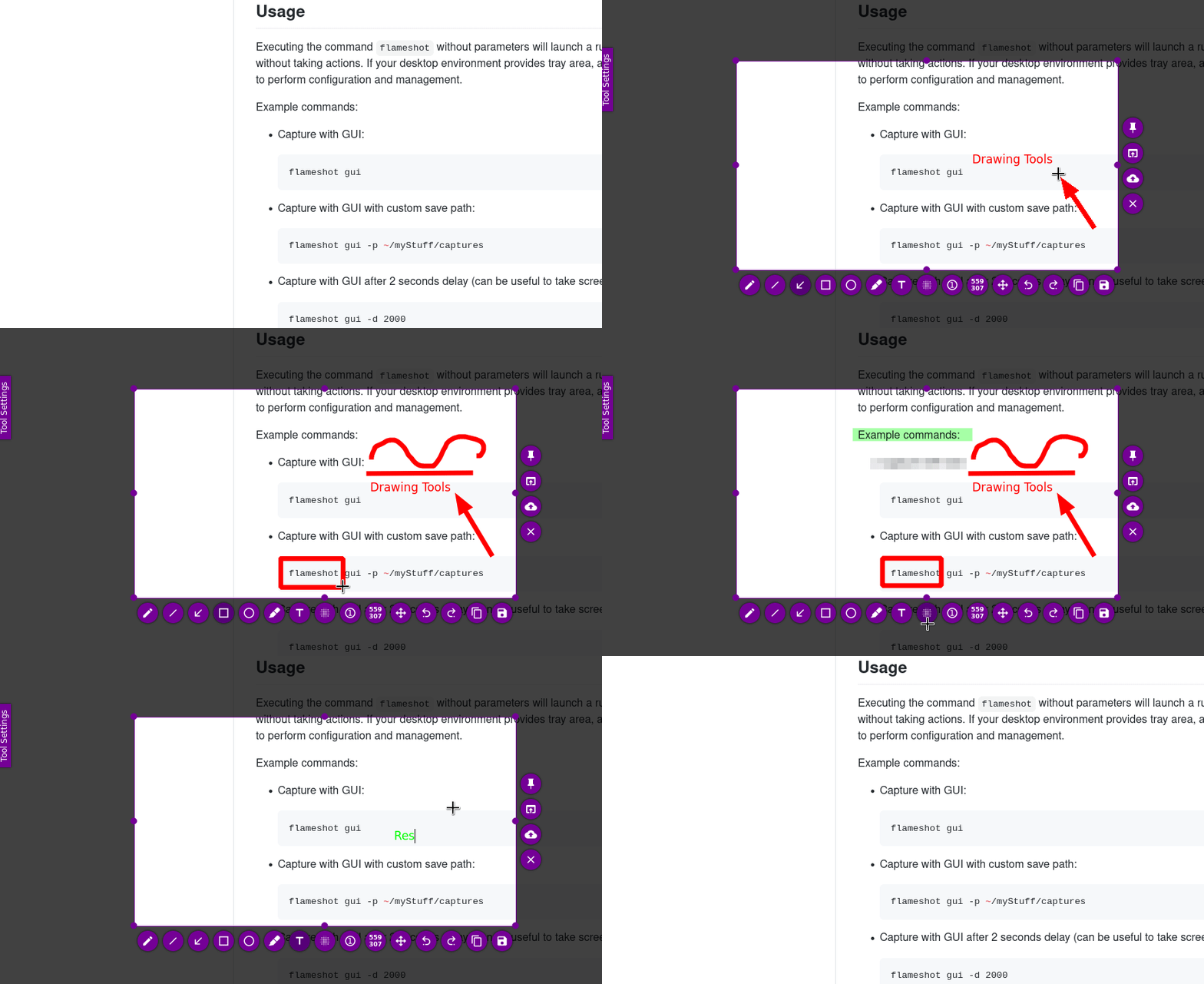
Index
- Features
- Usage
- Keyboard Shortcuts
- Considerations
- Installation
- Compilation
- License
- Privacy Policy
- Code Signing Policy
- Contribute
- Acknowledgment
Features
- Customizable appearance.
- Easy to use.
- In-app screenshot editing.
- DBus interface.
- Upload to Imgur.
Usage
Executing the command flameshot without parameters will launch a running
instance of the program in the background without taking actions.
If your desktop environment provides tray area, a tray icon will also
appear in the tray for users to perform configuration and management.
Example commands:
-
Capture with GUI:
flameshot gui -
Capture with GUI with custom save path:
flameshot gui -p ~/myStuff/captures -
Capture with GUI after 2 seconds delay (can be useful to take screenshots of mouse hover tooltips, etc.):
flameshot gui -d 2000 -
Fullscreen capture with custom save path (no GUI) and delayed:
flameshot full -p ~/myStuff/captures -d 5000 -
Fullscreen capture with custom save path copying to clipboard:
flameshot full -c -p ~/myStuff/captures -
Capture the screen containing the mouse and print the image (bytes) in PNG format:
flameshot screen -r -
Capture the screen number 1 and copy it to the clipboard:
flameshot screen -n 1 -c
In case of doubt choose the first or the second command as shortcut in your favorite desktop environment.
A systray icon will be in your system's panel while Flameshot is running. Do a right click on the tray icon and you'll see some menu items to open the configuration window and the information window. Check out the About window to see all available shortcuts in the graphical capture mode.
Usage on Windows
On Windows, flameshot.exe will behave as expected for all supported command-line arguments,
but it will not output any text to the console. This is problematic if, for example, you are
running flameshot.exe -h.
If you require console output, run flameshot-cli.exe instead. flameshot-cli.exe is a minimal wrapper around flameshot.exe that ensures all stdout is captured and output to the console.
CLI configuration
You can use the graphical menu to configure Flameshot, but alternatively you can use your terminal or scripts to do so.
-
Open the configuration menu:
flameshot config -
Show the initial help message in the capture mode:
flameshot config --showhelp true -
For more information about the available options use the help flag:
flameshot config -h
Config file
You can also edit some of the settings (like overriding the default colors) in the configuration file.
Linux path: ~/.config/flameshot/flameshot.ini.
Windows path: C:\Users\{YOURNAME}\AppData\Roaming\flameshot\flameshot.ini.
When copying over the config file from Linux to Windows or vice versa,
make sure to correct the savePath variable,
so that the screenshots save in the right directory on your desired file system.
Keyboard shortcuts
Local
These shortcuts are available in GUI mode:
| Keys | Description | |--- |--- | | <kbd>P</kbd> | Set the Pencil as paint tool | | <kbd>D</kbd> | Set the Line as paint tool | | <kbd>A</kbd> | Set the Arrow as paint tool | | <kbd>S</kbd> | Set Selection as paint tool | | <kbd>R</kbd> | Set the Rectangle as paint tool | | <kbd>C</kbd> | Set the Circle as paint tool | | <kbd>M</kbd> | Set the Marker as paint tool | | <kbd>T</kbd> | Add text to your capture | | <kbd>B</kbd> | Set Pixelate as the paint tool | | <kbd>←</kbd>, <kbd>↓</kbd>, <kbd>↑</kbd>, <kbd>→</kbd> | Move selection 1px | | <kbd>Shift</kbd> + <kbd>←</kbd>, <kbd>↓</kbd>, <kbd>↑</kbd>, <kbd>→</kbd> | Resize selection 1px | | <kbd>Ctrl</kbd> + <kbd>Shift</kbd> + <kbd>←</kbd>, <kbd>↓</kbd>, <kbd>↑</kbd>, <kbd>→</kbd> | Symmetrically resize selection 2px | | <kbd>Esc</kbd> | Quit capture | | <kbd>Ctrl</kbd> + <kbd>M</kbd> | Move the selection area | | <kbd>Ctrl</kbd> + <kbd>C</kbd> | Copy to clipboard | | <kbd>Ctrl</kbd> + <kbd>S</kbd> | Save selection as a file | | <kbd>Ctrl</kbd> + <kbd>Z</kbd> | Undo the last modification | | <kbd>Ctrl</kbd> + <kbd>Shift</kbd> + <kbd>Z</kbd> | Redo the next modification | | <kbd>Ctrl</kbd> + <kbd>Q</kbd> | Leave the capture screen | | <kbd>Ctrl</kbd> + <kbd>O</kbd> | Choose an app to open the capture | | <kbd>Ctrl</kbd> + <kbd>Return</kbd> | Commit text in text area| | <kbd>Ctrl</kbd> + <kbd>Backspace</kbd> | Cancel current selection | | <kbd>Return</kbd> | Upload the selection to Imgur | | <kbd>Spacebar</kbd>
Related Skills
node-connect
326.5kDiagnose OpenClaw node connection and pairing failures for Android, iOS, and macOS companion apps
frontend-design
80.4kCreate distinctive, production-grade frontend interfaces with high design quality. Use this skill when the user asks to build web components, pages, or applications. Generates creative, polished code that avoids generic AI aesthetics.
openai-whisper-api
326.5kTranscribe audio via OpenAI Audio Transcriptions API (Whisper).
commit-push-pr
80.4kCommit, push, and open a PR
