
ARFoundationPlacementIndicator
A visual placement indicator for Unity's AR Foundation.
Install / Use
/learn @fariazz/ARFoundationPlacementIndicatorREADME
ARFoundationPlacementIndicator
This is a template project for Unity's <a href="https://docs.unity3d.com/Packages/com.unity.xr.arfoundation@2.2/manual/index.html">AR Foundation</a> system. It's ready to build and includes an AR placement indicator. This is a reticle that tracks the center of your screen in the AR world. So it snaps to surfaces such as tables, the floor, walls, etc. It can be used to spawn in objects, or any other feature you wish to include in your AR app.
What is AR Foundation?
Right now, there are two main AR SDK's available. ARCore for Android and ARKit for iOS. AR Foundation is an API which allows the developer to create AR apps for both platforms seamlessly. Developers don't need to create separate projects for Android and iOS, or have even more convoluted code. It's all packaged into one with AR Foundation.
So what can we do with AR Foundation?
- Detect surfaces
- Identify feature points in the world
- Track virtual objects in the real world
- Adjust the lighting in Unity based on a real world estimate
- Face, image and object tracking
- <a href="https://docs.unity3d.com/Packages/com.unity.xr.arfoundation@2.2/manual/index.html">Unity documentation</a>
Due to these advanced features, there are restrictions to which devices can actually run this.
- <a href="https://developers.google.com/ar/discover/supported-devices">Supported Android devices</a> (for ARCore)
- <a href="https://www.redmondpie.com/ios-11-arkit-compatibility-check-if-your-device-is-compatible-with-apples-new-ar-platform/">Supported iOS devices</a> (for ARKit)
Demo Scene
<b>AR Session:</b> runs and manages the current AR session.
<b>AR Session Origin:</b> defines the center of the AR session. Also includes a few other components that we need: AR Raycast Manager, AR Plane Manager.
<b>AR Camera:</b> renders the device camera and AR objects.
<b>PlacementIndicator:</b> AR reticle which snaps to the tracked surfaces.
Tutorial
Let's now go over how we can setup the project from scratch. First, create a new Unity project. In the editor, open up the <b>Package Manager</b> window (<i>Window > Package Manager</i>). Here, we want to install:
- AR Foundation
- ARCore XR Plugin (<i>if you're developing for Android</i>)
- ARKit XR Plugin (<i>if you're developing for iOS</i>)
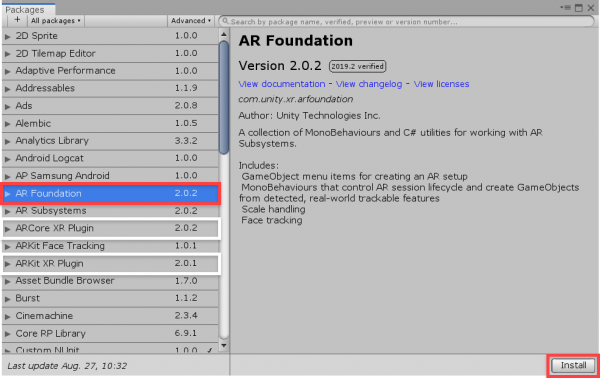
We can now close that window. Next, let's go over to the Hierarchy (a list of all the objects in our current scene) and delete the <b>MainCamera</b> object. This is because we're now going to add in 2 new objects (which includes an AR camera). Right click the Hierarchy and select:
- XR > AR Session Origin
- XR > AR Session
The <b>AR Session Origin</b> defines the center of the AR world. It also has an AR camera as a child which has the scripts needed to work in AR. Then we create the <b>AR Session</b> object. This basically runs the AR session and detects inputs.
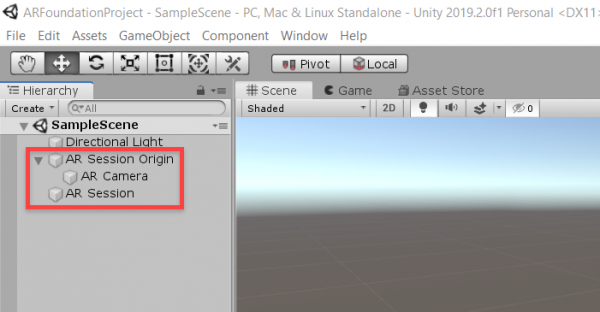
Select the <b>AR Session Origin</b> object and look over in the Inspector. Click <i>Add Component</i> and add two components:
- AR Raycast Manager
- AR Plane Manager

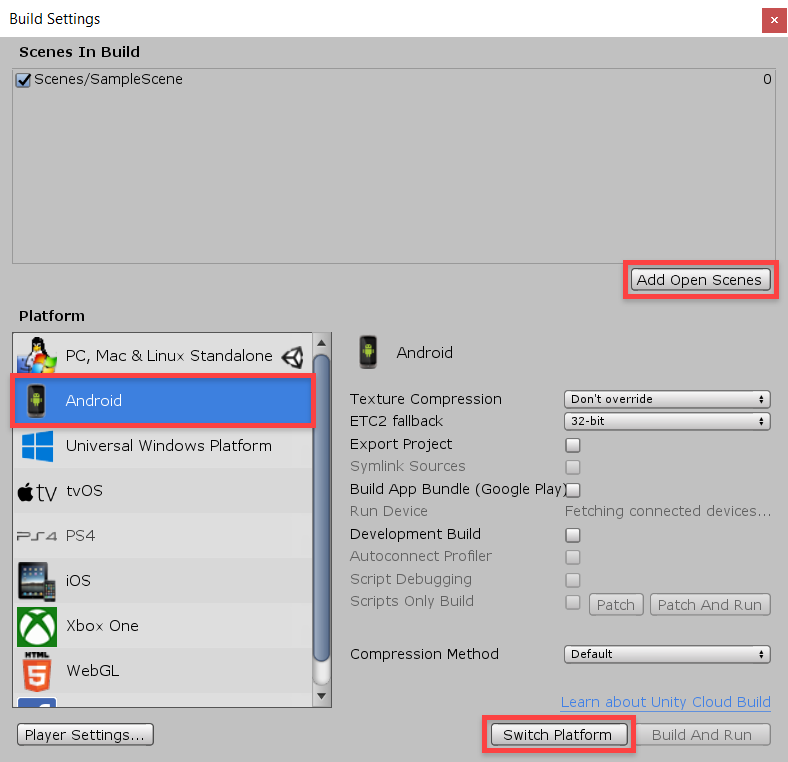
Before we continue, let's switch our platform over to whatever device we're building for. Open up the <b>Build Settings</b> window (<i>File > Build Settings</i>). First, let's click the <b>Add Open Scenes</b> button to add the current scene to the build list. The find your platform (Android or iOS) in the list. Select it and then click <b>Switch Platform</b>.
Creating the Placement Indicator
In the repo, we've got a PNG file called <b>PlacementMarkerBase</b>. Create a new Material called <b>PlacementIndicator</b>.
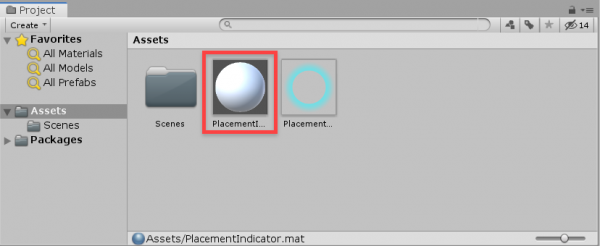
Let's now edit the material. Select it and in the Inspector, we can set the properties:
- Set the <b>Shader</b> to <i>Unlit/Transparent</i>
- Drag the <i>PlacementIndicator.PNG</i> into the texture field

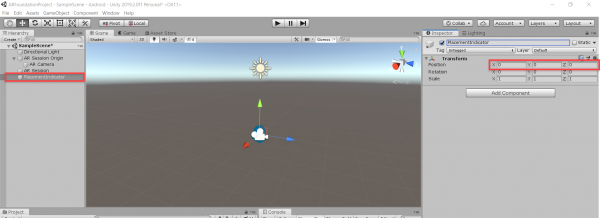
Now we can add the in-game object. In the Hierarchy, right click and select <i>Create Empty</i>. Rename this object to <b>PlacementIndicator</b>. If you select it, in the Inspector set the <i>Position</i> to 0, 0, 0.
Right click the object in the Hierarchy and select <i>3D Object > Plane</i>. This will create a white plane object. Drag the material we just made onto it to apply. You might see that the object has a <b>MeshCollider</b> component attached to it. In the Inspector, right click on the collider's name and select Remove Component.
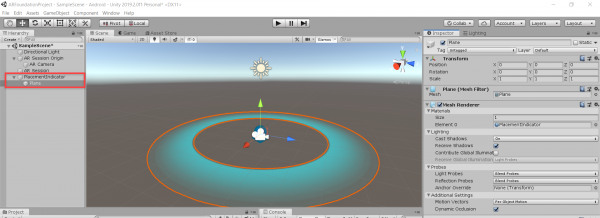
Right now, our placement indicator would be very large in AR. To make it more manageable and around 1x1 inch, select the <b>Plane</b> and set the <i>Scale</i> to 0.01, 0.01, 0.01.

Scripting the Placement Indicator
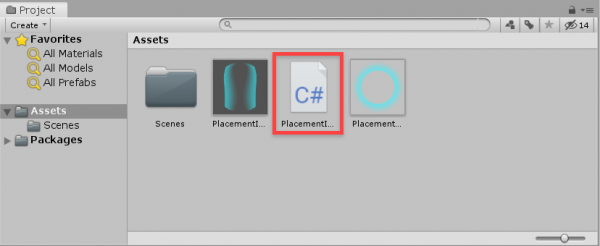
Next, let's create the script which will be the code controlling the placement indicator. In the Project panel, right click and select <i>Create > C# Script</i>. Call this <b>PlacementIndicator</b>.
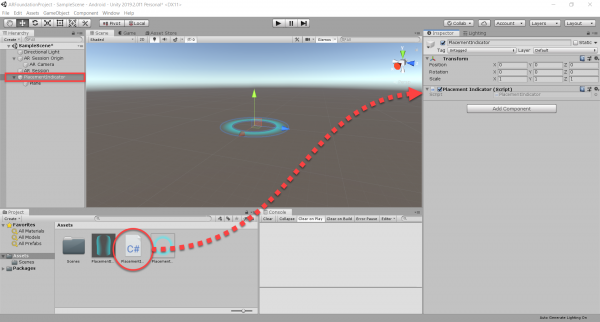
Let's attach the script to the object. Select the <b>PlacementIndicator</b> and drag the script into the Inspector. You should see the script component attached.
Double click on the script file to open it up in Visual Studio. You should have the default script template inside.
- The <b>public class PlacementIndicator : MonoBehaviour</b> code is where the contents of the script are contained
- The <b>Start</b> function gets called once when the object is initialized (at the start of the game)
- The <b>Update</b> function gets called every frame (e.g. 60 times a second if the app is running at 60 FPS)
Above the class, you should see three lines of code with <b>using</b> before it. These are external libraries we're using. We need to add two more libraries specifically for AR Foundation.
using UnityEngine.XR.ARFoundation;
using UnityEngine.XR.ARSubsystems;
Back down in our class, let's start by adding in some variables to keep track of.
private ARRaycastManager rayManager;
private GameObject visual;
Inside the <b>Start</b> function we can set the two variables and start off by hiding the placement indicator visual.
// get the components
rayManager = FindObjectOfType<ARRaycastManager>();
visual = transform.GetChild(0).gameObject;

// hide the placement indicator visual
visual.SetActive(false);
Then down in the <b>Update</b> function, we're going to be shooting a raycast from the center of our screen. A raycast is basically a line that can detect objects (think shooting a bullet). We give it an origin position and direction and it will then tell us what it hits. We're looking to hit an AR plane (automatically generated when it detects the world).
Let's start by creating a list to hold all of the AR planes we hit. Then we can cast the raycast.
// shoot a raycast from the center of the screen
List<ARRaycastHit> hits = new List<ARRaycastHit>();
rayManager.Raycast(new Vector2(Screen.width / 2, Screen.height / 2), hits, TrackableType.Planes);
Under that, let's check if we hit anything.
// if we hit an AR plane surface, update the position and rotation
if(hits.Count > 0)
{

}
Inside of the if statement, let's set the position and rotation of the placement indicator to be where the raycast hit it.
transform.position = hits[0].pose.position;
transform.position = hits[0].pose.rotation;
Let's also enable the visual if it's disabled.
// enable the visual if it's disabled
if(!visual.activeInHierarchy)
    visual.SetActive(true);
The script is now complete. We can return back to the editor now.
Building to Android
If you have an Android device and want to build your app to it, follow these steps. First, we need to enable Developer Options on your device.
- Open the <b>Settings</b> app and select the System button
- Scroll to the bottom and select <b>About Phone</b>
- Tab the <b>Build Number</b> 7 times
- Now there should be a <b>Developer Options</b> tab in the settings app
- Go into that and enable <b>USB Debugging</b>
Back in Unity, let's open up the <b>Build Settings</b> window (<i>File > Build Settings...</i>). Click Refresh then find your plugged in device. After that, click Player Settings to open the Player Settings window.
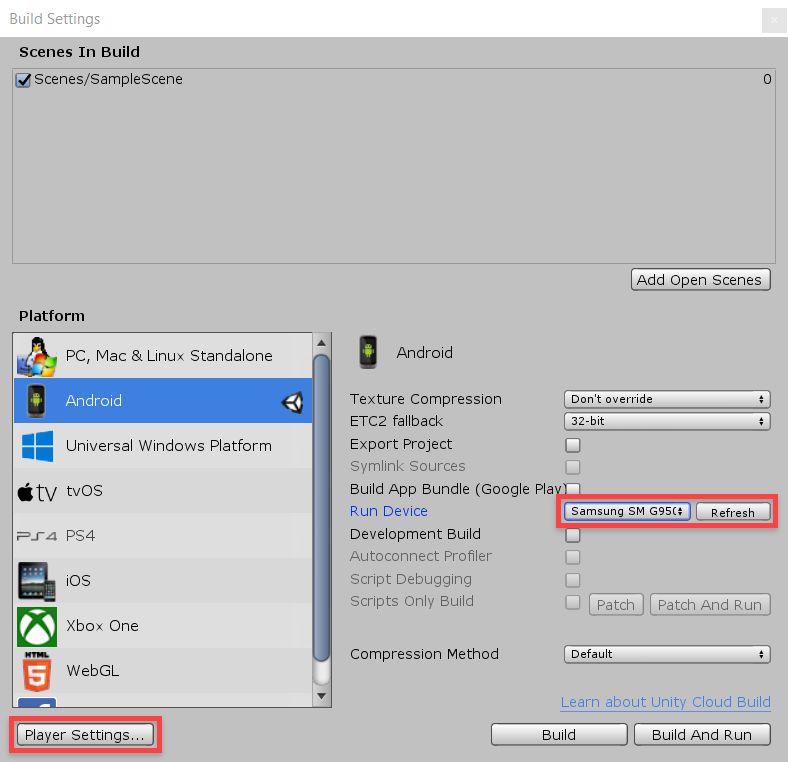
- Go to the Player screen
- The Product Name is what the app will be called on your device
- In the Other Settings tab...
- Enable Auto Graphics API
- Disable Multithread Rendering

Scroll down a bit and create a <b>Package Name</b>. This is a unique identifier for your app. The format is <i>com.CompanyName.ProductName</i>. This can really be whatever you want, just follow the structure.
Also set the <b>Minimum API Level</b> to Android 7.0 "Nougat" (API level 24).

Now go to the <b>XR</b> tab and click the <b>Create</b> button to create a new AR Core setting a
