
KFImageViewer
KFImageViewer is a Kingfisher dependent Swift library providing customizable image slideshow.
Install / Use
/learn @faisalazeez/KFImageViewerREADME
🖼 KFImageViewer
Customizable Kingfisher dependent Swift image slideshow with download progress, circular scrolling, timer and full screen viewer
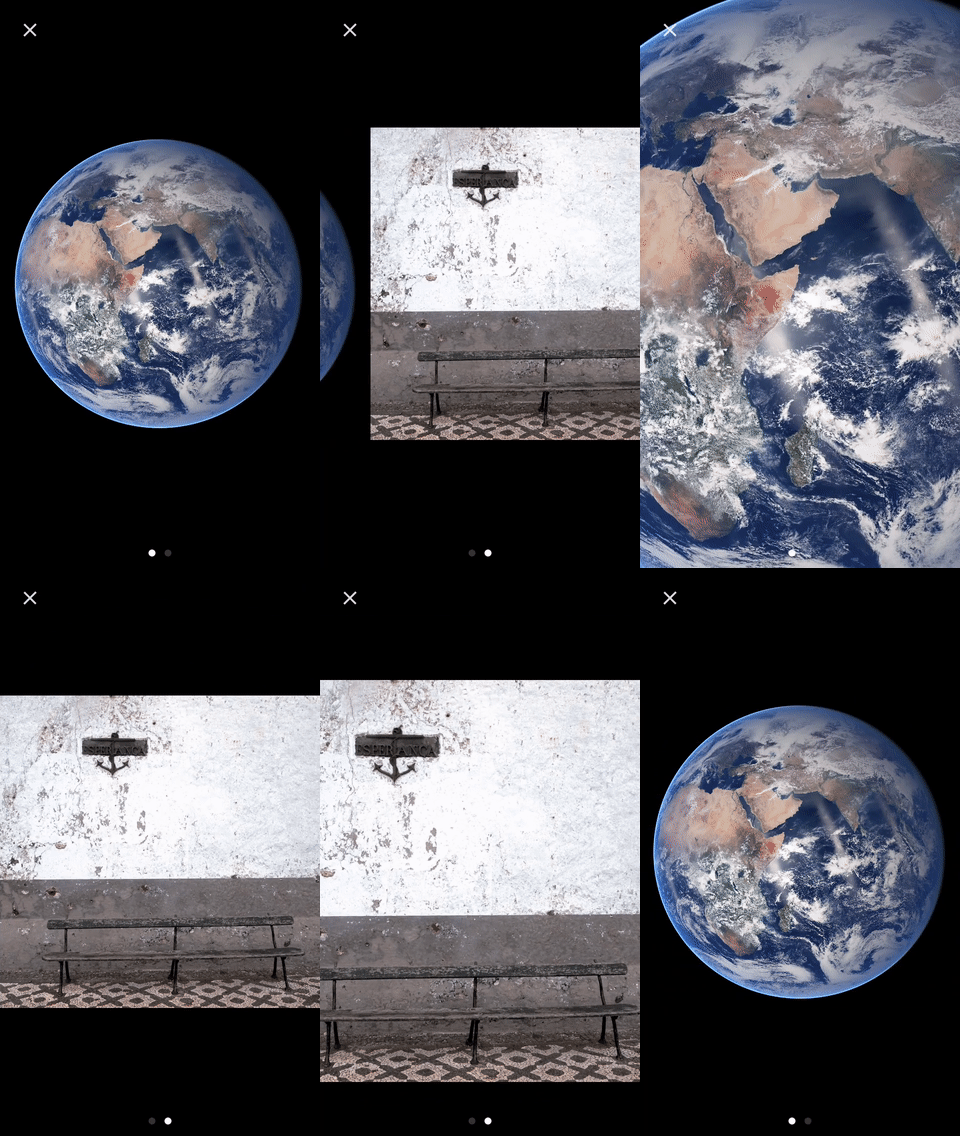

📱 Example
To run the example project, clone the repo, and run pod install from the Example directory first.
🔧 Installation
CocoaPods
KFImageViewer is available through CocoaPods. To install it, simply add the following line to your Podfile:
pod 'KFImageViewer', '~> 1.0.0'
Manually
Alternatively can also grab the whole KFImageViewer directory and copy it to your project.
🔨 How to use
Add KFImageViewer view to your view hiearchy either in Interface Builder or in code.
Loading images
Set images by using setImageInputs method on KFImageViewer instance with an array of InputSources. You can also create your own input source by implementing InputSource protocol.
| Library | InputSource name | Pod |
| ------------------------------------------------------------- |:----------------:| ---------------------------------:|
| Kingfisher | KingfisherSource | pod "KFImageViewer/Kingfisher" |
slideshow.setImageInputs([
  KingfisherSource(urlString: "https://images.unsplash.com/photo-1432679963831-2dab49187847?w=1080"),
])
Configuration
Behaviour is configurable by those properties:
slideshowInterval- slideshow interval in seconds (default0– disabled)zoomEnabled- enables zooming (defaultfalse)circular- enables circular scrolling (defaulttrue)activityIndicator– allows to set custom activity indicator, see Activity indicator sectionpageIndicator– allows to set custom page indicator, see Page indicator section; assignnilto hide page indicatorpageIndicatorPosition- configures position of the page indicatorcontentScaleMode- configures the scaling (defaultScaleAspectFit)draggingEnabled- enables dragging (defaulttrue)currentPageChanged- closure called on page changewillBeginDragging- closure called on scrollViewWillBeginDraggingdidEndDecelerating- closure called on scrollViewDidEndDeceleratingpreload- image preloading configuration (defaultallpreloading, alsofixed)
Page Indicator
Page indicator can be customized using the pageIndicator property on KFImageViewer. By defualt, a plain UIPageControl is used. If needed, page control can be customized:
let pageIndicator = UIPageControl()
pageIndicator.currentPageIndicatorTintColor = UIColor.lightGray
pageIndicator.pageIndicatorTintColor = UIColor.black
slideshow.pageIndicator = pageIndicator
Also, a simple label page indicator that shows pages in style "5/21" (fifth page from twenty one) is provided:
slideshow.pageIndicator = LabelPageIndicator()
You can also use your own page indicator by adopting the PageIndicatorView protocol.
Position of the page indicator can be configured by assigning a PageIndicatorPosition value to the pageIndicatorPosition property on KFImageViewer. You may specify the horizontal and vertical positioning separately.
Horizontal positioning options are: .left(padding: Int), .center, .right(padding: Int)
Vertical positioning options are: .top, .bottom, .under, customTop(padding: Int), customBottom(padding: Int), customUnder(padding: Int)
Example:
slideshow.pageIndicatorPosition = PageIndicatorPosition(horizontal: .left(padding: 20), vertical: .bottom)
Activity Indicator
By default activity indicator is not shown, but you can enable it by setting DefaultActivityIndicator instance to KFImageViewer :
slideshow.activityIndicator = DefaultActivityIndicator()
You can customize style and color of the indicator:
slideshow.activityIndicator = DefaultActivityIndicator(style: .white, color: nil)
There's also an option to use your own activity indicator. You just need to implement ActivityIndicatorView and ActivityIndicatorFactory protocols. See ActivityIndicator.swift for more information.
Full Screen view
There is also a possibility to open full-screen image view using attached FullScreenSlideshowViewController. The simplest way is to call:
override func viewDidLoad() {
  let gestureRecognizer = UITapGestureRecognizer(target: self, action: #selector(ViewController.didTap))
  slideshow.addGestureRecognizer(gestureRecognizer)
}

func didTap() {
  slideshow.presentFullScreenController(from: self)
}
FullScreenSlideshowViewController can also be instantiated and configured manually if more advanced behavior is needed.
👤 Author
Faisal Azeez faisalazeez7@gmail.com
📄 License
KFImageViewer is available under the MIT license. See the LICENSE file for more info.
Related Skills
node-connect
342.0kDiagnose OpenClaw node connection and pairing failures for Android, iOS, and macOS companion apps
frontend-design
84.7kCreate distinctive, production-grade frontend interfaces with high design quality. Use this skill when the user asks to build web components, pages, or applications. Generates creative, polished code that avoids generic AI aesthetics.
openai-whisper-api
342.0kTranscribe audio via OpenAI Audio Transcriptions API (Whisper).
commit-push-pr
84.7kCommit, push, and open a PR
