
Splitwm
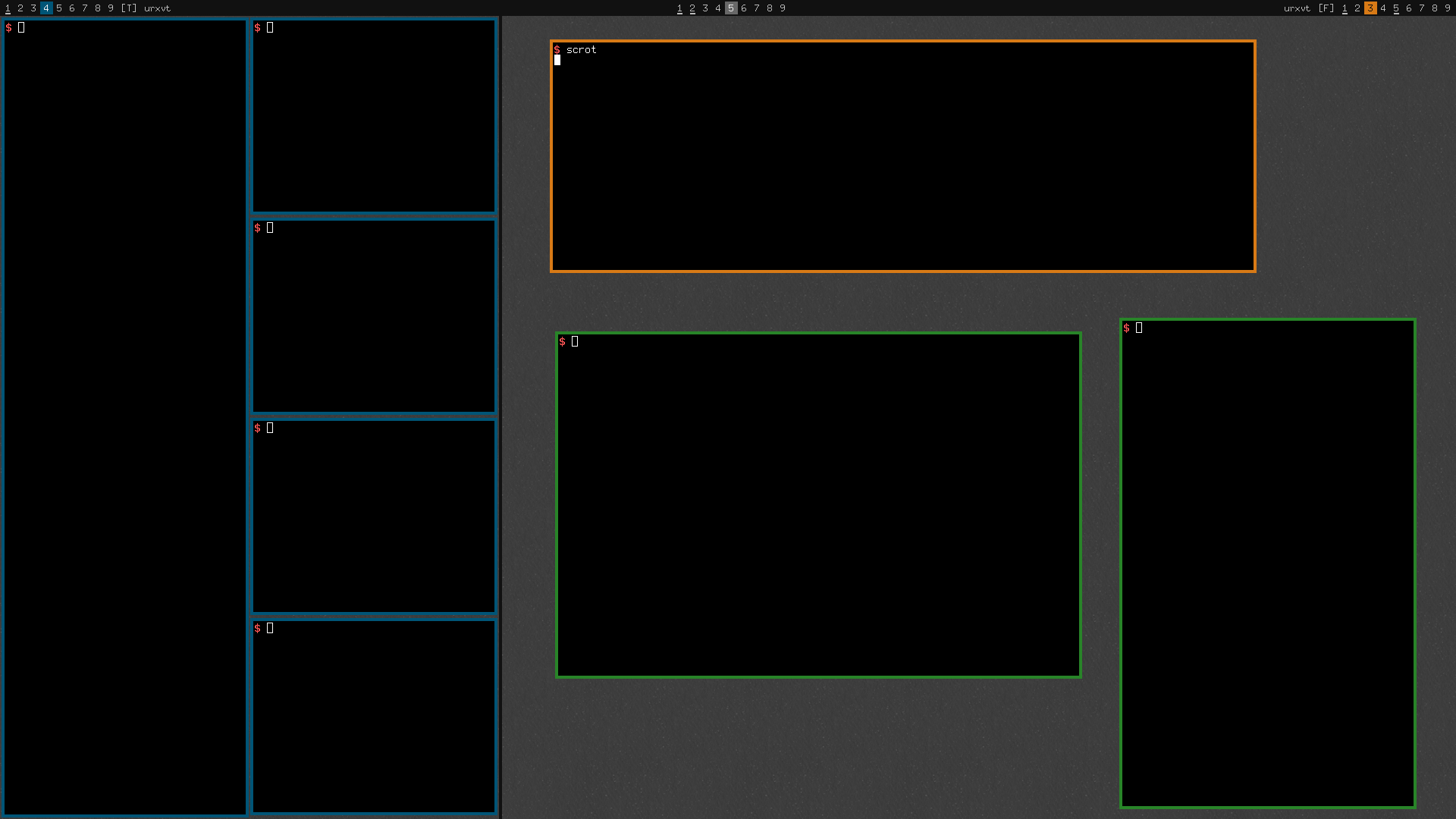
WM able to "split" screen into two virtual screens (it can emulate dual screen setup on one physical screen).
Install / Use
/learn @examon/SplitwmREADME
splitwm
Window manager able to "split" screen into two virtual screens (it can emulate dual screen setup on one physical screen).
Video
Click here.
Screenshots
Dependences
In order to run splitwm, you will need:
- xlib
I also recommend to install the following software:
- rxvt-unicode
- dmenu
rxvt-unicode (urxvt) is the default terminal emulator for the splitwm (this can be changed in the config.h). Note, if you do not want to use urxvt just change the following line in the config.h:
static const char *spawn_terminal[] = { "urxvt", NULL };
and replace "urxvt" with your favourite terminal emulator.
dmenu is for launching software within the splitwm.
Installation
Execute the following commands within the splitwm folder to compile and install the project:
cd src
make
sudo make install
Run
Create the following file within your home directory ($HOME):
#!/bin/sh
exec splitwm
and save it as .xinitrc.
Disable any other window manager or desktop environment (e.g. GNOME, KDE, XFCE, etc.) and boot right into the console.
When in console, type:
startx
this will start the X server following by the splitwm itself.
First steps
First off, try to tun the terminal emulator by pressing the following keyboard shortcut:
Alt + Return
This should spawn the terminal emulator on the screen. If you do want to resize any window, hold Alt and use the right mouse button. For moving the window around the screen, hold Alt, press the left mouse button and drag the cursor.
Try to press:
Alt + p
to launch dmenu.
To change the virtual desktop (for the left view) use:
Windows key (Win) + 1-9
or (for the right view):
Alt + 1-9
To send the client from one virtual desktop to another use:
Alt/Win + 1-9
To switch between layouts:
Alt + Shift + g
    Grid tile layout

Alt + Shift + m
    Master-slave tile layout

Alt + Shift + f
    Floating layout
If you want to send the client from one view to another press:
Win + Shift + j
Please check out other keyboard shortcuts and functions in the configuration file config.h.
Related Skills
node-connect
343.1kDiagnose OpenClaw node connection and pairing failures for Android, iOS, and macOS companion apps
frontend-design
90.0kCreate distinctive, production-grade frontend interfaces with high design quality. Use this skill when the user asks to build web components, pages, or applications. Generates creative, polished code that avoids generic AI aesthetics.
openai-whisper-api
343.1kTranscribe audio via OpenAI Audio Transcriptions API (Whisper).
qqbot-media
343.1kQQBot 富媒体收发能力。使用 <qqmedia> 标签,系统根据文件扩展名自动识别类型(图片/语音/视频/文件)。
