
DragDropSwipeRecyclerview
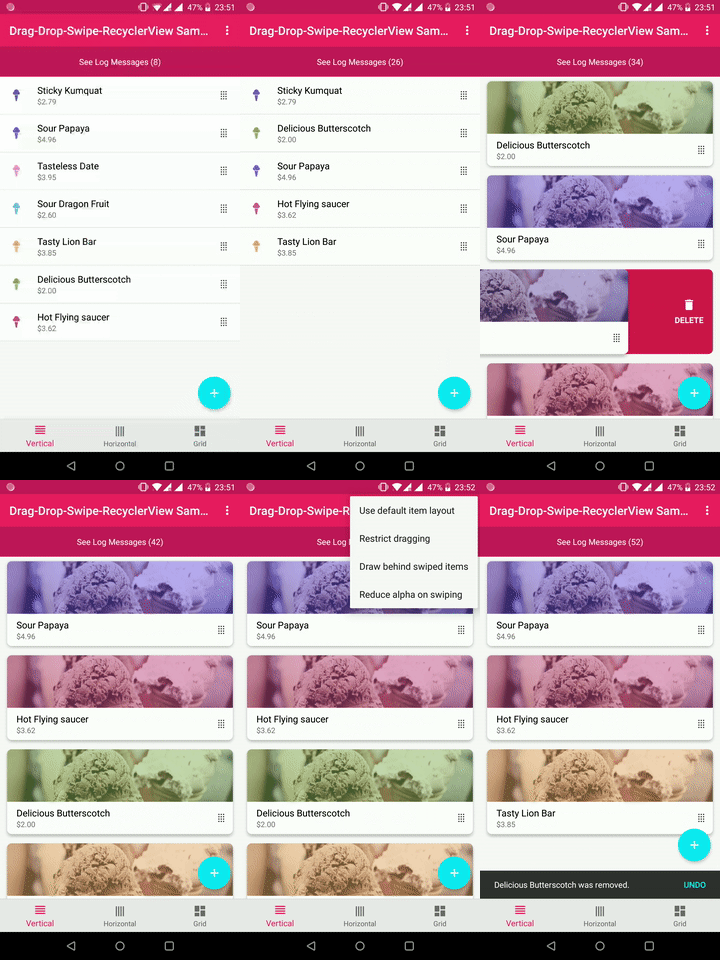
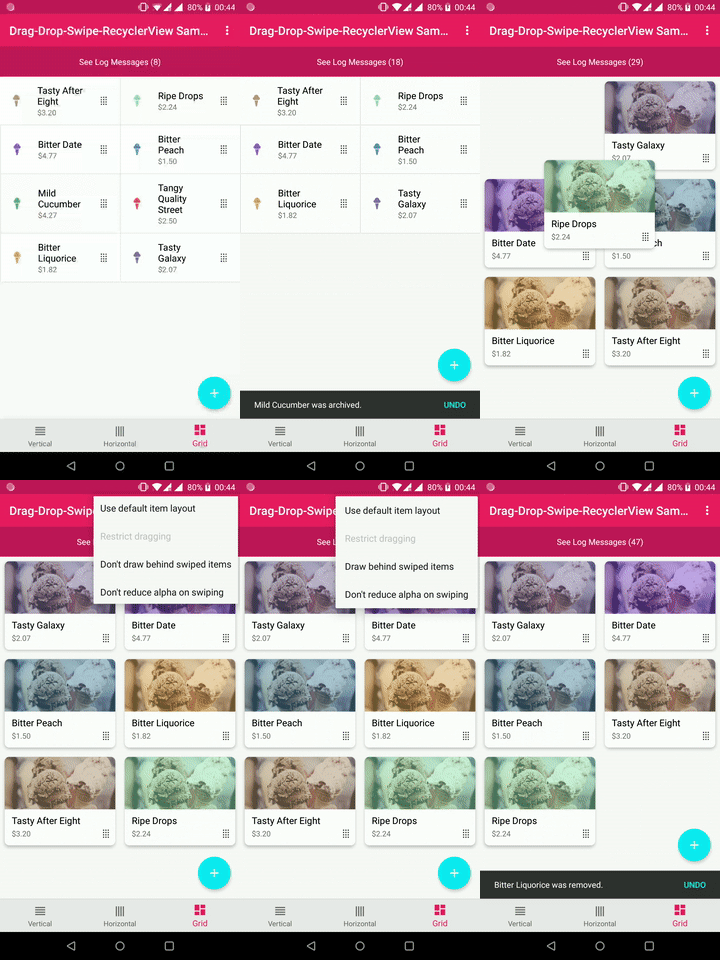
Kotlin Android library that extends RecyclerView to support gestures like drag & drop and swipe, among others. It works with vertical, horizontal and grid lists.
Install / Use
/learn @ernestoyaquello/DragDropSwipeRecyclerviewREADME
🪦 RIP: This library is now archived
It was nice while it lasted, but Compose has made this obsolete. However, you can check out DragDropSwipeLazyColumn, a Compose library with the same functionality.
If you must, the rest of this outdated readme continues below.
Drag & Drop n' Swipe Recyclerview
Highly customizable Android library written in Kotlin that uses AndroidX and extends RecyclerView to include extra features, such as support for drag & drop and swipe gestures, among others. It works with vertical, horizontal and grid lists.
Demo
Support this library
The creation (and maintenance) of this library requires time and effort. If you find it useful and want to support it, please use the link below:

How to use it
1. Reference the library
Add the library to your project via mavenCentral by adding the following in the app's build.gradle file:
dependencies {
    ...
    implementation 'com.ernestoyaquello.dragdropswiperecyclerview:drag-drop-swipe-recyclerview:1.2.0'
}
NOTE: Make sure you are using AndroidX instead of the old support libraries; otherwise this library might not work.
2. Add the list to your layout
Place the DragDropSwipeRecyclerview inside your layout using XML:
<!-- layout/view_layout.xml -->
<FrameLayout xmlns:android="http://schemas.android.com/apk/res/android"
    xmlns:app="http://schemas.android.com/apk/res-auto"
    android:layout_width="match_parent"
    android:layout_height="match_parent">

    <com.ernestoyaquello.dragdropswiperecyclerview.DragDropSwipeRecyclerView
        android:id="@+id/list"
        android:layout_width="match_parent"
        android:layout_height="match_parent"
        app:item_layout="@layout/list_item_layout"
        app:divider="@drawable/list_divider"/>

</FrameLayout>
As you can see in the code above, we specify the list item layout through the attribute item_layout. This way, the library will take care of inflating the item layout automatically, so you won't have to do it manually in the adapter.
In addition, in this example you can also see that the optional attribute divider is being used to specify the drawable that will be displayed between list items (for more information about available attributes, see Customization).
Referenced resource files
Just in case they are of any help, these are the example resource files referenced in the code above:
<!-- layout/list_item_layout.xml -->
<LinearLayout xmlns:android="http://schemas.android.com/apk/res/android"
    android:layout_width="match_parent"
    android:layout_height="wrap_content"
    android:orientation="horizontal"
    android:gravity="center"
    android:padding="16dp"
    android:background="#eeeeee">
    <TextView
        android:id="@+id/item_text"
        android:layout_width="0dp"
        android:layout_weight="1"
        android:layout_height="wrap_content"/>
    <ImageView
        android:id="@+id/drag_icon"
        android:layout_width="wrap_content"
        android:layout_height="match_parent"
        android:src="@drawable/ic_drag"/>
</LinearLayout>
<!-- drawable/list_divider.xml --> <shape xmlns:android="http://schemas.android.com/apk/res/android" android:shape="rectangle"> <size android:height="1dp" /> <solid android:color="#e1e1e1" /> </shape><!-- drawable/ic_drag.xml --> <vector xmlns:android="http://schemas.android.com/apk/res/android" android:width="24dp" android:height="24dp" android:viewportHeight="24.0" android:viewportWidth="24.0"> <path android:fillColor="#333333" android:pathData="M7,19V17H9V19H7M11,19V17H13V19H11M15,19V17H17V19H15M7,15V13H9V15H7M11,15V13H13V15H11M15,15V13H17V15H15M7,11V9H> 9V11H7M11,11V9H13V11H11M15,11V9H17V11H15M7,7V5H9V7H7M11,7V5H13V7H11M15,7V5H17V7H15Z" /> </vector>
3. Create the adapter
The next step is to implement your adapter (and viewholder) by extending the class DragDropSwipeAdapter<T, U>, where T will be your item type and U will be your viewholder type:
class MyAdapter(dataSet: List<String> = emptyList())
    : DragDropSwipeAdapter<String, MyAdapter.ViewHolder>(dataSet) {

    class ViewHolder(itemView: View) : DragDropSwipeAdapter.ViewHolder(itemView) {
        val itemText: TextView = itemView.findViewById(R.id.item_text)
        val dragIcon: ImageView = itemView.findViewById(R.id.drag_icon)
    }

    override fun getViewHolder(itemLayout: View) = MyAdapter.ViewHolder(itemLayout)

    override fun onBindViewHolder(item: String, viewHolder: MyAdapter.ViewHolder, position: Int) {
        // Here we update the contents of the view holder's views to reflect the item's data
        viewHolder.itemText.text = item
    }

    override fun getViewToTouchToStartDraggingItem(item: String, viewHolder: MyAdapter.ViewHolder, position: Int): View? {
        // We return the view holder's view on which the user has to touch to drag the item
        return viewHolder.dragIcon
    }
}
This is just a basic implementation, but there are more methods in the adapter that you can override to customize the list and its behaviour (see Customization).
4. Setup the list
Finally, you should setup the list to make it work and take advantage of its features.
Set up the adapter
Inside onCreate or onCreateView, find the list and set it with a layout manager and your adapter:
val dataSet = listOf("Item 1", "Item 2", "Item 3")
mAdapter = MyAdapter(dataSet)
mList = findViewById(R.id.list)
mList.layoutManager = LinearLayoutManager(this)
mList.adapter = mAdapter
Set up the orientation
Then, specify the list orientation. For example:
mList.orientation = DragDropSwipeRecyclerView.ListOrientation.VERTICAL_LIST_WITH_VERTICAL_DRAGGING
Using grid orientation with dividers
Take into account that if and only if you want to show dividers in a list with a grid orientation, you also need to set one of these two properties:
// Set this property if your grid can be scrolled vertically
mList.numOfColumnsPerRowInGridList = <numberOfColumns>
Or:
// Set this property if your grid can be scrolled horizontally
mList.numOfRowsPerColumnInGridList = <numberOfRows>
Restricting swiping and dragging directions
In case you want to disallow dragging or swiping actions in certain directions, you can do the following right after specifying the list orientation:
// This disallows swiping items to the right
mList.disableSwipeDirection(ListOrientation.DirectionFlag.RIGHT)
Or:
// This disallows dragging items up
mList.disableDragDirection(ListOrientation.DirectionFlag.UP)
Set event listeners
Finally, create event listeners for the events you want to handle. For example, these are the listeners for actions of swiping, dragging & dropping and scrolling:
private val onItemSwipeListener = object : OnItemSwipeListener<String> {
    override fun onItemSwiped(position: Int, direction: OnItemSwipeListener.SwipeDirection, item: String): Boolean {
        // Handle action of item swiped
        // Return false to indicate that the swiped item should be removed from the adapter's data set (default behaviour)
        // Return true to stop the swiped item from being automatically removed from the adapter's data set (in this case, it will be your responsibility to manually update the data set as necessary)
        return false
    }
}

private val onItemDragListener = object : OnItemDragListener<String> {
    override fun onItemDragged(previousPosition: Int, newPosition: Int, item: String) {
        // Handle action of item being dragged from one position to another
    }

    override fun onItemDropped(initialPosition: Int, finalPosition: Int, item: String) {
        // Handle action of item dropped
    }
}

private val onListScrollListener = object : OnListScrollListener {
    override fun onListScrollStateChanged(scrollState: OnListScrollListener.ScrollState) {
        // Handle change on list scroll state
    }

    override fun onListScrolled(scrollDirection: OnListScrollListener.ScrollDirection, distance: Int) {
        // Handle scrolling
    }
}
Then, set the listeners...
mList.swipeListener = onItemSwipeListener
mList.dragListener = onItemDragListener
mList.scrollListener = onListScrollListener
And that's it! Your list with support for swipe and drag & drop should be fully working now.
Updating the items
Without implementing DiffUtil
The simplest way to update the items of your list is by setting the new list of items in the property dataSet of the adapter. This setter will take care of notifying the recyclerview about the changes, so all you need to do is set it.
On the other hand, in case you want to apply small updates to the collection of items instead of replacing it entirely at once, please take a look at the convenience methods that the adapter offers, such as addItem(), inserItem(), removeItem(), and moveItem(). These methods will take care of notifying the recyclerview about the specific changes that have been applied to the data set, which wi
