
Ctrlsf.vim
A text searching plugin mimics Ctrl-Shift-F on Sublime Text 2
Install / Use
/learn @dyng/Ctrlsf.vimREADME
ctrlsf.vim
An ack/ag/pt/rg powered code search and view tool, takes advantage of Vim 8's power to support asynchronous searching, and lets you edit file in-place with Edit Mode.
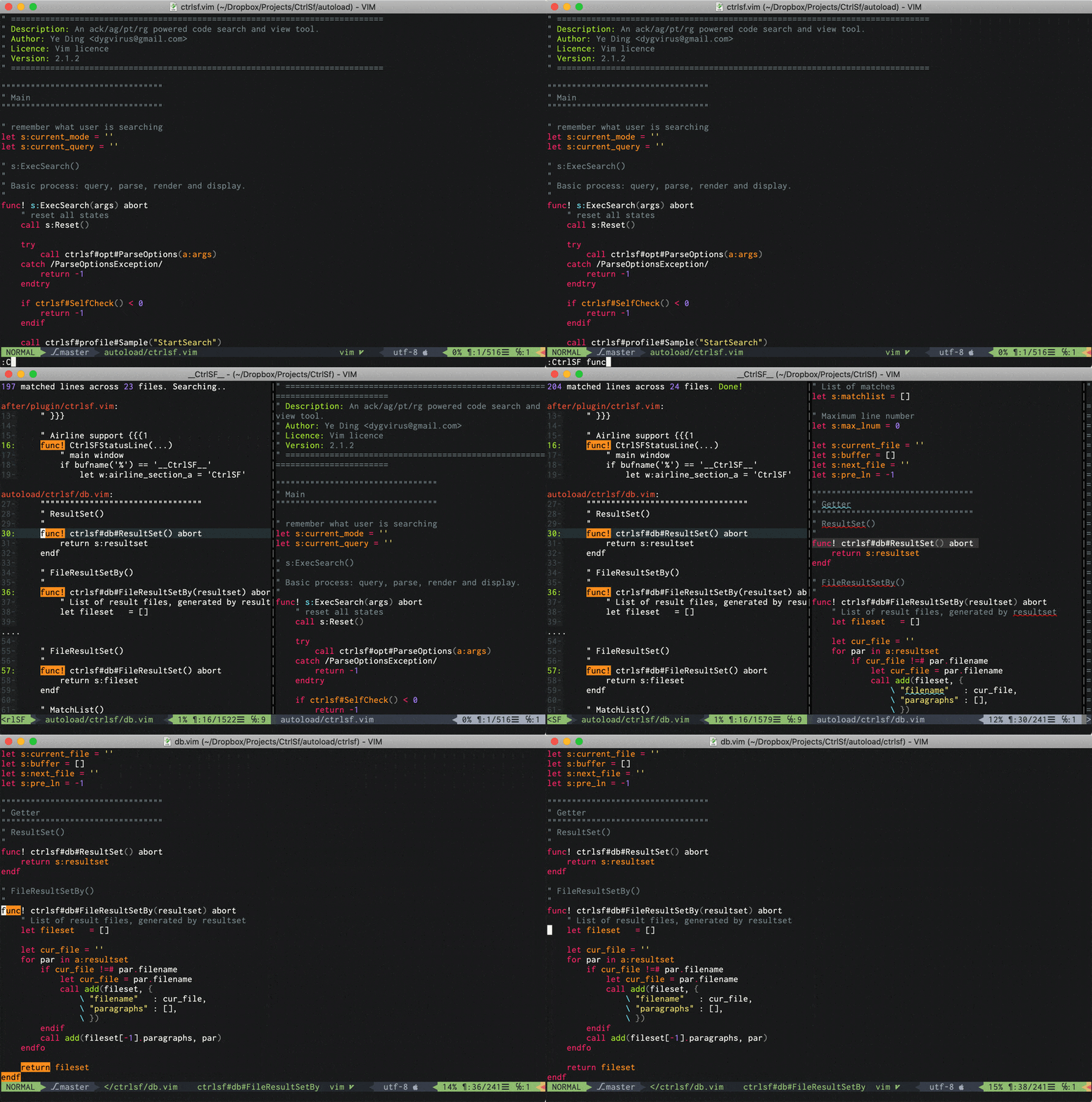
Asynchronous Search
A demo shows how to search a word in an asynchronous way.
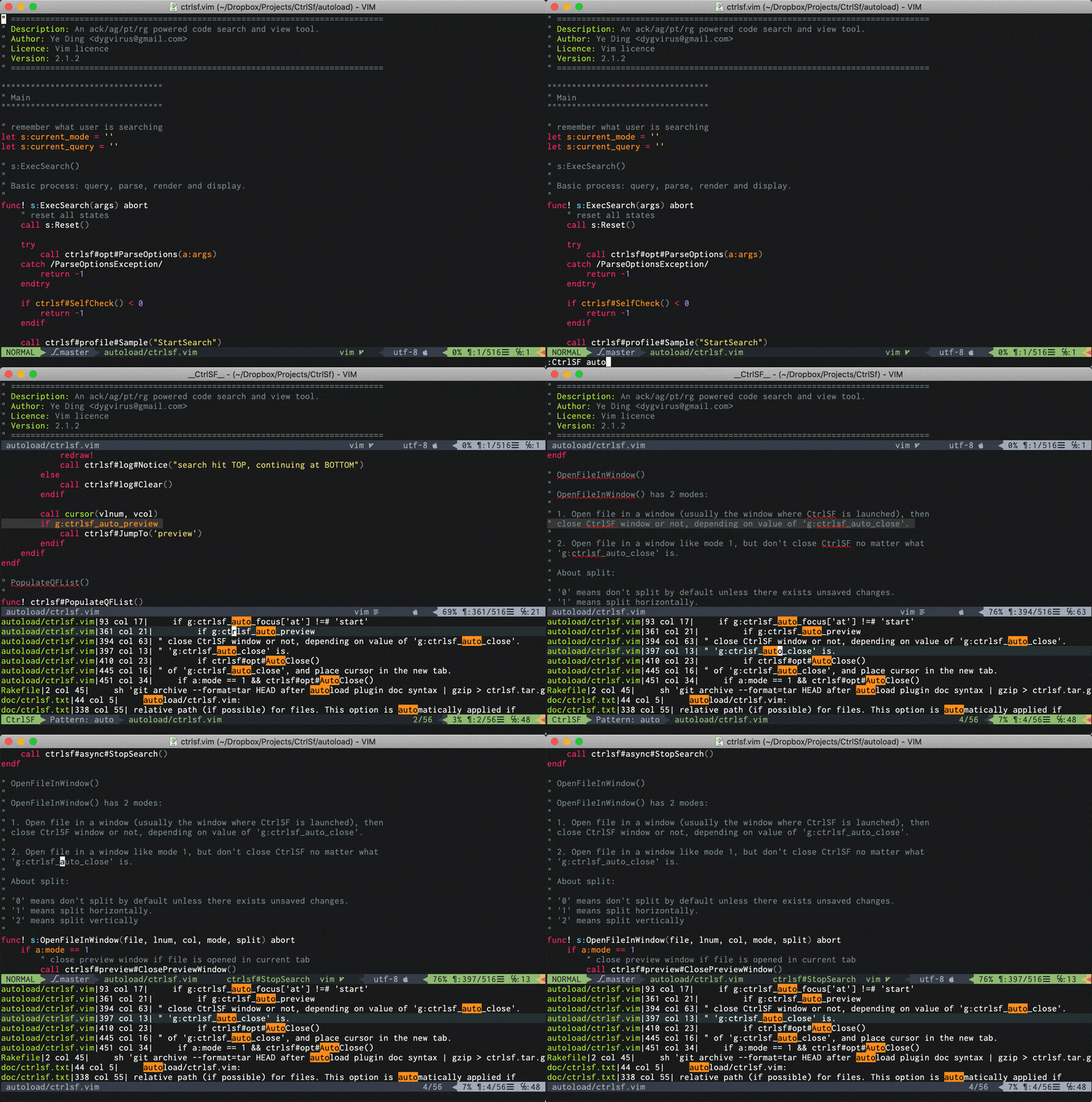
Compact View
A demo shows compact view which looks more similar to Vim's quickfix windows.
Edit Mode
A demo shows how to rename a method named FocusWindow() to Focus() in multiple files, using [vim-multiple-cursors][7].
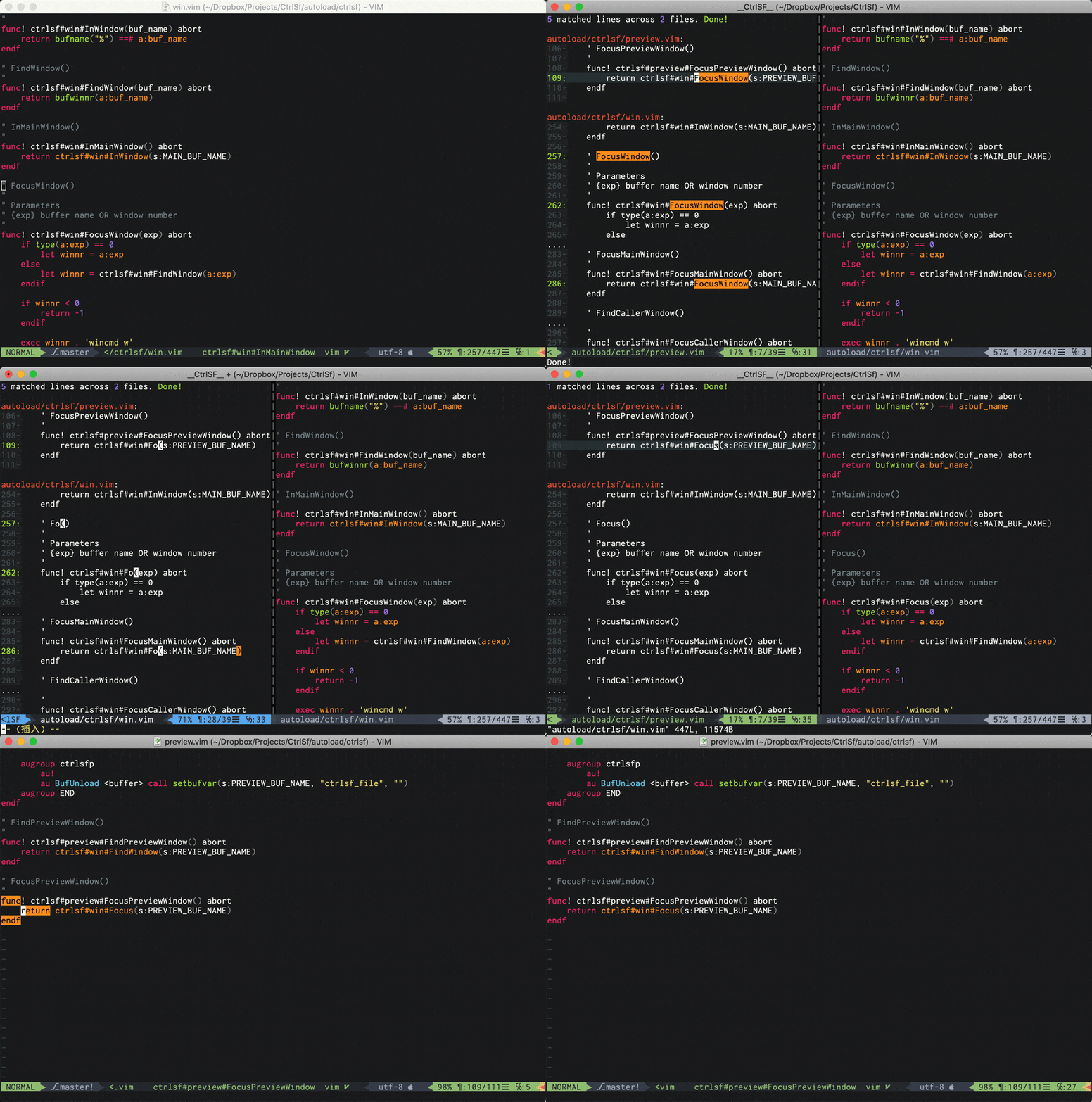
Table of Contents
- Features
- Installation
- Quick Start
- Key Maps
- Use Your Own Map
- Edit Mode
- Arguments
- Tips
- Configuration
- For user comes from pre v1.0
Features
-
Search and display result in a user-friendly view with adjustable context.
-
Works in both asynchronous (for Vim 8.0.1039+ and NeoVim) and synchronous (for older version of Vim) manner.
-
Edit mode which is incredible useful when you are working on project-wide refactoring. (Inspired by [vim-ags][6])
-
Preview mode for fast exploring.
-
Has two types of view. For both users who love a sublime-like, rich context result window, and users who feel more comfortable with good old quickfix window. (similar to ack.vim)
-
Various options for customized search, view and edition.
Installation
-
Make sure you have [ack][1], [ag][2], [pt][8] or [rg][10] installed. (Note: currently only Ack2 is supported by plan)
-
An easy way to install CtrlSF is using a package manager, like [pathogen][3], [vundle][4], [neobundle][5] or [vim-plug][9].
In vim-plug:
Plug 'dyng/ctrlsf.vim' -
Read Quick Start for how to use.
Quick Start
-
Run
:CtrlSF [pattern], it will split a new window to show search result. -
If you are doing an asynchronous searching, you can explore and edit other files in the meanwhile, and can always press
Ctrl-Cto stop searching. -
In the result window, press
Enter/oto open corresponding file, or pressqto quit. -
Press
pto explore file in a preview window if you only want a glance. -
You can edit search result as you like. Whenever you apply a change, you can save your change to actual file by
:w. -
If you change your mind after saving, you can always undo it by pressing
uand saving it again. -
:CtrlSFOpencan reopen CtrlSF window when you have closed CtrlSF window. It is free because it won't invoke a same but new search. A handy command:CtrlSFToggleis also available. -
If you prefer a quickfix-like result window, just try to press
Min CtrlSF window.
Key Maps
In CtrlSF window:
Enter,o,double-click- Open corresponding file of current line in the window which CtrlSF is launched from.<C-O>- LikeEnterbut open file in a horizontal split window.t- LikeEnterbut open file in a new tab.p- LikeEnterbut open file in a preview window.P- LikeEnterbut open file in a preview window and switch focus to it.O- LikeEnterbut always leave CtrlSF window opening.T- Liketbut focus CtrlSF window instead of new opened tab.M- Switch result window between normal view and compact view.q- Quit CtrlSF window.<C-J>- Move cursor to next match.<C-N>- Move cursor to next file's first match.<C-K>- Move cursor to previous match.<C-P>- Move cursor to previous file's first match.<C-C>- Stop a background searching process.<C-T>- (If you have fzf installed) Use fzf for faster navigation. In the fzf window, use<Enter>to focus specific match and<C-O>to open matched file.
In preview window:
q- Close preview window.
Some default defined keys may conflict with keys you have been used to when you are editing. But don't worry, you can customize your mapping by setting g:ctrlsf_mapping. :h g:ctrlsf_mapping for more information.
Use Your Own Map
CtrlSF provides many maps which you can use for quick accessing all features, here I will list some most useful ones.
-
<Plug>CtrlSFPromptInput
:CtrlSFin command line for you, just a handy shortcut. -
<Plug>CtrlSFVwordPathInput
:CtrlSF fooin command line wherefoois the current visual selected word, waiting for further input. -
<Plug>CtrlSFVwordExecLike
<Plug>CtrlSFVwordPath, but execute it immediately. -
<Plug>CtrlSFCwordPathInput
:CtrlSF fooin command line wherefoois word under the cursor. -
<Plug>CtrlSFCCwordPathLike
<Plug>CtrlSFCwordPath, but also add word boundary around searching word. -
<Plug>CtrlSFPwordPathInput
:CtrlSF fooin command line wherefoois the last search pattern of vim.
For a full list of maps, please refer to the document.
I strongly recommend you should do some maps for a nicer user experience, because typing 8 characters for every single search is really boring and painful experience. Another reason is that one of the most useful feature 'Search Visual Selected Word' can be accessed by map only.
Example:
nmap     <C-F>f <Plug>CtrlSFPrompt
vmap     <C-F>f <Plug>CtrlSFVwordPath
vmap     <C-F>F <Plug>CtrlSFVwordExec
nmap     <C-F>n <Plug>CtrlSFCwordPath
nmap     <C-F>p <Plug>CtrlSFPwordPath
nnoremap <C-F>o :CtrlSFOpen<CR>
nnoremap <C-F>t :CtrlSFToggle<CR>
inoremap <C-F>t <Esc>:CtrlSFToggle<CR>
Edit Mode
-
Edit mode is not really a 'mode'. You don't need to press any key to enter edit mode, just edit the result directly.
-
When your editing is done, save it and CtrlSF will ask you for confirmation, 'y' or just enter will make CtrlSF apply those changes to actual files. (You can turn off confirmation by setting
g:ctrlsf_confirm_saveto 0) -
Undo is the same as regular editing. You just need to press 'u' and save again.
-
Finally I recommend using [vim-multiple-cursors][7] together with edit mode.
Limitation
-
You can modify or delete lines but you can't insert. (If it turns out that inserting is really needed, I'll implement it later.)
-
If a file's content varies from last search, CtrlSF will refuse to write your changes to that file (for safety concern). As a rule of thumb, invoke a new search before editing, or just run
:CtrlSFUpdate.
Arguments
CtrlSF has a lot of arguments you can use in search. Most arguments are similar to Ack/Ag's but not perfectly same. Here are some most frequently used arguments:
-R- Use regular expression pattern.-I,-S- Search case-insensitively (-I) or case-sensitively (-S).-C,-A,-B- Specify how many context lines to be printed, identical to their counterparts in Ag/Ack.-W- Only match whole words.
Read :h ctrlsf-arguments for a full list of arguments.
Example
-
Search a regular expression pattern case-insensitively:
:CtrlSF -R -I foo.* -
Search a pattern that contains space:
:CtrlSF 'def foo():' -
Search a pattern with characters requiring escaping:
:CtrlSF '"foobar"'
" or
:CtrlSF \"foobar\"
Tips
-
CtrlSF searches pattern literally by default, which is different from Ack/Ag. If you need to search a regular expression pattern, run
:CtrlSF -R regex. If you dislike this default behavior, turn it off bylet g:ctrlsf_regex_pattern = 1. -
By default, CtrlSF use working directory as search path when no path is specified. But CtrlSF can also use project root as its path if you set
g:ctrlsf_default_roottoproject, CtrlSF does this by searching VCS directory (.git, .hg, etc.) upward from current file. It is useful when you are working with files across multiple projects. -
-filetypeis useful when you only want to search in files of specific type. Read option--typeinack's [manual][6] for more information. Also, a shortcut-Tis available. -
If
-filetypedoes not exactly match your need, there is an option-filematchwith which you have more control on which files should be searched.-filematchaccepts a pattern that only files match this pattern will be searched. Note the pattern is in syntax of your backend but not vim's. Also, a shortcut-Gis available. -
Running
:CtrlSFwithout any argument or pattern will use word under cursor.
Configuration
-
g:ctrlsf_auto_closedefines if CtrlSF close itself when you are opening some file. By default, CtrlSF window will close automatically innormalview mode and keep open incompactview mode. You can customize the value as below:let g:ctrlsf_auto_close = { \ "normal" : 0, \ "compact": 0 \} -
g:ctrlsf_auto_focusdefines how CtrlSF focuses result pane when working in async search mode. By default, CtrlSF will not focus at all, setting tostartmakes CtrlSF focus at search starting, setting todonemakes CtrlSF focus at search is done, but only for immediately finished search. An additionalduration_less_thanis used to define max duration of a search can be focused for 'at done', which is an integer value of milliseconds.let g:ctrlsf_auto_focus = { \ "at": "start" \ } " or let g:ctrlsf_auto_focus = { \ "at": "done", \ "duration_less_than": 1000 \ } -
g:ctrlsf_auto_previewde
