
Notify
Linux, MacOS, or Windows (notification/growl/toast) popups for the desktop and applications for Java 8+
Install / Use
/learn @dorkbox/NotifyREADME
Notify
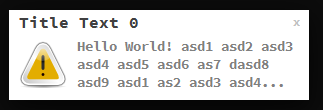
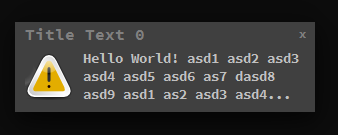
Cross platform notification popups, similar to "Growl" on OSX, "Toasts" on Windows, and "Notifications" on Ubuntu.
This small library can display notifications on any screen, in any corner.
Table of Contents
Installation
Notify is hosted on the Maven Central Repository and can be included in your project by adding it as a dependency in your build file.
 Gradle
dependencies {
	implementation 'com.dorkbox:Notify:4.5'
}
 Maven
Maven
<dependency>
    <groupId>com.dorkbox</groupId>
    <artifactId>Notify</artifactId>
    <version>4.5</version>
</dependency>
 Scala SBT
libraryDependencies += "com.dorkbox" % "Notify" % "4.5"
Basic Usage
Display Desktop Notification
public class Example {
  public static void main(final String[] args) {
    Executors.newSingleThreadScheduledExecutor().scheduleAtFixedRate(() -> {
      Notify.Companion.create()
              .title("Title Text")
              .text("Hello World!")
              .theme(Theme.Companion.getDefaultDark())
              .position(Position.BOTTOM_RIGHT)
              .hideAfter(1500)
              .showWarning();
    }, 0, 2, TimeUnit.SECONDS);
  }
}
Display JFrame Notification
public class Example {
  public static void main(final String[] args) {
    SwingUtilities.invokeLater(() -> {
      final var frame = new JFrame("Example");;
      frame.setDefaultCloseOperation(JFrame.EXIT_ON_CLOSE);
      frame.setPreferredSize(new Dimension(512, 512));
      frame.setLocationRelativeTo(null);
      frame.pack();
      frame.setVisible(true);

      final var notify = Notify.Companion.create()
                                 .title("Example Title")
                                 .text("Example Message")
                                 .theme(Theme.Companion.getDefaultDark())
                                 .position(Position.BOTTOM_RIGHT)
                                 .hideAfter(1500)
                                 .attach(frame);

      Executors.newSingleThreadScheduledExecutor().scheduleAtFixedRate(notify::showWarning, 0, 2, TimeUnit.SECONDS);
    });
  }
}
Features
- Can specify which screen to use for notification.
- Can specify which corner (center is also possible) to use for notification
- If no location is specified, it will show on whatever screen the mouse is on (if a desktop notification)
- Duration timeouts, with progress indicator on notification
- Light or Dark themes
- Can close via close button or clicking on notification body
- Can show/hide the close button
- Can register a callback for when a user clicks on the notification body
- Animates to a collated position if multiple notifications are in the same position
- Bypasses the swing EDT, and now renders at a beautiful 30 frames-per-second.
- Can have notifications in an application or on the desktop.
- This is for cross-platform use, specifically - linux 32/64, mac 32/64, and windows 32/64. Java 6+
- You will need the images in the 'resources' directory, in addition to the normal libs.
- Note: If you want to COMPLETELY remove repainting by the swing EDT (for the entire JVM), run
NullRepaintManager.install();
Customization parameters:

-ActiveRenderLoop.TARGET_FPS  (type int, default value '30')
 - How many frames per second we want the Swing ActiveRender thread to run at?
 - NOTE: The ActiveRenderLoop replaces the Swing EDT (only for specified JFrames) in order to enable smoother animations.
  It is also important to REMEMBER -- if you add a component to an actively managed JFrame, YOU MUST make sure to call
  JComponent.setIgnoreRepaint(boolean) otherwise this component will "fight" on the EDT for updates. You can completely
  disable the EDT by calling NullRepaintManager.install()


Notify.IMAGE_PATH    (type String, default value 'resources')
 - Location of the dialog image resources. By default they must be in the 'resources' directory relative to the application


Notify.TITLE_TEXT_FONT    (type String, default value 'Source Code Pro BOLD 16')
 - This is the title font used by a notification.


Notify.MAIN_TEXT_FONT    (type String, default value 'Source Code Pro BOLD 12')
 - This is the main text font used by a notification.


Notify.MOVE_DURATION    (type float, default value '1.0F')
 - How long we want it to take for the popups to relocate when one is closed
Release Notes
It is important to note that notifications for an application use the glassPane and sets it's layoutManager to null. This can cause problems with some applications, and you'll need to work around this limitation.
