
Cfonts
Sexy fonts for the console
Install / Use
/learn @dominikwilkowski/CfontsREADME
     ██████╗ ███████╗  ██████╗  ███╗   ██╗ ████████╗ ███████╗
    ██╔════╝ ██╔════╝ ██╔═══██╗ ████╗  ██║ ╚══██╔══╝ ██╔════╝
    ██║      █████╗   ██║   ██║ ██╔██╗ ██║    ██║    ███████╗
    ██║      ██╔══╝   ██║   ██║ ██║╚██╗██║    ██║    ╚════██║
    ╚██████╗ ██║      ╚██████╔╝ ██║ ╚████║    ██║    ███████║
     ╚═════╝ ╚═╝       ╚═════╝  ╚═╝  ╚═══╝    ╚═╝    ╚══════╝
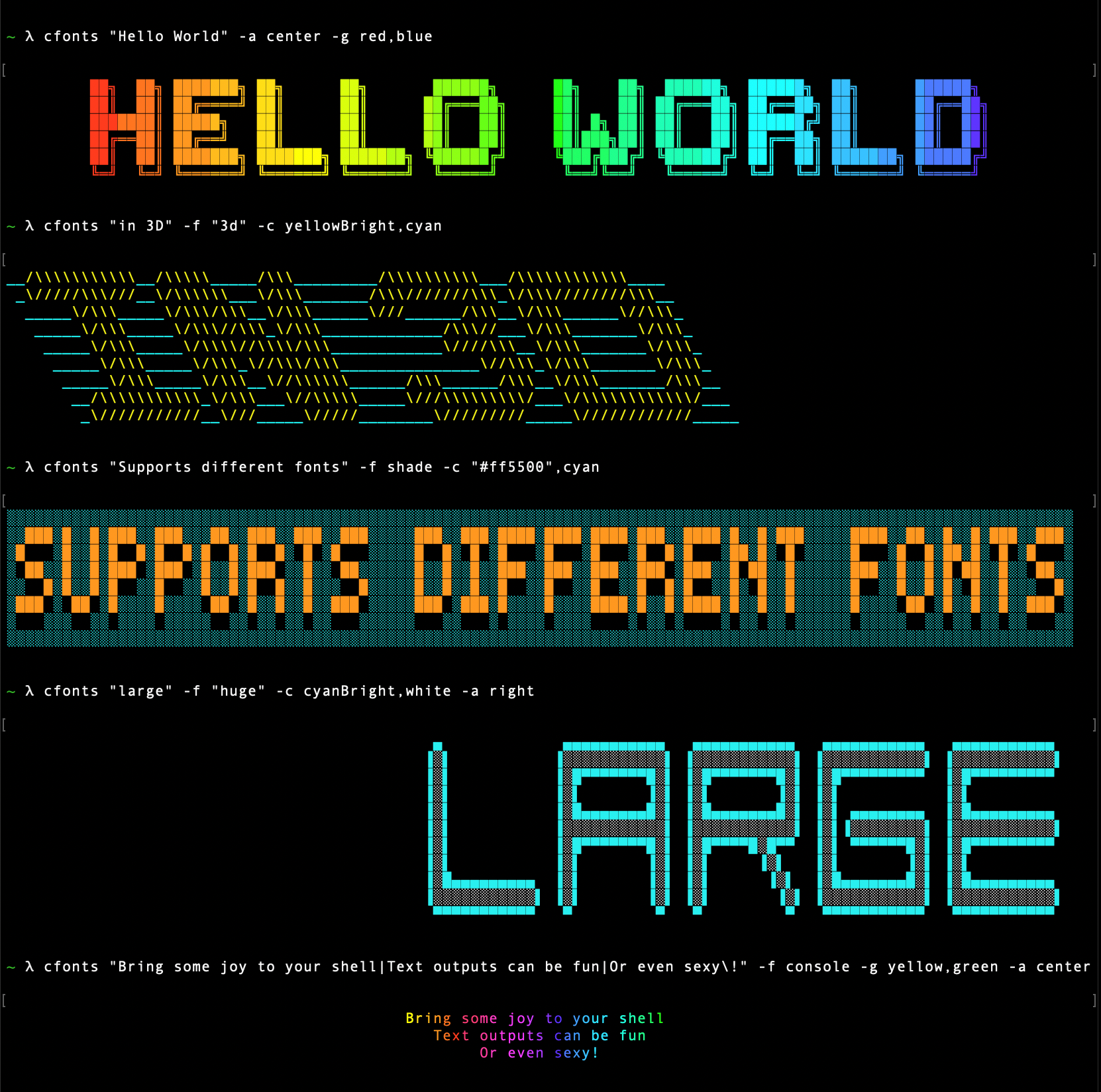
Implementations
Rust
Read more in the Rust folder.
Nodejs
Read more in the Nodejs folder.
Install
<!-- <details> <summary><h3>Unix<h3></summary> #### [snapcraft](https://snapcraft.io/cfonts) ```sh sudo snap install cfonts ``` #### [Alpine Linux repository](https://pkgs.alpinelinux.org/packages?name=cfonts) _💡 The correct repository (see above link for the most up-to-date information) should be enabled before `apk add`._ ```sh sudo apk add cfonts ``` #### [Scoop](https://scoop.sh/) ```sh scoop install cfonts ``` #### RPM ```sh TODO ``` </details> -->Rust
homebrew
brew install cfonts
Arch User Repository
yay -S cfonts
Fedora
sudo dnf install cfonts
NixOS
nix-env -iA nixos.cfonts
MacPorts
sudo port install cfonts
cargo
cargo install cfonts
NodeJs
npm
npm i cfonts -g
yarn
yarn global add cfonts
Usage
Using the CLI is easy.
Usage: cfonts "<value>" [option1] <input1> [option2] <input1>,<input2> [option3] etc...
At any point you can run the help command to get a full list of commands and how to use them.
$ cfonts --help
Supported Characters
| | | | |
|-----|-----|-----|-------------|
| A | P | 4 | $ |
| B | Q | 5 | % |
| C | R | 6 | & |
| D | S | 7 | ( |
| E | T | 8 | ) |
| F | U | 9 | / |
| G | V | ! | : |
| H | W | ? | ; |
| I | X | . | , |
| J | Y | + | ' |
| K | Z | - | " |
| L | 0 | _ | (space) |
| M | 1 | = | |
| N | 2 | @ | |
| O | 3 | # | |
The | character will be replaced with a line break
Options
-h, --help
Type: <command>
Default value: none
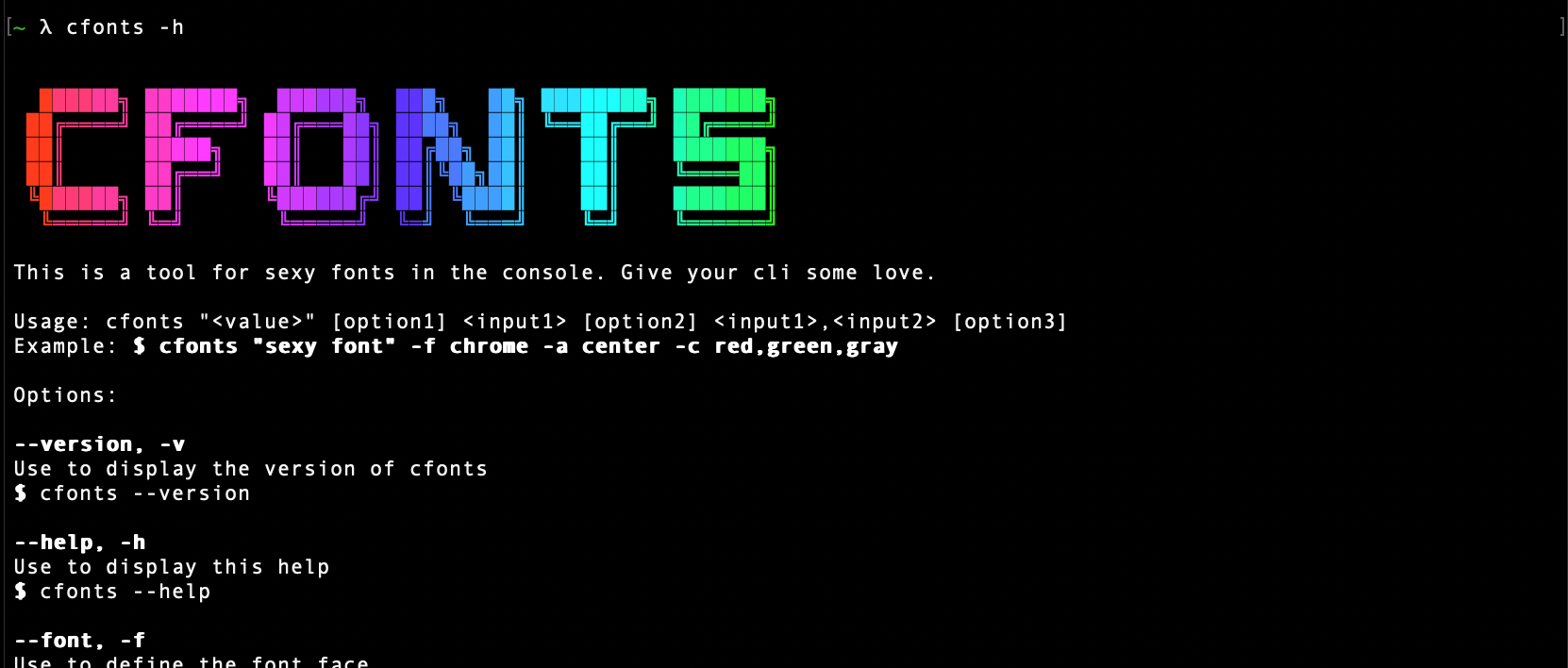
This shows a list of all available options.
$ cfonts --help
-V, --version
Type: <command>
Default value: none
This shows the installed version.
$ cfonts --version

text
Type: <string>
Default value: ""
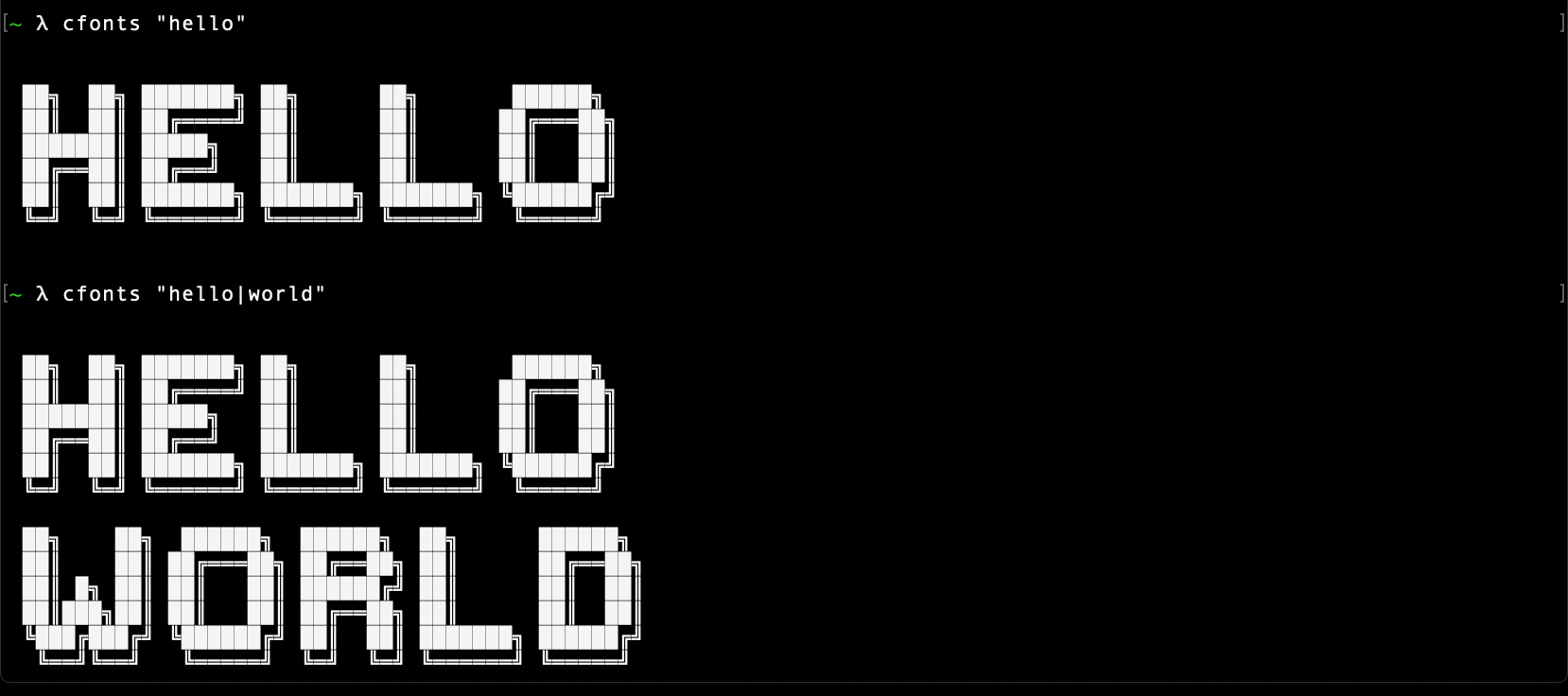
This is the "text input" to be converted into a nice font.
The | character will be replaced with a line break.
$ cfonts "Hello world"
-f, --font
Type: <string>
Default value: "block"
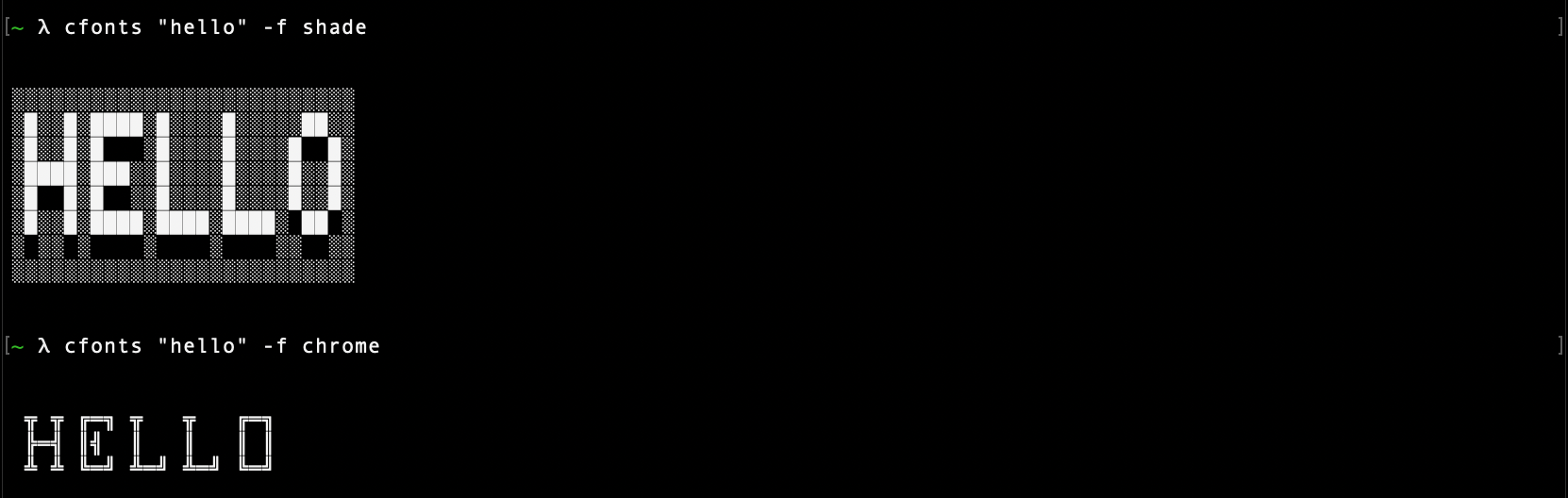
This is the font face you want to use. So far this plugin ships with with following font faces:
$ cfonts "text" --font "chrome"
block[colors: 2] (default)
slick[colors: 2]
tiny[colors: 1]
grid[colors: 2]
pallet[colors: 2]
shade[colors: 2]
chrome[colors: 3]
simple[colors: 1]
simpleBlock[colors: 1]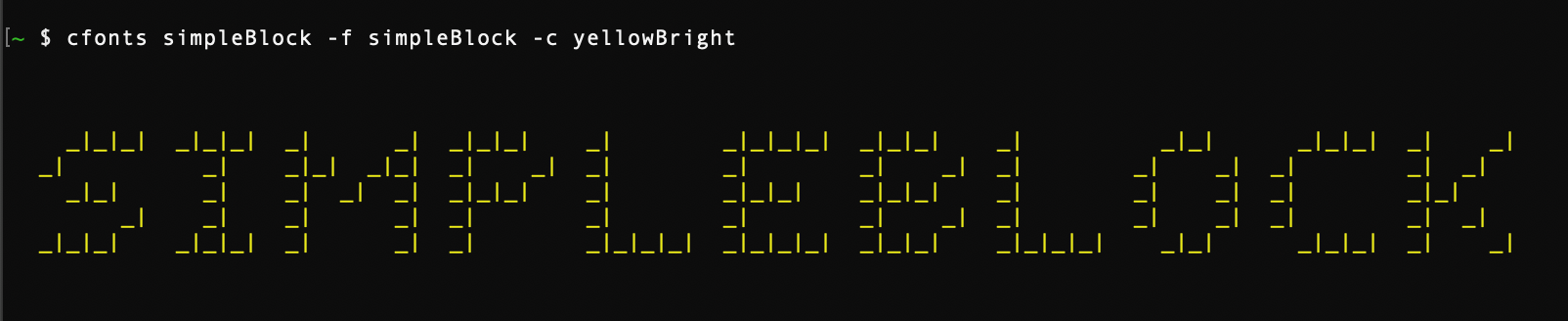
3d[colors: 2]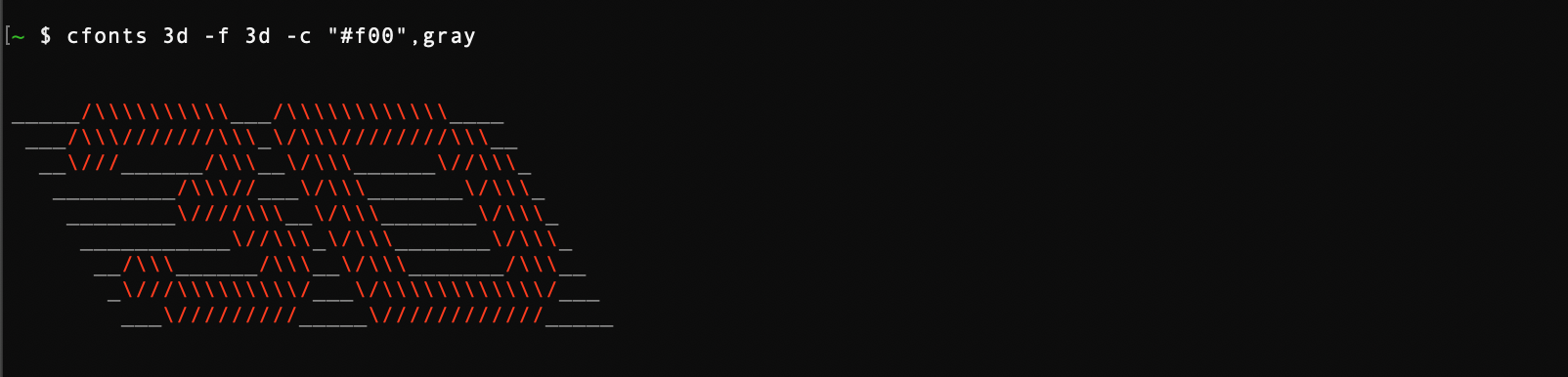
simple3d[colors: 1]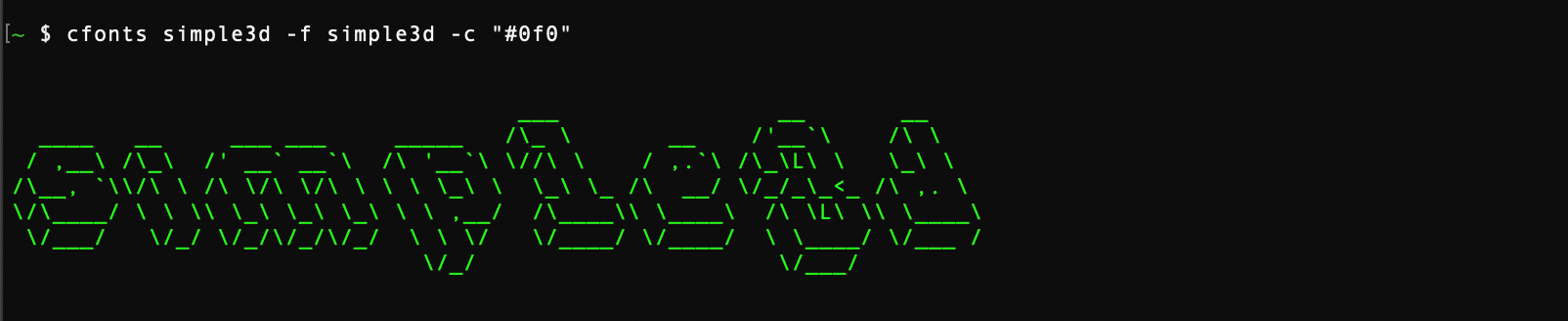
huge[colors: 2]
console[colors: 1]
-a, --align
Type: <string>
Default value: "left"
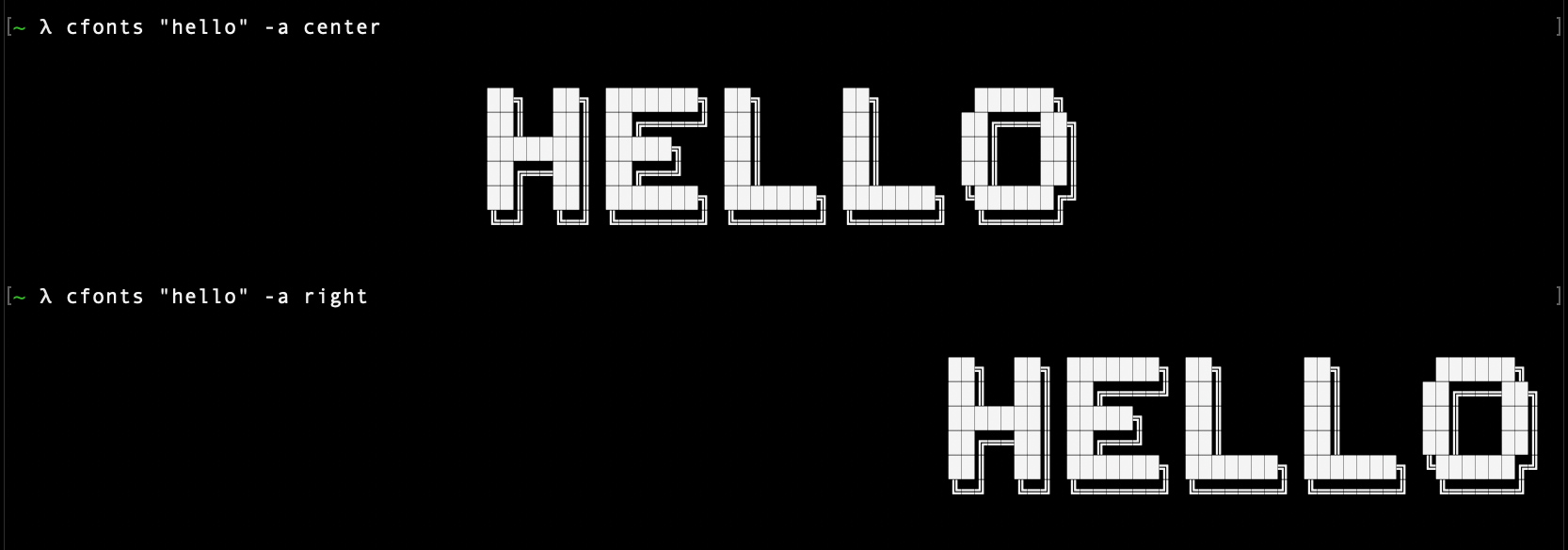
You can align your text in the terminal with this option. Use the keywords below:
left(default)centerrighttop(Will be ignored if used with the spaceless option)bottom(Will be ignored if used with the spaceless option)
$ cfonts "text" --align "center"
-c, --colors
Type: <string list>
Default value: ['system']
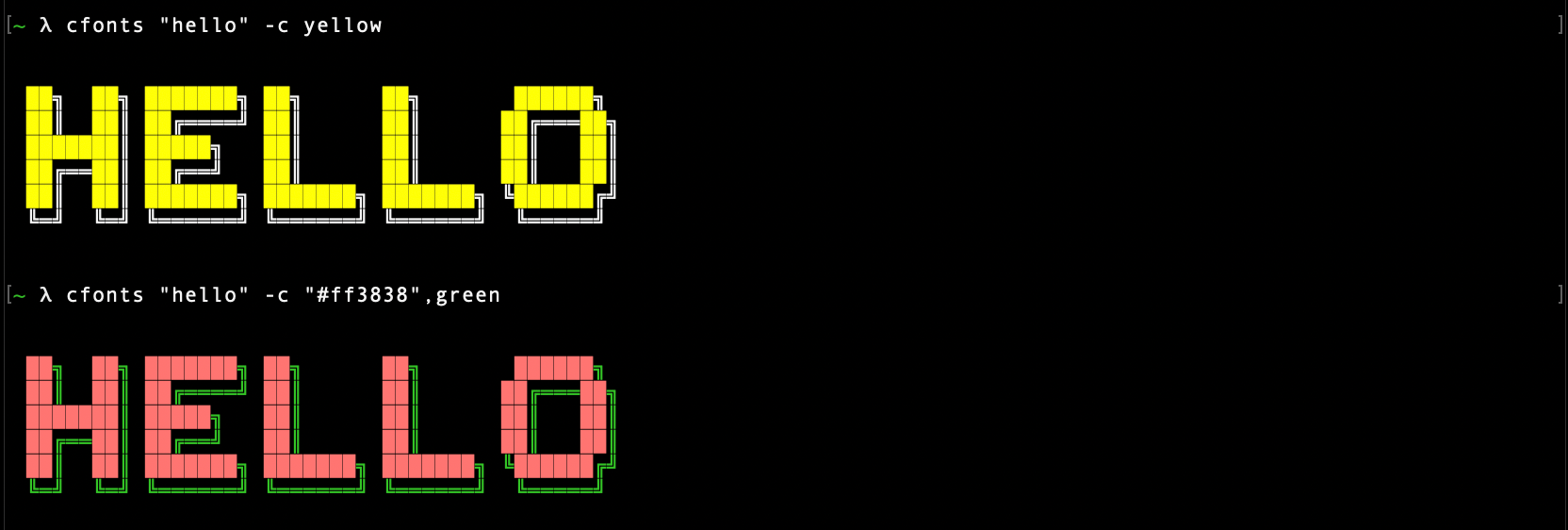
With this setting you can set the colors for your font.
Use the below color strings or a hex color.
Provide colors in a comma-separated string, eg: red,blue. (no spaces)
If you use a hex color make sure you include the # prefix. (In most terminals wrap the hex in quotes)
The system color falls back to the system color of your terminal.
💡 There are environment variables that can affect the display of colors in your terminal.
system(default)blackredgreenyellowbluemagentacyanwhitegrayredBrightgreenBrightyellowBrightblueBrightmagentaBrightcyanBrightwhiteBright#ff8800(any valid hex color)#f80(short form is supported as well)
$ cfonts "text" --colors white,"#f80"
-g, --gradient
Type: <string list>
Default value: false
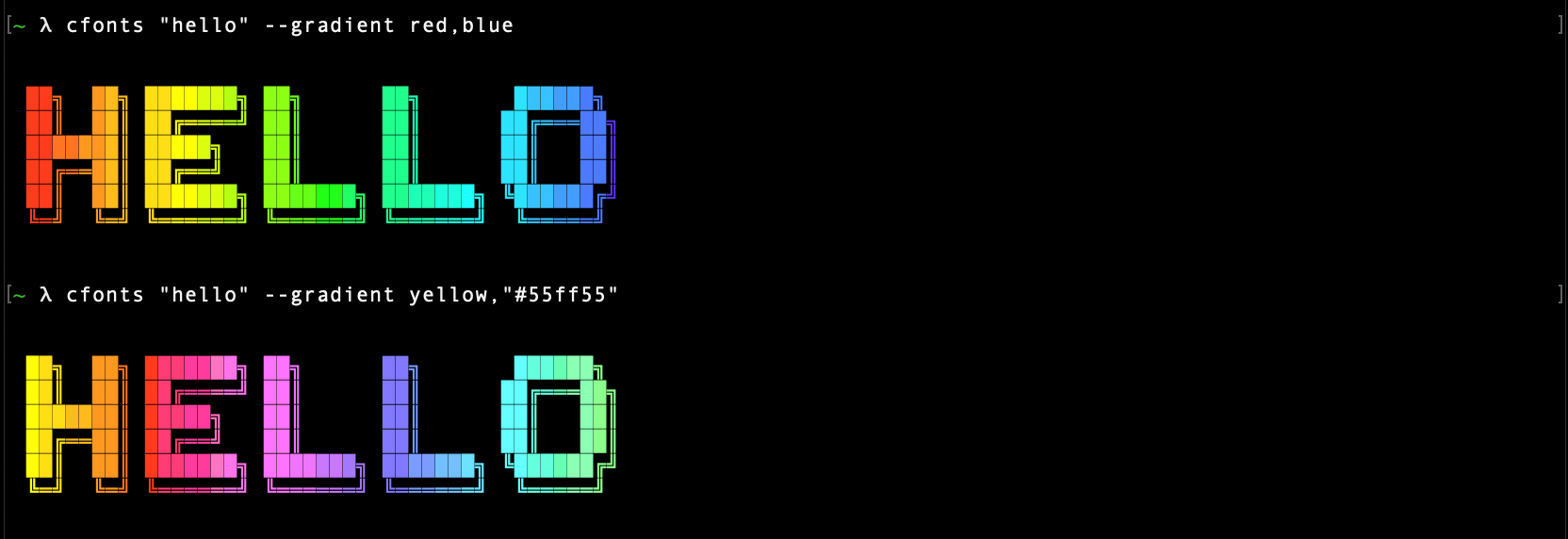
With this setting you can set a gradient over your output.
This setting supersedes the color open.
The gradient requires two colors, a start color and an end color from left to right.
(If you want to set your own colors for the gradient, use the transition option.)
cfonts will then generate a gradient through as many colors as it can find to make the output most impressive.
Provide two colors in a comma-separated string, eg: red,blue. (no spaces)
If you use a hex color make sure you include the # prefix. (In the terminal wrap the hex in quotes)
blackredgreenyellowbluemagentacyanwhitegraygrey#ff8800(any valid hex color)#f80(short form is supported as well)
$ cfonts "text" --gradient red,"#f80"
-i, --independent-gradient
Type: <boolean>
Default value: false
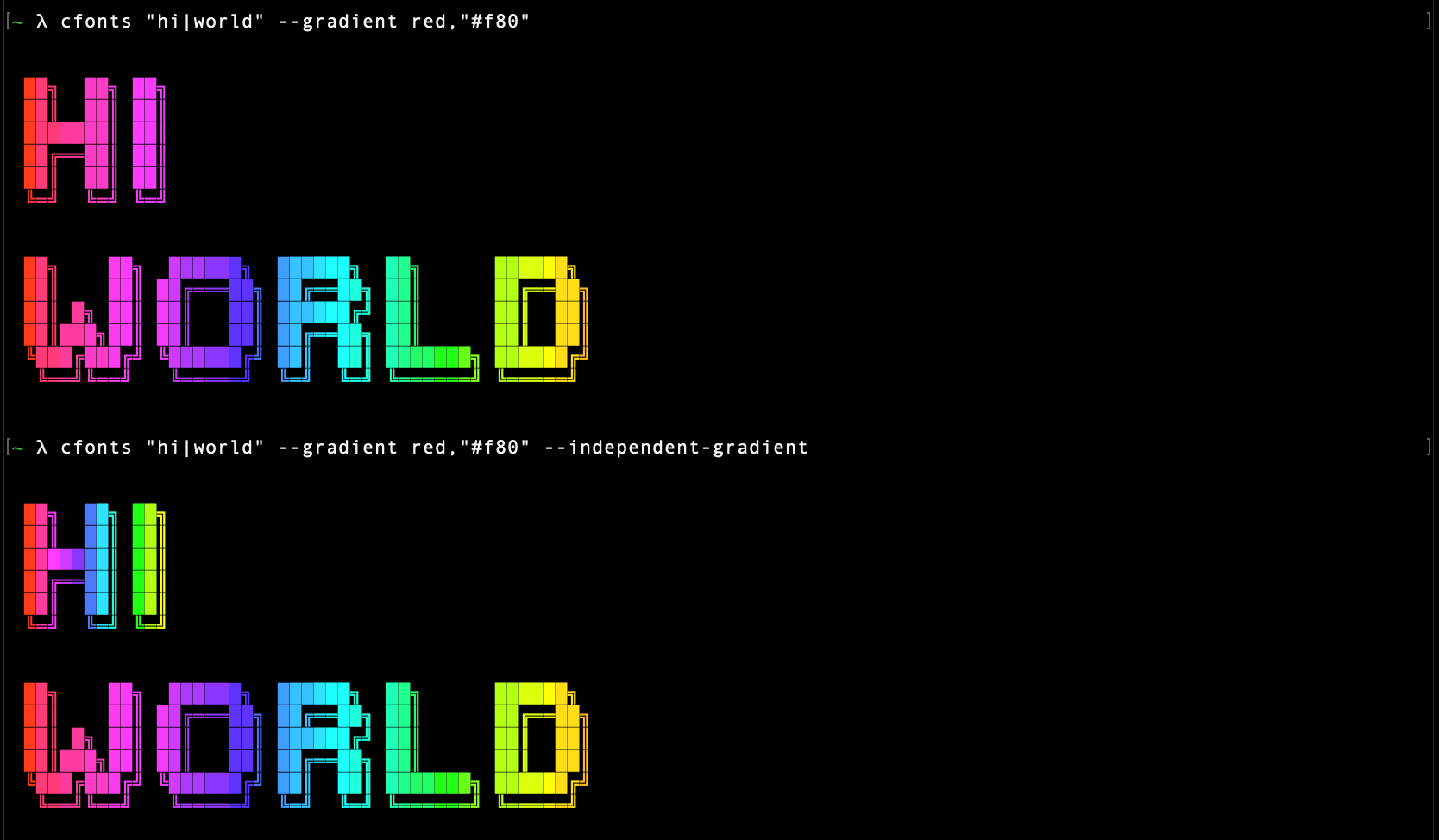
Set this option to re-calculate the gradient colors for each new line.
Only works in combination with the gradient option.
$ cfonts "text|next line" --gradient red,"#f80" --independent-gradient
-t, --transition-gradient
Type: <boolean>
Default value: false
Set this option to generate your own gradients.
Each color set in the gradient option will then be transitioned to directly.
This option allows you to specify more than just two colors for your gradient.
Only works in combination with the gradient option.
$ cfonts "text"
