
Hours
A no-frills time tracking toolkit for command line nerds
Install / Use
/learn @dhth/HoursREADME
hours




hours is a no-frills time tracking toolkit for the command line.
It's designed for users who want basic time tracking for their tasks/projects
right in the terminal. With a simple and minimalistic UI, almost everything in
hours can be achieved with one or two keypresses. It can also generate
plaintext reports, summary statistics, and logs based on time tracked.
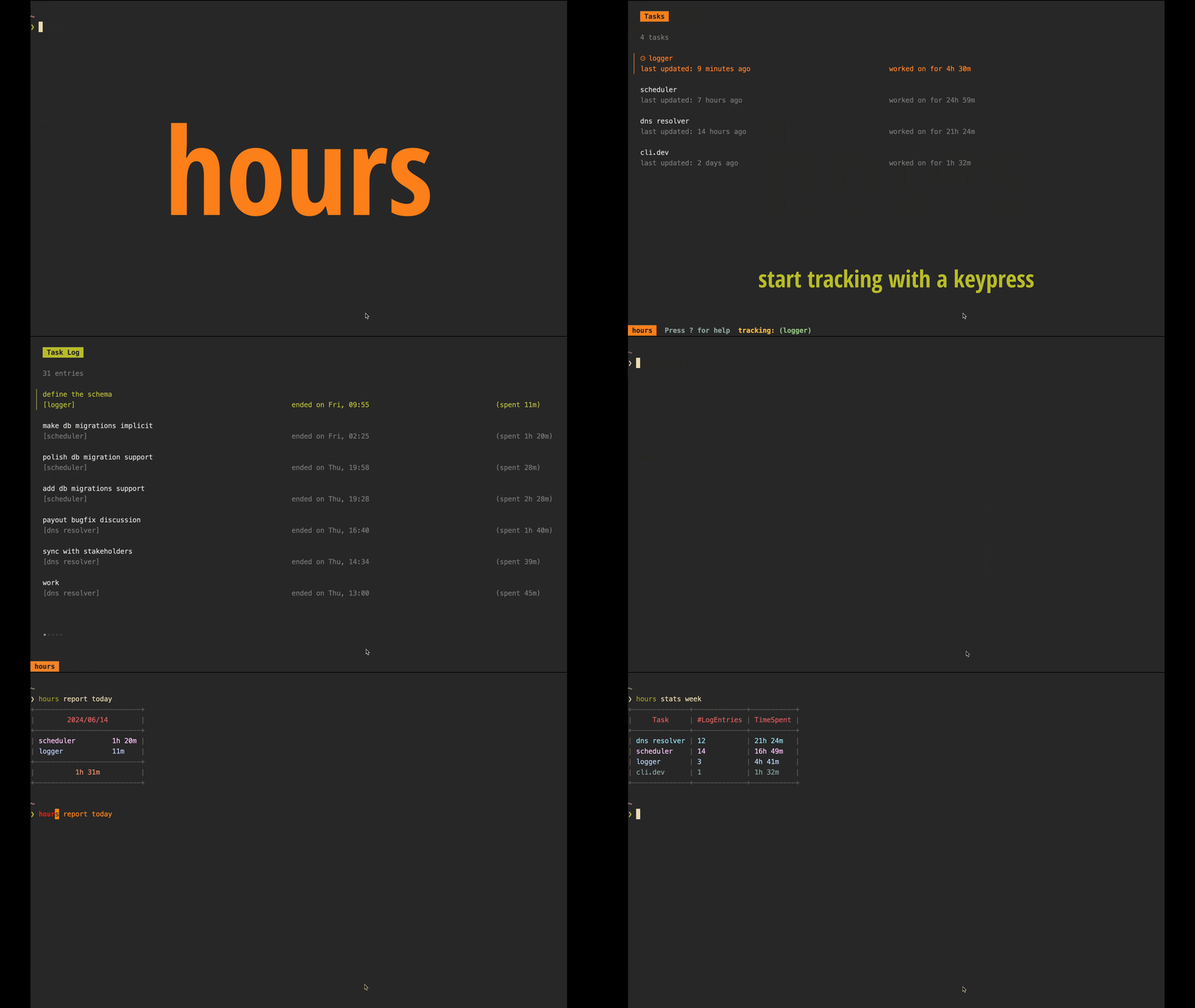
[Link to Video][2]
🤔 Motivation
For a while, I've been wanting to keep track of time I spend on side projects and other non-day-job activities. I also wanted to be able to generate plain text reports to get an overview of time allocation. All of this needed to be done via a fast command line tool that prioritised ease of use over fancy-but-ultimately-not-so-useful features. I couldn't find a tool that precisely fit these needs, so I decided to build one for myself.
💾 Install
homebrew:
brew install dhth/tap/hours
go:
go install github.com/dhth/hours@latest
Or get the binaries directly from a release.
⚡️ Usage
Newbie tip: If you want to see how
hoursworks without having to track time, you can have it generate dummy data for you. See here for more details.
TUI
Open the TUI by simply running hours. The TUI lets you do the following:
- create/update tasks
- start/stop tracking time on a task
- add manual task log entries
- edit task logs
- view task log details
- deactivate/activate a task
- view historical task log entries
Besides a TUI, hours also offers reports, statistics, and logs based on the
time tracking you do. These can be viewed using the subcommands report,
stats, and log respectively.
Reports
hours report [flags] [arg]
Output a report based on task log entries.
Reports show time spent on tasks per day in the time period you specify. These
can also be aggregated (using -a) to consolidate all task entries and show the
cumulative time spent on each task per day.
Accepts an argument, which can be one of the following:
today      for today's report
yest       for yesterday's report
3d         for a report on the last 3 days (default)
week       for a report on the current week
date       for a report for a specific date (eg. "2024/06/08")
range      for a report for a date range (eg. "2024/06/08...2024/06/12", "2024/06/08...today", "2024/06/08..."; shouldn't be greater than 7 days)
Note: If a task log continues past midnight in your local timezone, it will be reported on the day it ends.
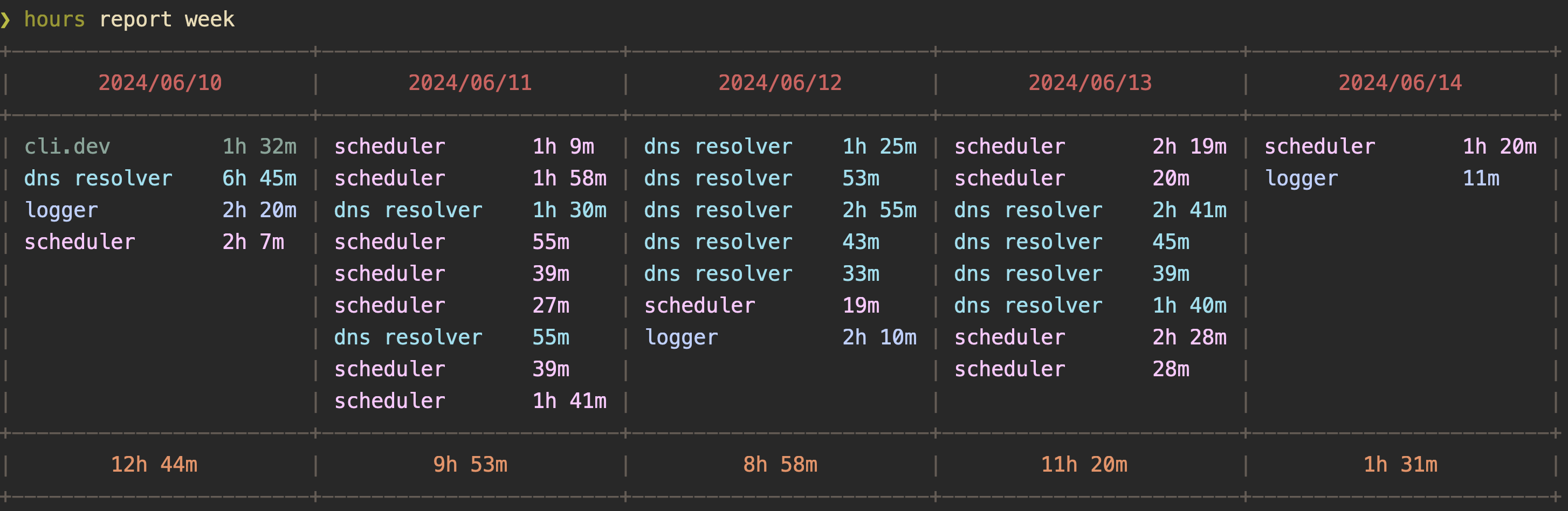
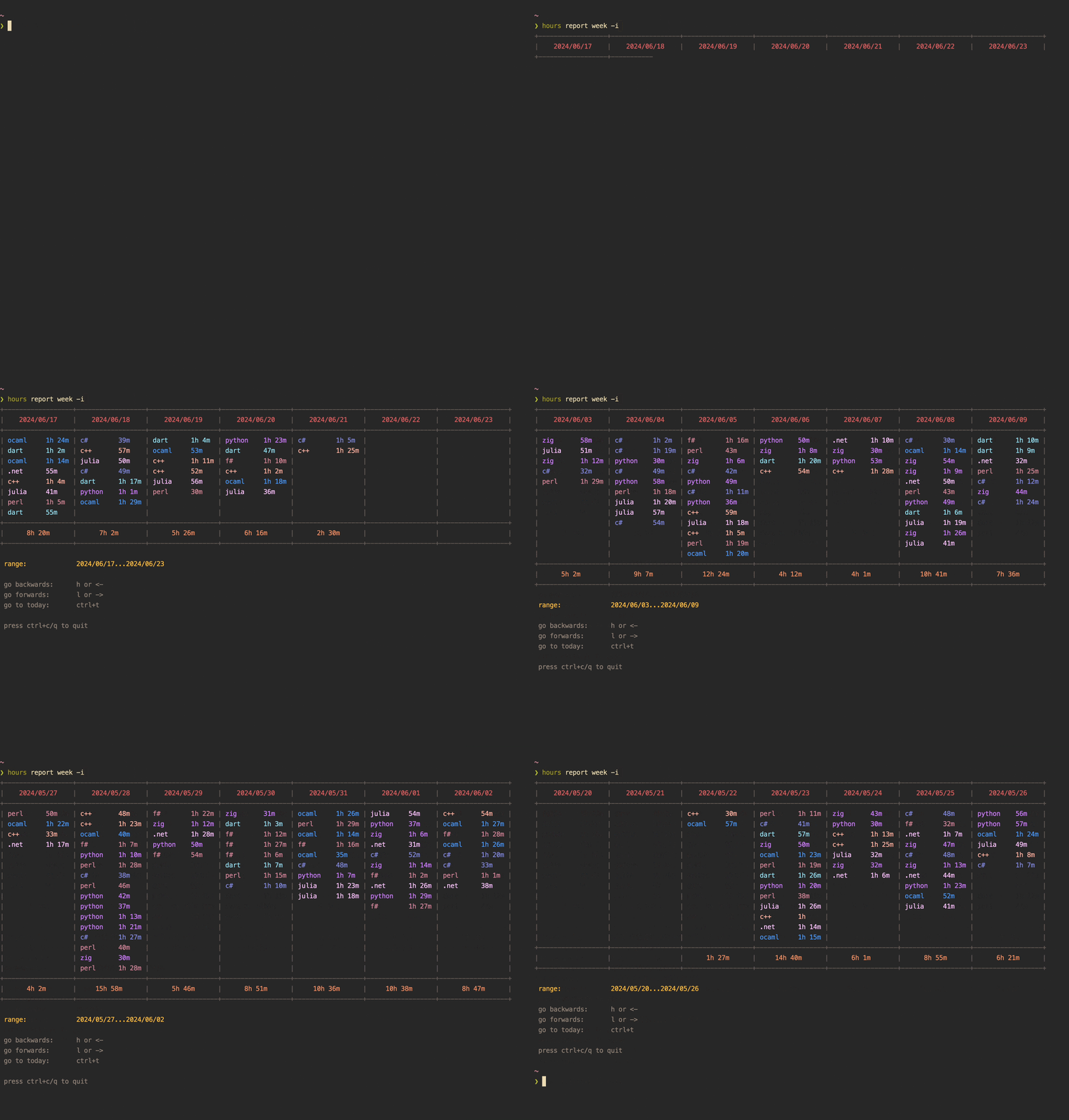
Reports can also be viewed via an interactive interface using the
--interactive/-i flag.
Log
hours log [flags] [arg]
Output task log entries.
Accepts an argument, which can be one of the following:
today      for log entries from today (default)
yest       for log entries from yesterday
3d         for log entries from the last 3 days
week       for log entries from the current week
date       for log entries from a specific date (eg. "2024/06/08")
range      for log entries for a date range (eg. "2024/06/08...2024/06/12", "2024/06/08...today", "2024/06/08...")
Note: If a task log continues past midnight in your local timezone, it'll appear in the log for the day it ends.
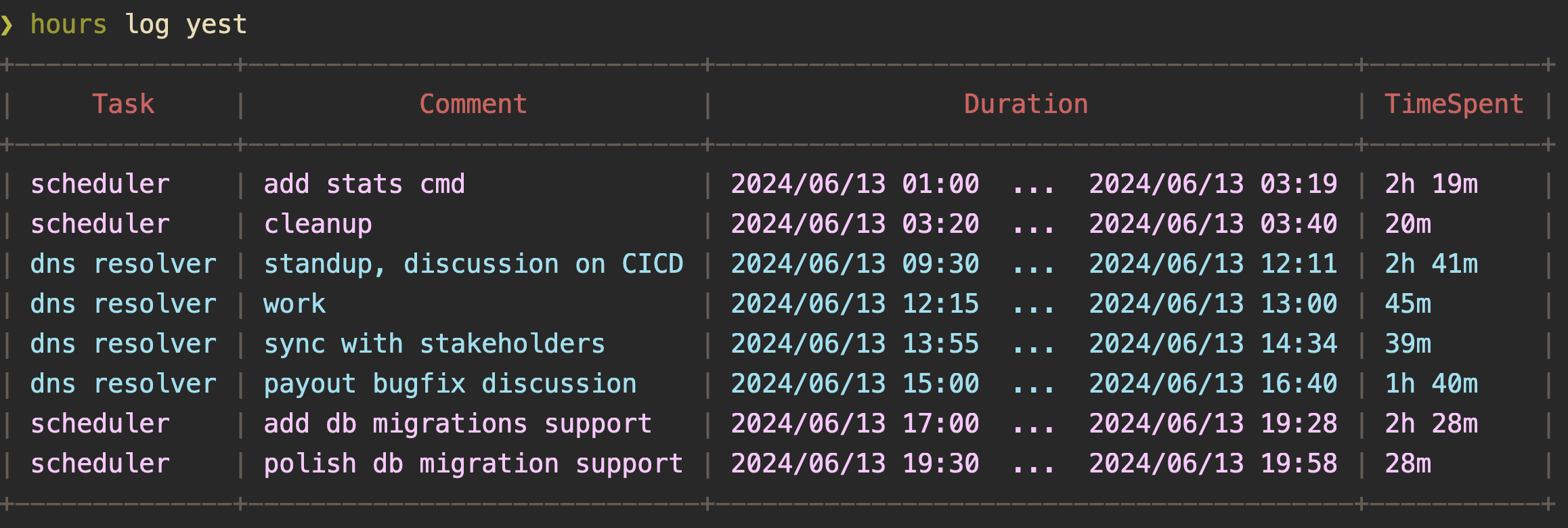
Logs can also be viewed via an interactive interface using the
--interactive/-i flag.
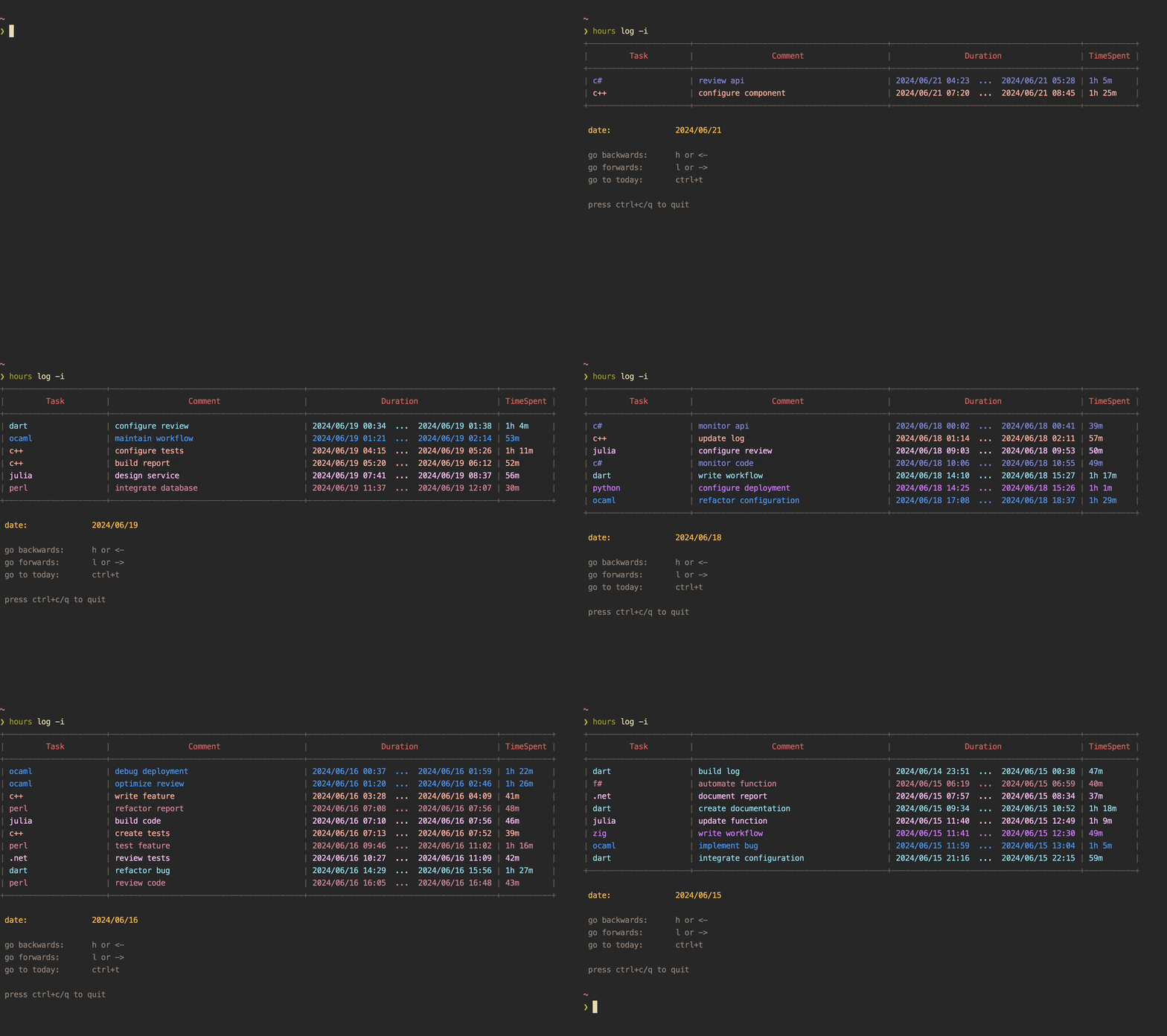
Statistics
hours stats [flag] [arg]
Output statistics for tracked time.
Accepts an argument, which can be one of the following:
today      show stats for today
yest       show stats for yesterday
3d         show stats for the last 3 days (default)
week       show stats for the current week
date       show stats for a specific date (eg. "2024/06/08")
range      show stats for a date range (eg. "2024/06/08...2024/06/12", "2024/06/08...today", "2024/06/08...")
all        show stats for all log entries
Note: If a task log continues past midnight in your local timezone, it'll be considered in the stats for the day it ends.
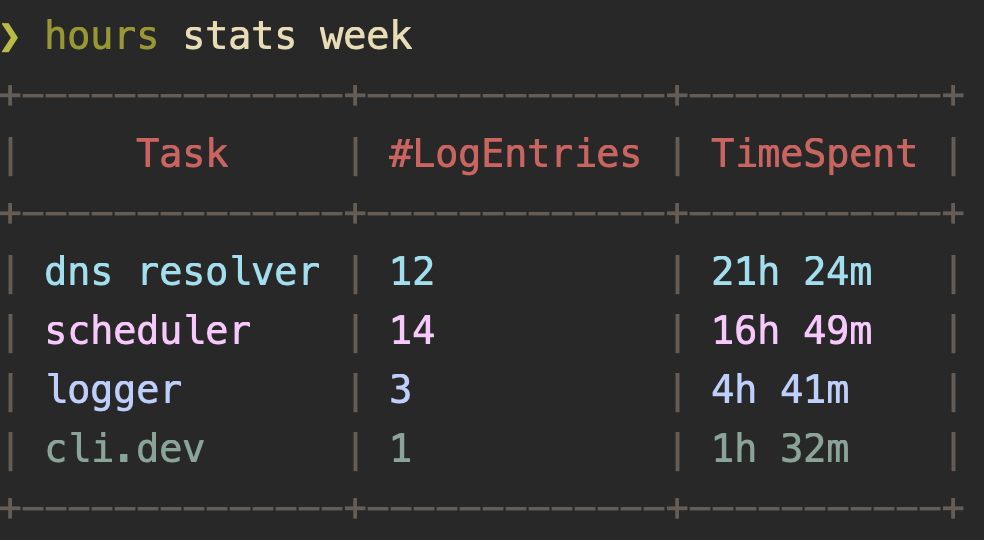
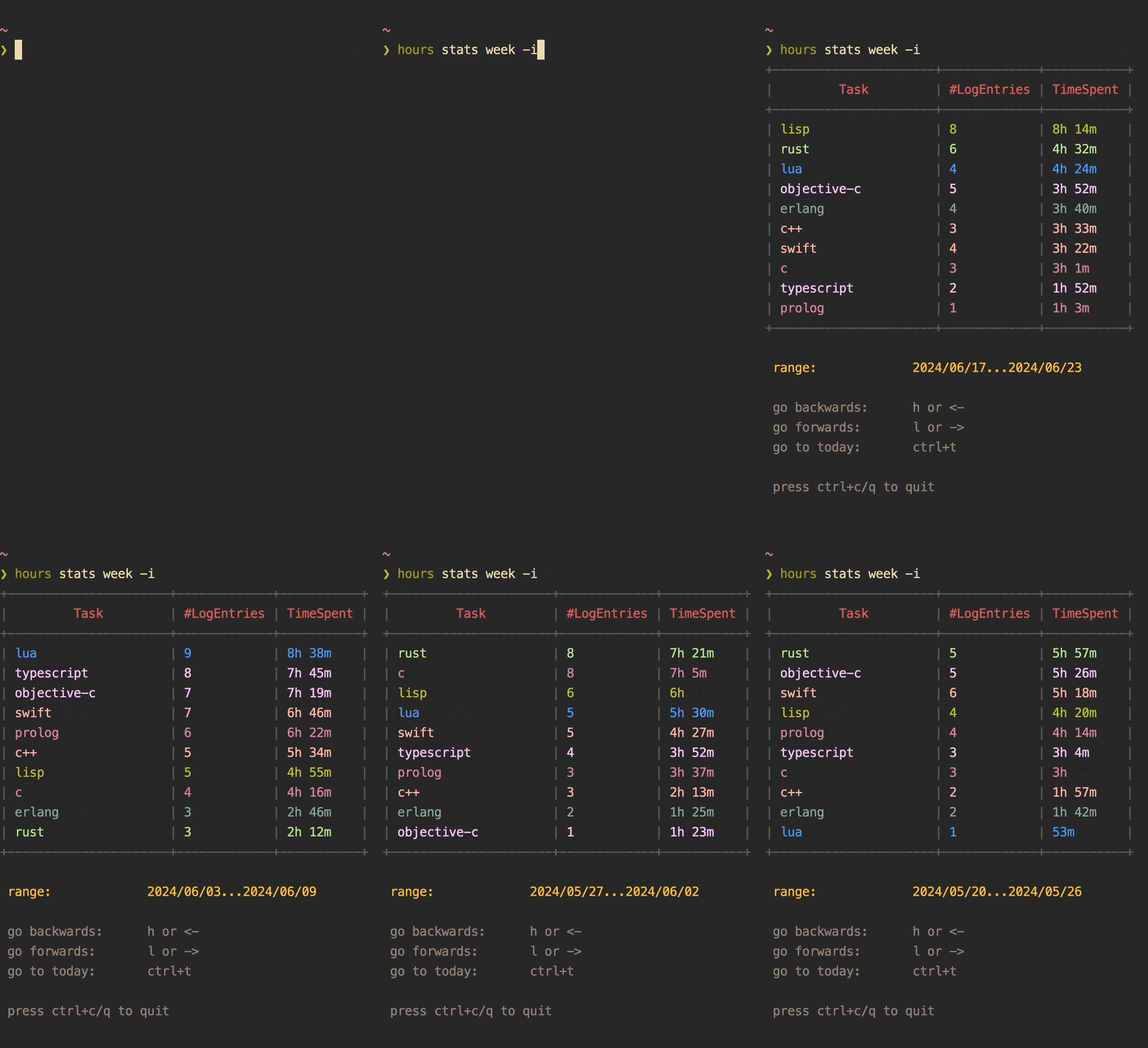
Stats can also be viewed via an interactive interface using the
--interactive/-i flag.
Active Task
hours can show you the task being actively tracked using the active
subcommand. This subcommand supports the following placeholders using the
--template/-t flag:
{{task}}:  for the task summary
{{time}}:  for the time spent so far on the active log entry
Tip: This can be used to display the active task in tmux's (or similar terminal multiplexers) status line using:
set -g status-right "#(hours active -t ' {{task}} ({{time}}) ')".
Generate Dummy Data
You can have hours generate dummy data for you, so you can play around with
it, and see if its approach of showing reports/logs/stats works for you. You can
do so using the gen subcommand.
hours gen --dbpath=/var/tmp/throwaway.db
🎨 Custom Themes
hours supports custom themes for its user interface (for the TUI and the
output of the logs, report, and stats commands. New themes can be added
using hours themes add, which will create a JSON file in hours' config
directory. You can then tweak this file as per your liking.
A sample theme config looks like the following. Colors codes can be provided in ANSI 16, ANSI 256, or HEX formats. You can choose to provide only the attributes you want to change.
{
  "activeTask": "#8ec07c",                   # color for the active task in the footer
  "activeTaskBeginTime": "#d3869b",          # color for the active task begin time in the footer
  "activeTasks": "#fe8019",                  # primary color for the active task list view
  "formContext": "#fabd2f",                  # color for the context message in all forms
  "formFieldName": "#8ec07c",                # color for field names in all forms
  "formHelp": "#928374",                     # color for the help text in all forms
  "helpMsg": "#83a598",                      # color for help messages in the footer
  "helpPrimary": "#83a598",                  # primary color for the help view
  "helpSecondary": "#bdae93",                # secondary color for the help view
  "inactiveTasks": "#928374",                # primary color for the inactive task list view
  "initialHelpMsg": "#a58390",               # color of the initial help message in the footer
  "listItemDesc": "#777777",                 # color to be used for the title of list items (when they're not selected)
  "listItemTitle": "#dddddd",                # color to be used for the title of list items (when they're not selected)
  "recordsBorder": "#665c54",                # color for the table border in the output of logs, reports, stats
  "recordsDateRange": "#fabd2f",             # color for the data range picker in the output of logs, reports, stats
  "recordsFooter": "#ef8f62",                # color for the footer row in the output of logs, reports, stats
  "recordsHeader": "#d85d5d",                # color for the header row in the output of logs, reports, stats
  "recordsHelp": "#928374",                  # color for the help message in the output of logs, reports, stats
  "taskLogDetails": "#d3869b",               # primary color for the task log details view
  "taskEntry": "#8ec07c",                    # primary color for the task entry view
  "taskLogEntry": "#fabd2f",                 # primary color for the task log entry view
  "taskLogList": "#b8bb26",                  # primary color for the task log list view
  "taskLogFormInfo": "#d3869b",              # color to use for contextual information in the task log form
  "taskLogFormWarn": "#fe8019",              # color to use for contextual warnings in the task log form
  "taskLogFormError": "#fb4934",             # color to use for contextual errors in the task log form
  "tasks": [                                 # colors to be used for tasks in the output of logs, report, stats
    "#d3869b",
    "#b5e48c",
    "#90e0ef",
    "#ca7df9",
    "#ada7ff",
    "#bbd0ff",
    "#48cae4",
    "#8187dc",
    "#ffb4a2",
    "#b8bb26",
    "#ffc6ff",
    "#4895ef",
    "#83a598",
    "#fabd2f"
  ],
  "titleForeground": "#282828",              # foreground color to use for the title of all views
  "toolName": "#fe8019",                     # color for the tool name in the footer
  "tracking": "#fabd2f"                      # color for the tracking message in the footer
}
You can view configured themes using hours themes list.
Running hours with
Related Skills
node-connect
351.2kDiagnose OpenClaw node connection and pairing failures for Android, iOS, and macOS companion apps
frontend-design
110.6kCreate distinctive, production-grade frontend interfaces with high design quality. Use this skill when the user asks to build web components, pages, or applications. Generates creative, polished code that avoids generic AI aesthetics.
openai-whisper-api
351.2kTranscribe audio via OpenAI Audio Transcriptions API (Whisper).
qqbot-media
351.2kQQBot 富媒体收发能力。使用 <qqmedia> 标签,系统根据文件扩展名自动识别类型(图片/语音/视频/文件)。
