
Wayscriber
Live overlay for drawing, annotating with zoom, hiding text, and capturing screenshots on Linux. Can be used as whiteboard or blackboard. Highly customisable. Written in Rust.
Install / Use
/learn @devmobasa/WayscriberREADME
wayscriber


A ZoomIt-like real-time screen annotation tool for Linux/Wayland, written in Rust.
Docs: https://wayscriber.com/docs/
<details> <summary>Screenshots</summary>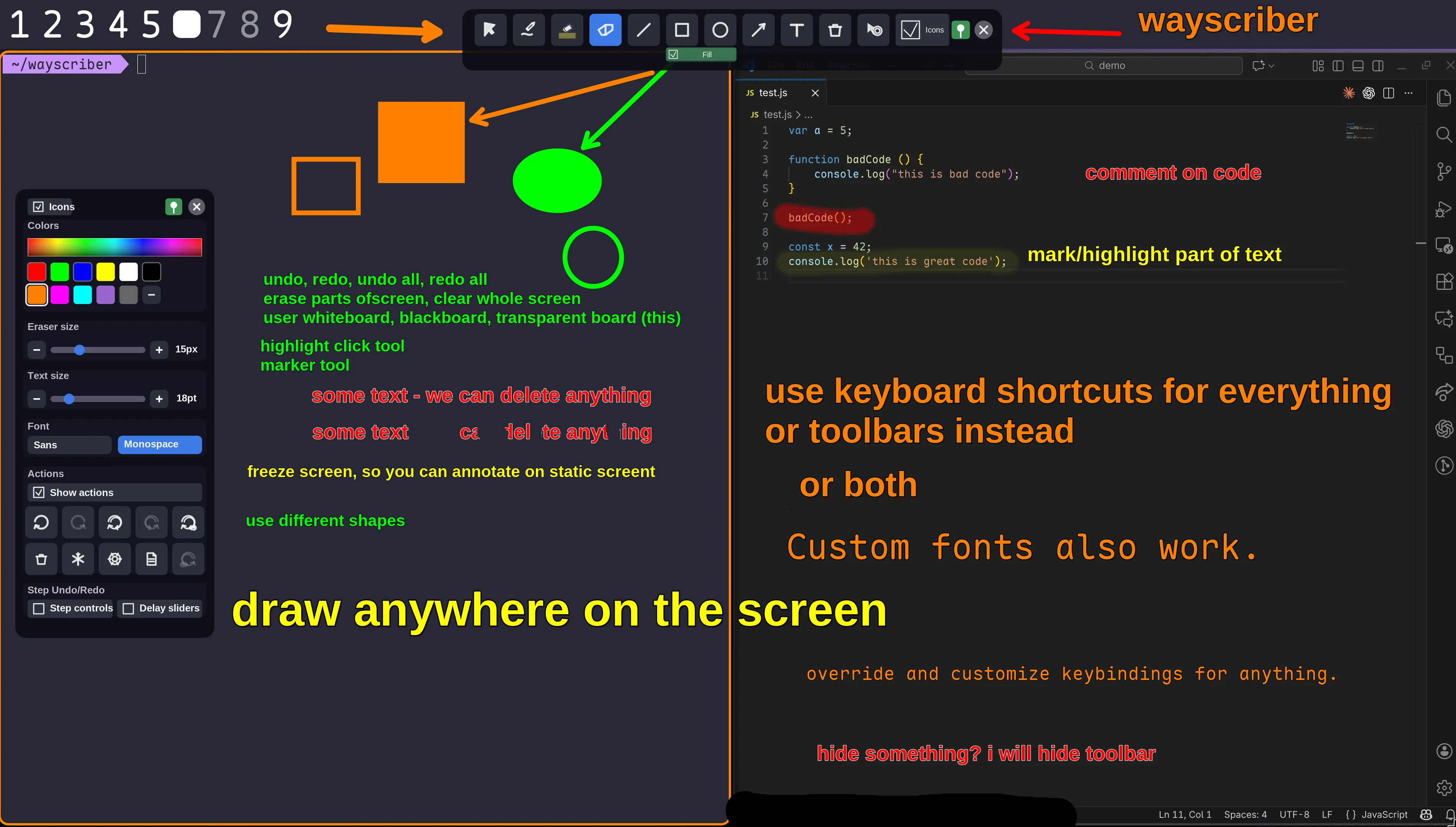
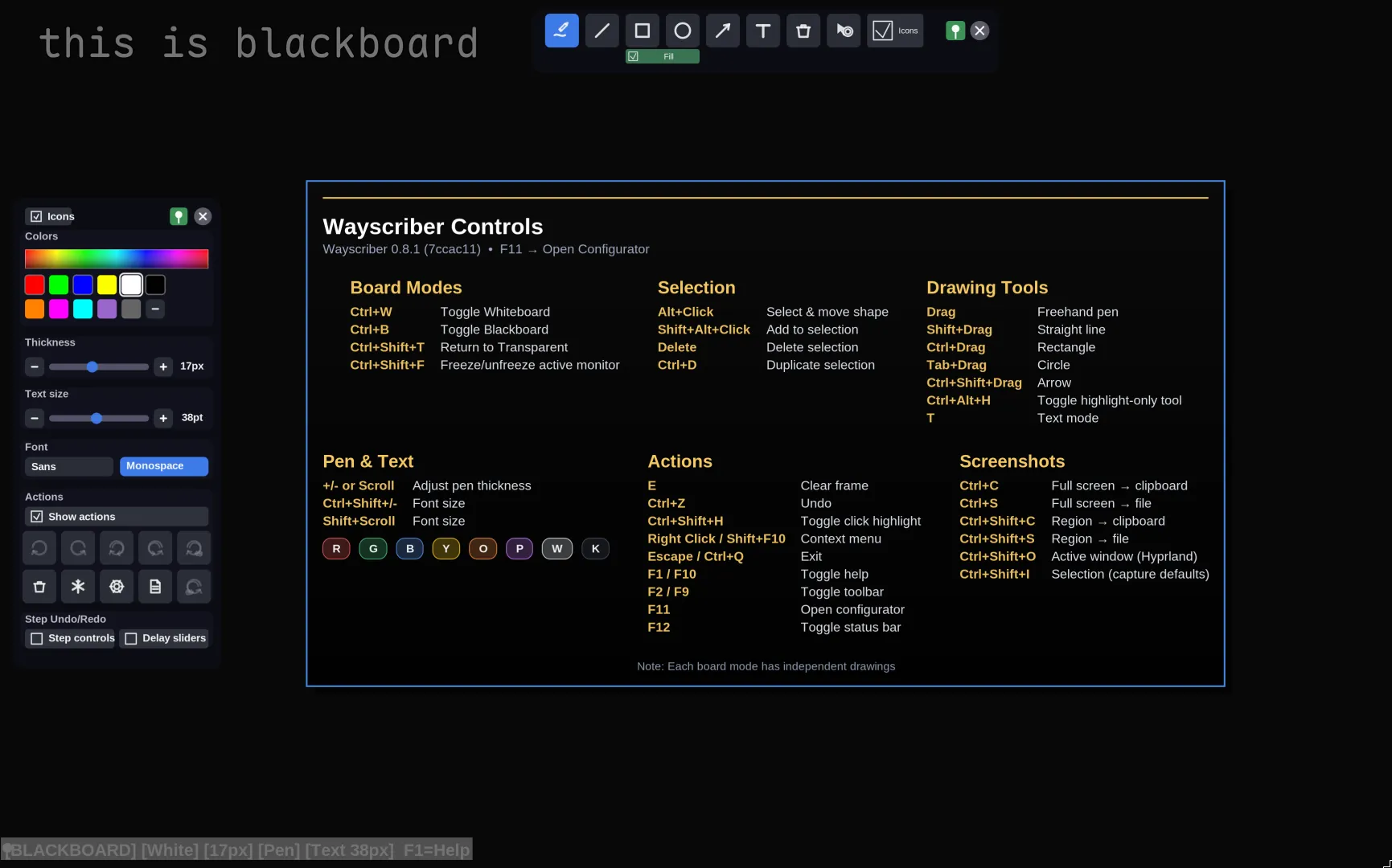
https://github.com/user-attachments/assets/4b5ed159-8d1c-44cb-8fe4-e0f2ea41d818
</details>Table of Contents
- Why wayscriber?
- Features
- Quick Start
- Installation
- Usage
- Getting Help
- Controls Reference
- Configuration
- Troubleshooting
- Contributing
- Roadmap
- Additional Information
- License & Credits
Why wayscriber?
- Annotate live over any app without disrupting your workflow
- Professional presentation tools — presenter mode, numbered callouts, click highlights, screen freeze, zoom
- Persistent sessions that survive restarts
- Native Wayland performance with ZoomIt-like controls
- Lightweight daemon with instant toggle via keybind
Platform Support
| Platform | Status | Notes | |----------|--------|-------| | Wayland (layer-shell) | ✅ Supported | Hyprland, Sway, River, Wayfire, Niri/Cosmic, Plasma/KWin | | GNOME | ⚠️ Partial | Portal fallback; overlay windowed | | X11 | ❌ | Not supported |
<details> <summary>Tested environments</summary>- Ubuntu 25.10 GNOME (xdg fallback)
- Fedora 43 KDE (Plasma, layer-shell)
- Fedora 43 GNOME (xdg fallback)
- Debian 13.2 KDE (Plasma, layer-shell)
- Debian 13.2 GNOME (xdg fallback)
- CachyOS 2025-August KDE (Plasma, layer-shell)
- Hyprland on Arch (layer-shell)
- Niri on Arch (layer-shell)
Features
Drawing & Editing
- Freehand pen, highlighter, eraser (circle/rect)
- Shapes: lines, rectangles, ellipses (with fill toggle)
- Arrows with optional auto-numbered labels
- Step markers for walkthroughs
- Multiline text & sticky notes with smoothing
- Selection: Alt-drag, <kbd>V</kbd> tool, properties panel
- Duplicate (<kbd>Ctrl+D</kbd>), delete (<kbd>Delete</kbd>), undo/redo
- Color picker, palettes, size via hotkeys or scroll
- Radial menu at cursor (<kbd>Middle-click</kbd>): quick tool/color selection + scroll size adjust
Boards
- Named boards with transparent overlay or custom backgrounds
- Isolated pages per board with auto-contrast pens
- Jump slots: <kbd>Ctrl+Shift+1..9</kbd>
- Toggle whiteboard/blackboard
- Board picker: <kbd>Ctrl+Shift+B</kbd>
Capture & Screenshots
- Full-screen saves, active-window grabs, region capture
- Copy to clipboard or save to file
- Uses
grim,slurp,wl-clipboard(installed automatically by deb/rpm/AUR packages; fallback: xdg-desktop-portal)
Session Persistence
- Opt-in per board/monitor canvas + tool state restore
- CLI overrides:
--resume-session/--no-resume-session - Tray checkmark flips config on disk
Toolbars & UI
- Floating toolbars (pin/unpin: <kbd>F2</kbd>/<kbd>F9</kbd>)
- Preset slots, icon or text modes
- Color picker with extended palettes
- Status bar, board/page controls
- Help overlay (<kbd>F1</kbd>), quick reference (<kbd>Shift+F1</kbd>)
- Command palette (<kbd>Ctrl+K</kbd>)
Multi-Monitor
- Move overlay focus between monitors: <kbd>Ctrl+Alt+Shift+←</kbd>/<kbd>Ctrl+Alt+Shift+→</kbd>
- Toolbars and status bar follow the active output when output focus changes
- Optional active output badge in status bar (
ui.active_output_badge) - Output-scoped session restore when
session.per_output = true - GNOME fallback output pinning via
ui.preferred_outputorWAYSCRIBER_XDG_OUTPUT
Presets
- Save tool + color + size (plus fill/opacity/text) into 3-5 slots
- Apply: <kbd>1</kbd>-<kbd>5</kbd>
- Save: <kbd>Shift+1</kbd>-<kbd>Shift+5</kbd>
Presenter Helpers
- Click highlights with configurable colors/radius/duration
- Persistent ring while click highlight tool is active
- Presenter mode (<kbd>Ctrl+Shift+M</kbd>): hides UI, forces click highlights
- Screen freeze (<kbd>Ctrl+Shift+F</kbd>): pause display while apps run
Callouts & Zoom
- Numbered callouts: auto-numbered arrow labels, step markers
- Reset shortcuts (<kbd>Ctrl+Shift+R</kbd> for arrow labels): see Controls Reference
- Zoom: spotlight details with ZoomIt-style controls
- Zoom in/out: <kbd>Ctrl+Alt</kbd> + scroll or <kbd>Ctrl+Alt++</kbd>/<kbd>Ctrl+Alt+-</kbd>
- Reset: <kbd>Ctrl+Alt+0</kbd>
- Lock view: <kbd>Ctrl+Alt+L</kbd>
- Pan: middle drag or arrow keys
Quick Start
1. Install wayscriber (choose one path)
Option A: No CLI (click and install)
- Main app (
wayscriber).deb(Ubuntu, Debian, Linux Mint, Pop!_OS, and other Debian-based distros): wayscriber-amd64.deb - Main app (
wayscriber).rpm(Fedora, RHEL, Rocky Linux, AlmaLinux, Nobara, and other RPM-based distros): wayscriber-x86_64.rpm - Optional GUI app (
wayscriber-configurator).deb: wayscriber-configurator-amd64.deb - Optional GUI app (
wayscriber-configurator).rpm: wayscriber-configurator-x86_64.rpm - Latest release page (all assets)
Install the main app package first. wayscriber-configurator is optional and does not include the wayscriber binary.
Open the downloaded package in your software installer (Software Center / Discover), then install.
Important: direct GitHub .deb/.rpm installs are one-off installs and do not auto-update. Use repo install commands if you want automatic updates.
Option B: CLI (Debian/Ubuntu repo, auto-updates recommended)
sudo install -d /usr/share/keyrings
curl -fsSL https://wayscriber.com/apt/WAYSCRIBER-GPG-KEY.asc | sudo gpg --dearmor -o /usr/share/keyrings/wayscriber.gpg
echo "deb [signed-by=/usr/share/keyrings/wayscriber.gpg] https://wayscriber.com/apt stable main" | sudo tee /etc/apt/sources.list.d/wayscriber.list
sudo apt update
sudo apt install wayscriber
# Optional GUI configurator (separate app)
sudo apt install wayscriber-configurator
Fedora/RHEL CLI users: use the Fedora / RHEL (repo – recommended) section below instead of this apt block.
2. First launch (GUI-first, no terminal needed) Open your app menu/launcher and start Wayscriber. Press <kbd>F1</kbd> or <kbd>F10</kbd> for help; <kbd>Shift+F1</kbd> for quick reference; <kbd>Ctrl+K</kbd> for the command palette; <kbd>Escape</kbd> hides/exits.
3. Daemon mode (preferred for daily use, optional) Daemon mode is faster and keeps session state between toggles. For setup steps, see Usage. Ubuntu GNOME users: <kbd>Super+G</kbd> is a good default because <kbd>Super+D</kbd> is often reserved.
Alternative (one-shot mode):
wayscriber --active
For distro-specific package steps, see Installation. For daemon vs one-shot behavior, see Usage.
Installation
No terminal install (GitHub Releases)
If you prefer downloading files in a browser instead of using package-manager commands:
- Open latest release.
- Install the main app package that matches your distro:
- wayscriber-amd64.deb (Ubuntu, Debian, Linux Mint, Pop!_OS, and other Debian-based distros)
- wayscriber-x86_64.rpm (Fedora, RHEL, Rocky Linux, AlmaLinux, Nobara, and other RPM-based distros)
- Optional: install the configurator package (
wayscriber-configurator) after wayscriber:- wayscriber-configurator-amd64.deb
- wayscriber-configurator-x86_64.rpm
- Note:
wayscriber-configuratoris a separate app and does not installwayscriber.
- Launch Wayscriber from your application menu/launcher.
- Optional later: switch to daemon mode (preferred) using the steps in Usage.
Release packages are one-off installs (no auto-updates). Use repo installs below for automatic updates.
Debian / Ubuntu (repo – recommended)
sudo install -d /usr/share/keyrings
curl -fsSL https://wayscriber.com/apt/WAYSCRIBER-GPG-KEY.asc | sudo gpg --dearmor -o /usr/share/keyrings/wayscriber.gpg
echo "deb [signed-by=/usr/share/keyrings/wayscriber.gpg] https://wayscriber.com/apt stable main" | sudo tee /etc/apt/sources.list.d/wayscriber.list
sudo apt update
sudo apt install wayscriber
# Optional GUI configurator
sudo apt install wayscriber-configurator
One-off .deb (no auto-updates):
wget -O wayscriber-amd64.deb https://github.com/devmobasa/wayscriber/releases/latest/download/wayscriber-amd64.deb
sudo apt install ./wayscriber-amd64.deb
Configurator .deb (optional):
wget -O wayscriber-configurator-amd64.deb https://github.com/devmobasa/wayscriber/releases/latest/download/wayscriber-configurator-amd64.deb
sudo apt install ./wayscriber-configurato
Related Skills
node-connect
344.1kDiagnose OpenClaw node connection and pairing failures for Android, iOS, and macOS companion apps
frontend-design
96.8kCreate distinctive, production-grade frontend interfaces with high design quality. Use this skill when the user asks to build web components, pages, or applications. Generates creative, polished code that avoids generic AI aesthetics.
openai-whisper-api
344.1kTranscribe audio via OpenAI Audio Transcriptions API (Whisper).
qqbot-media
344.1kQQBot 富媒体收发能力。使用 <qqmedia> 标签,系统根据文件扩展名自动识别类型(图片/语音/视频/文件)。
