
RedMap
A web map app for Node-RED to put blobs on
Install / Use
/learn @dceejay/RedMapREADME
node-red-contrib-web-worldmap
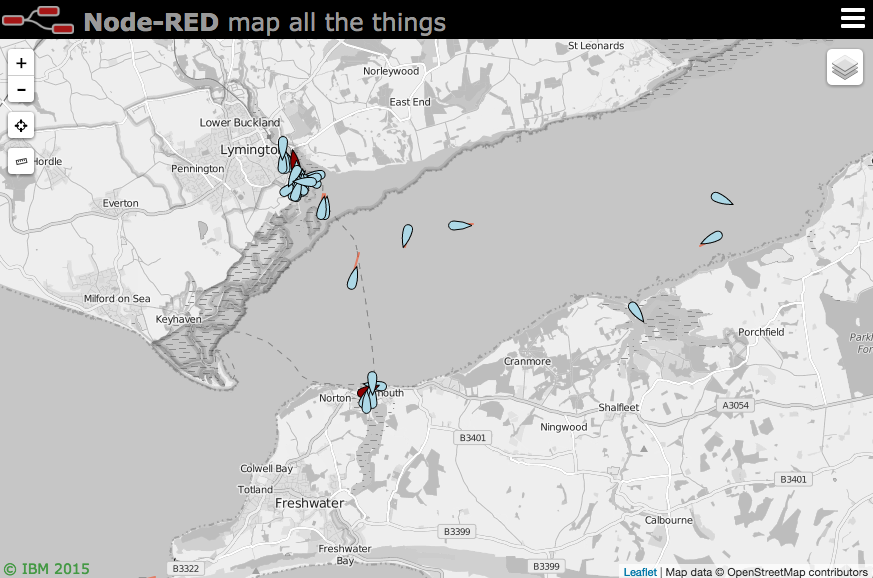
A <a href="https://nodered.org" target="mapinfo">Node-RED</a> node to provide a world map web page for plotting "things" on. Please feel free to 



Updates
-
v5.6.1 - Also call autoswitch on initial connect to ensure map in view.
-
v5.6.0 - Autoswitch pmtiles basemaps based on zoom and/or coverage.
-
v5.5.8 - Bump qs dep for CVE
-
v5.5.7 - Fix COG handling for built in icons, bump various libs for CVEs
-
v5.5.4 - slight tweak to geojson property display as table
-
v5.5.3 - ensure SOG gets picked up earlier in chain
-
v5.5.2 - Slight improvement for on/offline choice of map
-
v5.5.1 - Fix maxNativeZoom for pmtiles to pull from tiles files. Issue #312
-
v5.5.0 - Add ability to load raster pmtiles files. Issue #312
-
v5.4.0 - Let msg.payload.command.zoomLevels set an array of acceptable zoom levels. Issue #312
-
v5.3.0 - Let msg.payload.popupOptions object set Leaflet popup options so it can be customised. Issue #311
-
v5.2.0 - Allow left click send back co-ords. Let Button be replaceable more easily and take value property. Issue #308 and #309
-
see CHANGELOG for full list of changes.
Install
Either use the Manage Palette option in the Node-RED Editor menu, or run the following command in your Node-RED user directory - typically ~/.node-red
npm i node-red-contrib-web-worldmap
Usage
Plots "things" on a map. By default the map will be served from {httpRoot}/worldmap, but this
can be changed in the configuration panel.
Use keyboard shortcut ⌘⇧m, ctrl-shift-m to jump to the map.
The minimum msg.payload must contain name, lat and lon properties, for example
msg.payload = { "name":"Jason", "lat":51.05, "lon":-1.35 }
name must be a unique identifier across the whole map. Repeated location updates to the same name move the marker.
Optional properties for msg.payload include
- deleted : set to <i>true</i> to remove the named marker. (default <i>false</i>)
- draggable : set to <i>true</i> to allow marker to be moved by the mouse. (default <i>false</i>)
- layer : specify a layer on the map to add marker to. (default <i>"unknown"</i>)
- track | hdg | heading | COG | bearing : when combined with speed, draws a vector. (only first will be used)
- speed : when combined with track, hdg, heading, or bearing, draws a leader line vector - should be in m/s. Can also be specified as "20 kph", or "20 mph", or "20 kt". i.e a string with units.
- SOG : speed over ground - speed in knots.
- alt | altitude | altft | altm : Altitude in meters, but can use altft to specify feet instead.
- accuracy : when combined with heading vector, draws an arc of possible direction.
- color : CSS color name or #rrggbb value for heading vector line or accuracy polygon.
- icon : <a href="https://fontawesome.com/v4.7.0/icons/" target="mapinfo">font awesome</a> icon name, <a href="https://github.com/Paul-Reed/weather-icons-lite" target="mapinfo">weather-lite</a> icon, :emoji name:, or https:// or inline data:image/ uri.
- iconColor : Standard CSS colour name or #rrggbb hex value.
- iconSize : Set the size in pixels of the "special" icons and web icons.
- SIDC : NATO symbology code (can be used instead of icon). See below.
- building : OSMbulding GeoJSON feature set to add 2.5D buildings to buildings layer. See below.
- ttl : time to live, how long an individual marker stays on map in seconds (overrides general maxage setting, minimum 20 seconds)
- photoUrl : adds an image pointed at by the url to the popup box.
- videoUrl : adds an mp4 video pointed at by the url to the popup box. Ideally 320x240 in size.
- weblink : adds a link to an external page. Either set a url as a string, or an object like
{"name":"BBC News", "url":"https://news.bbc.co.uk", "target":"_new"}, or multiple links with an array of objects[{"name":"BBC News", "url":"https://news.bbc.co.uk", "target":"_new"},{"name":"node-red", "url":"https://nodered.org", "target":"_new"}] - addtoheatmap : set to <i>false</i> to exclude point from contributing to the heatmap layer. (default true)
- intensity : set to a value of 0.1 - 1.0 to set the intensity of the point on the heatmap layer. (default 1.0)
- clickable : Default true. Setting to false disables showing any popup.
- popped : set to true to automatically open the popup info box, set to false to close it.
- popup : html to fill the popup if you don't want the automatic default of the properties list. Using this overrides photourl, videourl and weblink options.
- popupOptions : optional object to help style the popup - See Leaflet popup docs for options - eg to add a custom class -
{className:"mySpecialPopup",width:600} - label : displays the contents as a permanent label next to the marker, or
- tooltip : displays the contents when you hover over the marker. (Mutually exclusive with label. Label has priority)
- tooltipOptions : custom tooltip/label options (offset, direction, permanent, sticky, interactive, opacity, className) )
- contextmenu : an html fragment to display on right click of marker - defaults to delete marker. You can specify
${name}to substitute in the name of the marker. Set to""to disable just this instance.
Any other msg.payload properties will be added to the icon popup text box. This can be
overridden by using the popup property to supply your own html content. If you use the
popup property it will completely replace the contents so photourl, videourl and weblink are meaningless in this mode.
Icons
You may select any of the Font Awesome set of icons.
If you use the name without the fa- prefix (eg male) you will get the icon inside a generic marker shape. If you use the fa- prefix (eg fa-male) you will get the icon on its own. Likewise you can use any of the Weather-lite icons by using the wi- prefix. These map to icons returned by common weather API such as DarkSky and OpenWeatherMap - for example "wi-owm-"+msg.payload.weather[0].icon will pickup the icon returned from the OpenWeatherMap API.
You can also specify an emoji as the icon by using the :emoji name: syntax - for example :smile:. Here is a list of emojis.
Note: Not all browsers/OS support unicode emoji - if you can see the Swiss flag here (🇨🇭) then you may be OK.
Or you can specify an image to load as an icon by setting the icon to http(s)://... By default it will be scaled to 32x32 pixels. You can change the size by setting iconSize to a number of pixels - eg 64. Example icon - "https://img.icons8.com/windows/32/000000/bird.png" or you can use an inline image of the form data:image/... which uses a base64 encoded image.
There are also several special icons...
- plane : a jet plane icon that aligns with the heading of travel.
- smallplane : a light aircraft icon that aligns with the heading of travel.
- ship : a ship icon that aligns with the heading of travel.
- car : a car icon that aligns with the heading of travel.
- bus : a bus/coach icon that aligns with the heading of travel.
- uav : a small drone uav like icon that aligns with the heading of travel.
- quad : a small quadcopter uav like icon that aligns with the heading of travel.
- helicopter : a small helicopter icon that aligns with the heading of travel.
- sensor : a camera icon that points to the heading angle.
- arrow : a map GPS arrow type pointer that aligns with the heading of travel.
- wind : a wind arrow that points in the direction the wind is coming FROM.
- satellite : a small satellite icon.
- iss : a slightly larger icon for the ISS.
- locate : a 4 corner outline to locate a point without obscuring it.
- friend : pseudo NATO style blue rectangle. (but see NATO SIDC option below)
- hostile : pseudo NATO style red circle.
- neutral : pseudo NATO style green square.
- unknown : pseudo NATO style yellow square.
- earthquake : black circle - diameter proportional to
msg.mag.
The size of these can also be set in pixels using the iconSize property, e.g. iconSize:96.
The default size is 32 pixels.
NATO Symbology
You can use NATO symbols from <a href="https://github.com/spatialillusions/milsymbol" target="mapinfo">milsymbol.js</a>.
To do this you need to supply a msg.payload.SIDC 2525 code instead of an icon, for example:
msg.payload = {
    "name": "Emergency Medical Operation",
    "lat": 51.05,
    "lon": -1.35,
    "SIDC": "ENOPA-------",
    "options": { "fillOpacity":0.8, "additionalInformation":"Extra info" }
}
SIDC codes can be generated using the built-in unitgenerator tool.
There are lots of extra options you can specify as msg.payload.options - see the <a href="https://github.com/spatialillusions/milsymbol/blob/master/docs/README.md" target="mapinfo">milsymbol docs here</a>.
Note: If the SIDC code is a 2525C 15 characters long, where chars 13 and 14 are a country code - then the country flag emoji is added to the staffComments field of the icon. If it's a 20 char 2525D code then the options:country property will be used to crea
Related Skills
node-connect
337.3kDiagnose OpenClaw node connection and pairing failures for Android, iOS, and macOS companion apps
frontend-design
83.2kCreate distinctive, production-grade frontend interfaces with high design quality. Use this skill when the user asks to build web components, pages, or applications. Generates creative, polished code that avoids generic AI aesthetics.
openai-whisper-api
337.3kTranscribe audio via OpenAI Audio Transcriptions API (Whisper).
commit-push-pr
83.2kCommit, push, and open a PR
