
WinFormCAD
Uhh.. Yeah, So I needed a precise (linear) drawing program while I was at work, and can't install anything.
Install / Use
/learn @dankelley2/WinFormCADREADME
WinFormCAD
Uhh.. Yeah, So I needed a precise (linear) drawing program while I was at work, and couldnt install anything that did the trick.
Coming along nicely! 20171026:
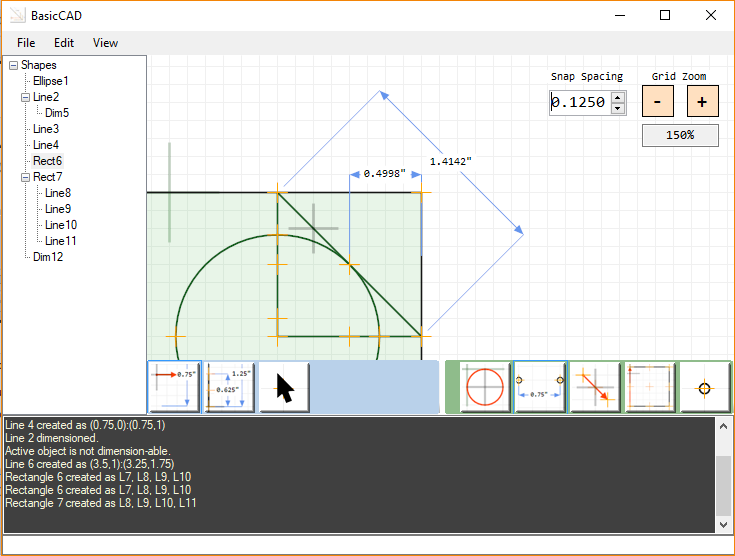
-Dimensions now moveable -Center Radius circles now show tangent and intersection snap points for lines -2P Dimensions without lines -LMB and RMB tool menus separated -Tree view implemented for parent/child shapes -Refactored DLL codebase more than a few times -Grid panning via MMB -Grid zoom via MMB Scroll -Rectangles fillable with ARGB colors
In process: -NGon shapes/Paths -Offset shapes / lines / paths -predictive snap points -export to pdf
To do: -Arcs -Annotation "shapes" -Color picker/fill tool -Icons for Relative/Global positioning commands -Improve 1990's look -learn more maths via 3Blue1Brown
Updates! 20171019:
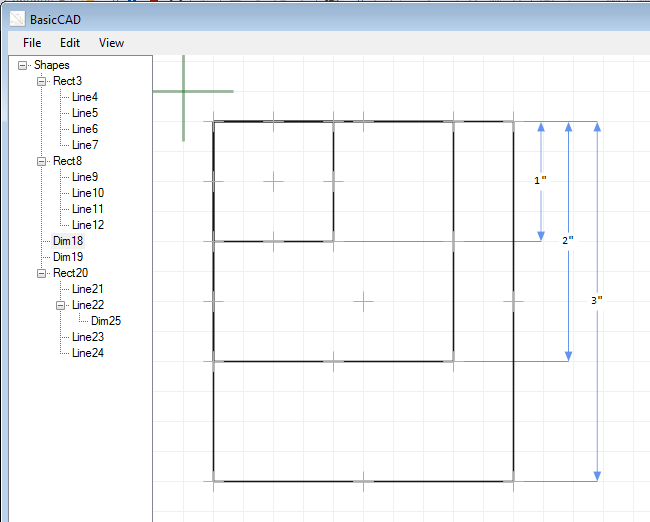
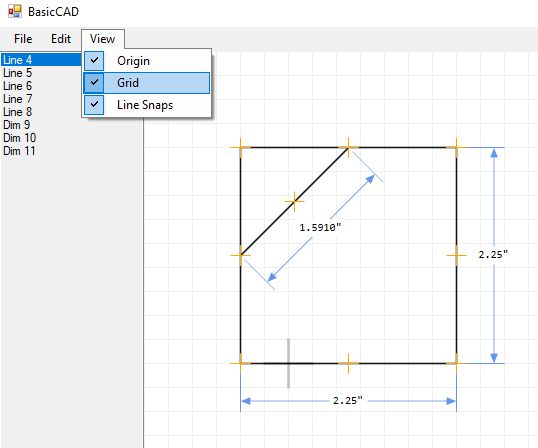
Edit: Updated with snap points, line selection via click, saving and loading designs (awesome!), a context menu view options for snap points/grid/origin; you can now cancel an in progress line with ESC, you may now press the delete key to delete active objects (or access delete under the Edit -> delete in the top menu)
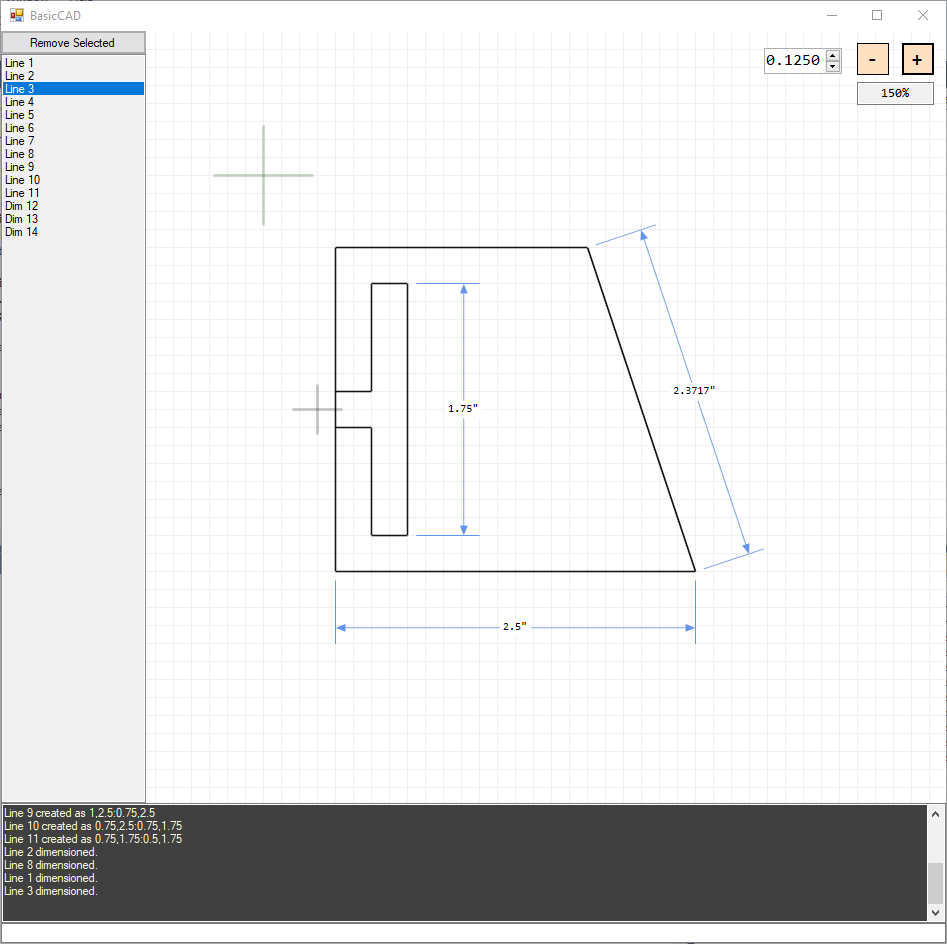
Commands! (So far.. Cmon, it's only a day and a half old)
-Each command starts with a letter (not case sensitive)
- "R" Relative / Global positioning toggle
- "L" Create Line
- "C" Move Cursor
- "D" Dimension line
"R" May be used on it's own, "C" Requires two floats (one point) "L" requires four floats while in default global positioning mode, but only two in Relative positioning mode
Acceptable delineaters are ";" "," and " " (empty space) -only choice type of delineater per command
The Gridsystem is in inches, and the will default to 96 PPI, with gridlines marking each 1/4". The Gridsystem is not locked to the screen, and may be scaled by using the "+" and "-" buttons on the upper right. Left clicking the grid will move(snap) the cursor. Cursor location is used as the starting point for all relative lines. Clicking MMB will move the origin of the grid (panning)
Right clicking the grid will move(snap) the cursor, and will ALSO Queue whatever point you just snapped the cursor to. -Right clicking the grid a SECOND time will draw a line between the previous point, and your current point, then empty the "ClickQueue" --Holding shift while right clicking will not empty the last point from the ClickQueue, to allow quick "path" creation.
EXAMPLE Commands: "L 1.5 1 2 2" -- diagonal line from (1.5" , 1") to (2", 2") "C;1.5;1.33333" -- Move cursor from current position to (1.5" , 1.33333") (with relative positioning on, will use that as a delta). "L 0 1" -- With relative positioning on, will draw a line from the cursor and down one inch.
TODO:
-Dimensioning lines (optional) -- Done! -Arcs -Center point circles -Improve Line metaData and selection box -Add snap spacing (grid distance) modifiers -- Done! -Sob gently because I'm doing with with winforms
