
Ffscreencast
ffscreencast - ffmpeg screencast/desktop-recording with video overlay and multi monitor support
Install / Use
/learn @cytopia/FfscreencastREADME
ffscreencast
Features | Installation | Usage | Screenshots | FAQ | Todo | Contribution | License | Version | Awesome


About
ffscreencast is a shell wrapper for ffmpeg that allows fool-proof screen recording via the command line. It will auto-detect all available monitors, cameras and microphones and is able to interactively or manually choose the desired recording device(s). Additionally ffscreencast will let you overlay the camera stream on top of the desktop session.
Besides that ffscreencast can act as an ffmpeg command generator. Every available option can also just show the corresponding ffmpeg command instead of executing it. Non-ffmpeg commands, such as how the camera resolution is pulled and others can also be shown instead of being executed.
Supported platforms
| OSX | Linux | FreeBSD | Windows |
| :----: | :----: | :----: | :----: |
|  |
|  |
|  |
|  |
| via AVFoundation | via x11grab | coming soon | coming soon |
|
| via AVFoundation | via x11grab | coming soon | coming soon |
Requirements
| Program | Required | Description | | ------------- | ------------- | -------- | | bash | yes | The whole script is written in bash and might not be 100% Posix compliant | | ffmpeg | yes | The ffmpeg binary must be present | | v4l2-ctl | Linux | Required for linux to list camera devices | | arecord | Linux | Required for linux to list sound devices | | xdpyinfo | Linux | Required for linux to list screends |
1. Features
- Config file for default configuration
- Screen recording
- Camera overlay
- Audio support
- Allows to manually (parameter) or interactively choose monitor
- Allows to manually (parameter) or interactively choose camera
- Allows to manually (parameter) or interactively choose sound device
- ffmpeg command generation
2. Installation
2.1 OSX
brew install cytopia/tap/ffscreencast
2.2 Linux/BSD
git clone https://github.com/cytopia/ffscreencast
cd ffscreencast
sudo cp bin/ffscreencast /usr/local/bin
3. Usage
3.1 Overview
To simply start desktop recording your screen call the program without any arguments ffscreencast and it will use the default screen without camera overlay and without sound.
$ ffscreencast

Usage: ffscreencast [-s[num]] [--sargs=] [-a[num]] [--aargs=] [-c[num] [--cargs=] [--oargs=] [-e<ext>] [--dry]
       ffscreencast --slist [--dry]
       ffscreencast --alist [--dry]
       ffscreencast --clist [--dry]
       ffscreencast --help
       ffscreencast --version
       ffscreencast --test

When invoked without any arguments, it will start screen recording
on the default screen without sound and without camera overlay.

Input options:
-s[num]           (Default) Enable screen capturing [with device number X].
                  If no device number is specified it will use the default, if only
                  one device is present, otherwise it will ask you to choose one
                  Use: -s or -s1

--sargs=          Additional screen arguments.
                  Specify additional ffmpeg arguments for the screen input device.
                  Use: --sargs="-framerate 30"
                  Default: ''

-a[num]           Enable audio capturing [with device number X]
                  If no device number is specified it will use the default, if only
                  one device is present, otherwise it will ask you to choose one
                  Use: -a or -a1

--aargs=          Additional audio arguments.
                  Specify additional ffmpeg arguments for the audio input device.
                  Use: --aargs="-ac 1"
                  Default: '-ac 2'

-c[num]           Add camera overlay [with device number X]
                  If no device number is specified it will use the default, if only
                  one device is present, otherwise it will ask you to choose one
                  Use: -c or -c1

--cargs=          Additional camera arguments
                  Specify additional ffmpeg arguments for the camera input device.
                  Use: --cargs="-video_size 1280x720"
                  Default: ''


Output options:
-e<ext>           Output video format extension (Default: mkv)
                  E.g.: -emkv, or -eavi, or -emp4

-oargs=           Additional output arguments
                  Specify additional ffmpeg arguments for the output encoding.
                  Use: --oargs="-crf 0"
                  Default: '-crf 0 -preset ultrafast'


Behavior options:
--dry             Show the command (without executing)


List options:
--list            List all devices
--slist           Only list screen capturing devices (monitors)
--alist           Only list audio capturing devices (microphones)
--clist           Only list camera capturing devices (cams)


System information:
--help            Show this help screen
--version         Show version information
--test            Test requirements
The num (device numbers) can be omitted. If there is only one device of its type available, ffscreencast will automatically default to this device, otherwise it will ask interactively which device to use for recording.
3.2 Examples
Do a screencast on the default screen (without explicitly choosing the monitor)
$ ffscreencast
List monitors and record on monitor 2 (Capture screen 0)
$ ffscreencast --slist
Available screen recording devices (monitors):

[2] Capture screen 0    Color LCD: Resolution: 2880 x 1800 Retina
[3] Capture screen 1    S2431W: Resolution: 1920 x 1200
[4] Capture screen 2    Thunderbolt Display: Resolution: 2560 x 1440


$ ffscreencast -s2
List cameras
$ ffscreencast --clist
Available camera recording devices:

[0] FaceTime HD Camera (Display) (160x120@29.97 160x120@25 160x120@23.999981 160x120@14.999993 176x144@29.97 176x144@25 176x144@23.999981 176x144@14.999993 320x240@29.97 320x240@25 320x240@23.999981 320x240@14.999993 352x288@29.97 352x288@25 352x288@23.999981 352x288@14.999993 640x480@29.97 640x480@25 640x480@23.999981 640x480@14.999993 960x540@29.97 960x540@25 960x540@23.999981 960x540@14.999993 1024x576@29.97 1024x576@25 1024x576@23.999981 1024x576@14.999993 1280x720@29.97 1280x720@25 1280x720@23.999981 1280x720@14.999993)

[1] FaceTime HD Camera (1280x720@30 640x480@30 320x240@30)
Start a screencast with camera overlay (only one camera present)
$ ffscreencast -c
or select the camera device
$ ffscreencast -c0
Show the ffmpeg command for camera recording
$ ffscreencast -c --dry

ffmpeg -hide_banner -loglevel info -f avfoundation   -i "1" -f avfoundation  -i "0" -c:v libx264 -crf 0 -preset ultrafast -filter_complex 'overlay=main_w-overlay_w-10:main_h-overlay_h-10' "/Users/cytopia/Desktop/Screencast 2015-10-06 at 21.28.01.mkv"
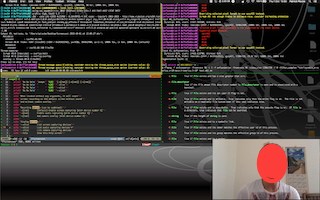
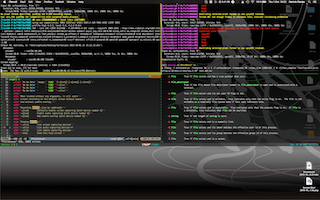
4. Screenshots
Showing screen recording with and without camera overlay.
5. FAQ
This section will be updated whenever questions arise that are worth mentioning here
5.1 How to convert to other formats?
There is currently no built-in gif support, mainly because it will not produce such a good quality. It is recommended to first create your screencast with the best possible quality and least possible resources (you are obviously going to do something and will not want to consume all your cpu for the encoding) and afterwards convert it to a high quality gif or other formats.
See contrib for converters and feel free to add more.
5.2 How to enable cursor capturing on OSX?
By default ffmpeg on OSX (using AVFoundation) does not capture the mouse (on Linux it does). You can however pass this as a custom option to ffscreencast
In order to capture the mouse pointer itself add the fo
Related Skills
openhue
343.3kControl Philips Hue lights and scenes via the OpenHue CLI.
sag
343.3kElevenLabs text-to-speech with mac-style say UX.
weather
343.3kGet current weather and forecasts via wttr.in or Open-Meteo
tweakcc
1.5kCustomize Claude Code's system prompts, create custom toolsets, input pattern highlighters, themes/thinking verbs/spinners, customize input box & user message styling, support AGENTS.md, unlock private/unreleased features, and much more. Supports both native/npm installs on all platforms.
