
Robodroid
Manage Android machines with pre-defined behaviors for Cyber Range environments.
Install / Use
/learn @cybersecsi/RobodroidREADME
RoboDroid is a cutting-edge software tool designed to simplify the process of managing (and very soon also deploying) Android machines for usage in Cyber Range environments. With RoboDroid, users can easily set up and customize pre-defined behaviors for their Android machines, allowing them to create complex cyber attack scenarios and test their defenses against a wide range of threats.
<!-- omit in toc -->📋 Table of Contents
📱 Context
Mobile devices have become ubiquitous in today's world. People use smartphones for almost every aspect of their lives, including banking, shopping, and communication. As a result, mobile devices are now a primary target for cybercriminals.
However, the security of mobile devices is often overlooked in cybersecurity training and testing environments. This can leave organizations vulnerable to attacks that exploit the weaknesses of mobile devices. Therefore, it is important to introduce mobile components in next-generation cyber-ranges to adapt to the current world that is more and more smartphone-addicted.
RoboDroid is designed to help fill this gap by providing a set of tools that can simulate human-like smartphone behavior. The pre-defined behaviors are created using Frida and are managed in the RoboDroid Library repository.
⚡ Overview
The goal of RoboDroid is to provide a simple way to introduce mobile components in Cyber Range environments. Its main objective is to provide users with an easy-to-use platform that allows them to simulate human-like behaviors and actions on mobile devices.
RoboDroid leverages Frida technology to run behaviors that are specific to applications, while using ADB for all other operations. This powerful combination enables users to create workflows of preset behaviors that can simulate a mobile user's actions.
One example of a workflow that can be used in a cyber range environment involves simulating a mobile user receiving a phishing email, clicking on the link contained in the email, and subsequently downloading a malware.
The following picture summarizes it:
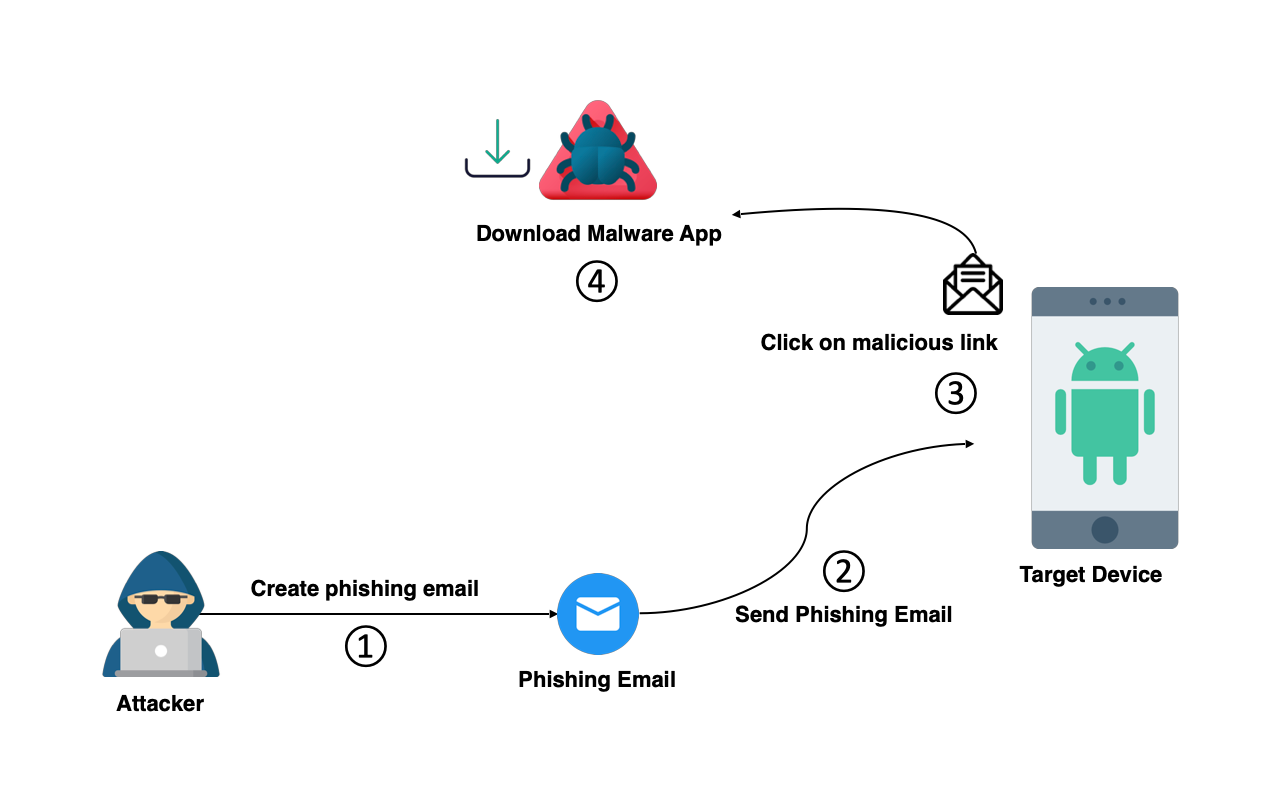
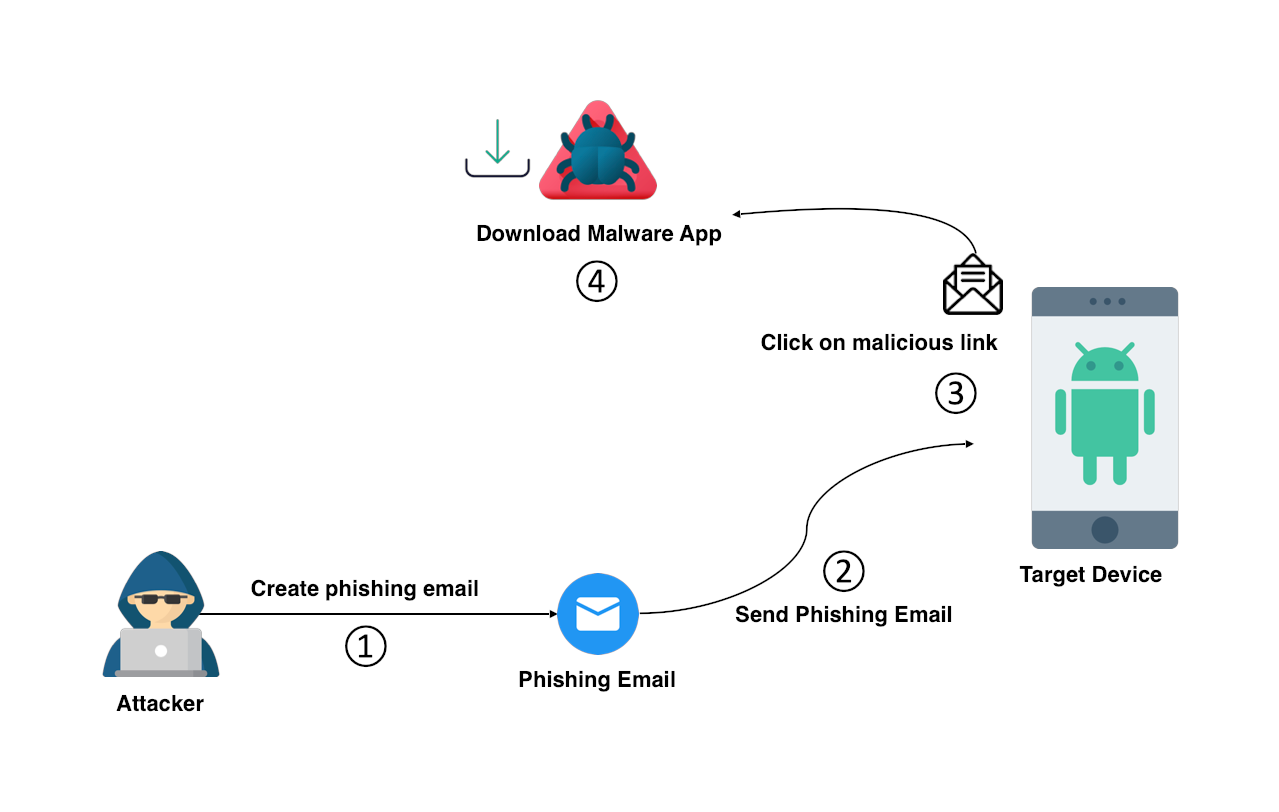
The workflow can be broken down into the following steps:
- The user receives a phishing email containing a link that appears legitimate.
- The user clicks on the link, which redirects them to a malicious website.
- The website prompts the user to download an app, which they do.
- The app is installed on the user's device and begins executing malicious code.
- The malware gains access to sensitive data on the device, such as passwords, credit card information, and other personal details.
By creating and running workflows like this, users can simulate realistic cyber attack scenarios and test their defenses against a wide range of threats. This helps to ensure that systems and networks are well-protected against potential vulnerabilities, and that users are prepared to respond effectively in the event of an attack.
📚 How It Works
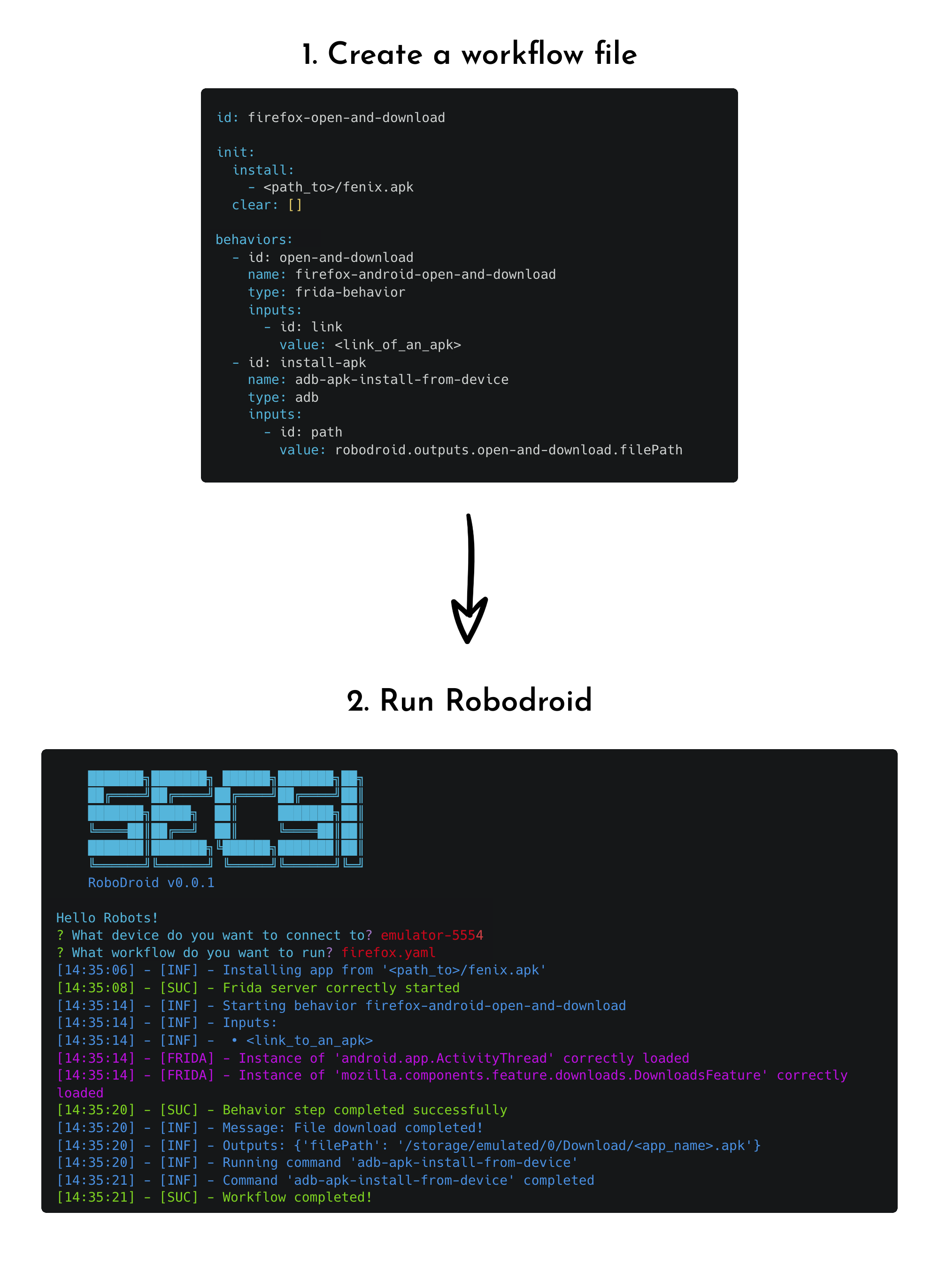
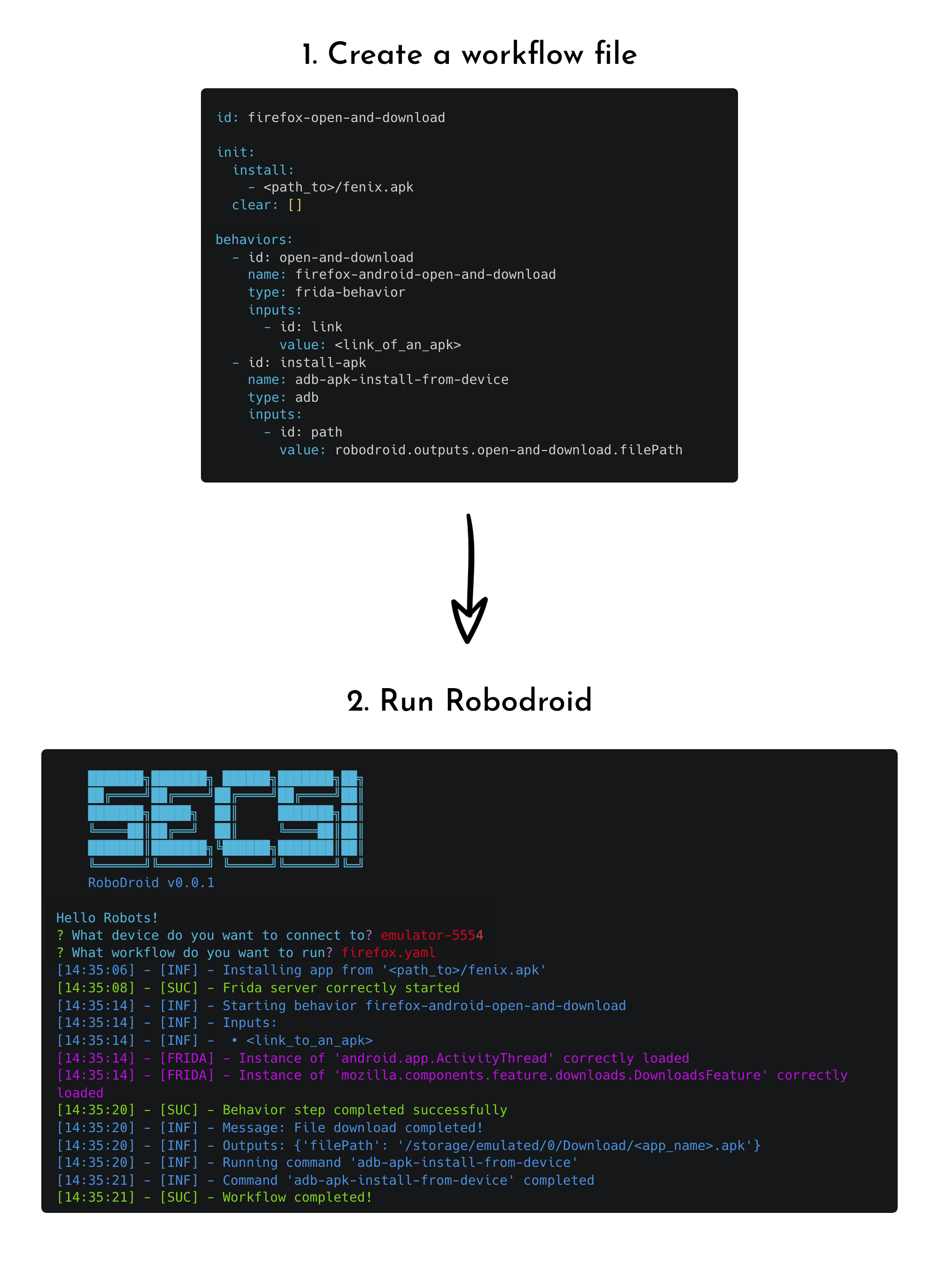
Interaction with the Frida Agent
RoboDroid ommunicates with the Frida Agent provided by the RoboDroid Library via messages, providing efficient interaction.
When the RoboDroid begins a specific behavior, it awaits a message from the Frida Agent. The message could be of either FAILURE or COMPLETED type.
If the message type is FAILURE RoboDroid restarts the current behavior to ensure successful completion. If the message type is COMPLETED the current step is marked as finished, and RoboDroid moves to the next step.
Furthermore, a message of type COMPLETED can also contain outputs that can be used in subsequent steps. This ensures that the tool can optimize its behavior to achieve accurate simulation of human-like actions on mobile devices.
By providing this robust communication process, RoboDroid ensures the seamless integration of the Frida Agent into its toolset, and facilitates the creation of complex workflows for the simulation of mobile devices in a Cyber Range environment.
🔌 Install
You can easily install it by running:
pipx install robodroid
We suggest you to use pipx instead of pip because in future Python versions package installation with pip will be removed outside virtual environments.
RoboDroid Library
RoboDroid has built-in support for automatic behaviors download (and soon auto-update) from the RoboDroid Library repository. If you want to add a new Frida behavior we suggest you to head over to the specific repository and make a Pull Request.
ℹ️ Usage
robodroid --help
This will display the help for the tool:
              &&&&&&&&&&&
           &&&&         &&&&
         &&&               &&&
      (&&&&   &&&&   &&&&   &&&)&
      &(&&&&               &&&&)&
          &&&&           &&&&
             &&&&&&&&&&&&&
       &&&  &&&&&&&&&&&&&&&  &&&
      &&&&  &&&&&&&&&&&&&&&  &&&&
      &&&&  &&&&&&&&&&&&&&&  &&&&
      &&&&  &&&&&&&&&&&&&&&  &&&&
      &&&&  &&&&&&&&&&&&&&&  &&&&
      &&&&  &&&&&&&&&&&&&&&  &&&&
              &&&&&&&&&&&
               &&&& &&&&
               &&&& &&&&
            RoboDroid v0.0.3

 Usage: robodroid [OPTIONS] COMMAND [ARGS]...

 Manage and deploy Android machines with pre-defined behaviors for Cyber Range environments

╭─ Options ──────────────────────────────────────────────────────────────────────────────────╮
│ --help  -h        Show this message and exit.                                              │
╰────────────────────────────────────────────────────────────────────────────────────────────╯
╭─ Commands ─────────────────────────────────────────────────────────────────────────────────╮
│ run               Run RoboDroid.                                                           │
| update-library    Update the RoboDroid Library to the latest version                       |
│ version           Print the current version and exit.                                      │
╰────────────────────────────────────────────────────────────────────────────────────────────╯
run command
You can run robodroid in two different modes:
- Interactive (
default) - Managed
              &&&&&&&&&&&
           &&&&         &&&&
         &&&               &&&
      (&&&&   &&&&   &&&&   &&&)&
      &(&&&&               &&&&)&
          &&&&           &&&&
             &&&&&&&&&&&&&
       &&&  &&&&&&&&&&&&&&&  &&&
      &&&&  &&&&&&&&&&&&&&&  &&&&
      &&&&  &&&&&&&&&&&&&&&  &&&&
      &&&&  &&&&&&&&&&&&&&&  &&&&
      &&&&  &&&&&&&&&&&&&&&  &&&&
      &&&&  &&&&&&&&&&&&&&&  &&&&
              &&&&&&&&&&&
               &&&& &&&&
               &&&& &&&&
            RoboDroid v0.0.3

 Usage: robodroid run [OPTIONS]

 Run RoboDroid.

╭─ Options ───────────────────────────────────────────────────────────────────────────╮
│ --log-mode          [silent|normal|debug]  Set logging mode [default: normal]       │
│ --mode      -m      [interactive|managed]  Set run mode [default: interactive]      │
│ --config    -c      TEXT                   Name of the managed config file to load  │
│ --help      -h                             Show this message and exit.              │
╰─────────────────────────────────────────────────────────────────────────────────────╯
In the interactive mode there is a prompt that lets the user select the ADB host, the port and the device to use while the managed mode uses a config file that MUST BE PLACED under $HOME/.RoboDroid/config in yaml format. The managed mode is the perfect mode to use while setting up a lab/environment without the need of user input/configuration.
The following table provides a description of the fields used in the config file:
| Key | Required | Description |
|-----------|--------------|------------------------------------------------------|
| device | True | Info about the device to use |
| workflow | Tru
