
Jackdaw
(WIP) A free, keyboard-focused Digital Audio Workstation (DAW)
Install / Use
/learn @chvolow24/JackdawREADME
Jackdaw (WIP)
A free, open-source, keyboard-focused digital audio workstation (DAW). Written in C, using SDL (https://libsdl.org/).
<!-- <img src="readme_imgs/main_new_short.gif" width="80%" /> --> <!-- 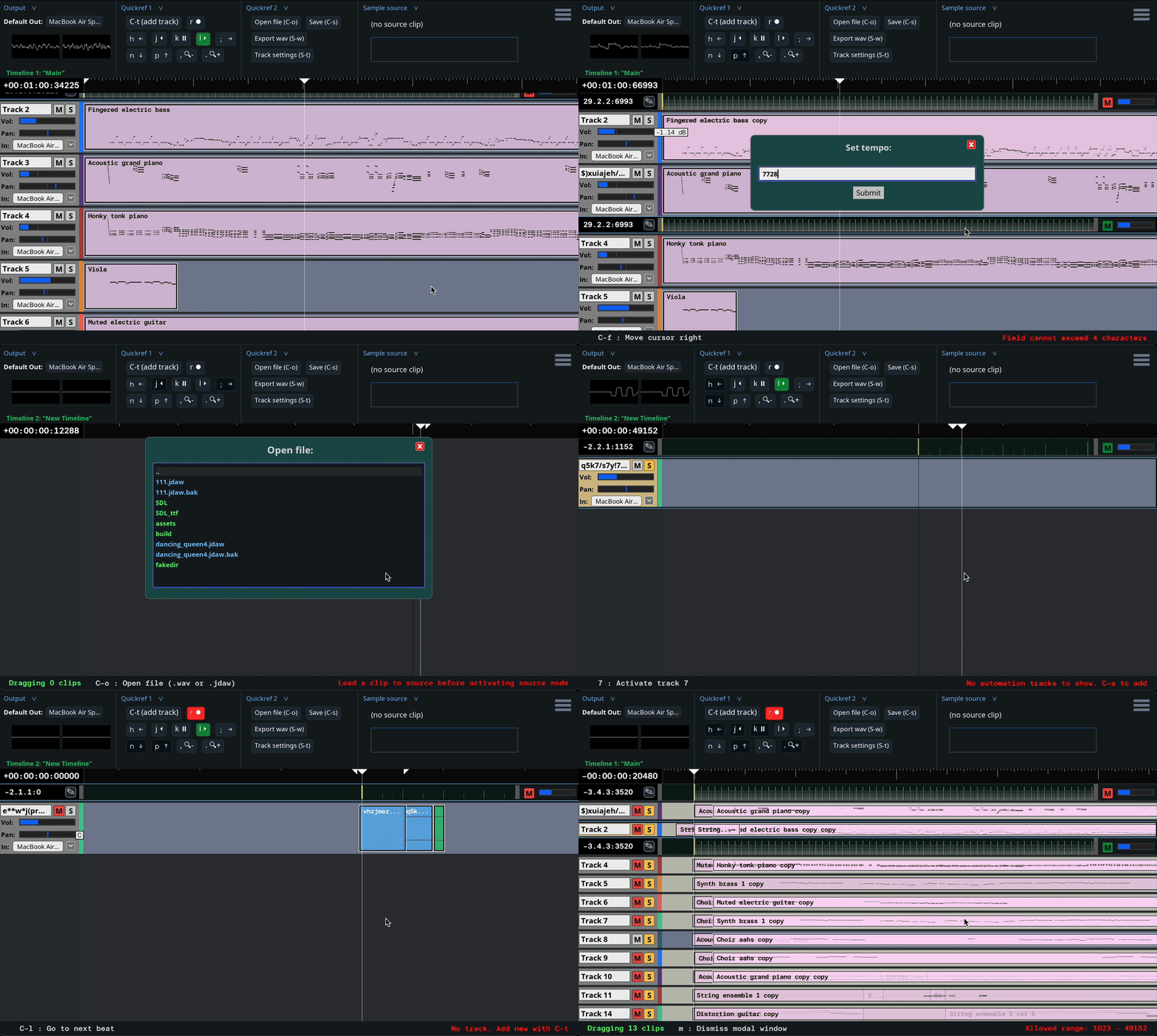 --> <!-- *Jackdaw handling random user inputs* --> <!--  --> <img src="https://jackdaw-audio.net/static/sync_gifs/combined.gif" width="75%">Table of Contents
- Disclaimer
- Compatibility
- Dependencies
- Installation
- Keyboard command shorthand
- Quickstart (getting comfortable)
- User manual
- Command reference
Disclaimer
Jackdaw is a work in progress and has not been officially "released." What's available here is surprisingly powerful, fun to use, and can definitely be used to make music, but I do not guarantee that everything will work perfectly or as expected.
Privacy
Jackdaw collects no data and does not connect to the internet. Session logs are stored in temporary files on disk, but these are not visible to anyone unless you choose to share them.
Use of AI
In case this matters to you: AI has for the most part not been used to make Jackdaw. I would estimate that about 200 lines of code, out of ~67k total (0.3%) were substantially generated by AI.
OS compatibility
Jackdaw is compatible with macOS and Linux.
Jackdaw currently depends on POSIX system APIs for threading and synchronization, directory navigation, timing, and inter-process communication.
Dependencies
Jackdaw depends on the following libraries:
- SDL2 for:
- graphics and window management
- event handling
- audio I/O
- misc other platform abstractions
- SDL2_ttf for text rendering
- PortMidi for MIDI I/O
Each dependency is included as a submodule.
Installation
Currently, the only way to install Jackdaw is to build it from the source code.
The 'standard' way to do this is to run the following commands:
$ git clone --recurse-submodules https://github.com/chvolow24/jackdaw.git
$ cd jackdaw
$ make
(If you already cloned an earlier version of the jackdaw repo, you will need to run git submodule update --init --recursive to pull in the new submodules, and make clean before running make).
make will create static builds of each of the (included) dependencies, and will construct the jackdaw binary in the root directory of the project. The dependencies are built locally (i.e., nothing will be installed on your system).
If make executes successfully, you can open Jackdaw with
$ ./jackdaw
make clean cleans all of Jackdaw's build objects, but leaves the dependencies in place.
make cleanall cleans all of the dependency build objects as well.
make debug builds a debug version of Jackdaw.
PortMidi uses CMake for its build process, and SDL and SDL_ttf use GNU Autotools, so both are required for make to execute successfully. For its part, Jackdaw just uses GNU Make.
Link to system SDL2 / SDL2_ttf
If you have SDL2 and SDL2_ttf installed on your system already and would prefer to link to the system installs, you can do so:
$ make USE_EXTERNAL_SDLS=1
Make will use pkg-config to locate the appropriate files and link to those instead of building them from the source code included in the submodules. You do not need to clone the SDL submodules if you build this way, but the PortMidi submodule is still required.
The USE_EXTERNAL_SDLS=1 setting does not persist, so you will need to include that flag every time you re-run make.
Keyboard command shorthand
Although the mouse can be used for almost everything, Jackdaw is built around keyboard commands. Here are some examples of keyboard commands you'll see written in the application and in this documentation:
<kbd>n</kbd>......................................press the 'n' key<br> <kbd>p</kbd>......................................press the 'p' key<br> <kbd>C-s</kbd>...................................hold down 'command' OR 'ctrl', and press the 's' key<br> <kbd>A-t</kbd>....................................hold down 'alt' OR 'option' and press the 't' key<br> <kbd>C-S-o</kbd>.................................hold down 'command' OR 'ctrl', AND 'shift', and press the 'o' key<br> <kbd>S-<ret></kbd>..............................hold down 'shift' and press the 'return' or 'enter' key<br>
When a hyphen is present (as in <kbd>C-s</kbd>) it means you need to hold down one or more modifier key before striking the final key to invoke the command.
Capital <kbd>C</kbd> stands for the "Command" OR "Control" key. Jackdaw does not distinguish between these two keys.<br> Capital <kbd>S</kbd> stands for the "Shift" key.<br> Capital <kbd>A</kbd> stands for the "Alt" or "Option" key. (Again, no distinction is made)<br> Capital <kbd>K</kbd> indicates that you must hold down the 'K' key, which is used as a modifier in very specific circumstances.
So, <kbd>C-S-o</kbd> means hold down the control (or command) key and the shift key, and then press 'o'.
Most of the final keys are named by a letter or number, except for these:<br> <kbd><ret></kbd> means 'return' or 'enter'<br> <kbd><tab></kbd> means 'tab'<br> <kbd><spc></kbd> is the spacebar<br> <kbd><del></kbd> is the 'delete' or 'backspace' key (no distinction)<br> <kbd><up></kbd>, <kbd><down></kbd>, <kbd><left></kbd>, and <kbd><right></kbd> are the arrow keys<br>
This will all be familiar to emacs users, and hopefully not too painful for everyone else.
Quickstart (getting comfortable)
This section is a brief tutorial meant to familiarize you with the most basic and frequently-used operations in jackdaw. From there, you can reference the user manual to learn about the other things you can do in the program.
1. Setting the track input
When you open a fresh Jackdaw session, one track is created automatically. The track input will be set to the default system audio input device, but you can change the current track input if you like with <kbd>C-S-i</kbd> (ctrl-shift-i or cmd-shift-i). A list of available input devices will appear. Use <kbd>n</kbd> (for 'next') to go to the next item in the list, and <kbd>p</kbd> (for 'previous') to go to the previous. (These keys will be used a lot). Hit <kbd><ret></kbd> to choose the currently-highlighted device.
[!TIP] <kbd>n</kbd> and <kbd>p</kbd> are used globally for "next" and "previous", or "down" and "up". The <kbd>f</kbd> and <kbd>d</kbd> keys are mapped to all the same commands, and can be used instead if you prefer them.
2. Recording some audio
Once you have selected an appropriate audio input device, you can start recording audio into jackdaw with <kbd>r</kbd>. After making some noise at your computer or microphone, stop recording with <kbd>r</kbd>.
<img src="https://jackdaw-audio.net/static/sync_gifs/record2.gif" width="80%" />3. Playback
You should now see a clip on your timeline, with an audio waveform representing the audio you just recorded. You can rewind over the clip, pause, and play it back with the <kbd>j</kbd> (rewind) <kbd>k</kbd> (pause) and <kbd>l</kbd> (play) keys.
j k l : Rewind, Pause, Play
If you tap <kbd>l</kbd> or <kbd>j</kbd> multiple times, the playback speed will double.
These are jackdaw's most important key commands!
4. Multi-track audio
Let's add a track or two. Let's also assume that you don't know the keyboard command to do so.
Hit the slash key (<kbd>/</kbd>) to open the command lookup. Start typing "add track", and you should see the list of available commands narrow. Hit <kbd><tab></kbd> to move down the list, and <kbd>S-<tab></kbd> to move up.
You'll notice that the keyboard shortcuts for each command are listed on the right. Note that Add track is bound to <kbd>C-t</kbd>.
For now, select that line and hit <kbd><ret></kbd> (or "Enter") to invoke the command and add a track.
Now that you know the keyboard command, try that instead.
(Hold down <kbd>cmd</kbd> or <kbd>ctrl</kbd> and hit <kbd>t</kbd>).
You can again use the <kbd>n</kbd> and <kbd>p</kbd> keys to move the track selector up and down. Try rewinding back to the beginning of the recording you made (<kbd>j</kbd> to rewind, <kbd>k</kbd> to pause), selecting a different track, and recording some new audio.
<img src="https://jackdaw-audio.net/static/sync_gifs/record_other_track2.gif" width="80%" />5. Exporting a .wav file
Now that you've created some multi-track audio, you might want to export it to a wav file to show your friends.
First you'll need to place "in" and "out" marks on your timeline with <kbd>i</kbd> and <kbd>o</kbd>, which will place the mark at the current playhead position. You'll need to play/rewind/pause a bit (<kbd>j</kbd><kbd>k</kbd><kbd>l</kbd>! <kbd>j</kbd><kbd>k</kbd><kbd>l</kbd>!) to get the playhead positioned correctly to set the marks. To get more precise placement, you can hold down <kbd>k-j</kbd> to rewind slow or <kbd>k-l</kbd> to play slow. Once you have placed 'in' and 'out' marks such that some portion of the timeline is visibly marked, you can export to a wav file with <kbd>S-w</kbd>.
You will be prompted to type a file name. Hit <kbd>tab</kbd> or <kbd><ret></kbd> to apply the current name, and move down to the directory navigation pane. Then, use <kbd>n</kbd> and <kbd>p</kbd> to navigate through the filesystem to the directory where you want to save the file. Subdirectories are displayed in green. The double dots ("..") will bring you up one directory. Finally, use <kbd><tab></kbd> to move down to the "Save" button,
Related Skills
node-connect
351.2kDiagnose OpenClaw node connection and pairing failures for Android, iOS, and macOS companion apps
frontend-design
110.6kCreate distinctive, production-grade frontend interfaces with high design quality. Use this skill when the user asks to build web components, pages, or applications. Generates creative, polished code that avoids generic AI aesthetics.
openai-whisper-api
351.2kTranscribe audio via OpenAI Audio Transcriptions API (Whisper).
qqbot-media
351.2kQQBot 富媒体收发能力。使用 <qqmedia> 标签,系统根据文件扩展名自动识别类型(图片/语音/视频/文件)。
