
Wttr.in
:partly_sunny: The right way to check the weather
Install / Use
/learn @chubin/Wttr.inREADME
wttr.in — the right way to ~check~ curl the weather!
wttr.in is a console-oriented weather forecast service that supports various information representation methods like terminal-oriented ANSI-sequences for console HTTP clients (curl, httpie, or wget), HTML for web browsers, or PNG for graphical viewers.
Originally started as a small project, a wrapper for wego, intended to demonstrate the power of the console-oriented services, wttr.in became a popular weather reporting service, handling tens of millions¹ of queries daily.
You can see it running here: wttr.in.
Documentation | Usage | One-line output | Data-rich output format | Map view | Output formats | Moon phases | Internationalization | Installation
Usage
You can access the service from a shell or from a Web browser like this:
$ curl wttr.in
Weather for City: Paris, France

     \   /     Clear
      .-.      10 – 11 °C
   ― (   ) ―   ↑ 11 km/h
      `-’      10 km
     /   \     0.0 mm
Here is an example weather report:

Or in PowerShell:
Invoke-RestMethod https://wttr.in
Want to get the weather information for a specific location? You can add the desired location to the URL in your request like this:
$ curl wttr.in/London
$ curl wttr.in/Moscow
$ curl wttr.in/Salt+Lake+City
If you omit the location name, you will get the report for your current location based on your IP address.
Use 3-letter airport codes in order to get the weather information at a certain airport:
$ curl wttr.in/muc      # Weather for IATA: muc, Munich International Airport, Germany
$ curl wttr.in/ham      # Weather for IATA: ham, Hamburg Airport, Germany
Let's say you'd like to get the weather for a geographical location other than a town or city - maybe an attraction
in a city, a mountain name, or some special location. Add the character ~ before the name to look up that special
location name before the weather is then retrieved:
$ curl wttr.in/~Vostok+Station
$ curl wttr.in/~Eiffel+Tower
$ curl wttr.in/~Kilimanjaro
For these examples, you'll see a line below the weather forecast output that shows the geolocation results of looking up the location:
Location: Vostok Station, станция Восток, AAT, Antarctica [-78.4642714,106.8364678]
Location: Tour Eiffel, 5, Avenue Anatole France, Gros-Caillou, 7e, Paris, Île-de-France, 75007, France [48.8582602,2.29449905432]
Location: Kilimanjaro, Northern, Tanzania [-3.4762789,37.3872648]
You can also use IP-addresses (direct) or domain names (prefixed with @) to specify a location:
$ curl wttr.in/@github.com
$ curl wttr.in/@msu.ru
To get detailed information online, you can access the /:help page:
$ curl wttr.in/:help
Weather Units
By default the USCS units are used for the queries from the USA and the metric system for the rest of the world.
You can override this behavior by adding ?u, ?m or ?M to a URL like this:
$ curl wttr.in/Amsterdam?u  # USCS (used by default in US)
$ curl wttr.in/Amsterdam?m  # metric (SI) (used by default everywhere except US)
$ curl wttr.in/Amsterdam?M  # metric (SI), but show wind speed in m/s
If you have several options to pass, write them without delimiters in between for the one-letter options,
and use & as a delimiter for the long options with values:
$ curl 'wttr.in/Amsterdam?m2&lang=nl'
It would be a rough equivalent of -m2 --lang nl for the GNU CLI syntax.
Supported output formats and views
wttr.in currently supports five output formats:
- ANSI for the terminal;
- Plain-text for the terminal and scripts;
- HTML for the browser;
- PNG for the graphical viewers;
- JSON for scripts and APIs;
- Prometheus metrics for scripts and APIs.
The ANSI and HTML formats are selected based on the User-Agent string.
To force plain text, which disables colors:
$ curl wttr.in/?T
To restrict output to glyphs available in standard console fonts (e.g. Consolas and Lucida Console):
$ curl wttr.in/?d
The PNG format can be forced by adding .png to the end of the query:
$ wget wttr.in/Paris.png
You can use all of the options with the PNG-format like in an URL, but you have
to separate them with _ instead of ? and &:
$ wget wttr.in/Paris_0tqp_lang=fr.png
Useful options for the PNG format:
tfor transparency (transparency=150);- transparency=0..255 for a custom transparency level.
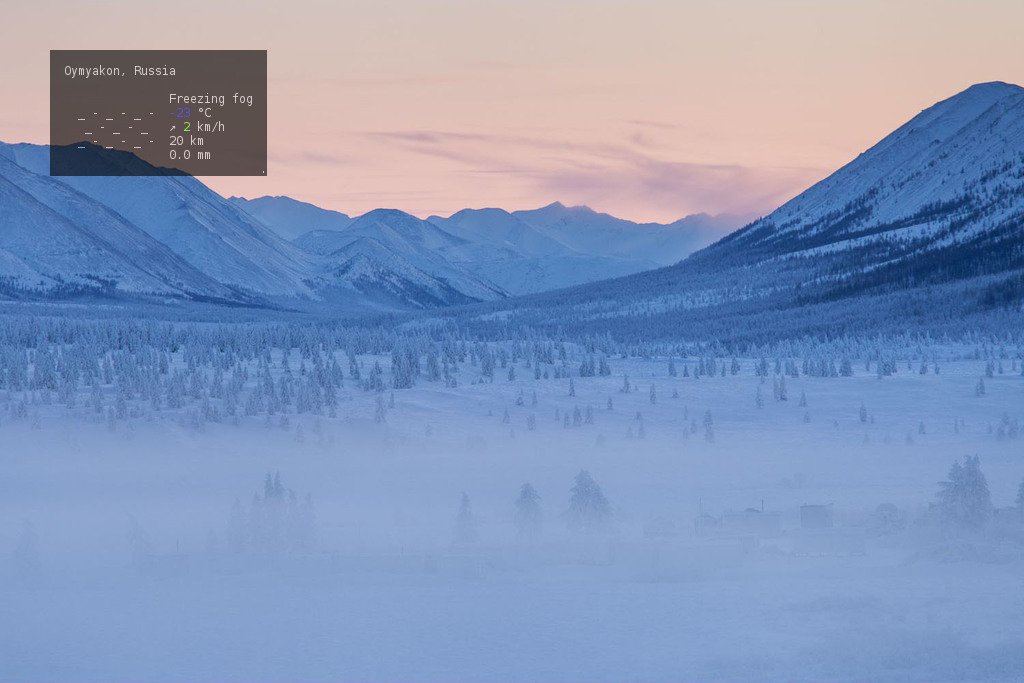
Transparency is a useful feature when weather PNGs are used to add weather data to pictures:
$ convert source.jpg <( curl wttr.in/Oymyakon_tqp0.png ) -geometry +50+50 -composite target.jpg
In this example:
source.jpg- source file;target.jpg- target file;Oymyakon- name of the location;tqp0- options (recommended).
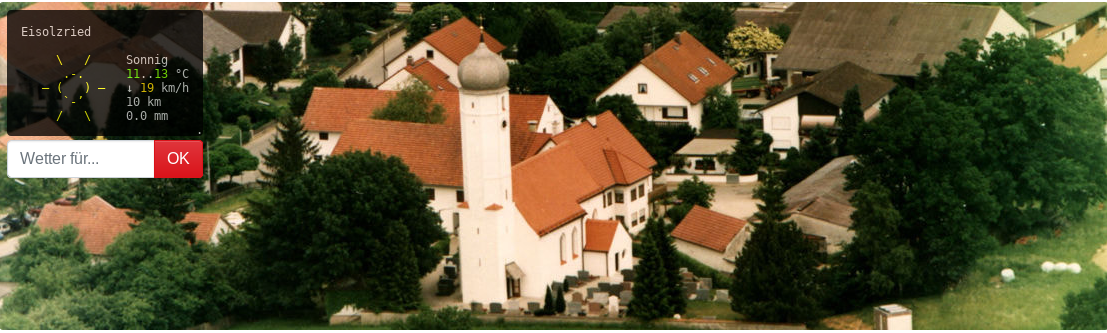
You can embed a special wttr.in widget, that displays the weather condition for the current or a selected location, into a HTML page using the wttr-switcher. That is how it looks like: wttr-switcher-example or on a real world web site: https://feuerwehr-eisolzried.de/.
One-line output
One-line output format is convenient to be used to show weather info in status bar of different programs, such as tmux, weechat, etc.
For one-line output format, specify additional URL parameter format:
$ curl wttr.in/Nuremberg?format=3
Nuremberg: 🌦 +11⁰C
Available preconfigured formats: 1, 2, 3, 4 and the custom format using the percent notation (see below).
- 1: Current weather at location:
🌦 +11⁰C - 2: Current weather at location with more details:
🌦 🌡️+11°C 🌬️↓4km/h - 3: Name of location and current weather at location:
Nuremberg: 🌦 +11⁰C - 4: Name of location and current weather at location with more details:
Nuremberg: 🌦 🌡️+11°C 🌬️↓4km/h
You can specify multiple locations separated with : (for repeating queries):
$ curl wttr.in/Nuremberg:Hamburg:Berlin?format=3
Nuremberg: 🌦 +11⁰C
Or to process all this queries at once:
$ curl -s 'wttr.in/{Nuremberg,Hamburg,Berlin}?format=3'
Nuremberg: 🌦 +11⁰C
Hamburg: 🌦 +8⁰C
Berlin: 🌦 +8⁰C
To specify your own custom output format, use the special %-notation:
    c    Weather condition,
    C    Weather condition textual name,
    x    Weather condition, plain-text symbol,
    h    Humidity,
    t    Temperature (Actual),
    f    Temperature (Feels Like),
    w    Wind,
    l    Location,
    m    Moon phase 🌑🌒🌓🌔🌕🌖🌗🌘,
    M    Moon day,
    p    Precipitation (mm/3 hours),
    P    Pressure (hPa),
    e    Dew point,
    u    UV index (1-12),

    D    Dawn*,
    S    Sunrise*,
    z    Zenith*,
    s    Sunset*,
    d    Dusk*,
    T    Current time*,
    Z    Local timezone.

(*times are shown in the local timezone)
So, these two calls are the same:
    $ curl wttr.in/London?format=3
    London: ⛅️ +7⁰C
    $ curl wttr.in/London?format="%l:+%c+%t\n"
    London: ⛅️ +7⁰C
Integrations
Thanks to the ease of integrating wttr.in into any program, there are a plethora of popular integrations across various libraries, programming languages, and systems.
wttr.in is compatible with:
- terminal managers,
- window managers,
- editors,
- chat clients,
and more, these integrations enhance workflow efficiency by embedding weather information directly into user interfaces.
See the full list of integrations here: wttr.in integrations and some of them below.
tmux
When using in tmux.conf, you have to escape % with %, i.e. write there %% instead of %.
The output does not contain new line by default, when the %-notation is used, but it does contain it when preconfigured format (1,2,3 etc.)
are used. To have the new line in the output when the %-notation is used, use '\n' and single quotes when doing a query from the shell.
In programs, that are querying the service automatically (such as tmux), it is better to use some reasonable update interval. In tmux, you can configure it with status-interval.
If several, : separated locations, are specified in the query, specify update period
as an additional query parameter period=:
set -g status-interval 60
WEATHER='#(curl -s wttr.in/London:Stockholm:Moscow\?format\="%%l:+%%c%%20%%t%%60%%w&period=60")'
set -g status-right "$WEATHER ..."

WeeChat
To embed in to an IRC (WeeChat) client's existing status bar:
/alias add wttr /exec -pipe "/mute /set plugins.var.wttr" url:wttr.in/Montreal?format=%l:+%c+%f+%h+%p+%P+%m+%w+%S+%s;/wait 3 /item refresh wttr
/trigger add wttr timer 60000;0;0 "" "" "/wttr"
/item add wttr "" "${plugins.var.wttr}"
/eval /set weechat.bar.status.items ${weechat.bar.status.items},spacer,wttr
/eval /set weechat.startup.command_after_plugins ${weechat.startup.command_after_plugins};/wttr
/wttr

conky
Conky usage example:
${texeci 1800 curl wttr.in/kyiv_0pq_la
Related Skills
node-connect
349.7kDiagnose OpenClaw node connection and pairing failures for Android, iOS, and macOS companion apps
frontend-design
109.7kCreate distinctive, production-grade frontend interfaces with high design quality. Use this skill when the user asks to build web components, pages, or applications. Generates creative, polished code that avoids generic AI aesthetics.
openai-whisper-api
349.7kTranscribe audio via OpenAI Audio Transcriptions API (Whisper).
qqbot-media
349.7kQQBot 富媒体收发能力。使用 <qqmedia> 标签,系统根据文件扩展名自动识别类型(图片/语音/视频/文件)。
