
CGBLinkVideo
Playing media on a gameboy color over the link cable, with the help of an RPi Pico
Install / Use
/learn @chromalock/CGBLinkVideoREADME
CGBLinkVideo
Playing media on a gameboy color over the link cable, with the help of an RPi Pico

Inspiration
This project was heavily inspired by Staacks/wifi-game-boy-cartridge, and borrows utility macros, cartridge headers, and some random python snippets.
Repo Structure
You can find more detailed information on the individual components in the following locations:
/firmware/  |   Firmware + PIO programs for an RPi Pico (W)
/pcb/       |   Schematics, PCB designs, and gerber files for the GBLink board.
/roms/      |   Gameboy Color ROMs
/scripts/   |   Python package + scripts for streaming data to the gameboy color
/stream/    |   Wrapper scripts for hooking up video sources to the gameboy script
System Requirements
- Python 3  (3.10.12 for me)
- FFMpeg    (4.4.2-0ubuntu0.22.04.1 for me)
- RGBASM    (v0.7.0-37-gc70cecc2 for me)        <-- only if you want to build the roms yourself
Hardware Requirements
- Gameboy Color + Link Cable
- Raspberry PI Pico
- GBLink Board (or some other method of level shifting)
- GBC Flash Cartridge
Conceptual Overview
| PC | <--UART--> | RPi Pico + GBLink Board | <--PIO--> | Gameboy Color |
PC Handles video encoding, then sends the encoded data to the RPi pico over UART, which is stored in a buffer (triple buffered). This happens at roughly 1Mbps.
Meanwhile, the Gameboy color makes requests to the RPi Pico over its serial port, with the voltage levels being shifted by the GBLink board. The PIO handle the job of parsing these signals and shifting data out to the gameboy.
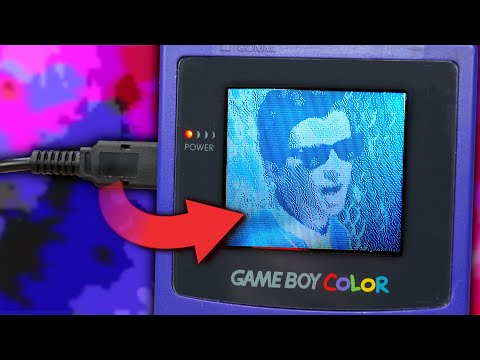
Explanation Video
Quickstart
First, you will need to put the files from this release onto a gameboy flash cartridge. (or you can choose only the rom files you need)
Plug in your GBLink adapter to your computer and connect it to your gameboy. On the gameboy, start the rom file you need for your application. (view the above release for the descriptions)
OBS
You will need OBS.
Linux
# install dependencies
git clone https://github.com/chromalock/CGBLinkVideo
cd CGBLinkVideo

sudo apt install ffmpeg
pip install -r ./scripts/requirements.txt
get list of video devices (optional)
# get list of current video devices
v4l2-ctl --list-devices
# Dummy video device (0x0000) (platform:v4l2loopback-000):
#         /dev/video0
get list of serial ports
sudo dmesg | grep tty
# [484956.666636] cdc_acm 3-4.1.2.1.4:1.0: ttyACM0: USB ACM device
run appropriate script
# td2018.gbc            | bw stream
# td2018-vsync.gbc      | bw stream, but with larger transfers to reduce tearing
./stream/cam-stream-full.sh /dev/video0 /dev/ttyACM0

# tdc2018.gbc           | color stream
# tdc2018-vsync.gbc     | color stream, but with larger transfers to reduce tearing
./stream/color-cam-stream-full.sh /dev/video0 /dev/ttyACM0

# tile-index.gbc        |  the low-res grayscale stream that sends a new tilemap every frame
./stream/cam-stream.sh /dev/video0 /dev/ttyACM0
Windows
You will need to install ffmpeg from here, and Python 3 from here
I recommend using choco to do it via choco install ffmpeg-full and choco install python.
To get pip, run:
python -m pip install -U pip
then, clone the repository (or you can download/extract the zip file)
git clone https://github.com/chromalock/CGBLinkVideo
cd CGBLinkVideo
install python dependencies:
pip install -r .\scripts\requirements.txt
Get list of serial ports
mode
:: Status for device COM3:
:: -----------------------
::     Baud:            115200
::     Parity:          None
::     Data Bits:       8
::     Stop Bits:       1
::     Timeout:         OFF
::     XON/XOFF:        OFF
::     CTS handshaking: OFF
::     DSR handshaking: OFF
::     DSR sensitivity: OFF
::     DTR circuit:     OFF
::     RTS circuit:     ON
::
::
:: Status for device CON:
:: ----------------------
::     Lines:          3000
::     Columns:        120
::     Keyboard rate:  31
::     Keyboard delay: 1
::     Code page:      437
then (in cmd.exe, powershell will not work) run the script for whichever rom you are running
:: td2018.gbc            | bw stream
:: td2018-vsync.gbc      | bw stream, but with larger transfers to reduce tearing
.\stream\cam-stream-full.sh COM3

:: tdc2018.gbc           | color stream
:: tdc2018-vsync.gbc     | color stream, but with larger transfers to reduce tearing
.\stream\color-cam-stream-full.bat COM3

:: tile-index.gbc        |  the low-res grayscale stream that sends a new tilemap every frame
.\stream\cam-stream.bat COM3
Known Issues
Not responding after stopping stream
Due to either my bad code or an issue in the pySerialTransfer library, occasionally when stopping the stream program the arduino will be left in a state where it wont respond any more.
The solution is to simply unplug and re-plug in the GBLink. After this, the serial port name may change and you will need to determine which is the new one via the steps above.
Seeing garbage data or just Black
1. Pico not synced to GB
Hold right on the dpad of the gameboy for a few seconds. This should allow enough time for the pico to reset its state machines, and will restart communication on the gameboy.
2. Bad Connection
If the link cable isnt making good contact with either tha gameboy or the gblink, data may not transfer. Try a different link cable or cleaning the contacts on both devices.
