
Csv.vim
A Filetype plugin for csv files
Install / Use
/learn @chrisbra/Csv.vimREADME
Introduction 
This plugin is used for handling column separated data with Vim. Usually those files are called csv files and use the ',' as delimiter, though sometimes they use e.g. the '|' or ';' as delimiter and there also exists fixedwidth columns. The aim of this plugin is to ease handling these kinds of files.
This is a filetype plugin for CSV files. It was heavily influenced by the Vim Wiki Tip667, though it works differently.
It will make use of the vartabs feature for tab delimited files.
By default, some remapings are done, including E to go back to the previous column (comma) which is obviously not the best option :
it'd be logical to use B to do so. Fortunately, you can set your favourite key to do this action just by setting a variable in your config.
Follow the indications there (also in the builtin docs).
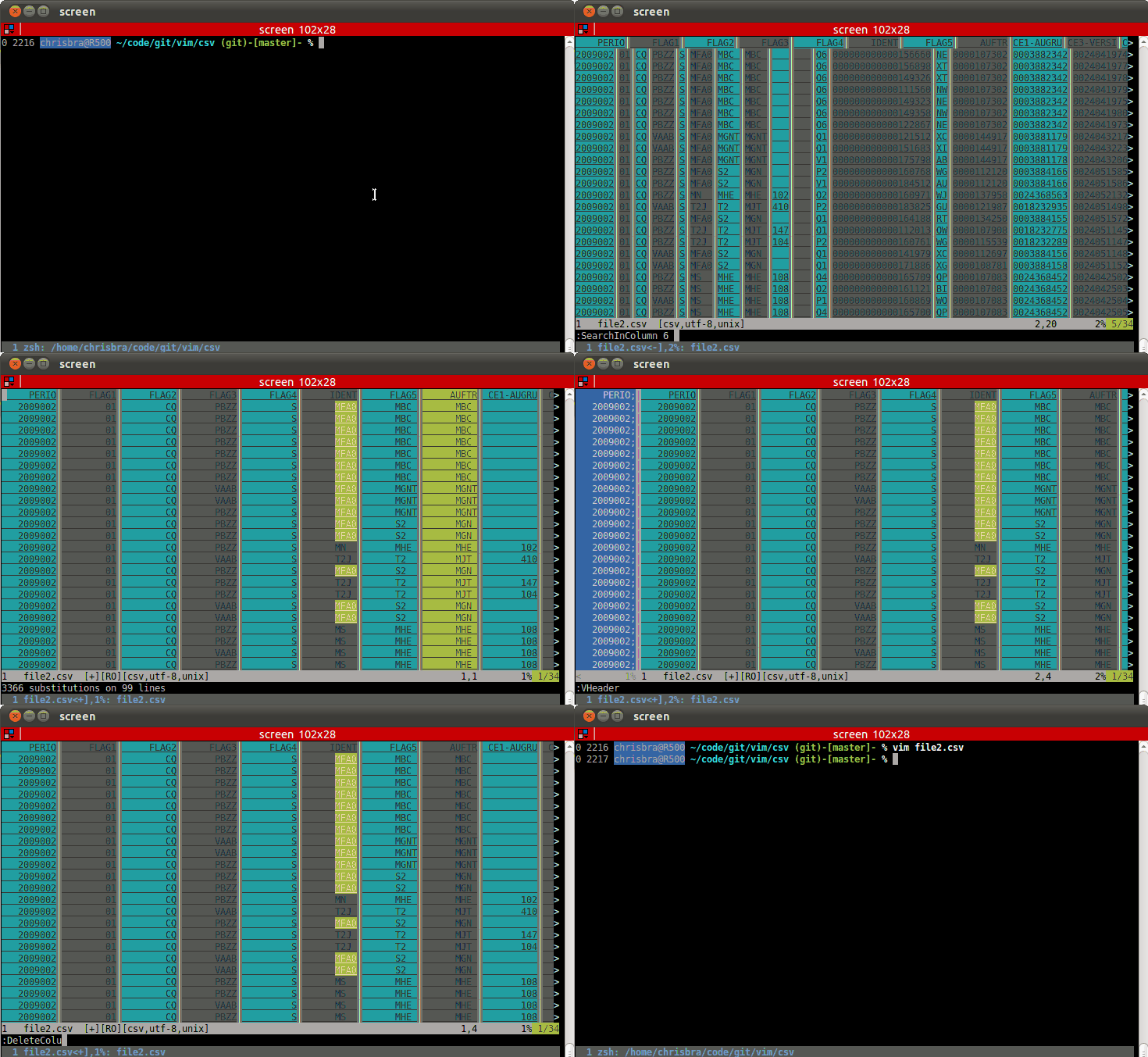
Table of Contents
- Installation
- Commands
- WhatColumn
- NrColumns
- SearchInColumn
- HiColumn
- ArrangeColumn
- UnArrangeColumn
- DeleteColumn
- CSVInit
- Header Lines
- Sort
- Copy Column
- Move A Column
- Sum of a Column
- Create new Records
- Change the delimiter
- Check for duplicate records
- Normal mode commands
- Converting a CSV File
- Dynamic filters
- Analyze a Column
- Vertical Folding
- Transposing a column
- Transforming into a table
- Add new empty columns
- Substitute in columns
- Count Values inside a Column
- Maximum/Minimum value of a Column
- Average value of a Column
- Variance of a Column
- Standard Deviation of a Column
- Duplicate columns
- Column width
- Sum of Numbers in a row
- CSV Configuration
- Functions
- CSV Tips and Tricks
Installation
Using a plugin manager
This plugin follows the standard runtime path structure, and as such it can be installed with a variety of plugin managers:
| Plugin Manager | Install with... |
| ------------- | ------------- |
| [Pathogen][1] | git clone https://github.com/chrisbra/csv.vim ~/.vim/bundle/csv<br/>Remember to run :Helptags to generate help tags |
| [NeoBundle][2] | NeoBundle 'chrisbra/csv.vim' |
| [Vundle][3] | Plugin 'chrisbra/csv.vim' |
| [VAM][4] | call vam#ActivateAddons([ 'csv' ]) |
| [Plug][5] | Plug 'chrisbra/csv.vim' |
| [Dein][6] | call dein#add('chrisbra/csv.vim') |
| [minpac][7] | call minpac#add('chrisbra/csv.vim') |
| pack feature (native Vim 8 package feature)| git clone https://github.com/chrisbra/csv.vim ~/.vim/pack/dist/start/csv<br/>Remember to run :helptags to generate help tags |
| manual | copy all of the files into your ~/.vim directory (see below)|
Manual installation
In order to have vim automatically detect csv files, you need to have
ftplugins enabled (e.g. by having this line in your [.vimrc](http://vimhelp.appspot.com/starting.txt.html#.vimrc) file:
:filetype plugin on
The plugin already sets up some logic to detect CSV files. By default,
the plugin recognizes *.csv and *.dat files as CSV filetype. In order that the
CSV filetype plugin is loaded correctly, vim needs to be enabled to load
filetype-plugins. This can be ensured by putting a line like this in your
.vimrc:
:filetype plugin on
(see also :filetype-plugin-on).
In case this did not work, you need to setup vim like this:
To have Vim automatically detect csv files, you need to do the following.
-
Create your user runtime directory if you do not have one yet. This directory needs to be in your 'runtime' path. In Unix this would typically the ~/.vim directory, while in Windows this is usually your ~/vimfiles directory. Use
:echo expand("~")to find out what Vim thinks your user directory is. To create this directory, you can do::!mkdir ~/.vimfor Unix and
:!mkdir ~/vimfilesfor Windows.
-
In that directory you create a file that will detect csv files.
if exists("did_load_csvfiletype")
  finish
endif
let did_load_csvfiletype=1

augroup filetypedetect
  au! BufRead,BufNewFile *.csv,*.dat	setfiletype csv
augroup END
You save this file as "filetype.vim" in your user runtime diretory:
:w ~/.vim/filetype.vim -
To be able to use your new filetype.vim detection, you need to restart Vim. Vim will then load the csv filetype plugin for all files whose names end with .csv.
Commands
The CSV ftplugin provides several Commands. All commands are also provided with the prefix :CSV (e.g. :CSVNrColumns)
WhatColumn
If you would like to know, on which column the cursor is, use
:WhatColumn
or
:CSVWhatColumn
Use the bang attribute, if you have a heading in the first line and you want to know the name of the column in which the cursor is:
:WhatColumn!
NrColumns
:NrColumns and :CSVNrColumns outputs the maximum number of columns
available. It does this by testing the first 10 lines for the number of
columns. This usually should be enough. If you use the '!' attribute, it
outputs the number of columns in the current line.
SearchInColumn
Use :SearchInColumn or :CSVSearchInColumn to search for a pattern within a
specific column. The usage is:
:SearchInColumn [<nr>] /{pat}/
So if you would like to search in Column 1 for the word foobar, you enter
:SearchInColumn 1 /foobar/
Instead of / as delimiter, you can use any other delimiter you like. If you don't enter a column, the current column will be used.
HiColumn
:HiColumn or :CSVHiColumn <nr> can be used to highlight Column <nr>.
Currently the plugin uses the WildMenu Highlight Group. If you would like to
change this, you need to define the variable g:csv_hiGroup.
If you do not specify a <nr>, HiColumn will highlight the column on which the
cursor is. Use
:HiColumn!
to remove any highlighting.
If you want to automatically highlight a column, see Highlight column automatically
ArrangeColumn
If you would like all columns to be visually arranged, you can use the
:ArrangeColumn or :CSVArrangeColumn command:
:[range]ArrangeColumn[!] [<Row>]
Beware, that this will change your file and depending on the size of your file may slow down Vim significantly. This is highly experimental. :ArrangeColumn will try to vertically align all columns by their maximum column size. While the command is run, a progressbar in the statusline 'stl' will be shown.
Use the bang attribute to force recalculating the column width. This is slower, but
Related Skills
node-connect
347.9kDiagnose OpenClaw node connection and pairing failures for Android, iOS, and macOS companion apps
frontend-design
108.7kCreate distinctive, production-grade frontend interfaces with high design quality. Use this skill when the user asks to build web components, pages, or applications. Generates creative, polished code that avoids generic AI aesthetics.
openai-whisper-api
347.9kTranscribe audio via OpenAI Audio Transcriptions API (Whisper).
qqbot-media
347.9kQQBot 富媒体收发能力。使用 <qqmedia> 标签,系统根据文件扩展名自动识别类型(图片/语音/视频/文件)。
