
AndroidDataBinding
Android master MVVM, Data binding and RxJava
Install / Use
/learn @chiclaim/AndroidDataBindingREADME
项目整体效果:

Awesome-Android-MVVM
- 什么是MVVM, 为什么需要 MVVM?
- 如何在android中使用DataBinding实现MVVM架构?
什么是MVVM , 为什么需要MVVM?
MVVM是Model-View-ViewModel的简写. 它是有三个部分组成:Model、View、ViewModel。
Model:数据模型层。包含业务逻辑和校验逻辑。
View:屏幕上显示的UI界面(layout、views)。
ViewModel:View和Model之间的链接桥梁,处理视图逻辑。
MVVM功能图如下:
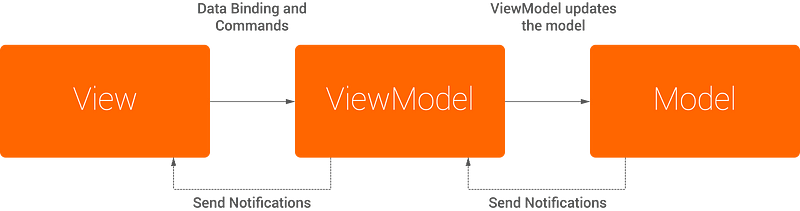
MVVM架构通过ViewModel隔离了UI层和业务逻辑层,降低程序的耦合度。
Android App 中MVC的不足
一般来说,我们开发Android App是基于MVC,由于MVC的普及和快速开发的特点,一个app从0开发一般都是基于MVC的。
Activity、Fragment相当于C (Controller), 布局相当于V(View), 数据层相当于M(Model)
随着业务的增长,Controller里的代码会越来越臃肿,因为它不只要负责业务逻辑,还要控制View的展示。也就是说Activity、Fragment杂糅了Controller和View,耦合变大。并不能算作真正意义上的MVC。
编写代码基本的过程是这样的,在Activity、Fragment中初始化Views,然后拉取数据,成功后把数据填充到View里。
假如有如下场景:
我们基于MVC开发完第一版本,然后企业需要迭代2.0版本,并且UI界面变化比较大,业务变动较小,怎么办呢? 当2.0的所有东西都已经评审过后。这个时候,新建布局,然后开始按照新的效果图,进行UI布局。然后还要新建Activity、Fragment把相关逻辑和数据填充到新的View上。 如果业务逻辑比较复杂,需要从Activity、Fragment中提取上个版本的所有逻辑,这个时候自己可能就要晕倒了,因为一个复杂的业务,一个Activity几千行代码也是很常见的。千辛万苦做完提取完,可能还会出现很多bug。
一开始我尝试使用MVP架构, MVP功能图如下:

MVP 把视图层抽象到View接口,逻辑层抽象到 Presenter 接口,提到了代码的可读性。降低了视图逻辑和业务逻辑的耦合。
但是有 MVP 的不足:
- 接口过多,一定程度影响了编码效率。
- 业务逻辑抽抽象到Presenter中,较为复杂的界面Activity代码量依然会很多。
- 导致Presenter的代码量过大。
这个时候MVVM就闪亮登场了。从上面的MVVM功能图我们知道:
- 可重用性。你可以把一些视图逻辑放在一个ViewModel里面,让很多view重用这段视图逻辑。 在Android中,布局里可以进行一个视图逻辑,并且Model发生变化,View也随着发生变化。
- 低耦合。以前Activity、Fragment中需要把数据填充到View,还要进行一些视图逻辑。现在这些都可在布局中完成(具体代码请看后面) 甚至都不需要再Activity、Fragment去findViewById。这时候Activity、Fragment只需要做好的逻辑处理就可以了。
现在我们回到上面从app1.0到app2.0迭代的问题,如果用MVVM去实现那就比较简单,这个时候不需要动Activity、Fragment, 只需要把布局按照2.0版本的效果实现一遍即可。因为视图逻辑和数据填充已经在布局里了,这就是上面提到的可重用性。
发展过程: MVC->MVP->MVVP
Android中如何实现MVVM架构?
Google在2015年的已经为我们DataBinding技术。下面就详细讲解如何使用DataBinding。
1,环境准备
在工程根目录build.gradle文件加入如下配置,把Android Gradle 插件升级到最新:
dependencies {
    classpath 'com.android.tools.build:gradle:1.5.0'
}
在app里的build.gradle文件加入如下配置,启用data binding 功能:
dataBinding {
    enabled true
}
2,来个简单的例子
实现上面效果的“Data Binding Simple Sample”
data binding 布局格式和以往的有些区别:
<?xml version="1.0" encoding="utf-8"?>
<layout xmlns:android="http://schemas.android.com/apk/res/android">
   <data>
       <variable name="user" type="com.example.User"/>
   </data>

   //normal layout
   <TextView android:layout_width="wrap_content"
           android:layout_height="wrap_content"
           android:text="@{user.firstName}"/>
</layout>
-
布局的根节点为<layout/>
-
布局里使用的model 通过<data>中的<variable>指定:
<variable name="user" type="com.example.User"/> -
设置空间属性的值,通过@{}语法来设置:
android:text="@{user.firstName}"
下面是完整的布局实现:
<?xml version="1.0" encoding="utf-8"?>
<layout xmlns:android="http://schemas.android.com/apk/res/android">

    <data>

        <variable
            name="user"
            type="com.mvvm.model.User"/>
    </data>

    <LinearLayout
        xmlns:tools="http://schemas.android.com/tools"
        android:layout_width="match_parent"
        android:layout_height="match_parent"
        android:orientation="vertical"
        android:padding="16dp"
        tools:context=".ui.MainActivity">


        <TextView
            android:layout_width="wrap_content"
            android:layout_height="wrap_content"
            android:text="@{user.realName}"
            android:textSize="14dp"/>

        <TextView
            android:layout_width="wrap_content"
            android:layout_height="wrap_content"
            android:layout_marginTop="10dp"
            android:text="@{user.mobile}"
            android:textSize="14dp"/>


        <TextView
            android:layout_width="wrap_content"
            android:layout_height="wrap_content"
            android:text="@{String.valueOf(user.age)}"
            android:textSize="14dp"/>

        <LinearLayout
            android:layout_width="wrap_content"
            android:layout_height="15dp"
            android:layout_marginBottom="40dp"
            android:layout_marginTop="40dp"
            android:gravity="center_vertical"
            android:orientation="horizontal">

            <View
                android:layout_width="match_parent"
                android:layout_height="1dp"

                android:layout_weight="1"
                android:background="@android:color/darker_gray"/>

            <TextView
                android:layout_width="wrap_content"
                android:layout_height="wrap_content"
                android:text="With String Format"
                android:textSize="10dp"
                android:textStyle="bold"/>

            <View
                android:layout_width="match_parent"
                android:layout_height="1dp"
                android:layout_marginBottom="20dp"
                android:layout_marginTop="20dp"
                android:layout_weight="1"
                android:background="@android:color/darker_gray"/>


        </LinearLayout>

        <TextView
            android:id="@+id/tv_realName"
            android:layout_width="wrap_content"
            android:layout_height="wrap_content"
            android:text="@{@string/name_format(user.realName)}"
            android:textSize="14dp"/>

        <TextView
            android:id="@+id/tv_phone"
            android:layout_width="wrap_content"
            android:layout_height="wrap_content"
            android:layout_marginTop="10dp"
            android:text="@{@string/mobile_format(user.mobile)}"
            android:textSize="14dp"/>

    </LinearLayout>
</layout>
####接下来实现数据模型类User:
public class User {

    private String userName;
    private String realName;
    private String mobile;
    private int age;

    public User(String realName, String mobile) {
        this.realName = realName;
        this.mobile = mobile;
    }

    public User() {
    }

    //ignore getter and setter. see code for detail.

}
在Activity中 绑定数据
	@Override
    public void onCreate(Bundle savedInstanceState) {
        super.onCreate(savedInstanceState);
        binding = DataBindingUtil.setContentView(this, R.layout.activity_simple);
        fetchData();
    }

    //模拟获取数据
    private void fetchData() {
        new AsyncTask<Void, Void, Void>() {

            @Override
            protected void onPreExecute() {
                super.onPreExecute();
                showLoadingDialog();
            }

            @Override
            protected Void doInBackground(Void... params) {
                try {
                    Thread.sleep(2000);
                } catch (InterruptedException e) {
                    e.printStackTrace();
                }
                return null;
            }

            @Override
            protected void onPostExecute(Void aVoid) {
                super.onPostExecute(aVoid);
                hideLoadingDialog();
                User user = new User("Chiclaim", "13512341234");
                binding.setUser(user);
                //binding.setVariable(com.mvvm.BR.user, user);
            }
        }.execute();
    }
}
通过DataBindingUtil.setContentView设置布局,通过binding类设置数据模型:
binding.setUser(user);
3,布局详解
import导入
-
通过<import>标签导入:
<data> <import type="android.view.View"/> <import type="com.mvvm.model.User"/> <variable name="user" type="User"> </data> android:visibility="@{user.isAdult ? View.VISIBLE : View.GONE}" -
如果产生了冲突可以使用别名的方式:
<import type="com.example.User"/> <import type="com.mvvm.model.User" alias="MyUser"/> <variable name="user" type="User"> <variable name="user" type="MyUser"> -
集合泛型左尖括号需要使用转译:
<import type="com.example.User"/> <import type="java.util.List"/> <variable name="user" type="User"/> <variable name="userList" type="List<User>"/> -
使用导入类的静态字段和方法:
<data>
	<import type="com.example.MyStringUtils"/>
	<variable name="user" type="com.example.User"/>
</data>
…
<TextView
	android:text="@{MyStringUtils.capitalize(user.lastName)}"
	android:layout_width="wrap_content"
	android:layout_height="wrap_content"/>
像JAVA一样,java.lang.*是自动导入的。
Variables
在<data>节点中使用<varibale>来设置。
<import type="android.graphics.drawable.Drawable"/>
<variable name="user"  type="com.example.User"/>
<variable name="image" type="Drawable"/>
<variable name="note"  type="String"/>
-
Binding类里将会包含通过variable设置name的getter和setter方法。如上面的setUser,getUser等。
-
如果控件设置了id,那么该控件也可以在binding类中找到,这样就不需要findViewById来获取View了。
自定义Binding类名(Custom Binding Class Names)
以<layout/>为根节点布局,android studio默认会自动产生一个Binding类。类名为根据布局名产生,如一个名为activity_simple的布局,它的Binding类为ActivitySimpleBinding,所在包为app_package/databinding。 当然也可以自定义Binding类的名称和包名:
-
<data class="CustomBinding"></data>在app_package/databinding下生成CustomBinding; -
<data class=".CustomBinding"></data>在app_package下生成CustomBinding; -
<data class="com.example.CustomBinding"></data>明确指定包名和类名。
Includes
<?xml version="1.0" encoding="utf-8"?>
<layout xmlns:android="http://schemas.android.com/apk/res/android"
        xmlns:bind="http://schemas.android.com/apk/res-auto">
   <data>
       <variable name="user" type="com.example.User"/>
   </data>
   <LinearLayout
       android:orientation="vertical"
       android:layout_width="match_parent"
       android:layout_height="match_parent">
       <include layout="@layout/name"
           bind:user="@{user}"/>
       <include layout="@layout/contact"
           bind:user="@{user}"/>
   </LinearLayout>
</layout>
name.xml 和 contact.xml都必须包含 <variable name="user" ../>
4,DataBinding Obervable
在上面的一个例子上,数据是不变,随着用户的与app的交互,数据发生了变化,如何更新某个控件的值呢?
有如下几种方案(具体实现下载代码,运行,点击DataBinding Observable 按钮):
- BaseObservable的方式
使User继承BaseObservable,在get方法上加上注解@Bindable,会在BR(BR类自动生成的)生成该字段标识(in
Related Skills
node-connect
350.8kDiagnose OpenClaw node connection and pairing failures for Android, iOS, and macOS companion apps
frontend-design
110.4kCreate distinctive, production-grade frontend interfaces with high design quality. Use this skill when the user asks to build web components, pages, or applications. Generates creative, polished code that avoids generic AI aesthetics.
openai-whisper-api
350.8kTranscribe audio via OpenAI Audio Transcriptions API (Whisper).
qqbot-media
350.8kQQBot 富媒体收发能力。使用 <qqmedia> 标签,系统根据文件扩展名自动识别类型(图片/语音/视频/文件)。
