
Unifiedtransform
A school management Software
Install / Use
/learn @changeweb/UnifiedtransformREADME
Version 2.X is here!!
<p> For Version 1.X, view [releases](https://github.com/changeweb/Unifiedtransform/releases). Continuation of Version 1.X support in **[v1-x-branch](https://github.com/changeweb/Unifiedtransform/tree/v1-x-branch)** branch. </p> <p align="center"> School Management and Accounting Software </p>







We like to challenge the quality of what we build to make it better. To do so, we try to make the product intuitive, beautiful, and user friendly. Innovation and hard work help to fulfill these requirements. I believe in order to innovate we need to think differently. A few months ago I discovered there was no open source free school management software that met my quality standards. I happen to know a bit of programming so I decided to make one. I also believe that working with more people can push the standard higher than working alone. So I decided to make it open source and free.
Featured on Laravel News !!
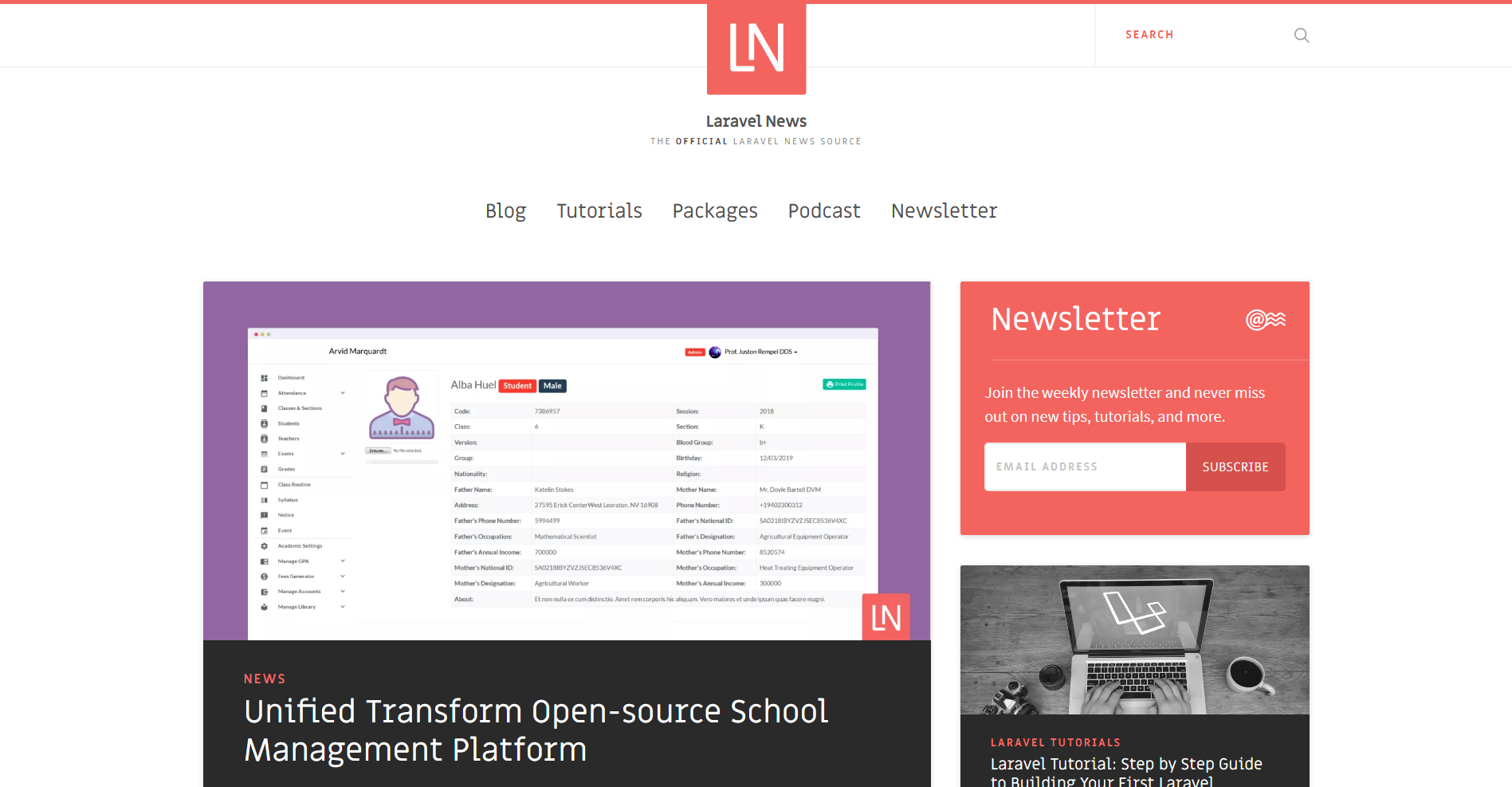 See the news here
Framework used
<h1 align="center"><img src="public/docs/imgs/ut/Screenshot 2021-12-07 at 01-39-17 Unifiedtransform.png"></h1>Server Requirements
- PHP >= 7.4
- OpenSSL PHP Extension
- PDO PHP Extension
- Mbstring PHP Extension
- Tokenizer PHP Extension
- XML PHP Extension
Testing
-
We want testable softwares. Most parts of the software in the previous version 1.x were covered by tests. Lets cover version 2.x as well. You also can contribute by writing test case!
-
To run Feature and Unit Tests run following commands:
$ docker exec -it app sh
// Inside container shell
:/# php artisan test
License
GNU General Public License v3.0
Contribute
Unifiedtransform is 100% open source and free forever!!
Community contribution can make this product better!!
<img width="100%" src="https://repobeats.axiom.co/api/embed/d90fe8b75d73579b62d26d3097cd29ac0147e77d.svg" alt="Repobeats analytics image" />When you contribute to a Github project you agree with this terms of Github Terms of Service(Contributions Under Repository License).
Since this project is under GNU General Public License v3.0, according to Github's Terms of Service all your contributions are also under the same license terms. Thus you permit the user of this software to use your contribution under the terms of GNU General Public License v3.0.
Whats New
v2.X is built from scratch. Both UI and internal workflow of the application are changed to a better design.
Features yet to be migrated from v1.X to v2.X
Following features that exist in v1.X will be added in v2.X as well in future.
- Stripe payment
- Messaging
- Managing library
- Managing Income and Expenses
- Mass student and teachers export and import.
- Printing reports
- Managing certificates.
- Supported other languages (Spanish, ...).
How to Start
Using Docker Container:
Video instruction
https://user-images.githubusercontent.com/9896315/231230479-bb497be3-024c-4568-b3ea-2b0e8f3501aa.mp4
Document instruction
Docker is now supported and improved.
How To Set Up Laravel, Nginx, and MySQL With Docker Compose on Ubuntu 20.04
With the improved Docker setup, you will get:
- Nginx
- PHP 7.4
- MySQL 5.7
Steps to install:
-
Clone or download the repository.
-
Create purify folder in
storage/app/directory. -
Run
cp .env.example .env. -
Run
docker-compose up -d. -
Run
docker exec -it db sh. Inside the shell, run::/# mysql -u root -pMysql Root password:
your_mysql_root_passwordin thedocker-compose.ymlfile. Then run following commands:mysql> SHOW DATABASES; mysql> GRANT ALL ON unifiedtransform.* TO 'unifiedtransform'@'%' IDENTIFIED BY 'secret'; mysql> FLUSH PRIVILEGES; mysql> EXIT; -
Finally, exit the container by running
exitin the container shell. -
Run
docker exec -it app sh. Inside the shell, run following commands::/# composer install :/# php artisan key:generate :/# php artisan config:cache :/# php artisan migrate:fresh --seedThen exit from the container.
-
Visit http://localhost:8080. Admin login credentials:
- Email: admin@ut.com
- Password: password
Steps to follow:
Please carefully follow the steps to setup the school.
Role: Admin
School Dashboard
<h1 align="center"><img src="public/docs/imgs/ut/Screenshot 2021-12-07 at 01-27-05 Unifiedtransform.png"></h1>1. Create a School Session:
After logging in for the first time, you will see following message at the top nav bar.
<h1 align="center"><img src="public/docs/imgs/ut/Screenshot 2021-12-07 at 00-31-38 Unifiedtransform.png"></h1>To create a new session, go to Academic Settings page.
Academic Settings page:
<h1 align="center"><img src="public/docs/imgs/ut/Screenshot 2021-12-07 at 00-32-44 Unifiedtransform.png"></h1>Successful creation of session using following form will display success message:
<h1 align="center"><img src="public/docs/imgs/ut/Screenshot 2021-12-07 at 00-33-45 Unifiedtransform.png"></h1>2. Create a Semester
Now create a semester. A semester duration usually is 3 - 6 months.
<h1 align="center"><img src="public/docs/imgs/ut/Screenshot 2021-12-07 at 00-34-45 Unifiedtransform.png"></h1> <h1 align="center"><img src="public/docs/imgs/ut/Screenshot 2021-12-07 at 00-36-39 Unifiedtransform.png"></h1>3. Create classes
Now create classes. Give common names such as: Class 1 or Class 11 (Science).
<h1 align="center"><img src="public/docs/imgs/ut/Screenshot 2021-12-07 at 00-35-16 Unifiedtransform.png"></h1> <h1 align="center"><img src="public/docs/imgs/ut/Screenshot 2021-12-07 at 00-37-26 Unifiedtransform.png"></h1>4. Create sections
Now create sections for each classes. Give section's name (e.g.: Section A, Section B), room number and assign them to respective class.
<h1 align="center"><img src="public/docs/imgs/ut/Screenshot 2021-12-07 at 00-36-27 Unifiedtransform.png"></h1>5. Create Courses
Now create courses and assign them to respective semester and class.
<h1 align="center"><img src="public/docs/imgs/ut/Screenshot 2021-12-07 at 00-38-13 Unifiedtransform.png"></h1>6. Set attendance type
Attendance can be maintained in two ways: 1. By section, 2. By course. Stick to one type for a semester. Default: By section.
<h1 align="center"><img src="public/docs/imgs/ut/Screenshot 2021-12-07 at 00-37-09 Unifiedtransform.png"></h1>7. Add teachers
Now add teachers.
<h1 align="center"><img src="public/docs/imgs/ut/Screenshot 2021-12-07 at 01-11-34 Unifiedtransform.png"></h1>8. Assign teacher
Now assign teachers to semester, class, section, and course.
<h1 align="center"><img src="public/docs/imgs/ut/Screenshot 2021-12-07 at 01-12-05 Unifiedtransform.png"></h1>9. Add students
Now add students and assign them to class, and section.
<h1 align="center"><img src="public/docs/imgs/ut/Screenshot 2021-12-07 at 00-43-37 Unifiedtransform.png"></h1>10. View added teachers and students
Now browse to View Teachers and View Students pages.
<h1 align="center"><img src="public/docs/imgs/ut/Screenshot 2021-12-07 at 00-55-18 Unifiedtransform.png"></h1>11. View student and teacher profile
Now browse to Profile from student and teacher list.
<h1 align="center"><img src="public/docs/imgs/ut/Screenshot 2021-12-07 at 18-29-30 Unifiedtransform.png"></h1>12. View and Edit Classes and Sections
Now go to Classes. Here you can view all classes and their respective sections, syllabi, and courses. Classes, sections, and courses can be edited from here.
<h1 align="center"><img src="public/docs/imgs/ut/Screenshot 2021-12-07 at 01-30-30 Unifiedtransform.png"></h1> <h1 align="center"><img src="public/docs/imgs/ut/Screenshot 2021-12-07 at 01-30-55 Unifiedtransform.png"></h1> <h1 align="center"><img src="public/docs/imgs/ut/Screenshot 2021-12-07 at 01-31-14 Unifiedtransform.png"></h1>13. Create Grading Systems
Now create grading system for each class and a semester.
<h1 align="center"><img src="public/docs/imgs/ut/Screenshot 2021-12-07 at 01-32-31 Unifiedtransform.png"></h1>14. View Grading Systems
Now browse to created Grading Systems.
<h1 a