
CareKit
CareKit is an open source software framework for creating apps that help people better understand and manage their health.
Install / Use
/learn @carekit-apple/CareKitREADME

CareKit





CareKit™ is an open source software framework for creating apps that help people better understand and manage their health. The framework provides modules that you can use out of the box, or extended and customized for more targeted use cases. It's composed of three SPM packages which can each be imported separately.
-
CareKit: This is the best place to start building your app. CareKit provides view controllers that tie CareKitUI and CareKitStore together. The view controllers leverage Combine to provide synchronization between the store and the views.
-
CareKitUI: Provides the views used across the framework. The views are open and extensible subclasses of UIView. Properties within the views are public, allowing for full control over the content.
-
CareKitStore: Provides a Core Data solution for storing patient data. It also provides the ability to use a custom store, such as a third party database or API.
Table of Contents
Requirements <a name="requirements"></a>
The primary CareKit framework codebase supports iOS and requires Xcode 12.0 or newer. The CareKit framework has a Base SDK version of 13.0.
Getting Started <a name="getting-started"></a>
Option One: Install using Swift Package Manager
You can install CareKit using Swift Package Manager. Create a new Xcode project and navigate to File > Swift Packages > Add Package Dependency. Enter the URL https://github.com/carekit-apple/CareKit and tap Next. Choose the main branch, and on the next screen, check off the packages as needed.
To add localized strings to your project, add the strings file to your project: English Strings
Option Two: Install as an embedded framework
Download the project source code and drag in CareKit.xcodeproj, CareKitUI.xcodeproj, and CareKitStore.xcodeproj as needed. Then, embed each framework in your app by adding them to the "Embedded Binaries" section for your target as shown in the figure below.
<img width="1000" alt="embedded-framework" src="https://user-images.githubusercontent.com/51756298/69107216-7fa7ea00-0a25-11ea-89ef-9b8724728e54.png">OCKCatalog App <a name="ockcatalog-app"></a>
The included catalog app demonstrates the different modules that are available in CareKit: OCKCatalog

OCKSampleApp <a name="ocksample-app"></a>
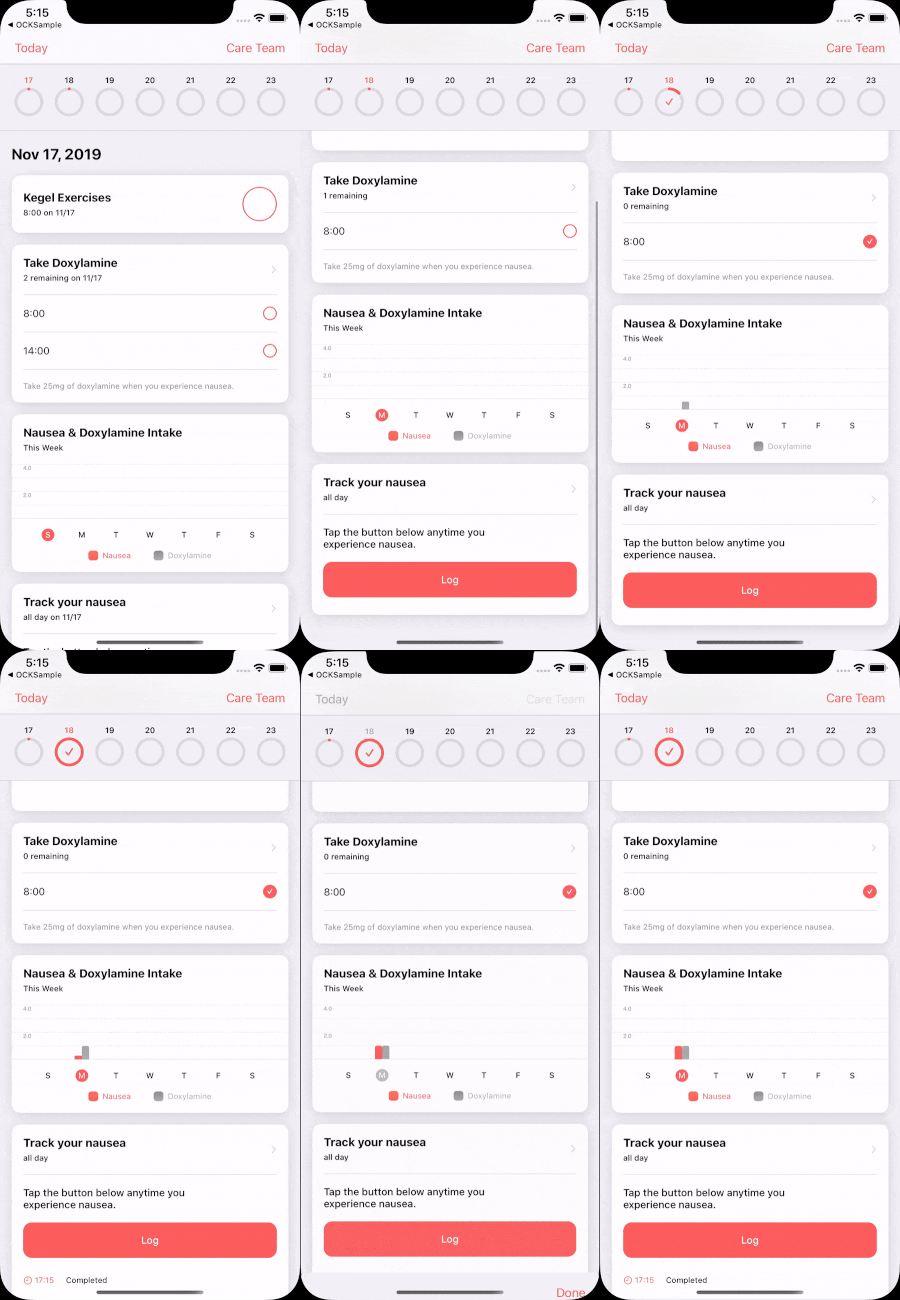
The included sample app demonstrates a fully constructed CareKit app: OCKSample
CareKit <a name="carekit"></a>
CareKit is the overarching package that provides view controllers to tie CareKitUI and CareKitStore together. When importing CareKit, CareKitUI and CareKitStore are imported under the hood.
List view controllers <a name="list-view-controllers"></a>
CareKit offers full screen view controllers for convenience. The view controllers query for and display data from a store, and stay synchronized with the data.
-
OCKDailyTasksPageViewController: Displays tasks for each day with a calendar to page through dates. -
OCKContactsListViewController: Displays a list of contacts in the store.
Synchronized View Controllers <a name="synchronized-view-controllers"></a>
For each card in CareKitUI, there's a corresponding view controller in CareKit. The view controllers are self contained modules that you can place anywhere by using standard view controller containment. The view controller for each card provides synchronization between the view and the store. The following code creates a synchronized view controller.
// Create a store to hold your data.
let store = OCKStore(named: "my-store", type: .onDisk)

// Create a view controller that queries for and displays data. The view will update automatically whenever the data in the store changes.
let viewController = OCKSimpleTaskViewController(taskID: "doxylamine", eventQuery: OCKEventQuery(for: Date()), store: store)
All synchronized view controllers have a view synchronizer. The view synchronizer defines how to instantiate the view to display, and how to update the view when the data in the store changes. You can customize view synchronizers and inject them into a view controller to perform custom behavior.
// Define a custom view synchronizer.
class CustomSimpleTaskViewSynchronizer: OCKSimpleTaskViewSynchronizer {

    override func makeView() -> OCKSimpleTaskView {
        let view = super.makeView()
        // Customize the view when it's instantiated here.
        return view
    }

    override func updateView(_ view: OCKSimpleTaskView, context: OCKSynchronizationContext<OCKTaskEvents>) {
        super.updateView(view, context: context)
        // Update the view when the data changes in the store here.
    }
}

// Instantiate the view controller with the custom classes, then fetch and observe data in the store.
var query = OCKEventQuery(for: Date())
query.taskIDs = ["Doxylamine"]

let viewController = OCKSimpleTaskViewController(query: query, store: store, viewSynchronizer: CustomSimpleTaskViewSynchronizer())
Custom Synchronized View Controllers <a name="custom-synchronized-view-controllers"></a>
CareKit supports creating a custom view that can pair with a synchronized view controller. This allows synchronization between the custom view and the data in the store.
// Define a view synchronizer for the custom view.
class TaskButtonViewSynchronizer: ViewSynchronizing {

    // Instantiate the custom view.
    func makeView() -> UIButton {
        return UIButton(frame: CGRect(x: 0, y: 0, width: 200, height: 60))
    }

    // Update the custom view when the data in the store changes.
    func updateView(
        _ view: UIButton,
        context: OCKSynchronizationContext<OCKAnyEvent?>
    ) {
        let event = context.viewModel
        view.titleLabel?.text = event?.task.title
        view.isSelected = event?.outcome != nil
    }
}

var query = OCKEventQuery(for: Date())
query.taskIDs = ["Doxylamine"]

let events = store
    .anyEvents(matching: query)
    .map { $0.first }

let viewController = SynchronizedViewController(
    initialViewModel: nil,
    viewModels: events,
    viewSynchronizer: TaskButtonViewSynchronizer()
)
CareKitUI <a name="carekitui"></a>
CareKitUI provides cards to represent tasks, charts, and contacts. There are multiple provided styles for each category of card.
You build all cards in a similar pattern. This makes it easy to recognize and customize the properties of each card. Cards contain a headerView at the top that displays labels and icons. The contents of the card are inside a vertical contentStackView. This allows for easy placement of custom views into a card without breaking existing constraints.
For creating a card from scratch, see the OCKCardable protocol. Conforming to this protocol makes it possible for a custom card to match the styling used across the framework.
Tasks <a name="tasks"></a>
Here are the available task card styles:
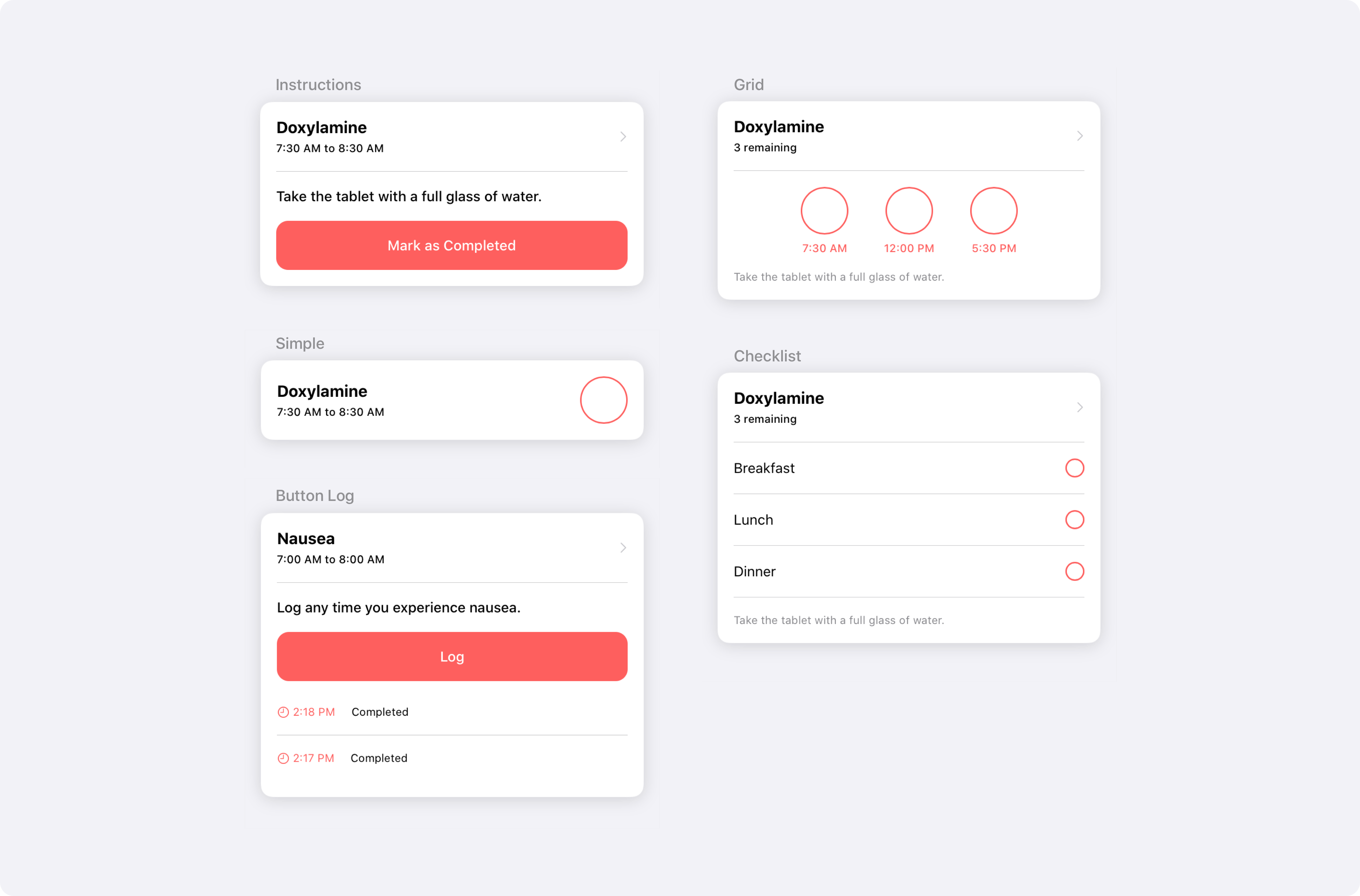
This example instantiates and customizes the instructions task card:
let taskView = OCKInstructionsTaskView()

taskView.headerView.titleLabel.text = "Doxylamine"
taskView.headerView.detailLabel.text = "7:30 AM to 8:30 AM"

taskView.instructionsLabel.text = "Take the tablet with a full glass of water."

taskView.completionButton.isSelected = false
taskView.completionButton.label.text = "Mark as Completed"
Charts <a name="charts"></a>
Here are the available chart card styles:

This example instantiates and customizes the bar chart:
let chartView = OCKCartesianChartView(type: .bar)

chart
Related Skills
node-connect
342.0kDiagnose OpenClaw node connection and pairing failures for Android, iOS, and macOS companion apps
frontend-design
84.7kCreate distinctive, production-grade frontend interfaces with high design quality. Use this skill when the user asks to build web components, pages, or applications. Generates creative, polished code that avoids generic AI aesthetics.
openai-whisper-api
342.0kTranscribe audio via OpenAI Audio Transcriptions API (Whisper).
commit-push-pr
84.7kCommit, push, and open a PR
