
Notebook
Notebook Caido Plugin
Install / Use
/learn @caido-community/NotebookREADME
<div align="center">
<img width="1000" alt="image" src="https://github.com/caido-community/.github/blob/main/content/banner.png?raw=true">
<br />
<br />
<a href="https://github.com/caido-community" target="_blank">Github</a>
<span> • </span>
<a href="https://developer.caido.io/" target="_blank">Documentation</a>
<span> • </span>
<a href="https://links.caido.io/www-discord" target="_blank">Discord</a>
<br />
<hr />
</div>
Notebook
Notebook 
Notebook is a frontend note taking plugin for Caido.
This plugin gives you the ability to consolidate your notes as you work directly within the Caido application.
Features/Abilities:
- Notes can be added manually or via highlight selecting and using the context menu shortcut.
- Easily send requests and responses to be added as note entries.
- Note entries include date and time stamps.
- If you were working within a Project when the note was added - the Project name will be included.
- Note row panes can be expanded/condensed.
- Add additional comments to the note entries - helpful for providing additional information on requests/responses.
- Notes are available globally across all Projects.
- Easily edit notes after they have been added.
- Delete individual notes or clear the entire table at once.
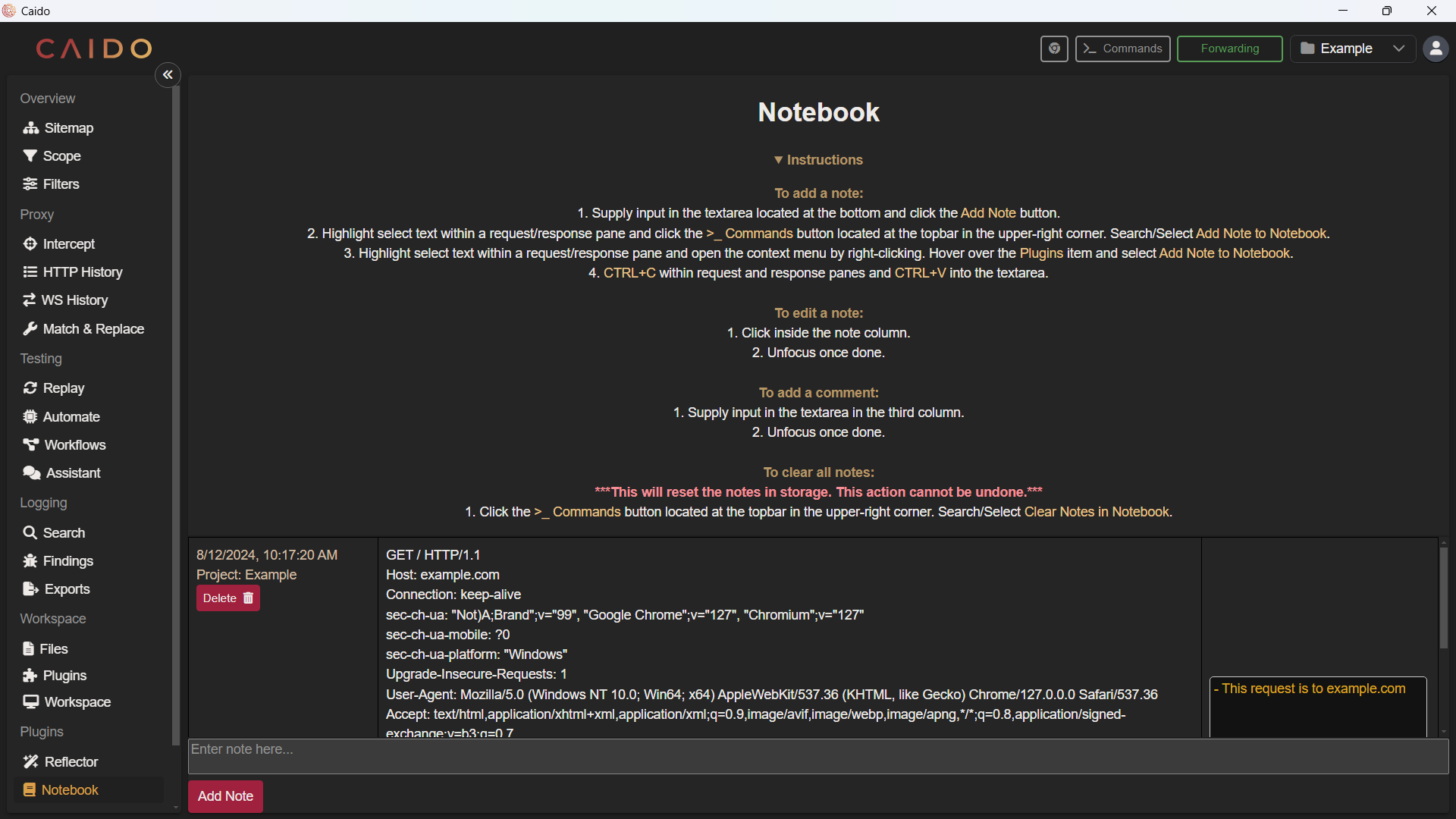
Installation: Documentation Example
If you are looking for the version of the Notebook plugin created in the documentation guide:
- Go to the Notebook Releases tab and download the latest
notebook_v1.0.0.zippackage. - In your Caido instance, navigate to the
Pluginspage, clickInstall Packageand select the downloadednotebook_v1.0.0.zippackage. - Done! 🎉
Installation: Latest
For Notebook with additional features:
- Go to the Notebook Releases tab and download the latest release.
- In your Caido instance, navigate to the
Pluginspage, clickInstall Packageand select the downloaded package. - Done! 🎉
Instructions
To add a note:
- Supply input in the textarea located at the bottom and click the
Add Notebutton. - Highlight select text within a request/response pane and click the
>_ Commandsbutton located at the topbar in the upper-right corner. Search/SelectAdd Note to Notebook. - Highlight select text within a request/response pane and open the context menu by right-clicking. Hover over the
Pluginsitem and selectAdd Note to Notebook. CTRL+Cwithin request and response panes andCTRL+Vinto the textarea.
To edit a note:
- Click inside the note column.
- Unfocus once done.
To add a comment:
- Supply input in the textarea in the third column.
- Unfocus once done.
To clear all notes:
This will reset the notes in storage. This action cannot be undone.
- Click the
>_ Commandsbutton located at the topbar in the upper-right corner. Search/SelectClear Notes in Notebook.
Contribution
If you'd like to request a feature, suggest an improvement or report a bug - please create a Github Issue.
