
Surfingkeys
Map your keys for web surfing, expand your browser with javascript and keyboard.
Install / Use
/learn @brookhong/SurfingkeysREADME
Surfingkeys - Expand your browser with javascript and keyboard.

Surfingkeys is another web browser(including Google Chrome, Chromium based browsers, Firefox, Safari) extension that provides keyboard-based navigation and control of the web in the spirit of the VIM editor. But it's not for VIM users only, it's for anyone who just needs some more shortcuts to their own functions.
Surfingkeys is created with all settings described in Javascript, so it's easy for anyone to map any keystrokes to their own defined Javascript function. For example,
api.mapkey('<Ctrl-y>', 'Show me the money', function() {
    api.Front.showPopup('a well-known phrase uttered by characters in the 1996 film Jerry Maguire (Escape to close).');
});
Surfingkeys is doing its best to make full use of keyboard for web browsing, but there are some limitations from Google Chrome itself, please see Brook Build of Chromium for a more thorough experience.
Installation
<img src="https://raw.githubusercontent.com/brookhong/Surfingkeys/master/sk.svg" width="384">- Surfingkeys - Chrome Web Store for Google Chrome, Chromium based browsers
- Surfingkeys – Get this Extension for 🦊 Firefox for Firefox
- Surfingkeys - Microsoft Edge Addons for Microsoft Edge
- Surfingkeys on the Mac App Store for Safari, works for both macOS and iOS, except that for iOS an external keyboard is required to be connected with your device. There is one exception of the special feature designed for iOS device --
Search selected with.
Feature availability
| Features \ Browsers | Chromium family (above 45) | Firefox (above 57) | Safari (above 15) | |:---------------|:-----|:-----|:-----| | Follow links | Y | Y | Y | | Surfingkeys modes | Y | Y | Y | | Omnibar | Y | Y | partly | | Search selected with | Y | Y | Y | | Vim-like marks | Y | Y | Y | | Switch tabs | Y | Y | Y | | Windows management | Y | Y | N | | Commands | Y | Y | Y | | Smooth scroll | Y | Y | Y | | Session management | Y | Y | Y | | Repeats action by pressing number before mapkey | Y | Y | Y | | Hotkey to toggle Surfingkeys | Y | Y | Y | | VIM editor and Emacs editor | Y | Y | Y | | Dot to repeat previous action | Y | Y | Y | | Capture page | Y | Y | Y | | PDF viewer | Y | N | N | | Sync across devices | Y | N | Y | | Tab Groups | Y | N | N | | Proxy | Y | N | N | | Markdown preview |Y | Y | N |
TABLE OF CONTENTS
- Feature list
- Quick start
- Follow links
- Surfingkeys modes
- Omnibar
- Search selected with
- Vim-like marks
- Switch tabs
- Windows management
- Commands
- Smooth scroll
- Session management
- Repeats action by pressing number before mapkey
- Hotkey to toggle Surfingkeys
- Proxy settings
- VIM editor and Emacs editor
- Dot to repeat previous action
- Markdown preview
- Capture page
- PDF viewer
- Edit your own settings
- License
Feature list
- All settings are set up within a javascript file, which makes it easy to create mapping to user customized function.
- A large cursor in visual mode, which makes visual mode better.
- Search selected with, which works in both normal mode and visual mode.
- Help messages are automatically generated for mappings.
*to search word under cursor in visual mode.- Scroll actions like page up/down (
ed) work for not only top window but also scrollable DIV. wto switch frames if there is.- Session management
- A versatile bookmark/url finder
- Count prefixes to repeat actions
- Use vim editor to edit input on page
- Dot to repeat previous action
;pmto preview markdown- Emoji completion in Insert mode
- Rich hints for keystroke
- Everything in Surfingkeys works for PDF
- Regional Hints mode
- Chat with LLM
Quick start
After you install the extension from Chrome Web Store or Firefox Add-ons, open a site you'd like. Then press ? or u to take a quick look on the default mappings first. Press Esc to hide the usage popover.
Try some mappings described in the usage popover. For example, press e to scroll a page up, d to scroll a page down, ;e to open settings page.
?to show help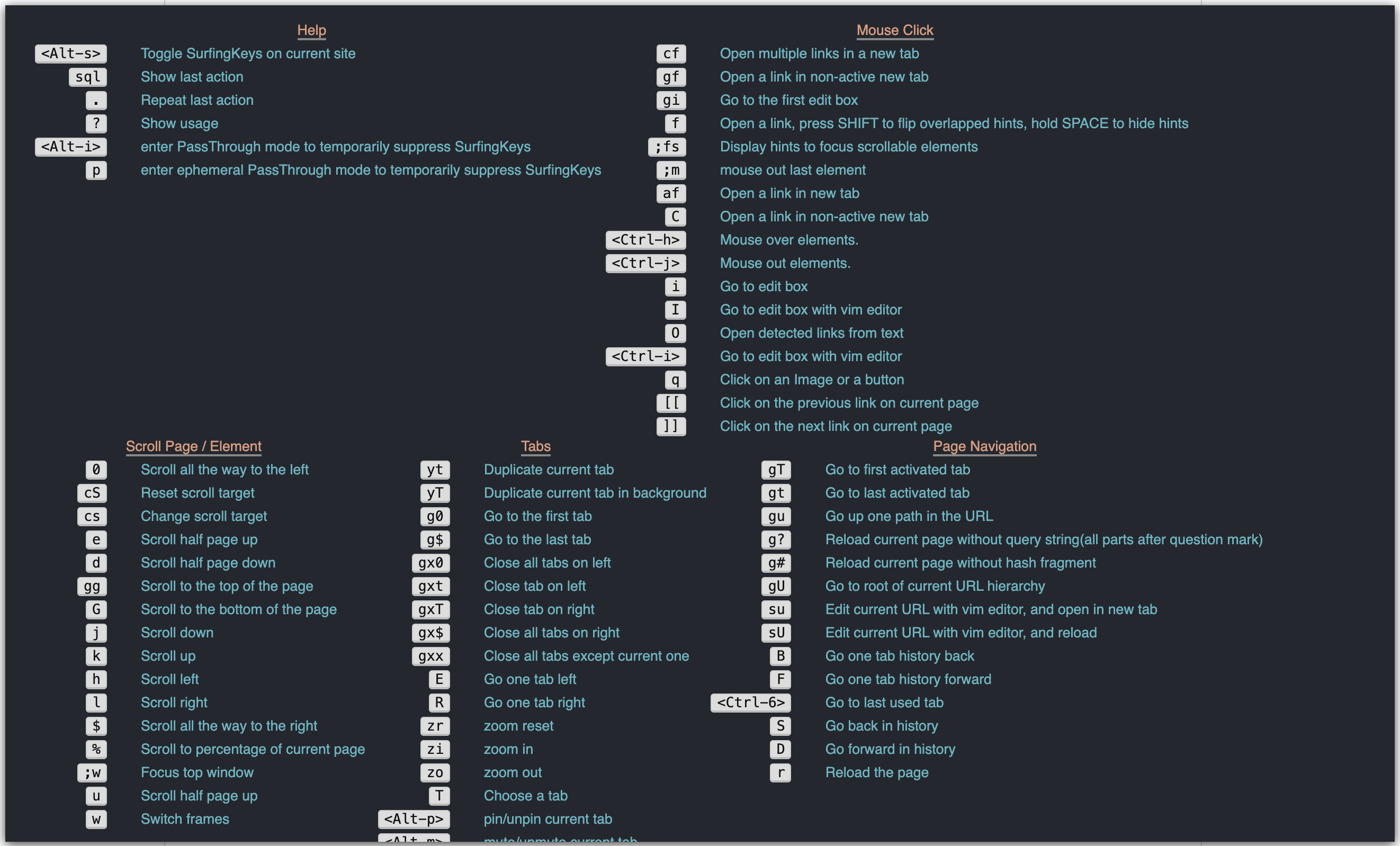
tto search bookmarks/history
/to find in current page
fto follow links
vto toggle visual mode
Tto switch tabs
Surfingkeys modes
There are three modes in Surfingkeys: normal, visual and insert.
Normal mode, the default mode.
When you open a page, it enters normal mode automatically. All mappings added with mapkey work in this mode.
Visual mode, the mode for text selection, and actions on the selected text.
Press v to toggle visual mode. You'll see an indicator at bottom of current page - Caret or Range, and a large cursor on page. The cursor is made large for visibility, as sometimes it's not easy for human to locate a normal cursor on a web page.
Caret indicates that cursor is moved when you press jkhl, Range indicates that you'll select text when moving cursor.
Now here is a small practice,
- press
vyou'll seeCaret - use the VIM key bindings to move cursor to some where.
- press
vagain, you'll seeRange. - use the VIM key bindings to select some text.
- press
sgto see what will happen. - press
vagain to back to normal mode.
All mappings added with vmapkey work in this mode, with some built-in mappings like those in VIM - j k h l b w 0 $ etc.

zzmake cursor at center of window.fforward to next char.Fbackward to next char.;repeat latest f, F.,repeat latest f, F in opposite direction.
Hints mode
Press f to enter Hints mode to follow links. There are several other keystrokes to enter Hints mode with some different behavior, such as cf for continuous following, af for active following.
Default hint characters for links are asdfgqwertzxcvb, it quits when a non-hint key is pressed. Add below line to your settings to make it right hand:
api.Hints.setCharacters('yuiophjklnm'); // for right hand
When hints are overlapped, press Shift to flip them. Hold space to hold hints temporarily, release space to restore hints.
Hints are placed in center of target links, you could add below line in your settings to let them aligned left.
settings.hintAlign = "left";
Regional Hints mode
Press L to enter regional Hints mode by picking a visually large element. There are some built-in actions in regional Hints mode,
Escto exit regional hints modectto copy text from target elementchto copy HTML from target elementdto delete target elementlto chat with AI about the text of the element
Insert mode
When focus is switched into any editable element by whatever means(i hints or f hints or mouse click), Insert mode is on.
All mappings added with imapkey work in this mode.
Ctrl - ito open vim editor to edit.Ctrl - 'to toggle quotes in an input element, this is useful for search engines like google.Ctrl-emove the cursor to the end of the line.Ctrl-amove the cursor to the beginning of the line, useCtrl-fin Windows to avoid conflict with select all.Ctrl-udelete all entered characters before the cursor.Alt-bmove the cursor Backward 1 word.Alt-fmove the cursor Forward 1 word.Alt-wdelete a word backwards.Alt-ddelete a word forwards.
imap and iunmap for insert mode.
api.imap(',,', "<Esc>");        // press comma twice to leave current input box.
api.imap(';;', "<Ctrl-'>");     // press semicolon twice to toggle quote.
Emoji completion
When user inputs a colon and 2(set by settings.startToShowEmoji) characters such as :gr in insert mode, Surfingkeys will try to find matched emoji, and list them out if there are some found.

If you want this feature disabled completely, use below settings:
api.iunmap(":");
If you'
Related Skills
node-connect
334.1kDiagnose OpenClaw node connection and pairing failures for Android, iOS, and macOS companion apps
frontend-design
82.1kCreate distinctive, production-grade frontend interfaces with high design quality. Use this skill when the user asks to build web components, pages, or applications. Generates creative, polished code that avoids generic AI aesthetics.
openai-whisper-api
334.1kTranscribe audio via OpenAI Audio Transcriptions API (Whisper).
commit-push-pr
82.1kCommit, push, and open a PR
