
Obsidian Smart Connections
Find related notes and excerpts while writing. Your link building copilot displays relevant content in graph + list view. A local embedding model powers semantic search. Zero setup. No API key.
Install / Use
npx skills add brianpetro/obsidian-smart-connectionsInstalls into whichever agent you are using.
Quality Score
Category
Content & MediaSupported Platforms
README
Save time linking, tagging, and organizing: Smart Connections finds relevant notes so you don't have to!
<h2 align="center"> More time for what matters most<br> <a href="https://smartconnections.app/?utm_source=README-what-matters-most" target="_external"><img src="/assets/SC-OP-more-time-for.gif" alt="More time for what matters most" width="300"/></a> </h2>I just stumbled across a forgotten 20-page Google Doc I poured my heart into months ago, and the rush of lost momentum hit me like a punch.
— Brian (December 2022)
[!QUESTION] Is this you? You're an Obsidian power‑user, researcher, writer, or lifelong learner with hundreds or thousands of notes. You capture ideas quickly, but later struggle to find and connect them when it matters most.
[!WARNING] The Problem
Valuable insights disappear in a sea of unlinked notes, forcing endless scrolling, rereading, and duplicated work. Time you wanted for creativity leaks away into manual organization.
Smart Connections v4

[!NOTE] What Smart Connections does
Smart Connections uses local embeddings and your Smart Environment to surface notes that are semantically related to what you are working on right now. Start with the overview, then jump into the Connections view guide, Lookup guide, and settings guide as your workflow gets deeper.

✔️ Zero-setup: ships with a local embedding model that just works
🔐 Private and offline by default
📲 Works on mobile devices
📦 Ultra-lightweight bundle with minimal third party dependencies
🔍 Streamlined codebase with minimal/no dependencies can be audited >3× faster than comparable AI plugins
🌐 Source available core, local-first data
⚔️ Mission driven, user aligned, community supported
[!SUCCESS] What success looks like
With Smart Connections running, ideas resurface when you need them, writing flows faster, and your note taking system finally feels like the trusted second brain you imagined.
[!FAILURE] The Cost of Doing Nothing Stay stuck sifting through files, forgetting past research, and wasting precious creative energy on housekeeping instead of creation. Without help, your vault keeps growing into a maze. You keep redoing work you already did once, and important ideas stay buried.
Walkthrough video
See Smart Connections (and how it pairs with Smart Chat) in action:

Watch on YouTube
Feature walkthrough
Access the Getting Started guide from Smart Connections settings.

Watch the feature walkthrough slideshow or read the Getting Started guide to see how Smart Connections fits into your workflow, including Connections view, Lookup view, inline Pro features, and Smart Environment settings.
Learn more
Core docs
| Path | Use it for | | --- | --- | | Smart Connections overview | Understand what Smart Connections does end-to-end. | | Getting Started | Install and reach your first successful workflow fast. | | Connections list feature | Learn the scan -> confirm -> act workflow for related notes. | | Lookup view | Run semantic searches across your vault on demand. | | Settings guide | Configure indexing, filters, ranking, and UI defaults. |
Pro surfaces
| Path | Use it for | | --- | --- | | Inline connections (Pro) | Trigger note suggestions while writing in the editor. | | Bases integration (Pro) | Blend semantic context with Obsidian Bases workflows. | | Pro plugins overview | Compare active Pro plugin capabilities and plans. |
Pick a path
| If you want to... | Start here | | --- | --- | | Reach your first win fast | Getting Started | | Understand the core daily loop | Connections list feature | | Search by meaning across the vault | Lookup view | | Tune results for a large or specialized vault | Settings guide | | Explore advanced workflows | Pro plugins overview |
Getting started
It "just works"
Surface relationships between notes with zero-setup.
<details><summary><span style="--font-weight: var(--h3-weight); font-variant: var(--h3-variant); letter-spacing: var(--h3-letter-spacing); line-height: var(--h3-line-height); font-size: var(--h3-size); color: var(--h3-color); font-weight: var(--font-weight); font-style: var(--h3-style); font-family: var(--h3-font); cursor: pointer;">Easy installation + zero-setup</span></summary>[!TLDR] 3 step plan
- Install and enable Smart Connections from Obsidian Community plugins.
- Keep writing. The built in local model automatically indexes your vault.
- Open the Connections view to see relevant notes and drag links directly into what you are working on.
Find Smart Connections in the Obsidian Community plugins.

Install and enable, that is it
A local model starts creating embeddings right away. No extra apps, no CLI tools, and no API key required.

Open it from the left ribbon (Connections icon) or from the command palette by running the Open: Connection view command.
Using the Connections view
Connections view results update automatically when you change notes. The name of the current note appears at the bottom left of the Connections view.
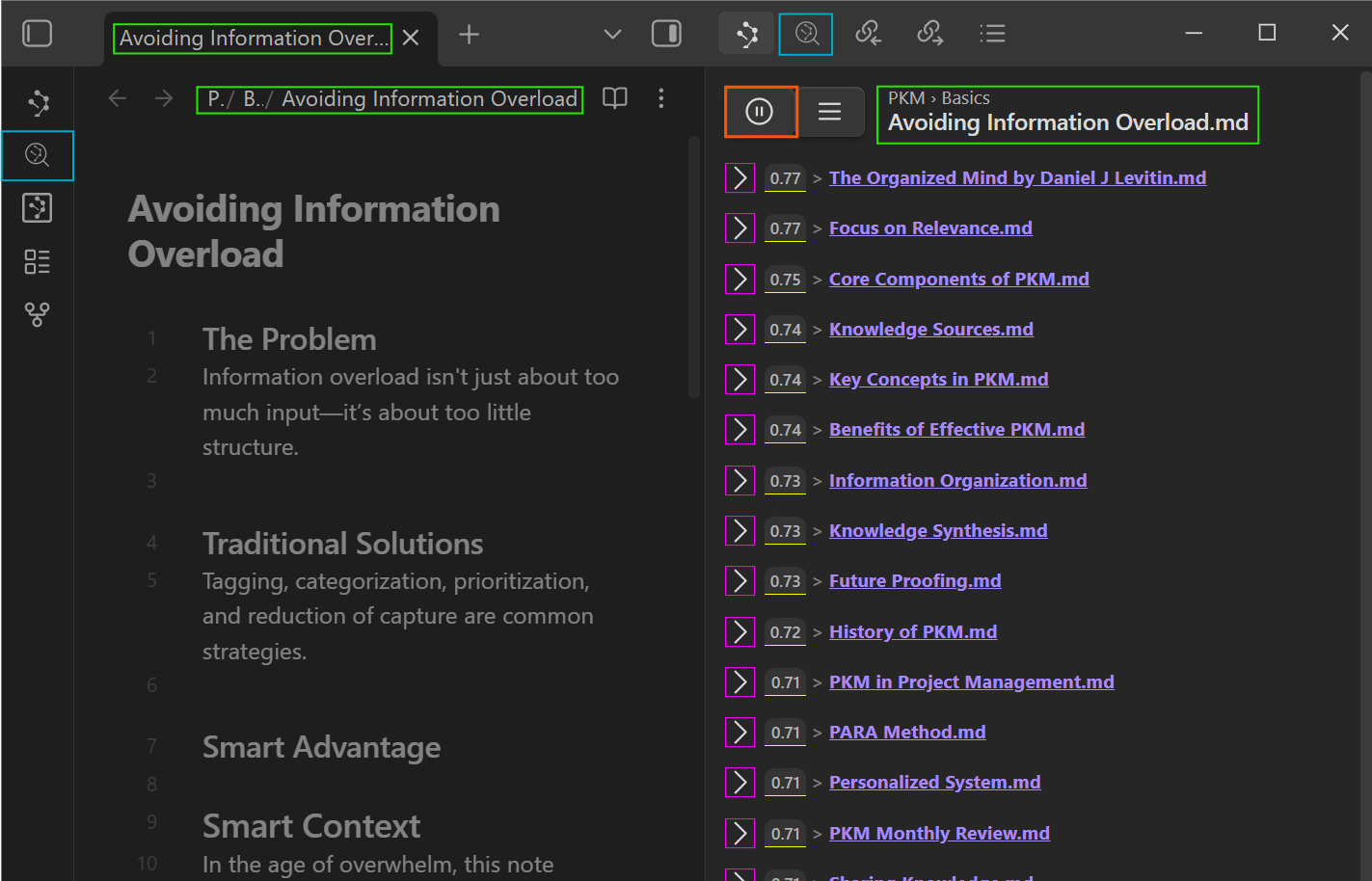
- Result score (yellow underline)
The score reflects semantic similarity between the result and the current note. Exact numbers depend on the embedding model. - Show or hide content (magenta)
Expand or collapse individual results. Use the top row button to expand or collapse all. - Play / pause updates (orange)
Control whether the Connections view automatically updates when you change notes. - Lookup query (teal)
Opens the Lookup view for a semantic search across your vault.
[!NOTE] Semantic search
Semantic queries do not behave like plain text search. A note that contains the exact query text might not appear if it is not actually similar in meaning.
Interacting with connection results
- Drag a result into a note to create a link.
- Hold Cmd or Ctrl while hovering over a result to show Obsidian's Hover Preview.


Hiding and unhiding connections
Right click a result to hide it from the list:
 applications programmatically for testing, automation, and inspection
async-pr-review
106.4kTrigger this skill when the user wants to start an asynchronous PR review, run background checks on a PR, or check the status of a previously started async PR review.
ci
106.4kA specialized skill for Gemini CLI that provides high-performance, fail-fast monitoring of GitHub Actions workflows and automated local verification of CI failures. It handles run discovery automatically—simply provide the branch name.
