
Flightdash
An open-source, free, web based EFB for flight simmers.
Install / Use
/learn @brian-mckeown/FlightdashREADME
FlightDash.io Web App (For Local Use)
Welcome to the FlightDash Web App! Since FlightDash.io is no longer hosted on the web, this guide will walk you through setting up and running the app locally on your machine. Follow each section carefully to install prerequisites, configure the environment, and start the application.
Prerequisites
Before starting, make sure you have the following tools installed on your system:
1. Install Java (Java 17 or later)
-
Check if Java is already installed:
- Windows PowerShell:
java -version - Mac Terminal:
java -version
If Java is not installed or the version is older than 17, proceed to download and install Java.
- Windows PowerShell:
-
Download Java 17 or later:
-
Verify Installation:
- Windows PowerShell:
java -version - Mac Terminal:
java -version
The command should display Java 17 or later.
- Windows PowerShell:
2. Install Maven
-
Check if Maven is already installed:
- Windows PowerShell:
mvn -version - Mac Terminal:
mvn -version
If Maven is not installed, follow the installation instructions for your OS.
- Windows PowerShell:
-
Download Maven: Apache Maven
-
Verify Installation:
- Windows PowerShell:
mvn -version - Mac Terminal:
mvn -version
- Windows PowerShell:
3. Install Git (for cloning the repository)
If Git is not installed, download it from Git's official site, and follow the installation instructions for your operating system.
Installation
Follow the below steps to install the repository.
Step 1: Clone the Repository
First, locate a folder/directory on your machine where you want to clone the project and cd to that location using Windows Powershell or Mac Terminal.
-
Open a Terminal:
- Windows: Open PowerShell.
- Mac: Open Terminal.
-
Clone the Repository from GitHub:
- PowerShell and Terminal:
git clone https://github.com/brian-mckeown/flightdash.git
This command will create a folder named
flightdashcontaining the project files. - PowerShell and Terminal:
-
Navigate to the Project Directory:
- Windows PowerShell:
cd .\flightdash\ - Mac Terminal:
cd flightdash
- Windows PowerShell:
Step 2: Set Up Environment Variables
This application requires two API tokens for the Airport and Weather data services.
-
Get API Tokens:
-
Create a
.envfile in the project directory:- Windows PowerShell:
New-Item -Path . -Name ".env" -ItemType "file" - Mac Terminal:
touch .env
- Windows PowerShell:
-
Edit the
.envfile: Open the.envfile in a text editor of your choice and add the following lines. Replace<your_token_here>with your actual API tokens:AIRPORTDB_API_TOKEN=<your_airportdb_token_here> WEATHER_API_TOKEN=<your_weatherapi_token_here> ## Step 3: Build and Run the Application -
Build the Application:
- PowerShell and Terminal:
mvn clean install
This command compiles the application and installs necessary dependencies.
- PowerShell and Terminal:
-
Run the Application: Start the Spring Boot app on port 8080:
- PowerShell and Terminal:
mvn spring-boot:run
- PowerShell and Terminal:
-
Access the Application: Once the application is running, open your web browser and go to http://localhost:8080 to view it.
Troubleshooting
Common Issues
-
Java or Maven Commands Not Recognized: Ensure Java and Maven are installed correctly and added to your system PATH.
-
Environment Variables Not Set: Double-check the
.envfile to ensure that the API tokens are correctly set.
License
This project is licensed under the Creative Commonons License. See the LICENSE file for more information.
User Guide
This User Guide provides step-by-step instructions and helpful information on using FlightDash.io. Find detailed guidance for setup, features, and functionalities organized into categories.
Getting Started
Initial Configuration
-
Navigate to http://localhost:8080
-
Open the FlightDash App.
-
Agree to the Terms of Use and Privacy Policy.
-
Click Settings in the top-right corner.
-
Choose a METAR Source.
-
Enter your Simbrief Pilot ID (optional).
Important: Many of FlightDash.io's automations are built around Simbrief. While it's not required to use all features of FlightDash.io, it is highly recommended for the best experience.
- Where to find my Simbrief Pilot ID?
Navigate back to the main User Guide and refer to our guide on finding your Simbrief Pilot ID.
- Where to find my Simbrief Pilot ID?
-
Choose a default checklist (optional).
- Checklists: For more details on checklists, see our guides in the Checklists section of the main User Guide.
-
Click Save and Close.
Using FlightDash.io with MSFS2020 on Xbox
Introduction
FlightDash.io is a web application that must be run in a web browser. To ensure the best experience, we recommend using FlightDash.io on a separate device, like a laptop or tablet, when flying in MSFS2020 on Xbox. Note that not all features are compatible with Xbox; refer to the compatibility matrix below to see what features work on each platform.
Note: FlightDash.io will not function directly in-game with MSFS2020. It is intended as an external tool to assist with your flight simulations.
Compatibility Matrix
| Feature | Xbox | PC | |----------------------------------------|-----------------------|-----------------------------| | Vat Track Map | ❌ | ✅ | | Checklists | ✅🔈 | ✅ | | Airport General Data | ✅ | ✅ | | Airport Weather Information | ✅ | ✅ | | Airport Frequency Information | ✅ | ✅ | | Runway Information with Suggested Runways (live wind data) | ✅ | ✅ | | Airport Vatsim Controllers, Inbound & Outbound Flights | ❌ | ✅ | | Simbrief Flight Plan Import | ✅ (w/ Simbrief) | ✅ (w/ Simbrief) | | Custom Cabin Crew Configuration | ✅ | ✅ | | AviationAPI.com Charts | ✅ | ✅ | | Manual Flight Status Tracking | ✅ | ✅ | | Live Passenger Manifest | ✅ | ✅ | | Flight Stats Banner | ✅ | ✅ | | Vatsim Flight Stats Banner | ❌ | ✅ (w/ Vatsim) | | Vatsim Group Flight Tracking | ❌ | ✅ (w/ Vatsim) | | Vatsim Flight Proximity Tracking | ❌ | ✅ (w/ Vatsim) | | AI Cabin Crew Announcements Web Player | ✅🔈 | ✅ (w/ OpenAI API Key) | | AI Cabin Crew Announcements Fenix Soundpack Generator | ❌ | ✅ (w/ OpenAI API Key) | | Announcement Autopilot (Vatsim only) | ❌ | ✅ (w/ Vatsim) | | Post Flight Report | ✅ | ✅ |
🔊 Xbox Features that Require Audio
The following features require audio output on Xbox:
- Checklists (Voice Recognition and Readout)
- AI Cabin Crew Announcements (Web Player)
Options for Audio Output on Xbox
To use the above audio-reliant features with Xbox, consider one of the following options:
1. Use the Audio Output from the External Device
Simply play the audio directly from your external device (laptop or tablet) through built-in speakers, connected headphones, or external speakers.
2. Audio Receiver
Use an audio receiver that can output audio from multiple sources simultaneously.
- Open FlightDash.io on a computer, laptop, or tablet.
- Connect the device to the audio system receiver via wire or Bluetooth.
- Connect the Xbox HDMI cable to the receiver.
- If the audio receiver allows playing both sources at once, you should be ready to go.
3. Capture Card (e.g., Elgato Capture Card)
- Connect the Xbox to the capture card.
- Connect the capture card outputs to both a laptop and your TV/monitor.
- Use software like OBS to route the audio from both the capture card and your computer’s browser (FlightDash.io) to your audio system, speakers, or headphones.
For more detailed guidance, refer to other sections of the User Guide available at http://localhost:8080.
Streaming with OBS Studio
The following video provides a walkthrough on how to display FlightDash.io during streaming using OBS Studio:
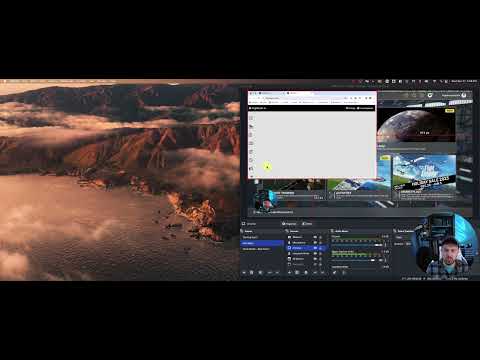
Click on the thumbnail above to watch the video on YouTube.
AI Announcements
AI Cabin Crew Announcements Fenix Soundpack Generator
Learn how to generate a custom cabin crew announcement soundpack for the Fenix A320 (
