
Wordpress Webpack Workflow
Common tools to facilitate front-end development and testing for WordPress (plugins & themes). Includes WebPack 5, BrowserSync, PostCSS/Autoprefixer, PurgeCSS, BabelJS, Eslint, Stylelint, SCSS processor, WP-Pot, an organized file structure and more.
Install / Use
npx skills add brandonkramer/wordpress-webpack-workflowInstalls into whichever agent you are using.
README
WordPress Webpack v5 Workflow





Includes WebPack v5, BabelJS v7, BrowserSync v2, PostCSS v8, PurgeCSS v3, Autoprefixer, Eslint, Stylelint, SCSS processor, WPPot, an organized config & file structure and more.
Quickstart
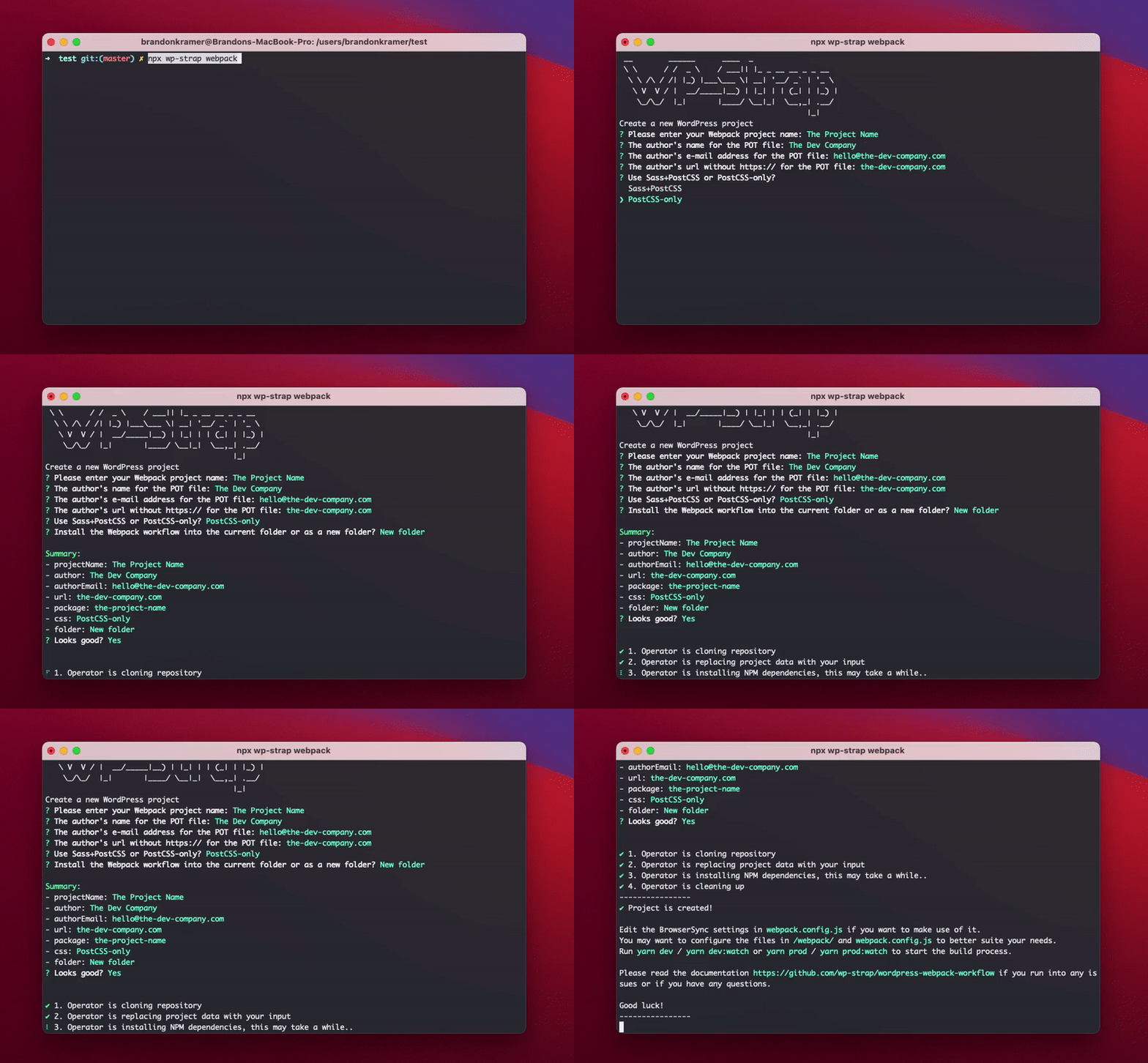
# 1-- Run the npx script to get the files
npx wp-strap webpack
# 2-- Edit the BrowserSync settings in `webpack.config.js` if you want to utilise it
# 3-- Start your npm build workflow with one of these commands:
yarn dev
yarn dev:watch
yarn prod
yarn prod:watch
You can also use the npx script with predefined answers to get a quicker start
npx wp-strap webpack "projectName:Your plugin name" "author:The Dev Company" authorEmail:hello@the-dev-company.com url:the-dev-company.com css:Sass+PostCSS "folder:Current folder"
<a href="#what-to-configure">Read more about the configuration & build scripts</a>
Features & benefits
Styling (CSS)
- Minification in production mode handled by Webpack
- PostCSS for handy tools during post CSS transformation using Webpack's PostCSS-loader
- Auto-prefixing using PostCSS's autoprefixer to parse CSS and add vendor prefixes to CSS rules using values from Can I Use. It is recommended by Google and used in Twitter and Alibaba.
- PurgeCSS which scans your php (template) files to remove unused selectors from your css when in production mode, resulting in smaller css files.
- Sourcemaps generation for debugging purposes with various styles of source mapping handled by WebPack
- Stylelint that helps you avoid errors and enforce conventions in your styles. It includes a linting tool for Sass.
Styling when using PostCSS-only
- Includes postcss-import to consume local files, node modules or web_modules with the @import statement
- Includes postcss-import-ext-glob that extends postcss-import path resolver to allow glob usage as a path
- Includes postcss-nested to unwrap nested rules like how Sass does it.
- Includes postcss-nested-ancestors that introduces ^& selector which let you reference any parent ancestor selector with an easy and customizable interface
- Includes postcss-advanced-variables that lets you use Sass-like variables, conditionals, and iterators in CSS.
Styling when using Sass+PostCSS
- Sass to CSS conversion using Webpack's sass-loader
- Includes Sass magic importer to do lot of fancy things with Sass @import statements
JavaScript
- BabelJS Webpack loader to use next generation Javascript with a BabelJS Configuration file
- Minification in production mode
- Code Splitting, being able to structure JavaScript code into modules & bundles
- Sourcemaps generation for debugging purposes with various styles of source mapping handled by WebPack
- ESLint find and fix problems in your JavaScript code with a linting configuration including configurations and custom rules for WordPress development.
- Prettier for automatic JavaScript / TypeScript code formatting
Images
- ImageMinimizerWebpackPlugin + CopyWebpackPlugin to optimize (compress) all images using
- File types:
.png,.jpg,.jpeg,.gif,.svg
Translation
- WP-Pot scans all the files and generates
.potfile automatically for i18n and l10n
BrowserSync, Watcher & WebpackBar
- Watch Mode, watches for changes in files to recompile
- File types:
.css,.html,.php,.js- BrowserSync, synchronising browsers, URLs, interactions and code changes across devices and automatically refreshes all the browsers on all devices on changes
- WebPackBar so you can get a real progress bar while development which also includes a profiler
Configuration
- All configuration files
.prettierrc.js,.eslintrc.js,.stylelintrc.js,babel.config.js,postcss.config.jsare organised in a single folder- The Webpack configuration is divided into 2 environmental config files for the development and production build/environment
Requirements
File structure
├──package.json                  # Node.js dependencies & scripts (NPM functions)
├──webpack.config.js             # Holds all the base Webpack configurations
├──webpack                       # Folder that holds all the sub-config files
│   ├── .prettierrc.js           # Configuration for Prettier
│   ├── .eslintrc.js             # Configuration for Eslint
│   ├── .stylelintrc.js          # Configuration for Stylelint
│   ├── babel.config.js          # Configuration for BabelJS
│   ├── postcss.config.js        # Configuration for PostCSS
│   ├── config.base.js           # Base config for Webpack's development & production mode
│   ├── config.development.js    # Configuration for Webpack in development mode
│   └── config.production.js     # Configuration for Webpack in production mode
├──languages                     # WordPress default language map in Plugins & Themes
│   ├── wordpress-webpack.pot    # Boilerplate POT File that gets overwritten by WP-Pot
└──assets
    ├── src                      # Holds all the source files
    │   ├── images               # Uncompressed images
    │   ├── scss/pcss            # Holds the Sass/PostCSS files
    │   │ ├─ frontend.scss/pcss  # For front-end styling
    │   │ └─ backend.scss/pcss   # For back-end / wp-admin styling
    │   └── js                   # Holds the JS files
    │     ├─ frontend.js         # For front-end scripting
    │     └─ backend.js          # For back-end / wp-admin scripting
    │
    └── public
        ├── images               # Optimized (compressed) images
        ├── css                  # Compiled CSS files with be generated here
        └── js                   # Compiled JS files with be generated here
What to configure
- Edit the translate script in package.json with your project data
- If you use
npx wp-strap webpackto get the files then this will be done automatically with you terminal input
- If you use
- Edit the BrowserSync settings in
webpack.config.jswhich applies to your local/server environment- You can also disable BrowserSync, Eslint & Stylelint in
webpack.config.js
- You can also disable BrowserSync, Eslint & Stylelint in
- The workflow is ready to start, you may want to configure the files in
/webpack/andwebpack.config.jsto better suite your needs
Work with Sass+PostCSS or PostCSS-only
In webpack.config.js you can choose to work with Sass, and use PostCSS only for the autoprefixer function or go full PostCSS (without sass); In that case sass needs to be configured to postcss.
    projectCss: {
        use: 'sass' // sass || postcss
    }
This gets automatically configured when using the initial setup with npx wp-strap webpack.
Working with PostCSS-only is beneficial when you work with TailwindCSS for example. You can read more about that here: https://tailwindcss.com/docs/using-with-preprocessors#using-post-css-as-your-preprocessor. Using TailwindCSS as a utility-first css framework is great for tons of reasons, but I do believe there are projects where you're better off using Sass(+Bootstrap), though it's a personal preference; therefore I left the ability to change between Sass+PostCSS or PostCSS-only.
When changing this configuration after the npx wp-strap webpack setup, then you also need to change the import rule in assets/src/js/frontend.js & assets/src/js/backend.js to import a .css or .pcss file instead of a .scss file.
// Change
import '../sass/frontend.scss';
// To
import '../postcss/frontend.pcss';
Developing Locally
To work on the project locally (with Eslint, Stylelint & Prettier active), run:
Related Skills
node-connect
385.5kDiagnose OpenClaw Android, iOS, or macOS node pairing, QR/setup code, route, auth, and connection failures.
blender-python-addon
40.5kBlender Python add-on rules for operators, panels, properties, registration, testing, and API-safe scripting
flutter-development-guidelines-cursorrules-prompt-file
40.5kCursor rules for Flutter development with MVVM architecture, Riverpod state management, Material widgets, and Dart style guidelines.
commit-push-pr
140.7kCommit, push, and open a PR
