
Defogger
D-Link DCS-8000LH usage info and defogging tools
Install / Use
/learn @bmork/DefoggerREADME
D-Link DCS-8000LH
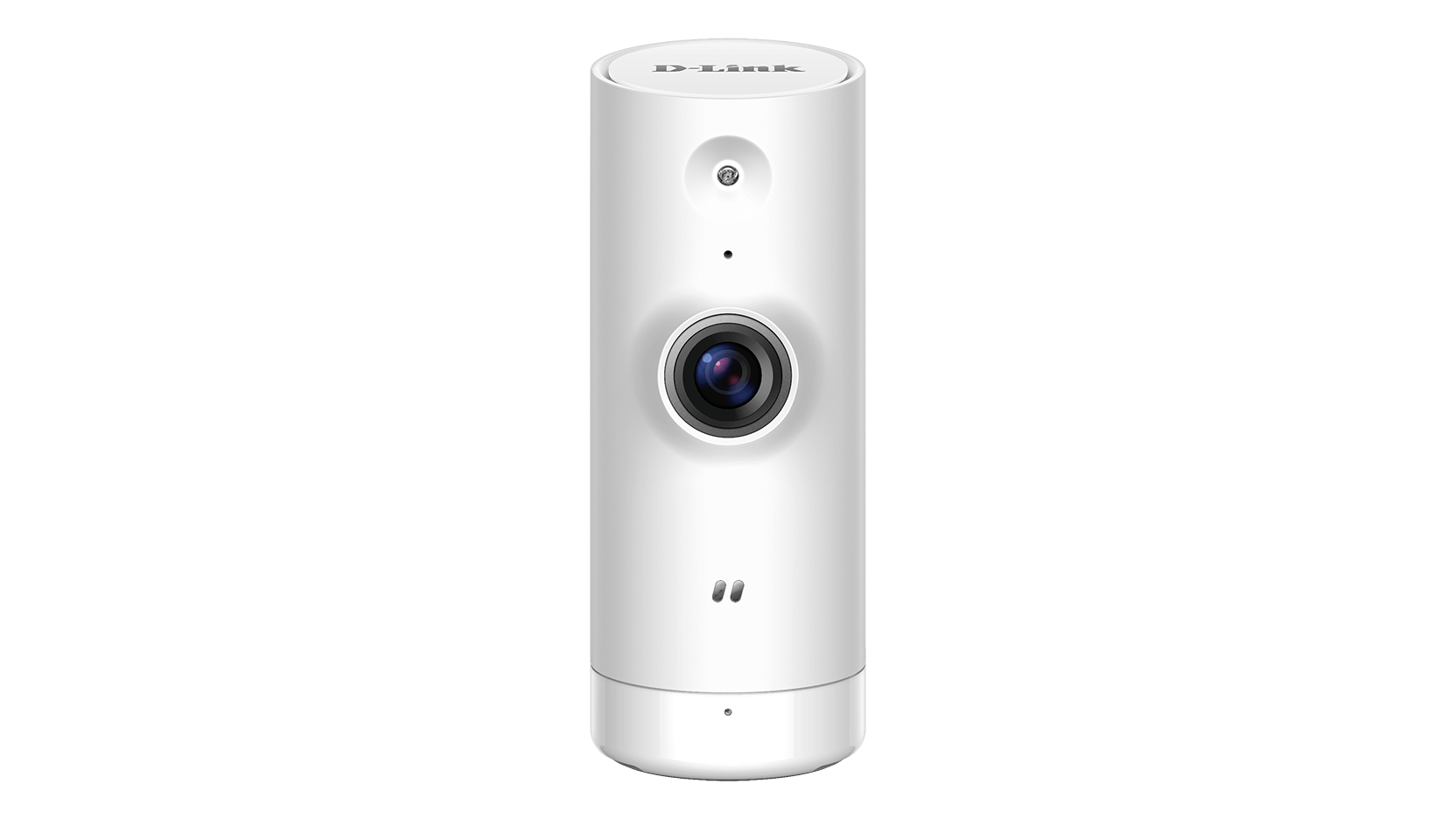
These are random notes descibing how I changed my D-Link DCS-8000LH from a cloud camera to a locally managed IP camera, streaming H.264 MPEG-TS over HTTP and HTTPS. Some of the tools and ideas might work for other cameras too, given some model specific adaptation.
Complete defogging requires modifying one of the file systems in the camera. This implies a slight risk of ending up with a brick. You have now been warned...
This is tested and developed on firmware versions v2.01.03 and v2.02.02 only. The final complete procedure has only been tested with v2.02.02. It should work fine with v2.01.03 and other versions, in theory, but could fail like anything untested. Please let me know if you have an original v2.01.03 firmware update from D-Link, or any other version for that matter, or know where firmware updates can be downloaded.
The v2.02.02 update is available from https://mydlinkmpfw.auto.mydlink.com/DCS-8000LH/DCS-8000LH_Ax_v2.02.02_3014.bin at the time of writing. But I assume this link stops working as soon as there is a newer version available.
Changelog
- v0.01 (20190515) - initial published version
- v0.02 (20190515) - added RTSP support and information
Problem
My D-Link DCS-8000LH came with firmware version 2.01.03 from factory. This firmware is locked to the mydlink app/cloud service. It does not provide a local NIPCA compatible HTTP API or similar, and it does not stream video over HTTP, HTTPS or RTSP.
Additionally, there is no way to downgrade the firmware. In fact, there is no documented way to install any firmware image at all, except trusting the "mydlink" cloud service to do it for you.
Solution
Primary goals achieved:
- configuration of network and admin password via Bluetooth LE, without registering with D-Link or using the mydlink app at all
- streaming MPEG-TS directly from camera over HTTP and HTTPS
- direct RTSP streaming
- NIPCA API configuration over HTTP and HTTPS, supporting settings like LED, nightmode, etc
And some extra goodies which came for free
- Firmware upgrades and downgrades via HTTP
- telnet server with a root account (admin/PIN Code)
- easy access to serial console, using the same root account
- running arbitrary commands on the camera using Bluetooth
Read on for all the gory details...
Requirements
- a Linux PC with a Bluetooth controller
- python3 with @IanHarvey's bluepy library
- WiFi network with WPA2-PSK and a known password
- mksquashfs from the squashfs-tools package
- a tftp server or web server accepting file uploads (for backups)
- guts :-)
Most recent Linux distros will probably do. The bluepy library can be installed using pip if it is not available as a distro package. Other types of WiFi networks might work, but has not been tested with the provided tools. The squashfs-tools are only necessary if you want to rebuild the "mydlink" alternative file system. I assume you can even run the tools without installing Linux, by using a Linux "Live" CD/DVD/USB stick.
This was developed and tested on Debian Buster.
Camera configuration using the Bluetooth LE GATT API
The "mydlink" app uses Bluetooth LE for camera setup, authenticated by the camera pincode. This repo includes an alternative python script with a few extra goodies, but needing a better name: dcs8000lh-configure.py
(Why not an Android app? Because it would take me much more time to write. Should be fairly easy to do though, for anyone with enough interest. You can find all the necessary protocol details here and in the python code. Please let me know if you are interested)
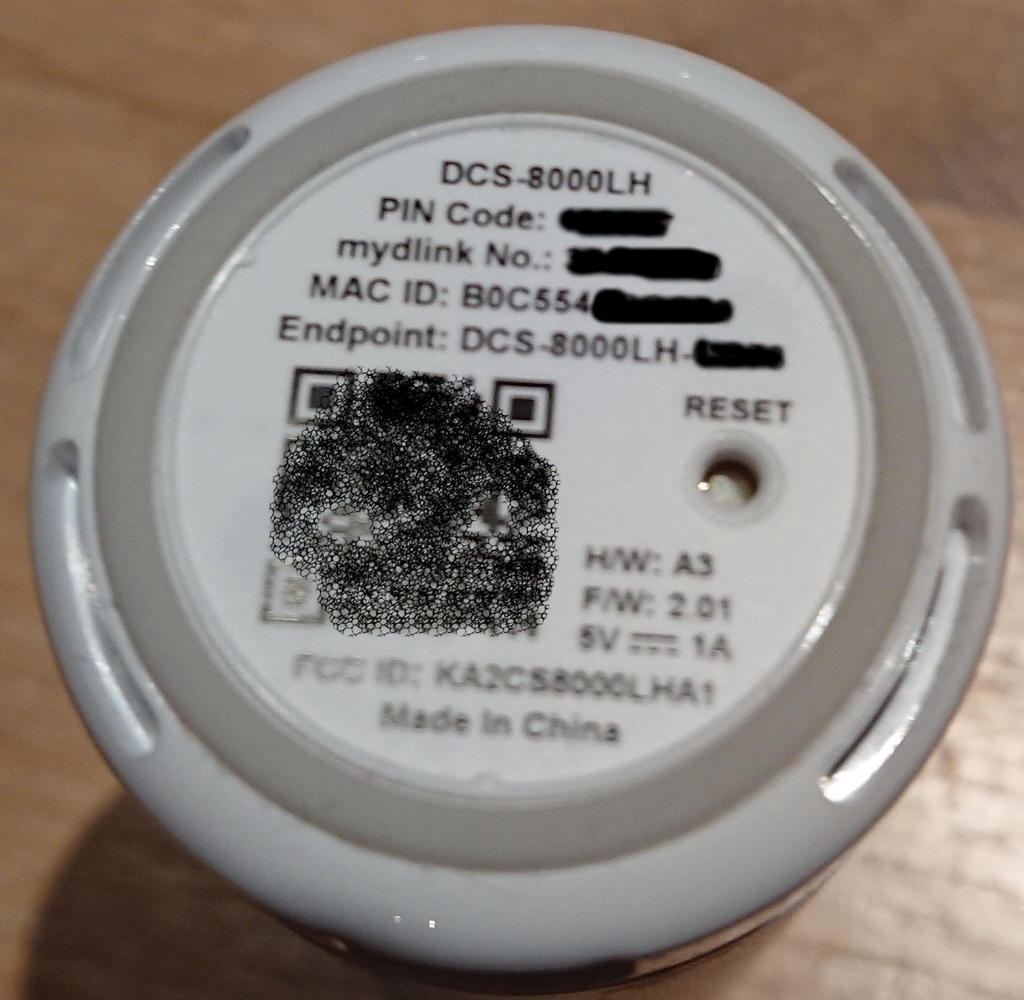
The script does not support scanning for the simple reason that this
would require root access for not real gain. You have to provide the
PIN Code from the camera label
anyway. Reading the MAC ID as well is simple enough
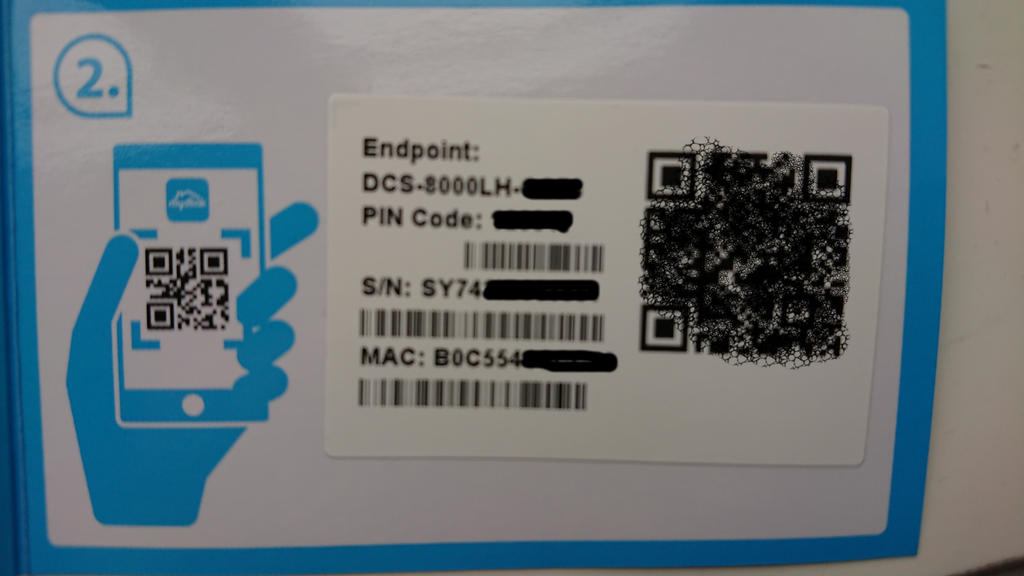
The PIN Code and MAC is also printed on the code card that
came with the camera:
Note that the command line address paramenter must be formatted as 01:23:45:67:89:AB instead of the 0123456789AB format printed on the label.
Current script help text at the time of writing shows what the script can do:
$ ./dcs8000lh-configure.py -h
usage: dcs8000lh-configure.py [-h] [--essid ESSID] [--wifipw WIFIPW]
                              [--survey] [--netconf] [--sysinfo]
                              [--command COMMAND] [--telnetd] [--lighttpd]
                              [--rtsp] [--unsignedfw] [--attrs] [-V]
                              address pincode

IPCam Bluetooth configuration tool.

positional arguments:
  address            IPCam Bluetooth MAC address (01:23:45:67:89:AB)
  pincode            IPCam PIN Code (6 digits)

optional arguments:
  -h, --help         show this help message and exit
  --essid ESSID      Connect to this WiFi network
  --wifipw WIFIPW    Password for ESSID
  --survey           List WiFi networks seen by the IPCam
  --netconf          Print current network configuration
  --sysinfo          Dump system configuration
  --command COMMAND  Run command on IPCam
  --telnetd          Start telnet server on IPCam
  --lighttpd         Start web server on IPCam
  --rtsp             Enable access to RTSP server on IPCam
  --unsignedfw       Allow unsigned firmware
  --attrs            Dump IPCam GATT characteristics
  -V, --version      show program's version number and exit
Real session excample after a clean upgrade to firmware v2.02.02, followed by factory reset
- Start by making sure the camera can see our WiFi network. This also verifies that we can connect and authenticate against the Bluetooth LE IPCam service, without making any changes to any camera settings:
$ ./dcs8000lh-configure.py B0:C5:54:AA:BB:CC 123456 --survey
Connecting to B0:C5:54:AA:BB:CC...
Verifying IPCam service
Connected to 'DCS-8000LH-BBCC'
DCS-8000LH-BBCC is scanning for WiFi networks...
{'I': 'AirLink126FD4', 'M': '0', 'C': '11', 'S': '4', 'E': '2', 'P': '47'}
{'I': 'Antiboks', 'M': '0', 'C': '11', 'S': '4', 'E': '2', 'P': '73'}
{'I': 'ASV17', 'M': '0', 'C': '11', 'S': '4', 'E': '2', 'P': '47'}
{'I': 'ASV17-dlink', 'M': '0', 'C': '6', 'S': '4', 'E': '2', 'P': '57'}
{'I': 'DIRECT-33-HP%20ENVY%205000%20series', 'M': '0', 'C': '1', 'S': '4', 'E': '2', 'P': '46'}
{'I': 'fjorde123', 'M': '0', 'C': '1', 'S': '4', 'E': '2', 'P': '55'}
{'I': 'JOJ', 'M': '0', 'C': '11', 'S': '4', 'E': '2', 'P': '48'}
{'I': 'Kjellerbod', 'M': '0', 'C': '11', 'S': '4', 'E': '2', 'P': '75'}
{'I': 'Landskap_24', 'M': '0', 'C': '11', 'S': '4', 'E': '2', 'P': '46'}
{'I': 'mgmt', 'M': '0', 'C': '1', 'S': '4', 'E': '2', 'P': '72'}
{'I': 'Rindedal', 'M': '0', 'C': '11', 'S': '4', 'E': '2', 'P': '68'}
{'I': 'risikovirus', 'M': '0', 'C': '1', 'S': '4', 'E': '2', 'P': '45'}
{'I': 'risikovirus%20WIFI', 'M': '0', 'C': '11', 'S': '4', 'E': '2', 'P': '45'}
{'I': 'Stavik2014', 'M': '0', 'C': '6', 'S': '4', 'E': '2', 'P': '47'}
{'I': 'TomterNett1', 'M': '0', 'C': '6', 'S': '4', 'E': '2', 'P': '44'}
{'I': 'VIF', 'M': '0', 'C': '11', 'S': '4', 'E': '2', 'P': '47'}
Done.
- We're going to use the 'Kjellerbod' network, so that looks good. Select it and give the associated WiFi password to the camera:
$ ./dcs8000lh-configure.py B0:C5:54:AA:BB:CC 123456 --essid Kjellerbod --wifipw redacted
Connecting to B0:C5:54:AA:BB:CC...
Verifying IPCam service
Connected to 'DCS-8000LH-BBCC'
DCS-8000LH-BBCC is scanning for WiFi networks...
Will configure: M=0;I=Kjellerbod;S=4;E=2;K=redacted
Done.
- Verify that the camera connected to the Wifi network and got an address. If not, go back and try again, making sure you are using the correct WiFi password:
$ ./dcs8000lh-configure.py B0:C5:54:AA:BB:CC 123456 --netconf
Connecting to B0:C5:54:AA:BB:CC...
Verifying IPCam service
Connected to 'DCS-8000LH-BBCC'
wifi link is Up
wifi config: {'M': '0', 'I': 'Kjellerbod', 'S': '4', 'E': '2'}
ip config: {'I': '192.168.2.37', 'N': '255.255.255.0', 'G': '192.168.2.1', 'D': '148.122.16.253'}
Done.
WARNING: You must make a backup of your device at this point if you haven't done so already. See the Backup section below. I only skipped it in this example because I already had a complete backup of my camera.
- We need HTTP NIPCA API for the remaining tasks, so temporarily start lighttpd on the camera:
$ ./dcs8000lh-configure.py B0:C5:54:AA:BB:CC 123456 --lighttpd
Connecting to B0:C5:54:AA:BB:CC...
Verifying IPCam service
Connected to 'DCS-8000LH-BBCC'
Attempting to run '[ $(tdb get HTTPServer Enable_byte) -eq 1 ] || tdb set HTTPServer Enable_byte=1' on DCS-8000LH-BBCC by abusing the 'set admin password' request
Attempting to run '/etc/rc.d/init.d/extra_lighttpd.sh start' on DCS-8000LH-BBCC by abusing the 'set admin password' request
Done.
Note that this implicitly changes a couple of settings which are stored in the "db" NVRAM partition, and therefore will persist until the next factory reset:
- extra_lighttpd.sh will exit without doing anything unless HTTPServer Enable is set
- the admin password is set both because we're abusing that BLE request, and because we need it for the HTTP API access. The script only supports setting the password to the PIN Code.
This password restriction is because I'm lazy - there is nothing in the camera or protocol preventing the password from being set to something else. But the script would then need the new password as an additional input parameter for most commands
- Disable firmware sign
