
Kainote
Kainote subtitles editor and player
Install / Use
/learn @bjakja/KainoteREADME
| Download | Help Us Translate! | Join Discord Server |
| :---: | :---: | :---: |
|  |
|  |
|  |
|
Kainote
Kainote is a powerful subtitle editor designed for a wide range of tasks. It utilizes FFMS2 for high-precision work like typesetting, timing, and advanced editing, and DirectShow for general video playback and minor subtitle adjustments.
Features
- Comprehensive Format Support: Natively handles ASS, SRT, MPL2, MDVD, and TMP formats. SSA files are automatically converted to ASS upon loading.
- Versatile Format Conversion: Easily convert subtitles between any of the supported formats.
- Translation Mode: A dedicated mode that displays the original text alongside the translation field, streamlining the localization process.
- Efficient Navigation: Quickly seek to lines that have not yet been translated or committed to final.
- Bulk Tagging: Apply ASS tags to multiple selected lines simultaneously.
- Visual Tools: Visually adjust tags like
\pos,\move,\org,\clip,\iclip, and vector drawings (\p) directly on the video frame. - Precision Zoom: Zoom in on the video, even in fullscreen mode, to create highly accurate vector clips and drawings.
- Integrated Time Shifting: Adjust subtitle timing directly within the main grid and sync changes with the current audio/video position.
- Advanced Audio Tools: Visualize audio as a spectrum or waveform display. Includes an auto-splitting tool perfect for timing karaoke lyrics.
- Automation 4 Support: Supported Automation 4 scripts with DependencyControl.
- Subtitle Comparison: Compare two different subtitle files side-by-side in separate tabs.
- Advanced Subtitle Filtering: Filter the subtitle view to hide unnecessary lines and focus on your work.
Beta Builds
You can download the latest beta version of Kainote from the link below.
Please Note: Beta builds are unstable and intended for testing purposes. Features may be incomplete or contain bugs. If you encounter issues or have feedback, please join our Discord server.
Contributing
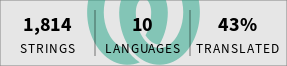
Translations
Want to see Kainote in your native language? You can help us by contributing translations on Weblate, a user-friendly platform for localization.
Help Translate Kainote on Weblate
Support & Community
For questions, help, or to join the community, find us on Discord!
Join the Kainote Discord Server
Building from Source
Prerequisites
Before you begin, you must install the following software:
- Visual Studio 2022 with the "Desktop development with C++" workload.
- Note: The solution uses the x64 compiler to build the ICU library, a process that can consume up to 16GB of RAM. Ensure you have sufficient memory or a large page file configured.
- DirectX SDK (June 2010)
- Windows 10/11 SDK: This can be installed via the Visual Studio Installer.
- NASM: Download and install the latest stable version of NASM. The installer must be configured to add
nasm.exeto your system's PATH.
1. Initial Project Setup
- Download the following libraries and extract their contents directly into the
Thirdpartyfolder. The final paths should look likeThirdparty/boost,Thirdparty/icu, etc. - The solution requires FFMS2 (FFmpeg Source 2), which must be compiled from source. Follow the steps in the next section carefully.
2. Building Dependencies (FFmpeg & FFMS2)
These steps use MSYS2 to create a build environment for compiling the libraries with the Microsoft Visual C++ (MSVC) compiler.
A. Build external codecs AV1 and H266
-
Download libAOM for AV1 clone it using git
git clone https://aomedia.googlesource.com/aom- Open a x64 Native Tools Command Prompt for VS 2022 from your Start Menu. Set path to build output folder.
- type command with path to AOM folder.
cmake path_to_AOM -G "Visual Studio 17 2022" -DCMAKE_BUILD_TYPE=Release -DAOM_TARGET_CPU=generic -DBUILD_SHARED_LIBS=0 -DENABLE_DOCS=0 -DENABLE_TESTS=0 -DENABLE_TOOLS=0 -DENABLE_CCACHE=1 -DCONFIG_AV1_ENCODER=0- edit aom.pc generated in build folder.
- set include path to folder containing
aomfolder from aom source andconfigfrom build folder . - sat also library folder.
- place
aom.pctoC:\msys64\usr\lib\pkgconfig
-
Download VVENC for h266 download VVENC from Github
https://github.com/fraunhoferhhi/vvenc- Open a x64 Native Tools Command Prompt for VS 2022 from your Start Menu. Set path to build output folder.
- type command with path to VVENC folder.
cmake path_to_VVENC -G "Visual Studio 17 2022" -DCMAKE_BUILD_TYPE=Release -DBUILD_SHARED_LIBS=0 -DVVENC_LIBRARY_ONLY=1- edit libvvenc.pc generated in build folder.
- set include path to folder containing
vvenc. - sat also library folder.
- place
libvvenc.pctoC:\msys64\usr\lib\pkgconfig
B. Configure MSYS2 Environment
- Install MSYS2: Download
msys2-x86_64-{date}.exefrom msys2.org and install it to the default location,C:/msys64. - Enable MSVC Toolchain: Edit the file
C:/msys64/msys2_shell.cmd. Find the linerem set MSYS2_PATH_TYPE=inheritand uncomment it by removingrem. - Launch the Build Shell:
- Open a x64 Native Tools Command Prompt for VS 2022 from your Start Menu.
- Inside this command prompt, execute
C:/msys64/msys2_shell.cmdto start the MSYS2 shell. All subsequent commands in this section should be run from this shell.
- Install Build Tools: Run the following commands to update the package database and install necessary tools.
pacman -Syu make diffutils yasm nasm pkg-config - Prevent Linker Conflict: MSYS2 has its own
link.exe, which conflicts with MSVC's linker. Rename it temporarily:mv /usr/bin/link.exe /usr/bin/link.exe.bak
C. Build FFmpeg (FFMS2 Prerequisite)
- Download FFmpeg: Download the source code for a recent, stable FFmpeg release, like n7.1.1. Unpack it to a simple path, e.g.,
C:/ffmpeg. - Configure & Build: In your MSYS2 shell, navigate to the FFmpeg directory and run the following commands. The configure script prepares a 64-bit build with minimal features needed for FFMS2.
This will install the FFmpeg headers and libraries into# Navigate to the source directory cd /c/ffmpeg # Configure the build for MSVC ./configure --toolchain=msvc --enable-gpl --enable-version3 --disable-programs --disable-doc --disable-avdevice --disable-postproc --disable-avfilter --enable-dxva2 --enable-d3d11va # Compile and install make make installC:/msys64/usr/local.
D. Update FFMS2 source
- FFMS2 update: Source update require to add custom code. Download FFMS2 from GitHub repository. Change it in Thirdparty/FFMS2 folder. Open Visual Studio and add custom code in file API/ffms.h before #endif on end of file.
	//Kainote functions
	FFMS_API(const char*) FFMS_GetTrackName(FFMS_Indexer* Indexer, int Track);
	FFMS_API(const char*) FFMS_GetTrackLanguage(FFMS_Indexer* Indexer, int Track);
	typedef struct FFMS_Chapter {
		const char* Title;
		int64_t Start;
		int64_t End;
	} FFMS_Chapter;
	typedef struct FFMS_Chapters {
		FFMS_Chapter* Chapters;
		int NumOfChapters;
	} FFMS_Chapters;
	FFMS_API(FFMS_Chapters*) FFMS_GetChapters(FFMS_Indexer* Indexer);
	FFMS_API(void) FFMS_FreeChapters(FFMS_Chapters** Chapters);
	typedef struct FFMS_Attachment {
		const char* Filename;
		const char* Mimetype;
		const uint8_t* Data;
		int DataSize;
	} FFMS_Attachment;
	FFMS_API(FFMS_Attachment*) FFMS_GetAttachment(FFMS_Indexer* Indexer, int Track);
	FFMS_API(void) FFMS_FreeAttachment(FFMS_Attachment** Attachment);
	typedef int (FFMS_CC* GetSubtitlesCallback)(int64_t Start, int64_t Duration, int64_t Total, const char* Line, void* ICPrivate);
	FFMS_API(void) FFMS_GetSubtitles(FFMS_Indexer* Indexer, int Track, GetSubtitlesCallback IC, void* ICPrivate);
	FFMS_API(const char*) FFMS_GetSubtitleExtradata(FFMS_Indexer* Indexer, int Track);
	FFMS_API(const char*) FFMS_GetSubtitleFormat(FFMS_Indexer* Indexer, int Track);
Add custom code in file Indexing/Indexing.h on end of struct FFMS_Indexer
	//Kainote functions
	const char* GetTrackName(int Track);
	const char* GetTrackLanguage(int Track);
	FFMS_Chapters* GetChapters();
	FFMS_Attachment* GetAttachment(int Track);
	void GetSubtitles(int Track, GetSubtitlesCallback IC, void* ICPrivate);
	const char* GetSubtitleExtradata(int Track);
	const char* GetSubtitleFormat(int Track);
3. Building Kainote
- Configure Project Paths: If you installed the Windows SDK or DirectX SDK to a location other than the
C:drive, you mus
Related Skills
node-connect
349.2kDiagnose OpenClaw node connection and pairing failures for Android, iOS, and macOS companion apps
frontend-design
109.5kCreate distinctive, production-grade frontend interfaces with high design quality. Use this skill when the user asks to build web components, pages, or applications. Generates creative, polished code that avoids generic AI aesthetics.
openai-whisper-api
349.2kTranscribe audio via OpenAI Audio Transcriptions API (Whisper).
qqbot-media
349.2kQQBot 富媒体收发能力。使用 <qqmedia> 标签,系统根据文件扩展名自动识别类型(图片/语音/视频/文件)。
