
ESPuino
RFID-controlled musicplayer powered by ESP32
Install / Use
/learn @biologist79/ESPuinoREADME
ESPuino - RFID-controlled Audio Player based on ESP32 with I2S-DAC Support

Forum
- EN: I've set up a primarily German-speaking community with much documentation. Also an international corner for non-German-speakers is available at https://forum.espuino.de. GitHub login can be used for signing in there (optional).
- DE: Ich habe ein primär deutschsprachiges Forum aufgesetzt, welches ich mit reichlich Doku versehen habe. Würde mich freuen, euch dort zu sehen: https://forum.espuino.de. Ihr könnt euch dort mit eurem Github-Login einloggen, jedoch auch "normal" anmelden. Dokumentation findet ihr insbesondere hier: https://forum.espuino.de/c/dokumentation/anleitungen/10.
Firmwares
Ready-to-use firmwares are available for download for several HALs, RFID-readers PN5180 or RC522 and with or without bluetooth. These are provided for master and dev-branch.
News
:warning: Due to memory restrictions and complexity, ESPuino doesn't run safely on ESP32 without PSRAM. So please make sure to use an ESP32-WROVER!
:warning: As of January 8, 2026, MQTT topics have changed! Further infos here.
Current development
There is a development branch (dev) that contains new features, that will be introduced and tested there first until they become part of the master branch. Feel free to test but be advised this could be unstable.
ESPuino - what's that?
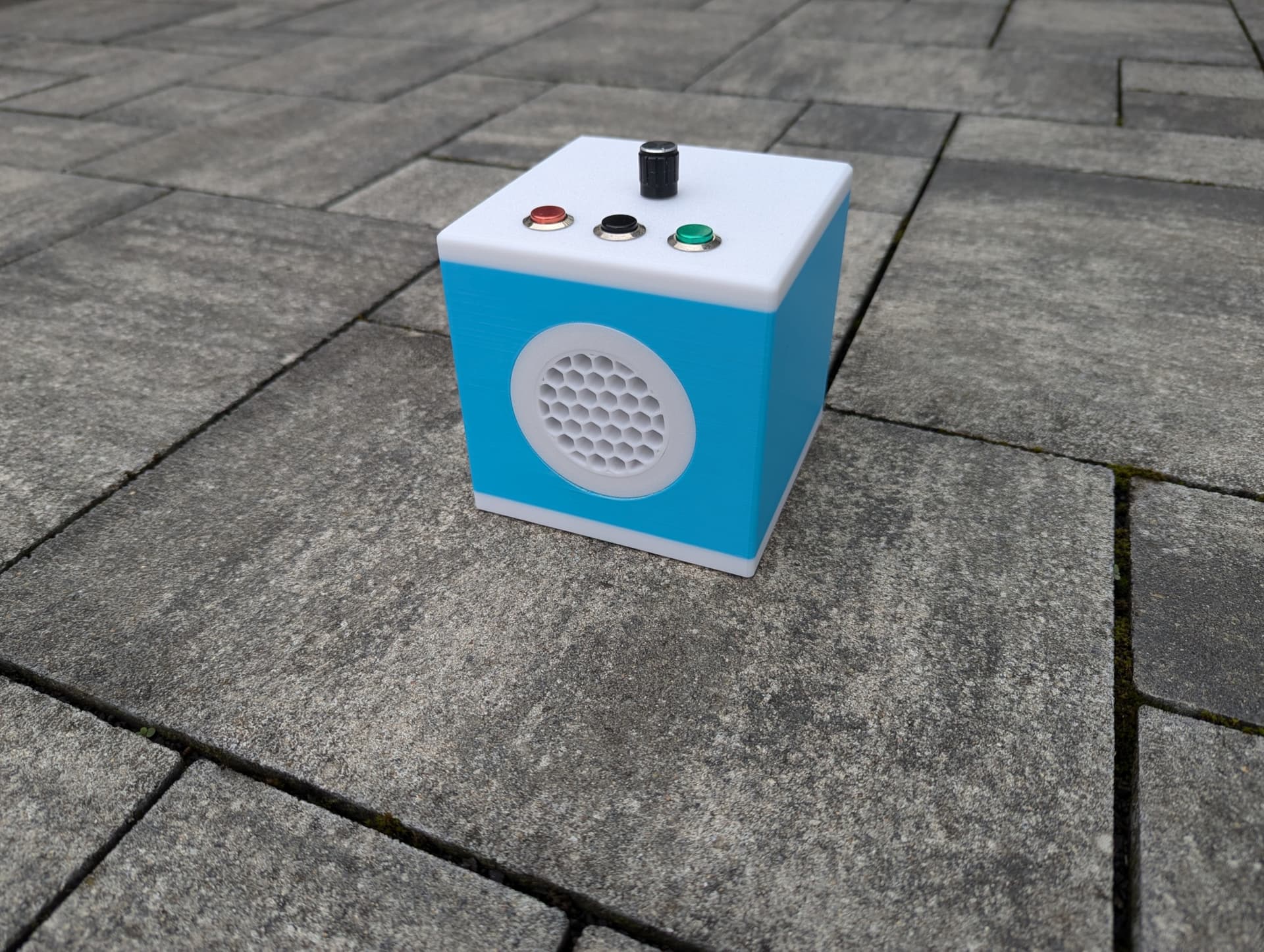
The concept of ESPuino is a more-or-less small enclosure that contains a speaker so it can play music and audiobooks. Here is an example of a 3D-printed unit, the Biobox 3d:
Primarily the device is controlled using RFID cards, similar to those used for access control (ski lifts, office access, etc.). To uniquely identify an RFID card, it carries a fixed ID. ESPuino reads that ID (a 12-digit number) with an RFID card reader and triggers an action based on it. Which action to take is taught beforehand via ESPuino’s web interface: you upload audio files to a microSD card, pick the desired audio file (or an entire folder) in the web interface’s file browser and link it to the RFID card you placed. You mostly just click through the interface while manual input is possible (but usually unnecessary). When the RFID card is presented again, ESPuino loads the mapping and starts the desired playback. Present a different RFID card and the playback associated with that card starts. In addition to audio files from the local microSD card, web streams can be played, too. In Bluetooth mode you can also stream to the ESPuino from your phone using A2DP, for example.
Further control elements on ESPuino are buttons and a rotary encoder. Buttons can be assigned dozens of different actions via the web interface — double assignments (short press vs. long press) are possible. If used, the rotary encoder is reserved exclusively for volume control but includes an integrated button, that's usually used to switch on ESPuino and start measurement of battery's voltage which is instantly indicated via neopixel. By default ESPuino is designed for three buttons and one rotary encoder, but this can be varied: from 0 to 5 buttons, and no rotaty encoder or one rotaty encoder. If no rotary encoder is present, volume control is handled, for example, via buttons.
A key feedback element is color-programmable LEDs (Neopixels), typically used as a Neopixel ring. They can show, for example, track progress (if half the LEDs are lit, the track is half done), volume, battery level, and error states — and much, much more! ESPuino also works without Neopixels, but that is not recommended because they convey a lot of information.
There is also a headphone jack that mutes the speaker when headphones are plugged in. Alternatively, a Bluetooth headphone can be used.
ESPuino also communicates with the outside world: besides the web interface, it supports MQTT, a REST API and an FTP server. New audio files can be copied to the microSD card via the web interface or FTP — so the microSD card does not need to be removed.
Hardware setup
You could start on a breadboard with jumper wires. However, the simplier way is to kickstart right away with a PCB that was especially developed for ESPuino. There are several available, but "ESPuino Complete" can be considered being the latest one. This pcb can obtained via the forum. It covers a charger for LiFePO4 or LiPo batteries (for sure also runs with USB-C only) and provides connectors for up to 5 buttons, rfid-reader, rotary encoder, i2c external, Neopixel, USB-C, µSD, speaker, headphones PCB and some custom stuff. Port-expander and MAX98357a are integrated, too. A buck boost converter provides stable 3.3 V while battery's voltage is supervised in order to prevent it from deep discharge. However, never use a lithium battery without a further protection circuit that's already part of the battery pack!
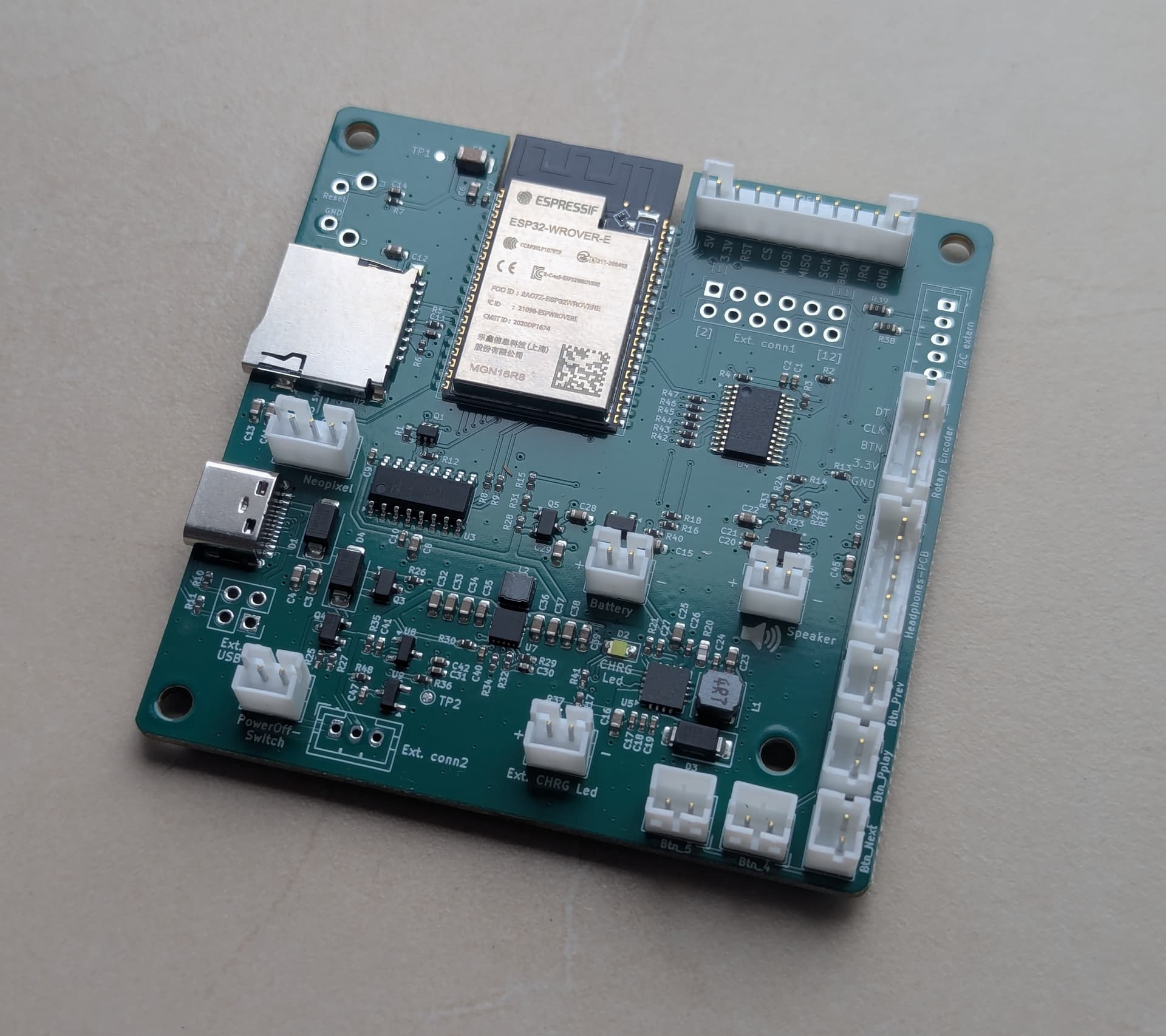
:warning: However, feel free to develop PCBs yourself. But again, be advised your ESP32 needs PSRAM in order to run ESPuino properly.
Optionally a headphone-pcb can be attached to Complete in order to connect headphones. While headphone's plugged in, speaker is automatically disabled.
Getting started
- Much more documentation in german language.
- There are already ready-to-use firmwares for download available that probably already fit your needs. Further informations can be found here.
- In case you want to compile your own firmware, first you need to install Microsoft's Visual Studio Code.
- Install PlatformIO Plugin into Visual Studio Code and make sure to have a look at the documentation. Step-by-step-manual is available here
- Install Git and make a copy ("clone") of my repository to your local
computer using
git clone https://github.com/biologist79/ESPuino.git. Using Git you can keep your local repository easily up to date without doing copy'n'paste. To keep it up to date rungit pull origin master. Further infos here and here. - (Optional) Install GitLens as plugin (to have advanced Git features in VSCode).
- Now, that the Git repository is saved locally, import this folder into Platformio as a project.
- Select the desired environment (e.g. complete).
- Edit
src/settings.haccording your needs. - Edit board-specific (
HAL) config-file (e.g.settings-complete.hfor Complete PCB) and switch to that HAL in VSC. If you're running a board that is not listed there: start withsettings-custom.hand change it according your needs. - Connect your PCB/develboard via USB, click the alien-head icon in the left sidebar, choose the project
task that matches your desired HAL and run
Upload and Monitor. All libraries necessary are fetched automatically and compilation of the code gets started. After that, your ESP32 is flashed with the firmware. - Now have a look at the serial output at the bottom of Visual Studio Code's window. At the first run there might appear a few error messages (related to missing entries in NVS). Don't worry, this is just normal. However, make sure the µSD card is detected as this is mandatory for ESPuino to boot!
- If everything is fine, at the first run, ESPuino should open an access-point and ESPuino offers a
captive portal that is shown on your computer. If that's not the case, join a WiFi called
"ESPuino" and enter
http://192.168.4.1to your webbrowser. Enter WiFi c
