
BBLocationManager
A Location Manager for easily implementing location services & geofencing in iOS. Ready for iOS 11.
Install / Use
/learn @benzamin/BBLocationManagerREADME

A Location Manager for easily implementing location services & geofencing in iOS, written in Objective-C. Ready for iOS 11.
Features
- Get current/continious/frequent location and get current geocode/address with simple API call.
- Add or remove Geofence at current/given location. Get callback via delegate when user enter/exit a geofence, supports foreground/background, even when app is not running.
- Read location permission status and if not provided ask for location permisssion automatically.
- High performance, easy to use, battery friendly, use via block or delegate. Stops automatically when location update is not required.
- Example App included for demonstrating all the features. Supports iOS 6.0 and later.
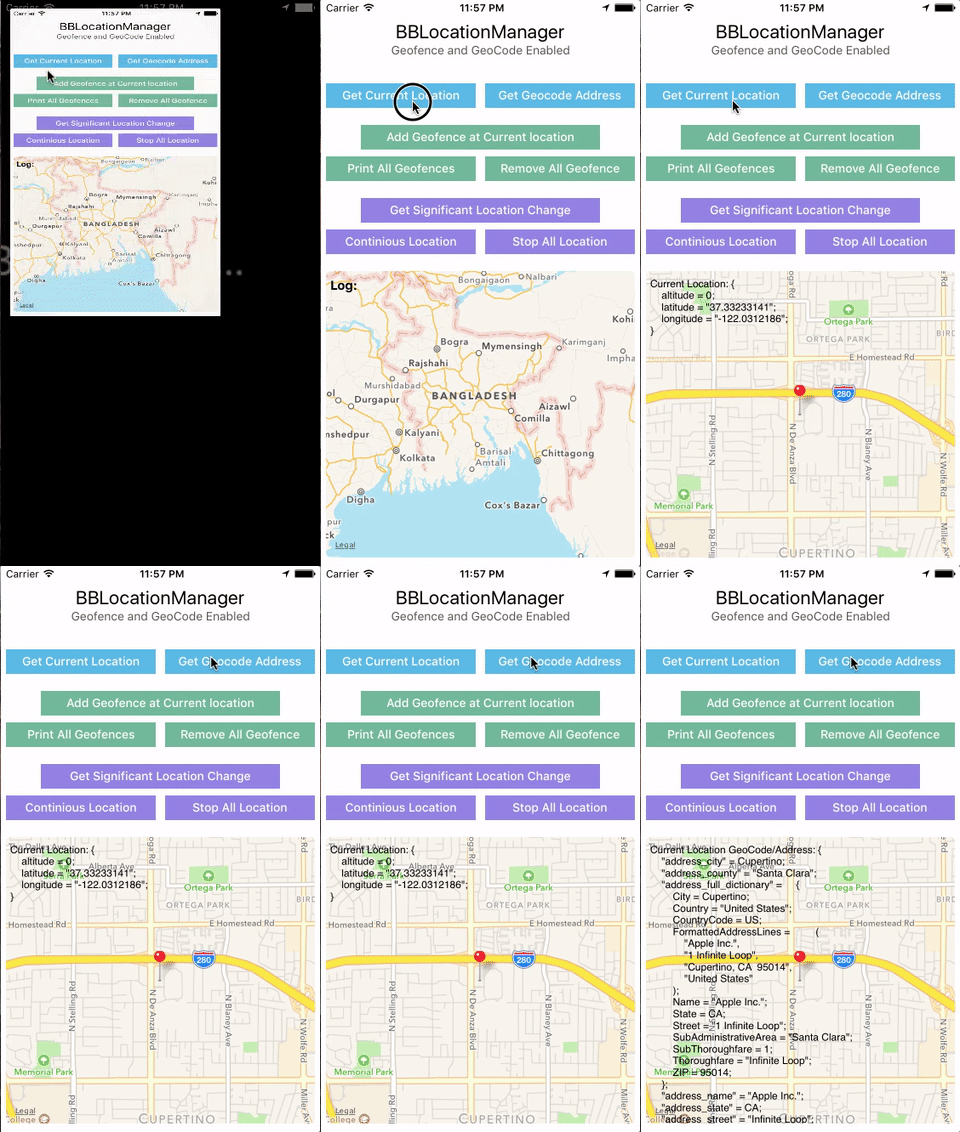
Getting Started
Location services is a powerful feature of iOS, but sometimes its not easy to understand all the API's and learn how to use them. With BBLocationManager, you can start using iOS Location Services API in no time. It provides good code documentation for better understanding of the methods and delegates. If you are making a location aware app or building a geofencing app like the Alarm app in iOS which reminds you to buy milk when you are near home, BBLocationManager can be your choice.
Installation
BBLocationManager can be installed through Cocoapods or manually. You can check out the example project by downloading the full source code
Supports iOS 6.0 and later.
Installing with CocoaPods
CocoaPods is very popular dependency manager for iOS projects. It automates and simplifies the process of using 3rd-party libraries like BBLocation in your projects. If you don't have cocoapods installed in your mac already, you can install it with the following command:
$ gem install cocoapods
Podfile
If you already have a Podfile, add the following line in your podfile:
pod 'BBLocationManager'
If you already dont have a podfile, To integrate BBLocationManager into your Xcode project using CocoaPods, create and add it in your Podfile:
source 'https://github.com/CocoaPods/Specs.git'
platform :ios, '7.0'

target 'YourTargetName' do
pod 'BBLocationManager'
end
Then, run the following command:
$ pod install
And the pod should be installed in your project. PLEASE NOTE: Close the yourProject.xcodeProj and open the yourProject.xcworkspace, as the pod has been initiated, from now one use the yourProject.xcworkspace to work with. Please refer to CocoaPods for detailed info.
Manual Installation
Just add the BBLocationManager.h and BBLocationManager.m files in your project From Here. Import the BBLocationManager.h file in your class where you need location support.
Permission
BBLocationManager automatically reads the current location permission status of the app and requests for permission if needed. But you need to provide some information in your info.plist file of your project depending on the minimum iOS version you are trageting. For iOS Version earlier then 8.0, a description of your purpose is recommended to provide by setting a string for the key NSLocationUsageDescription in your app's Info.plist file.
For iOS 11 and later
For iOS 11 provide a description for how your app uses location services by setting a string for the key NSLocationWhenInUseUsageDescription or NSLocationAlwaysAndWhenInUseUsageDescription in your app's Info.plist file. When you build your app using the iOS 11 SDK, you are now required to provide an NSLocationWhenInUseUsageDescription key in all cases (if you use location at all). For “Always” access, you can additionally provide a second key, which is now called NSLocationAlwaysAndWhenInUseUsageDescription. If you only provide NSLocationAlwaysAndWhenInUseUsageDescription but not NSLocationWhenInUseUsageDescription, asking for “Always” access will not work. The old iOS 8/9/10 key NSLocationAlwaysUsageDescription is now only needed for backwards compatibility, if you’re still making the app available to iOS 10 or earlier users. It’s not needed or used on iOS 11 devices.
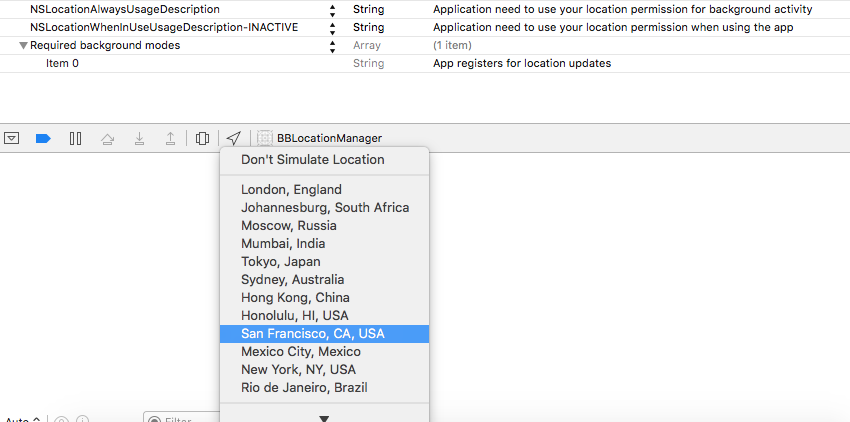
BBLocationManager automatically reads which level of permissions to request based on which description key you provide. You should only request the minimum permission level that your app requires, therefore it is recommended that you use the "When In Use" level unless you require more access. If you want to get loation update in background (even when app not running), you MUST provide a key called UIBackgroundModes and add a item called location inside it. Please see the attached image for these keys for iOS 11 with compatibility:

For iOS 8 and later
Starting with iOS 8, you MUST provide a description for how your app uses location services by setting a string for the key NSLocationWhenInUseUsageDescription or NSLocationAlwaysUsageDescription in your app's Info.plist file. BBLocationManager automatically reads which level of permissions to request based on which description key you provide. You should only request the minimum permission level that your app requires, therefore it is recommended that you use the "When In Use" level unless you require more access. If you provide values for both description keys, the more permissive "Always" level is requested.
Also, if you want to get loation update in background (even when app not running), you MUST provide a key called UIBackgroundModes and add a item called location inside it. Please see the attached image for these keys for iOS 8/9/10:
Usage
First import BBLocationManager.h header in your class. Calling [BBLocationManager sharedManager] creates an singleton class of BBLocationManager and manages everything from here. You can either use BBLocationManagerDelegate to get location/geofence related callbacks, or use Objective-C blocks to get location. For useing Geofence, the BBFenceInfo is a easy to use object, using which BBLocationManager delivers fence related data to your class. You can use lastKnownGeocodeAddress and lastKnownGeoLocation properties to get the last location/geocode the class got before.
- To know the current location permission status call
+ (BOOL)locationPermissionmethod. - To manually ask the user for location permission before accessing location, call
-(void)getPermissionForStartUpdatingLocationmethod.
Getting current location (Using Block)
Get BBLocationManager's shared instance, set the desiredAcuracy and distanceFilter parameter as you like, then request for current location using block or delegate.
BBLocationManager *manager = [BBLocationManager sharedManager];
manager.desiredAcuracy = 100; //how accurate you want your location, in meters
manager.distanceFilter = 500; //you'll be notified if user moves away 500 meters from his initial location
[manager getCurrentLocationWithCompletion:^(BOOL success, NSDictionary *latLongAltitudeDictionary, NSError *error) {
        //access the 'latLongAltitudeDictionary' dictionary using BB_LATITUDE, BB_LONGITUDE, BB_ALTITUDE key
        NSLog(@"Current Location latitude: %@", latLongAltitudeDictionary[BB_LATITUDE]);
}];
Getting current location (Using Delegate)
BBLocationManager *manager = [BBLocationManager sharedManager];
manager.desiredAcuracy = 100; //how accurate you want your location, in meters
manager.distanceFilter = 500; //you'll be notified if user moves away 500 meters from his initial location
[manager getCurrentLocationWithDelegate:self];
......
......
#pragma mark - BBLocationManagerDelegate methods
-(void)BBLocationManagerDidUpdateLocation:(NSDictionary *)latLongAltitudeDictionary
{
    //access the 'latLongAltitudeDictionary' dictionary using BB_LATITUDE, BB_LONGITUDE, BB_ALTITUDE key
    NSLog(@"Current Location Latitude: %@", latLongAltitudeDictionary[BB_LATITUDE]);
}
Getting current geocode/address (Using Block)
You can get user's current geocode AKA address from apple's geocode/maps server. You might need it for different purpose, and it might take a little time to get the location first and then determine the address.
BBLocationManager *manager = [BBLocationManager sharedManager];
    [manager getCurrentGeoCodeAddressWithCompletion:^(BOOL success, NSDictionary *addressDictionary, NSError *error) {
        //access the dict using BB_LATITUDE, BB_LONGITUDE, BB_ALTITUDE, BB
Related Skills
node-connect
337.7kDiagnose OpenClaw node connection and pairing failures for Android, iOS, and macOS companion apps
frontend-design
83.3kCreate distinctive, production-grade frontend interfaces with high design quality. Use this skill when the user asks to build web components, pages, or applications. Generates creative, polished code that avoids generic AI aesthetics.
openai-whisper-api
337.7kTranscribe audio via OpenAI Audio Transcriptions API (Whisper).
commit-push-pr
83.3kCommit, push, and open a PR
