
Moemail
A cute temporary email service built with NextJS + Cloudflare technology stack 🎉 | 一个基于 NextJS + Cloudflare 技术栈构建的可爱临时邮箱服务🎉
Install / Use
/learn @beilunyang/MoemailREADME
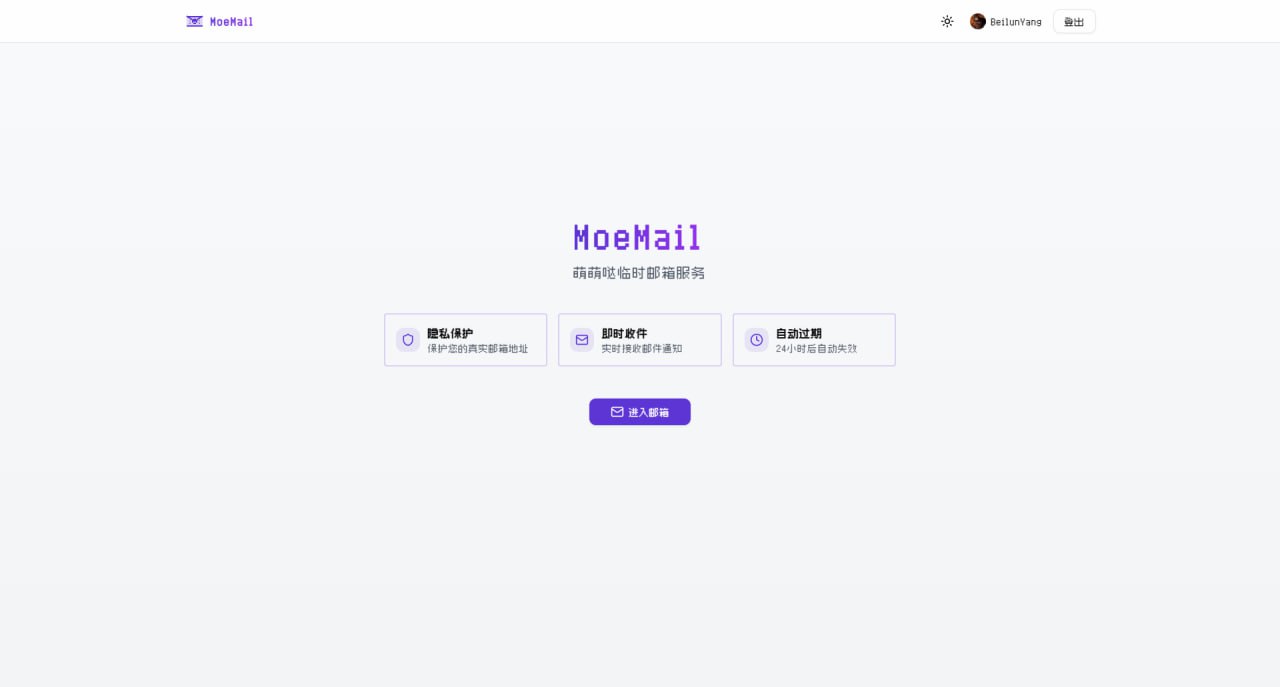
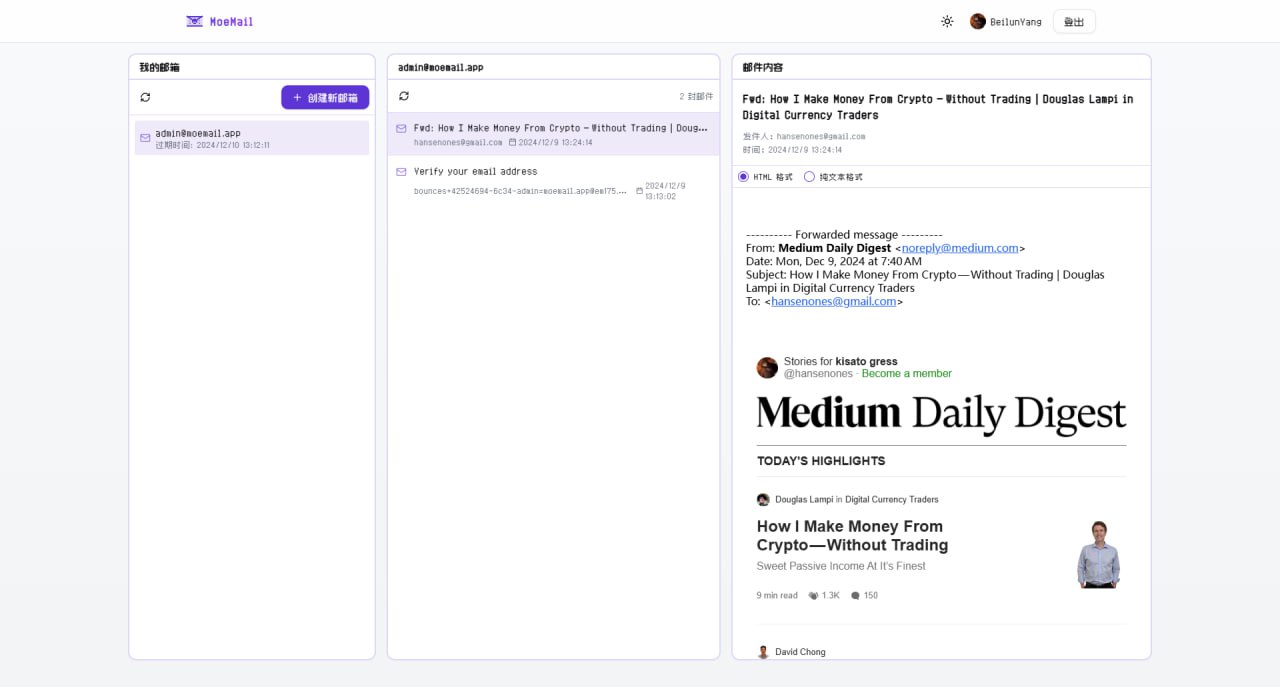
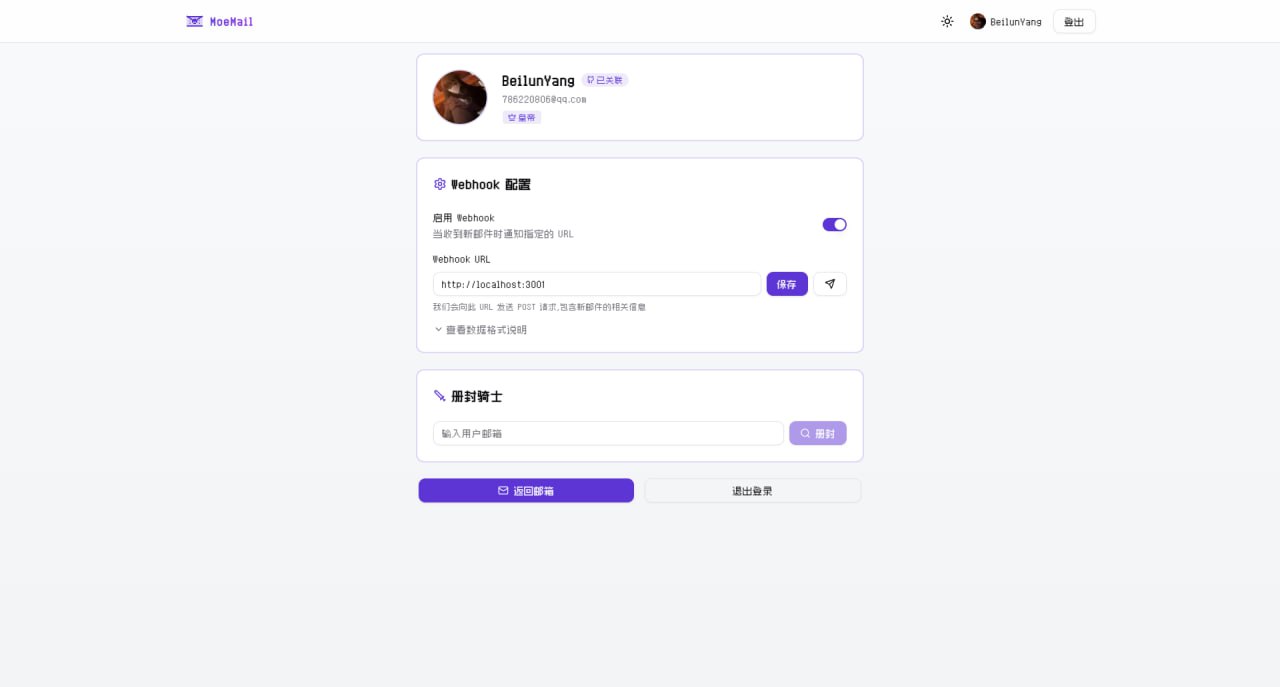
Live Demo
Documentation
Full Documentation: https://docs.moemail.app
The documentation site contains detailed usage guides, API documentation, deployment tutorials, and other complete information.
Features
- 🔒 Privacy Protection: Protect your real email address from spam and unnecessary subscriptions
- ⚡ Real-time Receipt: Automatic polling, receive email notifications instantly
- ⏱️ Flexible Validity: Supports 1 hour, 24 hours, 3 days, or permanent validity
- 🎨 Theme Switching: Supports light and dark modes
- 📱 Responsive Design: Perfectly adapted for desktop and mobile devices
- 🔄 Auto Cleanup: Automatically cleans up expired mailboxes and emails
- 📱 PWA Support: Support PWA installation
- 💸 Free Self-hosting: Built on Cloudflare, capable of free self-hosting without any cost
- 🎉 Cute UI: Simple and cute UI interface
- 📤 Sending Function: Support sending emails using temporary addresses, based on Resend service
- 🔔 Webhook Notification: Support receiving new email notifications via webhook
- 🛡️ Permission System: Role-based access control system
- 🔑 OpenAPI: Support accessing OpenAPI via API Key
- 🤖 Agent-first CLI: CLI tool designed for AI agents to automate email workflows
- 🌍 Multi-language Support: Supports Chinese and English interfaces, freely switchable
Tech Stack
- Framework: Next.js (App Router)
- Platform: Cloudflare Pages
- Database: Cloudflare D1 (SQLite)
- Authentication: NextAuth with GitHub/Google Login
- Styling: Tailwind CSS
- UI Components: Custom components based on Radix UI
- Email Handling: Cloudflare Email Workers
- Type Safety: TypeScript
- ORM: Drizzle ORM
- Internationalization: next-intl
Local Run
Prerequisites
- Node.js 18+
- Pnpm
- Wrangler CLI
- Cloudflare Account
Installation
- Clone the repository:
git clone https://github.com/beilunyang/moemail.git
cd moemail
- Install dependencies:
pnpm install
- Setup Wrangler:
cp wrangler.example.json wrangler.json
cp wrangler.email.example.json wrangler.email.json
cp wrangler.cleanup.example.json wrangler.cleanup.json
Set Cloudflare D1 database name and database ID.
- Setup Environment Variables:
cp .env.example .env.local
Set AUTH_GITHUB_ID, AUTH_GITHUB_SECRET, AUTH_SECRET.
- Create local database schema:
pnpm db:migrate-local
Development
- Start development server:
pnpm dev
- Test Email Worker: Currently cannot run and test locally, please use Wrangler to deploy the email worker and test.
pnpm deploy:email
- Test Cleanup Worker:
pnpm dev:cleanup
pnpm test:cleanup
- Generate Mock Data (Mailboxes and Messages):
pnpm generate-test-data
Deployment
Video Tutorial
https://www.youtube.com/watch?v=Vcw3nqsq2-E
Local Wrangler Deployment
- Create .env file
cp .env.example .env
-
Set Environment Variables in the .env file.
-
Run deployment script
pnpm dlx tsx ./scripts/deploy/index.ts
Github Actions Deployment
This project supports automated deployment using GitHub Actions. It supports the following triggers:
- Auto Trigger: Automatically triggers deployment flow when a new tag is pushed.
- Manual Trigger: Manually trigger in the GitHub Actions page.
Deployment Steps
-
Add the following Secrets in GitHub repository settings:
CLOUDFLARE_API_TOKEN: Cloudflare API TokenCLOUDFLARE_ACCOUNT_ID: Cloudflare Account IDAUTH_GITHUB_ID: GitHub OAuth App IDAUTH_GITHUB_SECRET: GitHub OAuth App SecretAUTH_SECRET: NextAuth Secret, used to encrypt session, please set a random stringCUSTOM_DOMAIN: Custom domain for the website (Optional, if empty, uses Cloudflare Pages default domain)PROJECT_NAME: Pages project name (Optional, if empty, defaults to moemail)DATABASE_NAME: D1 database name (Optional, if empty, defaults to moemail-db)KV_NAMESPACE_NAME: Cloudflare KV namespace name, used for site settings (Optional, if empty, defaults to moemail-kv)
-
Choose trigger method:
Method 1: Push Tag Trigger
# Create a new tag
git tag v1.0.0

# Push tag to remote repository
git push origin v1.0.0
Method 2: Manual Trigger
- Go to the Actions page of the repository
- Select "Deploy" workflow
- Click "Run workflow"
-
Deployment progress can be viewed in the Actions tab of the repository.
Notes
- Ensure all Secrets are set correctly.
- When using tag trigger, the tag must start with
v(e.g., v1.0.0).
Email Domain Configuration
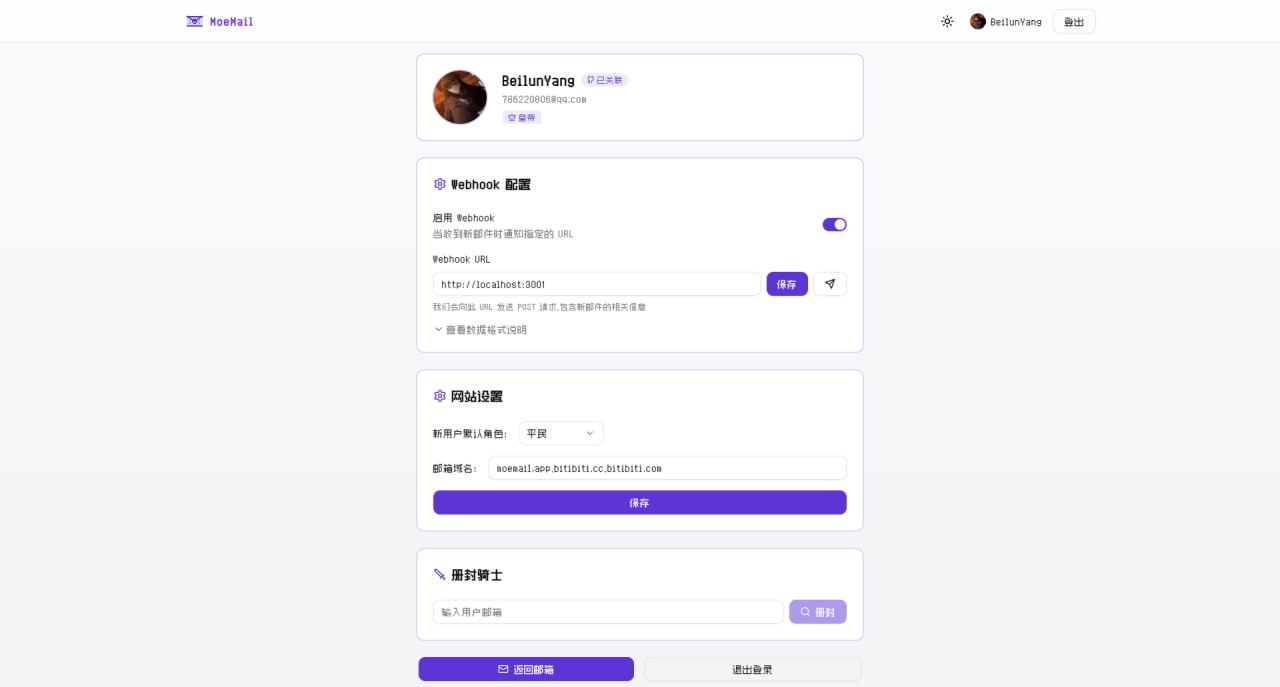
In the MoeMail User Profile page, you can configure the site's email domains. Supports multiple domain configurations, separated by commas.
Cloudflare Email Routing Configuration
To make email domains effective, you also need to configure email routing in the Cloudflare console to forward received emails to the Email Worker.
- Login to Cloudflare Console
- Select your domain
- Click "Email" -> "Email Routing" in the left menu
- If it shows "Email Routing is currently disabled", please click "Enable Email Routing"
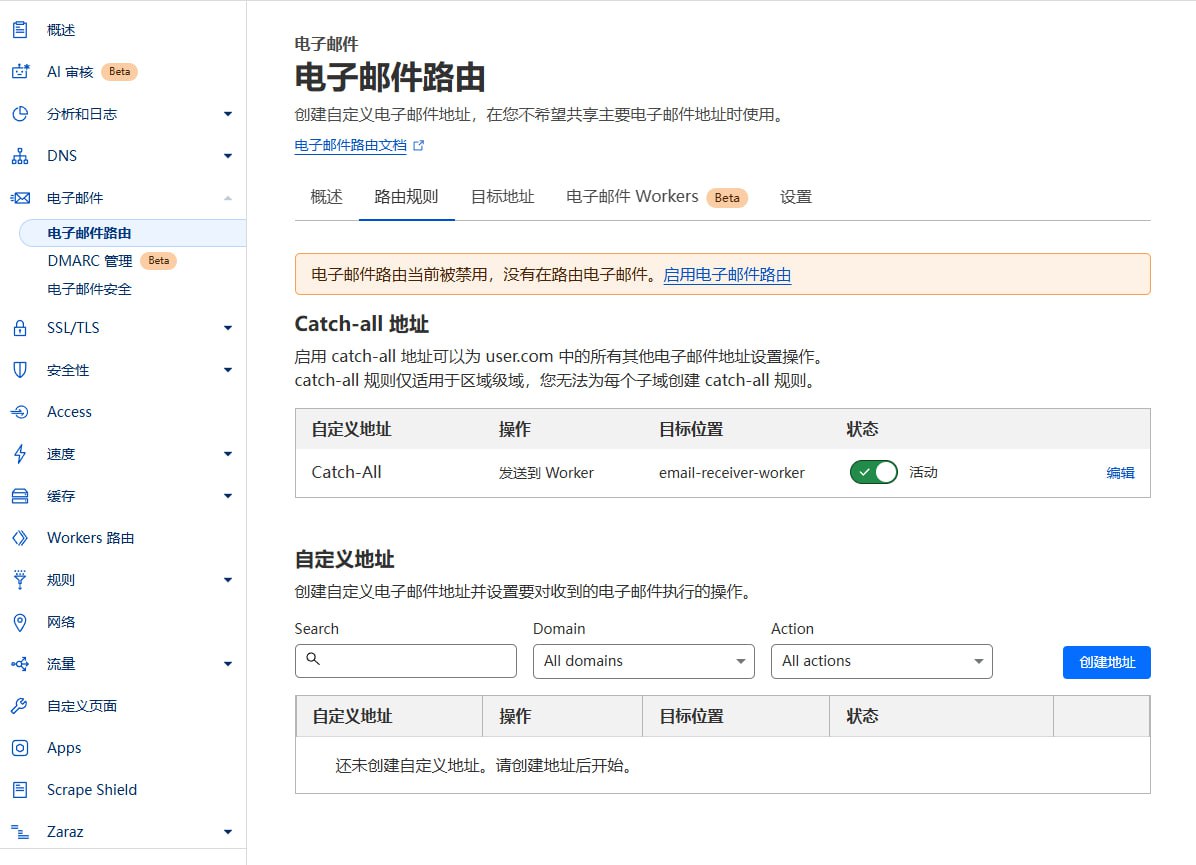
- After clicking, it will prompt you to add Email Routing DNS records, click "Add records and enable"
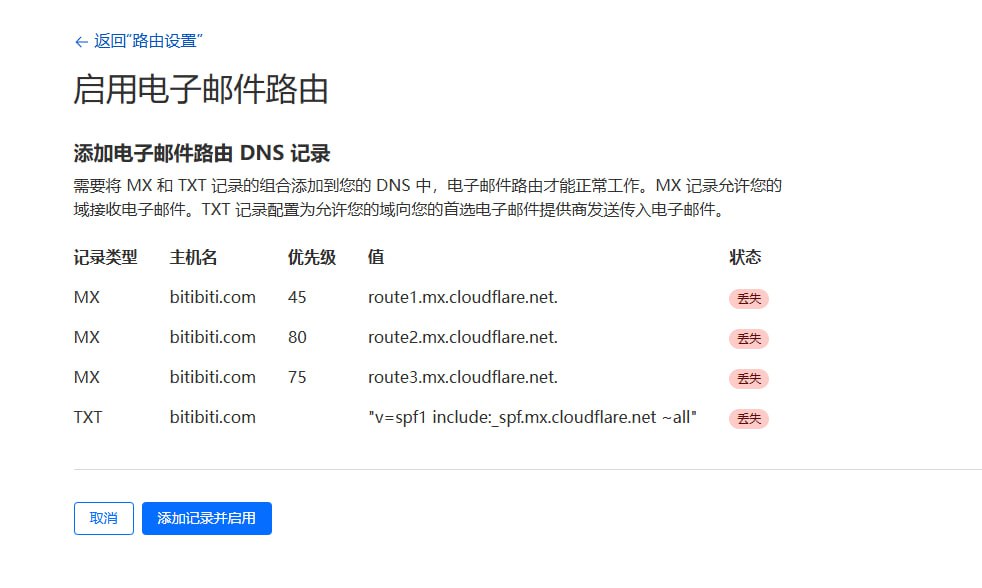
- Configure Routing Rules:
- Catch-all address: Enable "Catch-all"
- Edit Catch-all address
- Action: Select "Send to Worker"
- Destination: Select the "email-receiver-worker" you just deployed
- Save
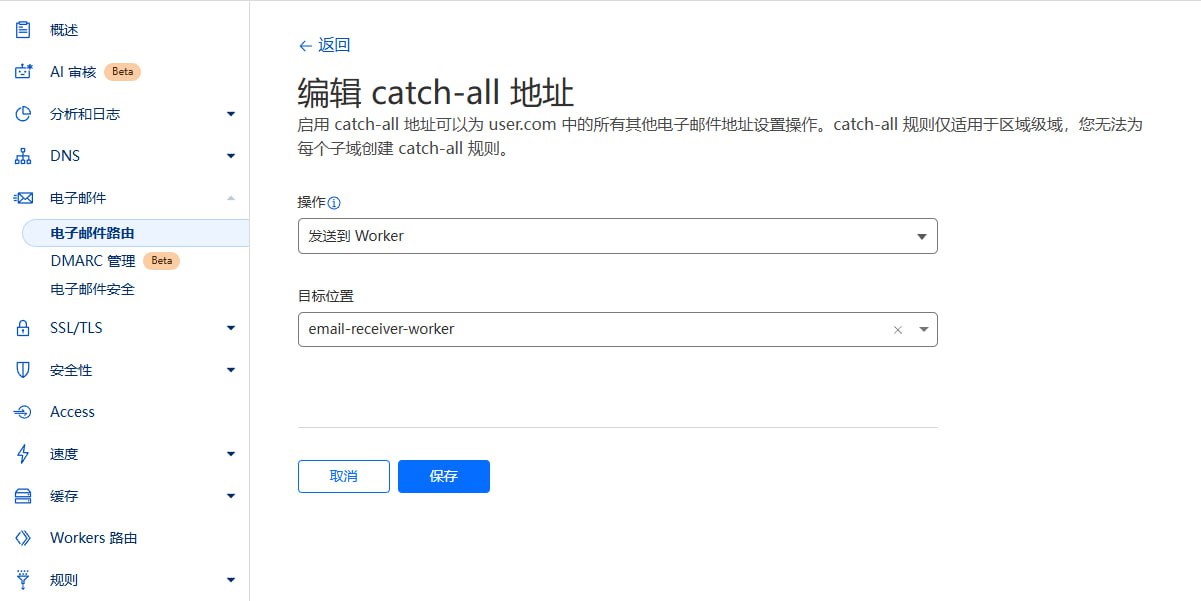
Notes
- Ensure domain DNS is hosted on Cloudflare.
- Email Worker must be successfully deployed.
- If Catch-All status is unavailable (stuck loading), please click
Destination addressesnext toRouting rules, and bind an email address there.
Permission System
The project uses a Role-Based Access Control (RBAC) system.
Role Configuration
New user default roles are configured by the Emperor in the site settings in the User Profile:
- Duke: New users get temporary email, Webhook config permissions, and API Key management permissions.
- Knight: New users get temporary email and Webhook config permissions.
- Civilian: New users have no permissions, need to wait for Emperor to promote to Knight or Duke.
Role Levels
The system includes four role levels:
-
Emperor
- Website Owner
- Has all permissions
- Only one Emperor per site
-
Duke
- Super User
- Can use temporary email features
- Can configure Webhook
- Can create API Key to call OpenAPI
- Can be demoted to Knight or Civilian by Emperor
-
Knight
- Advanced User
- Can use temporary email features
- Can configure Webhook
- Can be demoted to Civilian or promoted to Duke by Emperor
-
Civilian
- Regular User
- No permissions
- Can be promoted to Knight or Duke by Emperor
