
Mclocks
The desktop clock application for multiple time zones🕒🌍🕕
Install / Use
/learn @bayashi/MclocksQuality Score
Category
Development & EngineeringSupported Platforms
README
mclocks
<p align="center"><small> <a href="docs/i18n/README.ja.md">日本語</a> / <a href="docs/i18n/README.zh.md">中文</a> / <a href="docs/i18n/README.hi.md">हिन्दी</a> / <a href="docs/i18n/README.ar.md">العربية</a> / <a href="docs/i18n/README.es.md">Español</a> / <a href="docs/i18n/README.fr.md">Français</a> / <a href="docs/i18n/README.pt.md">Português</a> / <a href="docs/i18n/README.de.md">Deutsch</a> / <a href="docs/i18n/README.tr.md">Türkçe</a> / <a href="docs/i18n/README.id.md">Bahasa Indonesia</a> / <a href="docs/i18n/README.kr.md">한국어</a> </small></p><p align="center">The desktop clock application for multiple time zones🕒🌍🕕</p> <p align="center"> <img src="https://raw.githubusercontent.com/bayashi/mclocks/main/screenshot/mclocks-screenshot-0.1.8-custom.png" alt="screenshot" /> </p>
Clock-related features:
- 🕐 Text clock for multiple time zones
- ⏱️ Timer
- ⏳ Countdown timer
- 🔄 Epoch time and date-time convertor
Time waits for no one:
- 📝 Sticky note
A developer is never without a clock:
- 🔀 Simple text convertor
- such as easily creating SQL
INclauses - Excel/TSV table to Markdown table
- such as easily creating SQL
- 🌐 Web server
- serves static files
- richly render content
- drag-and-drop based content viewer
- dump request and response server
- slow endpoints for debugging
- open files in your editor from GitHub URLs
- serves static files
🔔 NOTE: mclocks doesn't need an internet connection — everything runs 100% locally.
📦 Download
From https://github.com/bayashi/mclocks/releases
Windows
For Windows, you can get the installer .msi file, or .exe the executable file.
macOS
For macOS, you can get .dmg file to install.
(The shortcut keys in this document are for Windows OS. If you are using macOS, please interpret them accordingly, replacing keys such as Ctrl with Command and Alt with Option where appropriate.)
⚙️ config.json
The config.json file allows you to configure the clocks according to your preferences.
The config.json file should be located in the following directories:
- Windows:
C:\Users\{USER}\AppData\Roaming\com.bayashi.mclocks\ - Mac:
/Users/{USER}/Library/Application Support/com.bayashi.mclocks/
When you start mclocks, then press Ctrl + o to edit your config.json file.
Example of config.json
The config.json file should be formatted as JSON, as shown below.
{
  "clocks": [
    { "name": "UTC", "timezone": "UTC" }
  ],
  "format": "MM-DD ddd HH:mm",
  "locale": "en",
  "color": "#fff",
  "font": "Courier, monospace",
  "size": 14,
  "margin": "1.65em",
  "forefront": false
}
You can include comments and trailing commas in config.json (JSONC-supported).
🔧 The fields of config.json
clocks
The clocks field is an array of objects, each containing name and timezone properties. Both should be String. By default, both are UTC.
nameis a label that will be displayed for the clock.- For selecting time zones, please refer to this list of time zones.
Here is an example of a clocks array for three time zones.
{
  "clocks": [
    { "name": "Tokyo", "timezone": "Asia/Tokyo" },
    { "name": "UTC", "timezone": "UTC" },
    { "name": "SF", "timezone": "America/Los_Angeles" }
  ],
  "format": "MM-DD ddd HH:mm",
  ...snip...
}
format
string: MM-DD ddd HH:mm
The format field is a date-time format string used to display the clock. To create a custom date-time format, please refer to this formatting guide.
format2
string: ""
The format2 field is same as format. These are switched each other by Ctrl + f key. The format2 is optional field.
locale
string: en
The locale field determines the language settings for displaying the date-time. You can find a list of supported locales here.
color
string: #fff
The color field defines the color of the date-time text. You can use named colors, RGB hex values, RGB values (e.g., RGB(255, 0, 0)), or any valid CSS color value.
font
string: Courier, monospace
The font is a font name to display date-time. It should be monospaced font. If you would set non-fixed-width font, then your mclocks may have an undesirable wobbling effect.
size
number | string: 14
The size is a size of charactor for date-time, in pixel. It can also be specified as a string that includes a unit (e.g., "125%", "1.5em").
margin
string: 1.65em
The margin field determines the space between clocks
forefront
bool: false
If the forefront field is set to true, the mclocks application will always be displayed on top of other application windows.
⏳ Countdown clock
By setting up the config as shown below for the clock, it will be displayed as a countdown clock to a given target date-time.
"clocks": [
	{
		"countdown": "WAC Tokyo D-%D %h:%m:%s",
		"target": "2025-09-13",
		"timezone": "Asia/Tokyo"
	}
],
Above countdown clock will be displayed like below:
WAC Tokyo D-159 12:34:56
Indicating 159 days, 12 hours, 34 minutes, and 56 seconds left until September 13, 2025.
Countdown format verbs
The countdown fieled text accepts below template verbs:
%TG: Target date-time string%D: Remaining day count to target date-time%H: Remaining time as hour to target date-time%h: An hour(hh) of remaining time (hh:mm:ss)%M: Remaining time as minute to target date-time%m: A minute(mm) of remaining time (hh:mm:ss)%S: Remaining time as second to target date-time%s: A second(ss) of remaining time (hh:mm:ss)
⏱️ Simple Timer

Click mclocks app window, then push Ctrl + 1 key, then start 1-minute timer. Push Ctrl + Alt + 1 key, start 10-minute timer. Other number keys work as well. Starting timers up to 5.
Ctrl + p to pause / re-start the timers.
Ctrl + 0 to delete the oldest timer. Ctrl + Alt + 0 to delete the newest timer.
🔔 NOTE: Countdown clock and simple timer will send notification by default when the timer is complete. If you don't need notifications, set withoutNotification: true in config.json.
🔢 Display Epoch time

Click mclocks app window, then push Ctrl + e key, then toggle to display Epoch time.
🔄 Convert between date-time and Epoch time
Click mclocks app window, then paste a date-time or Epoch time, then a dialog appears to display conversion results. And it's able to copy the results to the clipboard. If you don't want to copy, then press [No] to just close the dialog.
When pasting with Ctrl + v, the value (Epoch time) is treated as seconds. If you use Ctrl + Alt + v, it's treated as milliseconds, and with Ctrl + Alt + Shift + V, it's treated as microseconds, and with Ctrl + Alt + Shift + N + V, it's treated as nanoseconds and converted accordingly.
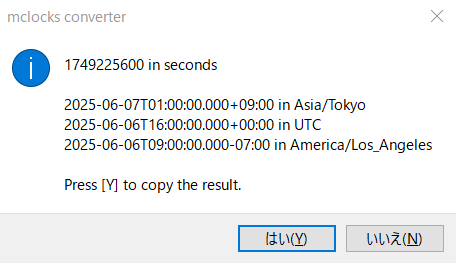
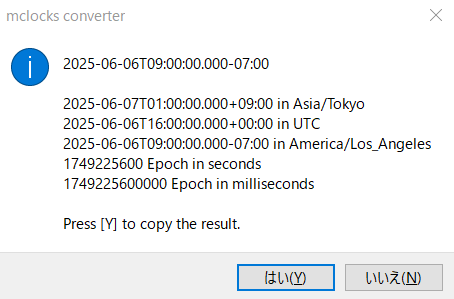
When pasted date-time values do not include timezone information, they are treated as local timezone by default. To handle them as a specific timezone, set the timezone in the convtz option.
"convtz": "UTC"
🔀 Convert Text Feature
Click mclocks app window, then use the following keyboard shortcuts to process clipboard text and open it in an editor:
Ctrl + i: Quotes each line of clipboard text with double quotes and appends a comma to the end (except the last line)Ctrl + Shift + i: Appends a comma to the end of each line (no quotes) for INT list IN condition (except the last line)Ctrl + t: Converts clipboard Excel/TSV text into a Markdown table and opens it in editorCtrl + Shift + t: Opens a Markdown table template in editor
Empty lines are preserved as-is in all operations.
(This Convert Text Feature has nothing to do with clocks or time, but software developers might find it handy! 😊)
⌨️ Keyboard Shortcuts
Show Help
F1 (Windows) or Cmd + Shift + / (macOS) to open help page (this README) in browser
Configuration, Display Formats
| Shortcut | Description |
|----------|-------------|
| Ctrl + o | Open config.json file in editor |
| Ctrl + f | Switch between format and format2 (if format2 is defined in config.json) |
| Ctrl + e or Ctrl + u | Toggle to display Epoch time |
Timer
| Shortcut | Description |
|----------|-------------|
| Ctrl + 1 to Ctrl + 9 | Start timer (1 minute × number key) |
| Ctrl + Alt + 1 to Ctrl + Alt + 9 | Start timer (10 minutes × number key) |
| Ctrl + p | Pause / resume all timers |
| Ctrl + 0 | Delete the oldest timer |
| Ctrl + Alt + 0 | Delete the newest timer |
Sticky Note
| Shortcut | Description |
|----------|-------------|
| Ctrl + s | Create a new sticky note from clipboard text |
Clipboard datetime Operations
| Shortcut | Description |
|----------|-------------|
| Ctrl + c | Copy current mclocks text to clipboard |
| Ctrl + v | Convert clipboard content (Epoch time as seconds, or date-time) |
| Ctrl + Alt + v | Convert clipboard content (Epoch time as milliseconds) |
| Ctrl + Alt + Shift + V | Convert clipboard content (Epoch time as microseconds) |
| Ctrl + Alt + Shift + N + V | Convert clipboard content (Epoch time as nanoseconds) |
Text Conversion
| Shortcut
Related Skills
node-connect
347.2kDiagnose OpenClaw node connection and pairing failures for Android, iOS, and macOS companion apps
frontend-design
108.0kCreate distinctive, production-grade frontend interfaces with high design quality. Use this skill when the user asks to build web components, pages, or applications. Generates creative, polished code that avoids generic AI aesthetics.
Hook Development
108.0kThis skill should be used when the user asks to "create a hook", "add a PreToolUse/PostToolUse/Stop hook", "validate tool use", "implement prompt-based hooks", "use ${CLAUDE_PLUGIN_ROOT}", "set up event-driven automation", "block dangerous commands", or mentions hook events (PreToolUse, PostToolUse, Stop, SubagentStop, SessionStart, SessionEnd, UserPromptSubmit, PreCompact, Notification). Provides comprehensive guidance for creating and implementing Claude Code plugin hooks with focus on advanced prompt-based hooks API.
MCP Integration
108.0kThis skill should be used when the user asks to "add MCP server", "integrate MCP", "configure MCP in plugin", "use .mcp.json", "set up Model Context Protocol", "connect external service", mentions "${CLAUDE_PLUGIN_ROOT} with MCP", or discusses MCP server types (SSE, stdio, HTTP, WebSocket). Provides comprehensive guidance for integrating Model Context Protocol servers into Claude Code plugins for external tool and service integration.
