
BRU
Bloatware Removal Utility, for automating removal of pre-installed, factory bloatware from devices running Windows 7-11 and newer. Silently removes items selected if possible. Preselects common bloatware. Can remove Win10/11+ UWP/Metro/Modern/Windows Store apps and provisioned apps.
Install / Use
/learn @arcadesdude/BRUREADME
Bloatware Removal Utility (BRU) 
Bloatware Removal Utility, for automating removal of pre-installed, factory bloatware from devices running Windows 7-10 and newer. Silently removes items selected if possible. Preselects common bloatware. Can remove Win10 UWP/Metro/Modern/Windows Store apps and provisioned apps.
Bloatware Removal Utility Removes common bloatware from HP, Dell, Lenovo, Sony, Etc Supports Powershell 2+, Windows 7/Server 2008 R2 (Winver 6.1+) and newer - including removing Win8/10+ UWP (metro/modern) Apps. Reboot before running this script and after running it (if anything is removed)
Intended use
MSPs (Managed Service Providers), IT Professionals, Computer Repair shops and those who need to uninstall bloatware on a machine may find this useful. Careful! It will pre-select Microsoft Office and other applications you may want to keep. Review the list prior to clicking on 'Remove Selected' as it will be uninstalled and not recoverable. Use at your own risk!
Imaging would be a good way to set up multiple computers of the same model as there are sometimes issues with restoring images to dissimilar hardware. Also if you happen to have many different models of machines or would like to quickly and quietly remove the default bloatware that comes with many HP, Dell, and a few others this script supports this can automate that process to save you time and free you up for other more pressing concerns. This script will bring up the uninstallers and remove items silently in most cases. I've used it mostly for HP ProBook/EliteBook/ProDesk and varients and also Dell Insprion/Lattitude/OptiPlex/Precision. HP is by far the worst when it comes to preinstalled bloatware.
History/Inspiration
I've credited many of the original ideas and parts that helped make up this script inside it with comments on the relevant sections. There were some 'HP bloatware' removal scripts out there but they didn't get everything and weren't totally automated. I've tried to make this as automated as possible but still feel those scripts were valuable in getting the right approach to solve this problem and contributed to my work so they are appropriately attributted as well.
Creating the Uninstall Helpers folder
Supporting files that are needed should be saved to the "BRU-uninstall-helpers" folder (named exactly that without the quotes).
You'll need to create that folder and get the appropriate uninstall helper files to support removal of programs like: McAfee products HP JumpStart Apps HP Client Security Manager Office Click-2-Run apps (Preinstalled O365 which prevents Business licensed versions from installing)
The folder 'BRU-Uninstall-Helpers' should be in the same location as the PS1/BAT files:

The contents of the 'BRU-Uninstall-Helpers' folder.

Obtaining Specific Bloatware Uninstall Helpers
streams.exe (for unblocking files and preventing script from getting closed without warning by Windows SmartScreen) Streams v1.6 By Mark Russinovich may be downloaded from: https://docs.microsoft.com/en-us/sysinternals/downloads/streams Place the streams.exe in the BRU-uninstall-helpers folder (streams64.exe is not needed). When the .Bat file is run as administrator it will check for streams.exe and run the commands to remove the Zone.Identifier info that it was downloaded from the internet. If it isn't removed, Windows Smartscreen may suddenly close the Powershell script before it is able to run.
devcon HP Client Security Manager Uses DevCon to disable/reenable DVD/CD drive during uninstallation to prevent an HP uninstaller bug. https://networchestration.wordpress.com/2016/07/11/how-to-obtain-device-console-utility-devcon-exe-without-downloading-and-installing-the-entire-windows-driver-kit-100-working-method/
WASP HP JumpStart Apps or 'VIP Access' (Comes with old Norton) Uses the WASP uninstall helper https://wasp.codeplex.com/ It is a dll file called WASP.dll.
To get the WASP.dll file Download from https://web.archive.org/web/20210701003323/https://codeplexarchive.blob.core.windows.net/archive/projects/WASP/WASP.zip
In the zip file, Go to the releases\4\55453160-4bf6-41a4-be7f-7cacc781b9b6 file and rename it .zip
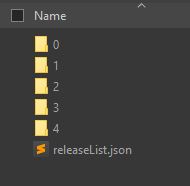

The file you need is inside that as WASP.dll, (ver 1.2.0.0, 42kb).

The snap-ins aren't needed just the dll file.
OffScrub23.vbs Microsoft Office/C2R Office365 Preinstalled Apps Uses updated OffScrubc23.vbs for 2013/2016/2017/2018 https://github.com/OfficeDev/Office-IT-Pro-Deployment-Scripts/blob/master/Office-ProPlus-Deployment/Deploy-OfficeClickToRun/OffScrubc2r.vbs
MCRP.exe McAfee (Consumer) Applications Uses MCRP.exe https://download.mcafee.com/molbin/iss-loc/SupportTools/MCPR/MCPR.exe Note: MCRP 10.4+ needs a key to run silently. To get the key for that version you can run MCPR in GUI mode at least once and use ProcMan to see the command line arguments to copy the key needed to run it. Then you can edit Bloatware-Removal-Utility.ps1 (search for "$mcprKeys =") to put in the version of the new MCPR and the key so BRU can use it silently again. If you find new keys for new versions you can submit a pull request to have it added to the original repo (arcadesdude/BRU).
Usage
For silent / command line usage see the next section. Below is for GUI usage (default).
Right Click and run as administrator on the BAT file (not the PS1) file.

The program will get all installed software and show you a list you can pick from what you want to be removed (silently if possible). It may take 30 seconds to 3-4 minutes to show depending on the speed of the device it is running on and the total number of installed programs.

Carefully review the selected items. Remember this is intended for factory fresh systems to remove bloatware and prepare them for your specific setup -- intended for preparers of computers and IT professionals. Don't simply click remove selected without reviewing the program list.
Disclaimers aside, The pre-selected items are built from fuzzy, regex patterns which you can modify in the script. It matches bloatware against lists of items, and doesn't match other items (like drivers and such). Special cases are handled after the general list and done in a specific order (as some programs require others to be removed first (HP Client Security Manager is one such program that needs several programs removed prior to its removal, for example)).
Check the Options if you want to change automatic reboot after uninstall of all programs, confirmation prompts and System restore point options. There are some specific Windows 10 options as well.
The setting recommended UWP apps auto download off option is supposed to stop UWP and windows store 'recommended' applications from being automatically pushed and installed. In newer windows versions 1703 and on, it may not actually work (or on non-educational/enterprise versions of Windows 10). Note that whenever a windows update is installed, Windows tends to reinstall these UWP/suggested/recommended applications which end up being games or promotional content.
The other Windows 10 specific option 'set default start menu layout for new users' will not affect any existing accounts or current users. If a new user profile is created it will though. What this does is once the bloatware UWP apps are removed, they're also unpinned from the start menu so the new user won't see the uninstalled UWP bloatware applicaitons. This doesn't always seems to work and may give an error about the tiledatabase unless windows is updated first. So for setting up the computer, create your setup admin account first, update windows completely, then run this script to remove the bloatware and set the default start menu layout, then create the new user account which should start off without the default tiles pinned to the start menu.

Silent / Command line usage
To run from command line launch either an admin command prompt and type powershell or launch an administrator powershell.
You may have to set your execution policy to allow scripts to run. If you have Windows SmartScreen on you may have to right click the ps1 file and click Properties then Unblock file and OK. Or use the PS3+ command Unblock-file.
Set-ExecutionPolicy -ExecutionPolicy RemoteSigned
The following command line options are supported.
-silent (or -quiet or -s)
Silent mode. Without this switch the GUI will run and manual user input will be required.
-nd (or -id or -ignoredefault or -ignoredefaults or -ignoredefaultsuggestions or -nodefaultsuggestions)
This will not reference the built in suggestions lists so you'll need to use this with -include, -exclude and/or -includelast (-specialcases)
-reboot -rebootafterremoval
Reboots after running silently. You can check the log (see next section) for details after script runs.
-include -includefirst
This will allow you to choose what you want to include. This comes after the default list if that is used or, if you want to not use the built in suggestions be sure to use the -nd switch (or other above aliases) to prevent the default detection list of including what you don't want. You would include using Regular Expressions (escaped and case-INsensitive). The list to includ
Related Skills
node-connect
342.5kDiagnose OpenClaw node connection and pairing failures for Android, iOS, and macOS companion apps
frontend-design
85.3kCreate distinctive, production-grade frontend interfaces with high design quality. Use this skill when the user asks to build web components, pages, or applications. Generates creative, polished code that avoids generic AI aesthetics.
openai-whisper-api
342.5kTranscribe audio via OpenAI Audio Transcriptions API (Whisper).
qqbot-media
342.5kQQBot 富媒体收发能力。使用 <qqmedia> 标签,系统根据文件扩展名自动识别类型(图片/语音/视频/文件)。
