
AMPopTip
An animated popover that pops out a given frame, great for subtle UI tips and onboarding.
Install / Use
/learn @andreamazz/AMPopTipREADME

Animated popover that pops out of a frame. You can specify the direction of the popover and the arrow that points to its origin. Color, border radius and font can be easily customized. This popover can be used to leave subtle hints about your UI and provide fun looking onboarding popups.
<p align="center"> <a href='https://appetize.io/app/g7x2pwb9jtxdpz9yjb2p5wzk6g' alt='Live demo'> <img width="150" height="75" src="assets/demo-button.png"/> </a> </p>Screenshot
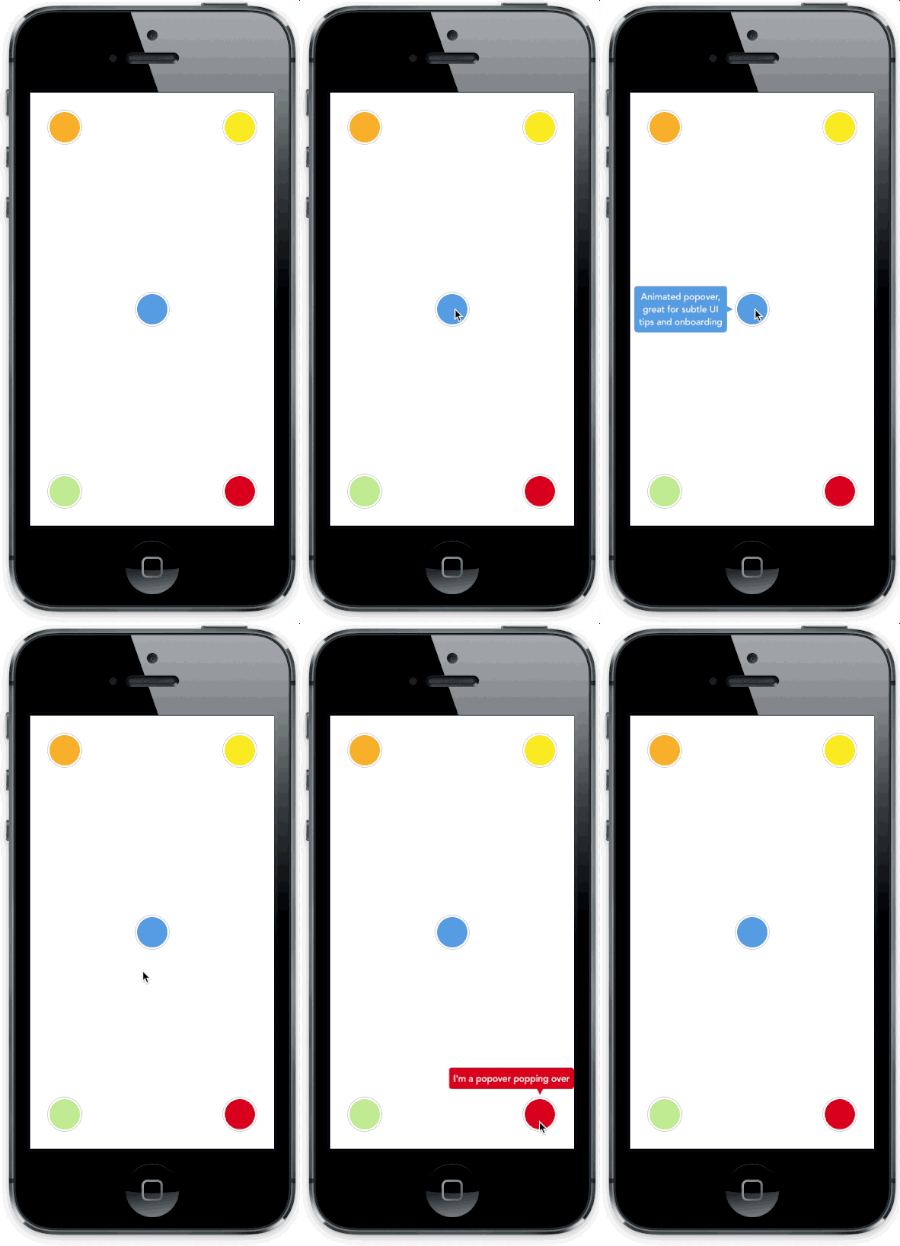
Versioning notes
With version 2.0.0 the library was re-written in Swift, and the API was slightly updated. Checkout version 1.5.x for the previous Objective-C implementation.
Version 3.0.0 introduces Swift 4 support, 3.5.0 Swift 4.2.
Setup with CocoaPods
- Add
pod 'AMPopTip'to yourPodfile - Run
pod install - Run
open App.xcworkspace
Setup with Carthage
- Add
github "andreamazz/AMPopTip" - Run
carthage update - Add
AMPopTip.frameworkin your project
You can then import the framework in your project
import AMPopTip
Usage
The API is fairly straight forward, you can show and hide the popover at any time.
Showing the popover
You must specify the text that you want to display alongside the popover direction, its max width, the view that will contain it and the frame of the view that the popover's arrow will point to.
let popTip = PopTip()
popTip.show(text: "Hey! Listen!", direction: .up, maxWidth: 200, in: view, from: someView.frame)
You can also display the popover in the center, with no arrow, in this case the from can be the whole view:
popTip.show(text: "Hey! Listen!", direction: .none, maxWidth: 200, in: view, from: view.frame)
Coordinate system
Please note that the frame you are intended to provide needs to refer to the absolute coordinate system of the view you are presenting the popover in. This means that if you are presenting the popover in a view, pointing to a nested subview, you'll need to convert its frame using UIKit's convertRect(_:toView:). Read the reference here.
Direction
You can specify the direction that the tip will occupy, or you can let the library decide by using auto (all axis), autoHorizontal (only left or right) or autoVertical (only up or down). Once the popup is visible, the direction property will hold the direction that was decided.
Showing a custom view
You can provide a custom view that will be wrapped in the PopTip and presented.
let customView = UIView(frame: CGRect(x: 0, y: 0, width: 100, height: 100))
// Configure your view
popTip.show(customView: customView, direction: .down, in: view, from: someView.frame)
Showing a custom SwiftUI view
You can provide a custom SwiftUI view that will be embed in a UIHostingController, added to a parent controller and then wrapped in the PopTip and presented.
let customSwiftUIView = MySwiftUIView()
// Configure your view
popTip.show(rootView: customSwiftUIView, direction: .down, in: view, from: someView.frame, parent: someParentViewController)
Dismissing the popover
You can hide the popover by calling:
popTip.hide()
Or you can specify the duration of the popover:
popTip.show(text: "Hey! Listen!", direction: .up, maxWidth: 200, in: view, from: someView.frame, duration: 3)
You can also let the user dismiss the popover by tapping on it (default true):
popTip.shouldDismissOnTap = true
You can also let the user tap outside the popover dismiss the PopTip (default true):
popTip.shouldDismissOnTapOutside = true
You can also consider the origin frame as part of the popTip, i.e. treat the origin frame the same as tapping the popover (default false):
popTip.shouldConsiderOriginatingFrameAsPopTip = true
You can also consider the cutout as a separate tap area that will call a different callback (default false):
popTip.shouldConsiderCutoutTapSeparately = true
You can also allow the user to dismiss via swiping outside the PopTip (default false) (direction is controlled via popTip.swipeRemoveGestureDirection with UISwipeGestureRecognizer.Direction):
popTip.shouldDismissOnSwipeOutside = false
You can add a block that will be fired when the user taps the PopTip...
popTip.tapHandler = { popTip in
  print("\(popTip) tapped")
}
... when the cutout is tapped...
popTip.tapCutoutHandler = { popTip in
  print("\(popTip) cutout tapped")
}
... when the popover is shown...
popTip.appearHandler = { popTip in
  print("\(popTip) appeared")
};
... or when the popover is dismissed:
popTip.dismissHandler = { popTip in
  print("\(popTip) dismissed")
}

popTip.tapOutsideHandler = { _ in
  print("tap outside")
}

popTip.swipeOutsideHandler = { _ in
  print("swipe outside")
}
Forwarding tap gesture on dismiss
By default the "tap to dismiss" gesture recognizer cancels the taps in the view, you can enable this behaviour manually if needed:
popTip.tapToRemoveGestureRecognizer?.cancelsTouchesInView = false
Updating the PopTip
You can update the text, attributed text, or custom view to a PopTip already visible:
popTip.update(text: "New string")
popTip.update(attributedText: someAttributedString)
popTip.update(customView: someView)
The position can also be changed by updating the from property:
let here = CGRect(x: 100, 100, 10, 10)
let there = CGRect(x: 400, 400, 10, 10)

popTip.show(text: "Hey! Listen!", direction: .up, maxWidth: 200, in: view, from: here)
DispatchQueue.main.asyncAfter(deadline: .now() + 2) {
  popTip.from = there
}
Custom entrance animation
You can choose which animation should be performed when the popTip is displayed:
popTip.entranceAnimation = .scale;
Available animations:
PopTipEntranceAnimation.scale,
PopTipEntranceAnimation.transition,
PopTipEntranceAnimation.none,
PopTipEntranceAnimation.custom
PopTipEntranceAnimation.custom
You can provide your own animation block when using PopTipEntranceAnimation.custom:
popTip.entranceAnimationHandler = { [weak self] completion in
  guard let `self` = self else { return }
  self.popTip.transform = CGAffineTransform(rotationAngle: 0.3)
  UIView.animate(withDuration: 0.5, animations: {
    self.popTip.transform = .identity
  }, completion: { (_) in
    completion()
  })
}
This sample makes the PopTip rotate on entrance. Make sure to call the completion block when the animation is done. Also note that the animation is fired as soon as the PopTip is added as subview.
Action animations
Action animations are subtle animations that can be performed to get the user's attention. Set your preferred animation:
popTip.actionAnimation = .bounce()
Available animations:
PopTipActionAnimation.bounce,
PopTipActionAnimation.float,
PopTipActionAnimation.pulse,
PopTipActionAnimation.none
The animation is fired as soon as the popover enters the scene and completes its entrance animation, if startActionAnimationOnShow is set to true.
Customize the animations
You can pass a custom value as an associated value to customize the action animation:
popTip.actionAnimation = .bounce(16) // This will bounce for 16px instead of the default value

Customizing the arrow position
The arrow is centered by default, and moves to avoid the edge of the screen. You can manually change the offset from the center using the bubbleOffset property.
A note about subviews
The popover is presented inside the view provided in the in parameter. If this view is smaller than the resulting popover, to prevent clipping set clipsToBounds = false on the presenting view, and set constrainInContainerView = false to the pop tip instance. See #175 for more context.
Customization
Use the appearance proxy to customize the popover before creating the instance, or just use its public properties:
textColor = <#UIColor#>;
textAlignment = <#NSTextAlignment#>
bubbleColor = <#UIColor#>
bubbleLayerGenerator = <#(PopTip)->Void#>
borderColor = <#UIColor#>
borderWidth = <#CGFloat#>
cornerRadius = <#CGFloat#> // Popover's border radius
isRounded = <#Bool#> // If set to YES the radius will equal frame.height / 2
offset = <#CGFloat#> // Offset between the popover and the origin
font = <#UIFont#>
padding = <#CGFloat#>
edgeInsets = <#UIEdgeInsets#>
arrowSize = <#CGSize#>
animationIn = <#TimeInterval#>
animationOut = <#TimeInterval#>
delayIn = <#TimeInterval#>
delayOut = <#TimeInterval#>
entranceAnimation = <#PopTipEntranceAnimation#>
exitAnimation = <#PopTipExitAnimation#>
actionAnimation = <#PopTipActionAnimation#>
actionAnimationIn = <#TimeInterval#>
actionAnimationOut = <#TimeInterval#>
actionDelayIn = <#TimeInterval#>
actionDelayOut = <#TimeInterval#>
edgeMargin = <#CGFloat#>
bubbleOffset = <#CGFloat#> // Offset between the bubble and the origin
arrowOffset = <#CGFloat#> // Offset between the bubble center and the arrow
arrowRadius = <#CGFloat#>
shadowOpacity = <#Float#>
shadowRadius = <#Float#>
shadowOffset = <#CGSize#>
shadowColor = <#UIColor#>
maskColor = <#UIColor#>
shouldShowMask = <#Bool#>
shouldCutoutMask = <#Bool#>
cutoutPathGenerator = <#(CGRect)->UIBezierPath#>
constrainInContainerView = <#Bool#>
Background mask
A background mask can be applied to dim the background when the PopTip is active, this can be enabeld by setting the public property to true:
