
AllTrans
Completely Translate Android apps in-place aka Google translate in Chrome
Install / Use
/learn @akhilkedia/AllTransREADME
 AllTrans™ - Completely Translate Apps
Like Chrome's translation of webpages, but for Android apps. It replaces ALL TEXT IN AN APP from one language to another at runtime.
Say for example an app is in German. A user selects the app name, and the required language conversion (say German to English). Then whenever the user uses the required app, all the text, ANYWHERE in the app, are replaced by their English equivalents. This is something similar to the way Google Translate works in Chrome.
Works with Android 13!




Download the latest release from github releases or from LSPosed modules!
<!-- [](https://play.google.com/store/apps/details?id=akhil.alltrans&pcampaignid=pcampaignidMKT-Other-global-all-co-prtnr-py-PartBadge-Mar2515-1) -->Table of Contents
- Table of Contents
- What AllTrans does
- ScreenShots and Videos
- How to install AllTrans
- How to use AllTrans
- How to get Microsoft Azure Translate Key
- Note - No New Yandex Translate Keys
- TroubleShooting
- No app is being translated in any app
- Translated app is stuck in opening screen
- The Translated app is "Force Close"
- Other apps are being translated, but some particular app is not
- A game app is not being translated
- The app "Telegram" is not being translated
- If you still have problems like "Force Close" or parts of an app not being translated
- Featured In
- Donations
- License
What AllTrans does
It replaces all text in an app in a language from one language to another at runtime.
Say for example an app is in German. A user selects the app name, and the required language conversion (say German to English).
Then whenever the user uses the required app, all the text, ANYWHERE in the app, are replaced by their English equivalents.
This is something similar to the way Google Translate works in Chrome.
Note - Due to a technical limitation, this won't work with many games. Nothing can be done about this.
ScreenShots and Videos
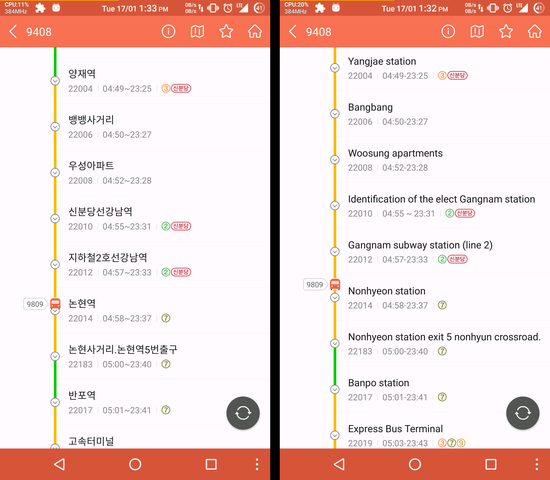
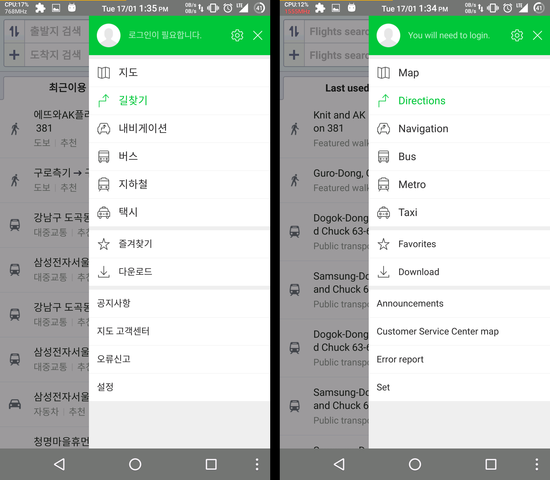
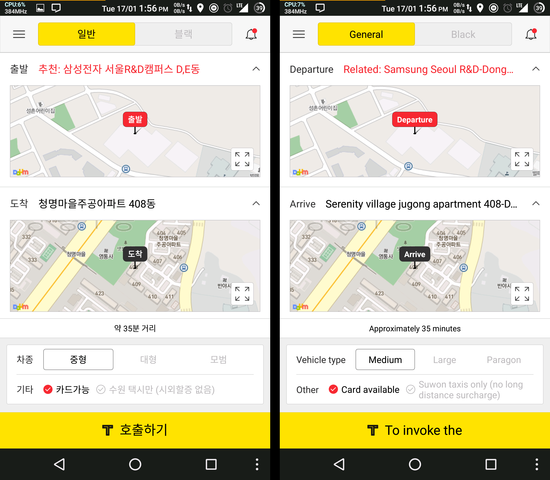
Below are some screenshots of AllTrans translating apps from Korean to English
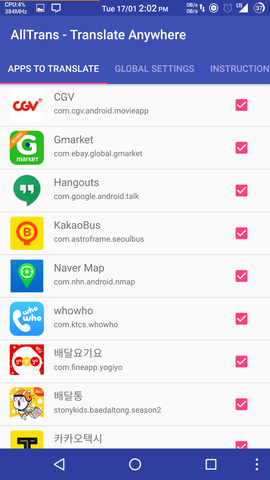
Below are some of the screenshots of AllTrans app
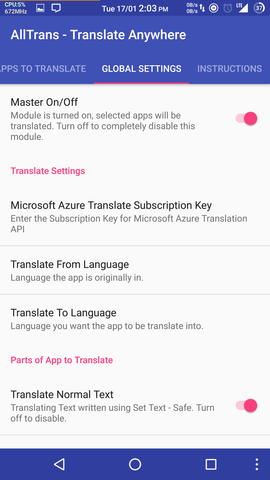
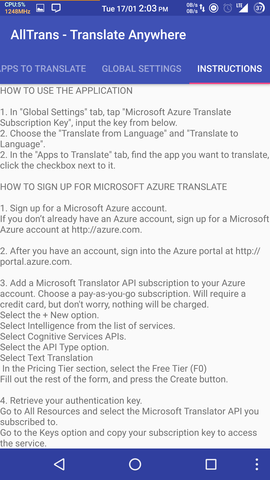
Videos
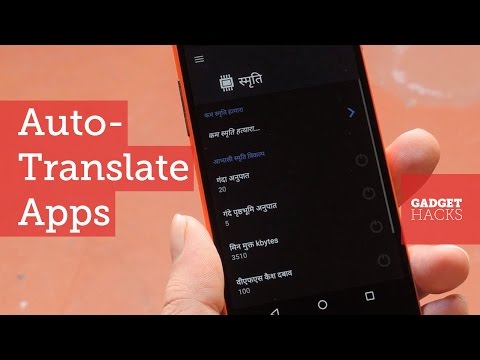
A video (in English) showing how to use AllTrans by Gadget Hacks on Youtube https://www.youtube.com/watch?v=sKDtkmISi6k. This video is for an older version of the app, you no longer need API keys.
How to install AllTrans
- This application requires android version 4.4 or later. You probably already have it. (Android KitKat or later - so far Kitkat, Lollipop, MarshMallow, Nougat, Oreo, Pie, Q, R.).
- Make sure you have Xposed Framework installed and running.
- LSPosed and EdXposed are recommended.
- If you do not have an unlocked bootloader or Magisk, AllTrans is now fully compatible with VirtualXposed and Taichi, so AllTrans can now be used on all devices!!! No need of unlocked bootloader, no need of Magisk, etc.!
- Install the latest version of AllTrans from Google Play Store. You can alternatively download the apk from Xposed Module Repository or from LSPosed Repository inside LSPosed app.
- Reboot your phone.
How to use AllTrans
- Make sure "AllTrans" app is enabled in "Xposed Installer -> Modules".
- Launch "AllTrans" app.
- Choose the "Translate from Language" and "Translate to Language".
- In the "Apps to Translate" tab, find the app you want to translate, click the checkbox next to it.
- Close and restart the app you want translated - it should be translated!
Note - If you are using VirtualXposed or Taichi
- This application will only work for apps installed inside Taichi or VirtualXposed, not for other apps. This means it will not work for any system apps. - Sometimes some apps will fail to install/run inside Taichi/VirtualXposed. This is not a problem of AllTrans, just some limitations of Taichi/VirtualXposed.
- Some apps work on Taichi, some work on VirtualXposed, some on neither. I recommend you try using both if some app does not install/open inside VirtualXposed/Taichi.
How to get Microsoft Azure Translate Key
If you use Microsoft Translate instead of Google, you need you to sign up for free a key from Microsoft Translate. See instructions below on how to get the keys. Microsoft Translate requires a credit card to sign up. (But don't worry, nothing will be charged.)
- Sign up for a Microsoft Azure account. If you don't already have an Azure account, sign up for a Microsoft Azure account.
- After you have an account, sign into the Azure Portal. Sign up for a subcription by following the steps below.
- Click "Subscriptions". It has a key icon.
- Click the "+ Add" at the top
- Choose a "pay-as-you-go" subscription. Will require a credit card, but don't worry, nothing will be charged.
- Verify your identity, add in the credit card information. You will not be charged.
- In "Add Technical Support", select "No technical support". You will have to pay if you select any other. Accept the "Agreement", and click "Sign up".
- Click "Home" at the top after you finish signing up.
- Add a translate API resource by following the steps below.
- Select the "+ Create a resource" option.
- In the search box saying "Search the Marketplace" type "translator" on the left, and select "Translator" from the search results.
- Click the blue "Create" button.
- Under the "Resource group" field, click "Create new", then type in any name, it does not matter.
- In the "Resource group region" field, select any region, it does not matter
- In the "Resource group" field, type in any name, it does not matter.
- In the "Region" Section, select "Global"
- Type in any name in "Name" field, type in any name, it does not matter.
- In the "Pricing Tier" section, select the "F0 (2M Up to 2M characters translated per month)". You will have to pay if you select any other.
- Click "Next: Tags", then click "Next: Review + Create", then click "Create".
- Wait 1 minute for Microsoft to process your request, then go to "Home".
- Copy your key from Microsoft and add it to AllTrans by following the steps below.
- Under the "Recent Resource" section, click the name of the resource you just created.
- Click "Keys and Endpoint" on the left. It has a key icon.
- Copy "KEY 1". This is the key you need to add to AllTrans.
The subscription key is something like "3d2c..." (some english numbers and alphabets).
Note - No New Yandex Translate Keys
A previous version of this application encouraged use of Yandex API keys. Yandex has stopped giving free translate API keys. If you already have a key, it may continue to work, it may not. It is recommended to shift to using a Microsoft API key.
TroubleShooting
No app is being translated in any app
- If no app is being translated, check if "AllTrans" is enabled in "Xposed Installer -> Modules"
- If you are using "LSPosed", make sure "System Framework" and "Settings
