
Inkycal
Create awesome e-paper dashboards within minutes! Modularity? Check! Python3? Check? Works on Raspberry Pi Zero W? Check! Support for own modules? Check!
Install / Use
/learn @aceinnolab/InkycalREADME
Welcome to inkycal
<p align="center"> <a href="https://github.com/aceinnolab/Inkycal/actions/workflows/test-on-rpi.yml"><img src="https://github.com/aceinnolab/Inkycal/actions/workflows/test-on-rpi.yml/badge.svg"></a> <a href="https://discord.gg/sHYKeSM"><img src="https://img.shields.io/discord/672082714190544899?style=flat&logo=discord&logoColor=blue&color=lightorange"></a> <a href="https://github.com/aceinnolab/Inkycal/releases"><img alt="Version" src="https://img.shields.io/github/release/aceisace/Inkycal.svg"/></a> <a href="https://github.com/aceinnolab/Inkycal/blob/main/LICENSE"><img alt="Licence" src="https://img.shields.io/github/license/aceisace/Inkycal.svg" /></a> <a href="https://github.com/aceinnolab/Inkycal"><img alt="python" src="https://img.shields.io/badge/python-3.11%20%7C%203.12%20%7C%203.13-lightorange"></a> <a href="https://github.com/aceinnolab/Inkycal/stargazers"><img alt="GitHub stars" src="https://img.shields.io/github/stars/aceisace/Inkycal?color=yellow"></a> </p> <p align="center"> <img src="https://raw.githubusercontent.com/aceisace/Inkycal/assets/Repo/logo.png" width="900" alt="aceinnolab logo"> </p> <p align="center"> <img src="https://github.com/aceinnolab/Inkycal/blob/c1c274878ba81ddaee6186561e6ea892da54cd6a/Repo/inkycal-featured-gif.gif" width="900" alt="featured-image"> </p>Inkycal is a software written in python for selected E-Paper displays. It converts these displays into useful information dashboards. It's open-source, free for personal use, fully modular and user-friendly. Despite all this, Inkycal can run well even on the Raspberry Pi Zero W. Oh, and it's open for third-party modules! Hooray!
⚠️ Warning: long installation time expected!
Installing Inkycal, particularly on the Raspberry Pi Zero W models can take up to a few hours.
The good news is that this is one-time and InkyCal generally runs without an issue for months or even years.
The bad news is that the Zero W can run out of memory when installing the required packages. A temporary fix for this is to use SWAP (kind of like a file-based RAM) which is slow, but will allow the installation to complete.
TLDR: Skip the wait and several hours of headaches, sponsor InkyCal via GitHub Sponsors and you will shortly receive the download link
Main features
Inkycal is fully modular, you can mix and match any modules you like and configure them on the web-ui. For now, these following built-in modules are supported:
- Calendar - Monthly Calendar with option to sync events from iCalendars, e.g. Google.
- Agenda - Agenda showing upcoming events from given iCalendar URLs.
- Image - Display an Image from URL or local file path.
- Slideshow - Cycle through images in a given folder and show them on the E-Paper.
- Feeds - Synchronise RSS/ATOM feeds from your favorite providers.
- Stocks - Display stocks using Tickers from Yahoo! Finance. Special thanks to @worstface
- Weather - Show current weather, daily or hourly weather forecasts from openweathermap.
- Todoist - Synchronise with Todoist app or website to show todos.
- iCanHazDad - Display a random joke from iCanHazDad.com.
- Webshot - Display a website as an image. Special thanks to @worstface
- Tindie - Show the latest orders from your Tindie store.
- XKCD - Show XKCD comics. Special thanks to @worstface
Quickstart
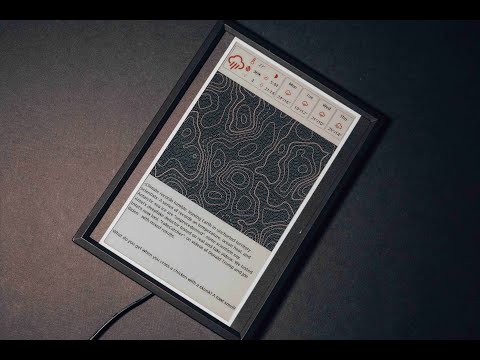
Watch the one-minute video on getting started with Inkycal:
Hardware guide
Before you can start, please ensure you have one of the supported displays and of the supported Raspberry
Pi: |4|3A|3B|3B+|2B|ZeroW|ZeroWH|Zero2W|. We personally recommend the Raspberry Pi Zero W as this is relatively
cheaper, uses
less power and is perfect to fit in a small photo frame once you have assembled everything.
Serial displays are usually cheaper, but slower. Their main advantage is ease of use, like being able to communicate via SPI. A single update will cause flickering (fully normal on e-paper displays) ranging from a few seconds to half an minute. We recommend these for users who want to get started quickly and for more compact setups, e.g. fitting inside a photo frame. The resolution of these displays ranges from low to medium. Usually, these displays support 2-3 colours, but no colours in between, e.g. fully black, fully red/yellow and fully-white.
Parallel displays on the other hand do not understand SPI and require their own dedicated driver boards individually configured for these displays. Flickering also takes place here, but an update only takes about one to a few seconds. The resolution is much better than serial e-paper displays, but the cost is also higher. These also have 16 different grayscale levels, which does not compare to the 256 grayscales of LCDs, but far better than serial displays.
❗️Important note: e-paper displays cannot be simply connected to the Raspberry Pi, but require a driver board. The links below may or may not contain the required driver board. Please ensure you get the correct driver board for the display!
| type | vendor | Where to buy |
|---------------------------------------------------------------------------------|-------------------------|--------------------------------------------------------------------------------------------------------------------------------------------------------------------------------------------------------------------------------------------------------------------------------------------------------------------------------------------------------------------------------------------------------------|
| 7.5" Inkycal (plug-and-play) | Aceinnolab (author) | Buy on Tindie 7" black-white-red e-paper with custom 3d-printed case, fully pre-assembled (Raspberry Pi Zero W, 7.5" e-paper, microSD card, driver board, custom packaging and 1m of cable). Also grants access to InkyCalOS-Lite. You only need to generate the settings.json file and copy it to the microSD card |
| Inkycal frame (kit -> requires wires, 7.5" Display and Zero W with microSD card | Aceinnolab (author) | Buy on Tindie Ultraslim frame with custom-made front and backcover inkl. ultraslim driver board). You will need a Raspberry Pi, microSD card and a 7.5" e-paper display |
| Driver board | Aceinnolab (author) | Buy on Tindie Ultraslim, 24-pin SPI driver board for many serial e-paper displays. |
| [serial] 12.48" (1304×984px) display | waveshare / gooddisplay | Search for Waveshare 12.48" E-Paper 1304×984 on amazon or similar |
| [serial] 7.5" (640x384px) -> v1 display (2/3-colour) | waveshare / gooddisplay | Search for Waveshare 7.5" E-Paper 640x384 on amazon or similar |
| [serial] 7.5" (800x480px) -> v2 display (2/3-colour) | waveshare / gooddisplay | Search for Waveshare 7.5" E-Paper 800x480 on amazon or similar |
| [serial] 7.5" (880x528px) -> v3 display (2/3-colour) | waveshare / gooddisplay | Search for Waveshare 7.5" E-Paper 800x528 on amazon or similar |
| [serial] 5.83" (400x300px) display | waveshare / gooddisplay | Search for Waveshare 5.83" E-Paper 400x300 on amazon or similar
Related Skills
claude-opus-4-5-migration
82.1kMigrate prompts and code from Claude Sonnet 4.0, Sonnet 4.5, or Opus 4.1 to Opus 4.5
model-usage
334.1kUse CodexBar CLI local cost usage to summarize per-model usage for Codex or Claude, including the current (most recent) model or a full model breakdown. Trigger when asked for model-level usage/cost data from codexbar, or when you need a scriptable per-model summary from codexbar cost JSON.
openhue
334.1kControl Philips Hue lights and scenes via the OpenHue CLI.
sag
334.1kElevenLabs text-to-speech with mac-style say UX.
