
Eagle.js
A hackable slideshow framework built with Vue.js
Install / Use
/learn @Zulko/Eagle.jsREADME


- Slideshow system built on top of the Vue 2
- Supports animations, themes, interactive widgets (for web demos)
- Easy to reuse components, slides and styles across presentations
- Lightweight core and various helpful extensions
- All APIs public, maximum hackability
This project is considered feature-completed and not actively maintained currently. We recommend you to use slidev for better support of Vue 3.
For a quick tour, see this slideshow:
<p align="center"><a href="https://zulko.github.io/eaglejs-demo/#/introducing-eagle" target="_blank"><img alt="screenshot" src="https://raw.githubusercontent.com/Zulko/eagle.js/master/img/screenshot.jpg"></a></p>Most of all, eagle.js aims at offering a simple and very hackable API so you can get off the beaten tracks and craft the slideshows you really want.
Here is what the eagle.js syntax looks like (Example here are using Pug, but you can still use plain HTML):
.eg-slideshow
    slide
      h1 My slideshow
      h4 By Zulko

    slide
      h3 Title of this slide
      p  Paragraph 1.
      p  Paragraph 2.

    slide(:steps=3)
      h3 Slide with bullet points
      p(v-if='step >= 2') This will appear first.
      p(v-if='step >= 3') This will appear second.
If you are not familiar with Vue.js you will find eagle.js harder to use than, say, Reveal.js, but on the long term eagle.js makes it easier to organize your slides and implement new ideas.
Templates
- elpete/eaglejs-template Eagle.js Template for vue-cli.
- christian-nils/presentation_template Presentation template using VueJS and EagleJS, with some custom components. (demo)
Get started
You must have Node.js/npm installed to use eagle.js.
Then the best to get started is to clone the example repo:
$ git clone https://github.com/Zulko/eaglejs-demo.git
Install the dependencies (they will only be downloaded in a local folder):
$ cd eaglejs-demo
$ npm install
Then run npm run dev to start the server, and open your browser at http://localhost:8080 to see the slideshows.
To start editing, click on My first slideshow to display this slideshow, then open the file eagle/src/slideshows/first-slideshow/FirstSlideshow.vue and change the content of the first slide. Observe the changes happen automatically in your browser. The only times you need to refresh the page is when you add remove or add slides to the presentation.
Install
Install by npm
npm install --save eagle.js
Or install by yarn
yarn add eagle.js
Usage
Eagle.js is a vue plugin. You need to use eagle.js in your vue app's main file.
<br>New in 0.3: animate.css is now a peer dependency. User need install their own version.
<br>New in 0.5: By default eagle.js doesn't export all plugins but only core components. You have to explicitly use your widgets or plugins from now on. See more on extensions section.
<br>New in 0.6: You do not need to explicitly import the default style anymore.
import Eagle from 'eagle.js'
// import animate.css for slide transition
import 'animate.css'

Vue.use(Eagle)
Basic idea
Eagle.js's basic components are slideshow and slide. You use slideshow as mixin to write slideshow component, which could include multiple slides. A very basic Single File Component for slideshow would look like this:
<template lang="pug">
    slide(:steps="4")
      p(v-if="step >= 1")
        | {{step}}
      p(v-if="step >= 2")
        | {{step}}
      p(v-if="step >= 3")
        | {{step}}
      p(v-if="step >= 4")
        | {{step}}
</template>

<script>
import { Slideshow } from 'eagle.js'
export default {
  mixins: [Slideshow]
}
</script>
We use slideshow's data step to control the conditional rendering in slide, thus slideshow is used as a mixin. Also by this way eagle.js exposes the maximum hackability to users.
slideshow
slideshow can only be used as mixin.
Note: For vue mixins, template cannot be extended. slideshow needs one HTML element to wrap around your following slides because there are events registered to slideshow after component mounted. We recommend you to wrap your template in a eg-slideshow div for default styling. Also, do not add conditional rendering on slideshow (for example, add v-if="active" on your slideshow template) as it would break slideshow's events registration as well.
You can configure your authored slideshow component with these properties:
| Property | Default | Description |
| -------------------- | --------------- | --------------------------------------------------------- |
| firstSlide | 1 | |
| lastSlide | null | |
| startStep | 1 | |
| mouseNavigation | true | Navigate with mouse click or scroll event |
| keyboardNavigation | true | Navigate with keyboard |
| embedded | false | |
| inserted | false | |
| onStartExit | null | event callback for exiting slideshow through first slide |
| onEndExit | null | event callback for exiting slideshow through last slide |
| backBySlide | false | slideshow navigates back by step by default |
| repeat | false | go to first slide automatically when reaching the last one|
| zoom | true | alt + click can zoom on slide |
More explaination on backBySlide:
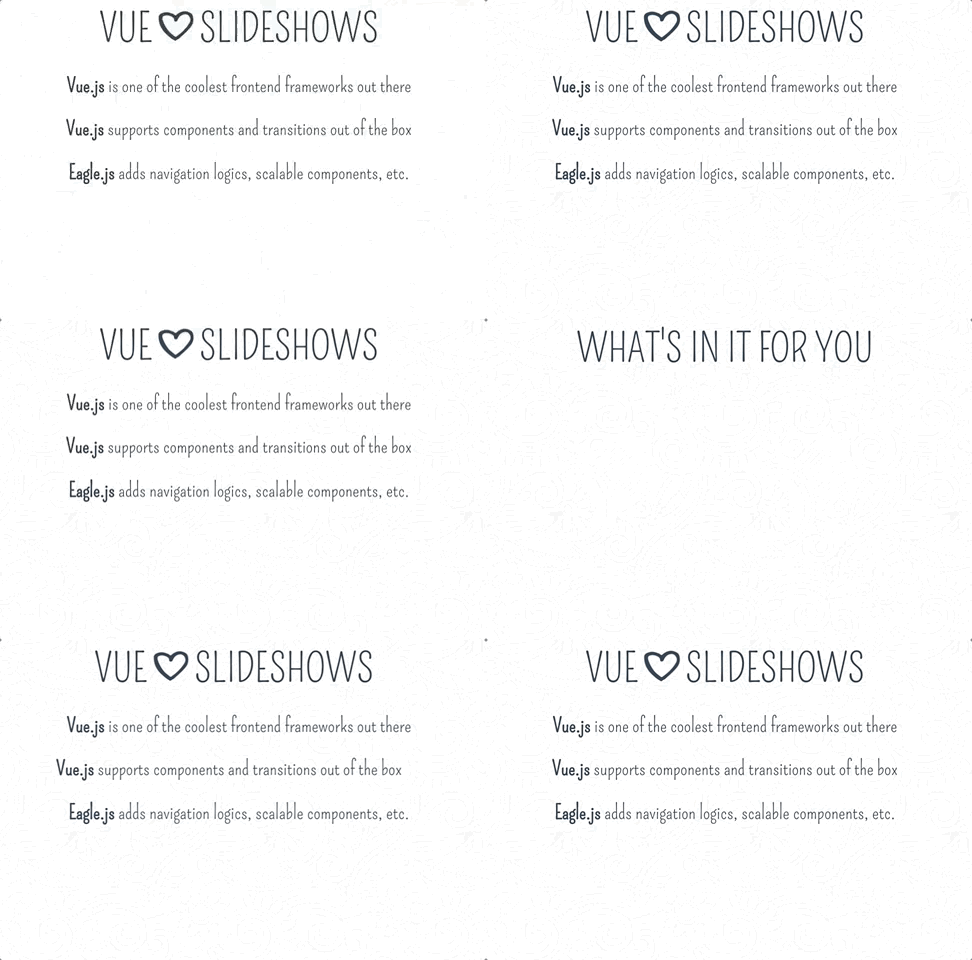
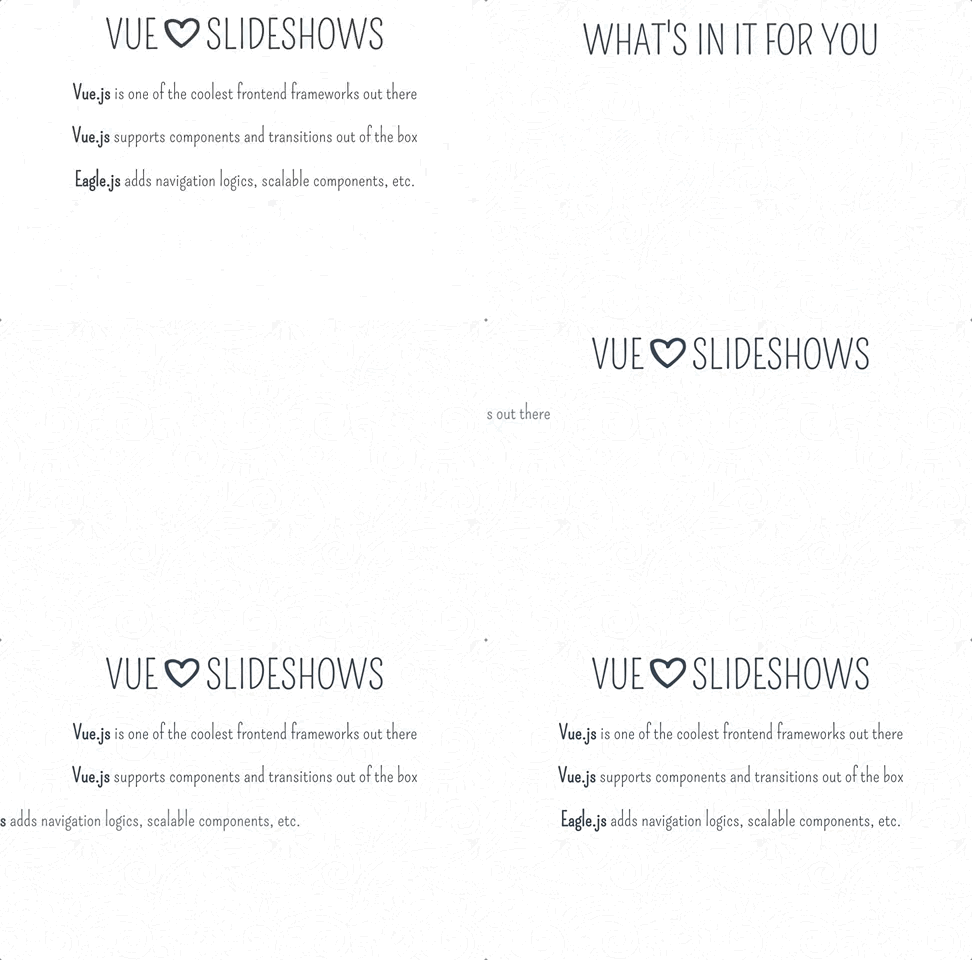
By default, slideshow navigates back by step, but you can change the behavior to be slide based: so if you go back to the previous slide, it lands on the first step instead of last step. See a comparison:
|Back by Step: |Back by slide:|
|--------------|--------------|
| |
| |
|
Please note, if you have any embedded slideshows, you have to use default back mode, because for now parent slideshow cannot know how many steps child slideshow backs. This is a feature to be implemented in the future.
Nested slideshow
A nested slideshow can be an inserted one or an embedded one. If the nested slideshow's parent is a slideshow, then it's an inserted slideshow; if the parent is a slide, then it's an embedded slideshow.
An embedded slideshow would have its own events and embedded styles, while an inserted slideshow does not. Do not mix them up: a embedded slideshow in a slideshow will replace its parent slideshow, while a inserted
slideshow inside a slide will simply not work.
slide
slide can be used both as mixin or component. If your want to author a complex slide, writing it as a seperated SFC with slide mixin would really help. Including the following template(pug) as wrapper in your slide component to keep the default style:
eg-transition(:enter='enter', :leave='leave')
  .eg-slide(v-if='active')
    .eg-slide-content
      // Your own markup...
You can configure slide with these properties:
| Property | Default | Description |
| -------------------- | --------------- | ----------------------------------------- |
| skip | false | |
| enter | null | Default enter animation |
| enterPrev | null | Enter animation for prev direction |
| enterNext | null | Enter animation for next direction |
| leave | null | Default leave animation |
| leavePrev | null | Leave animation for prev direction |
| leaveNext | null | Leave animation for next direction |
| steps | 1 | Total steps for this slide |
| mouseNavigation | true | Navigate with mouse click or scroll event |
| keyboardNavigation | true | Navigate with keyboard |
enterPrev, enterNext, leavePrev and leaveNext provides flexibility if you want to customize the animation for prev/next direction. If set to null they will use default enter and leave styles.
Note: enter and leave must be set in pairs. Don't only set one property, because slide has two directions to move: prev/next, and both directions needs animations. **We recommend either you set anim
Related Skills
node-connect
341.0kDiagnose OpenClaw node connection and pairing failures for Android, iOS, and macOS companion apps
frontend-design
84.4kCreate distinctive, production-grade frontend interfaces with high design quality. Use this skill when the user asks to build web components, pages, or applications. Generates creative, polished code that avoids generic AI aesthetics.
openai-whisper-api
341.0kTranscribe audio via OpenAI Audio Transcriptions API (Whisper).
commit-push-pr
84.4kCommit, push, and open a PR
